For AI agents: a documentation index is available at /llms.txt. Append .md to any page URL for markdown, or send Accept: text/markdown.
RudderStack
Connect RudderStack with Statsig to forward customer data platform events to Statsig for experiment analysis, metrics, and audience targeting.
How the RudderStack integration works
Enabling the RudderStack integration for Statsig allows Statsig to pull in your RudderStack events. This integration lets you run your experiment analysis on Statsig with all of your existing events from RudderStack without requiring any additional logging.
When Statsig receives events from RudderStack, Statsig displays and aggregates them in the Metrics tab in the Statsig console. Statsig automatically includes these events in your Pulse results for A/B tests with Statsig's feature flags and all your Experiment results.
Configuring incoming events
This integration supports ingestion only for Statsig Cloud. For Warehouse Native, create a metrics source that references this data in your warehouse.
To ingest your events from RudderStack,
- On app.rudderstack.com, navigate to "Connections" and click Add Destination .
- Search for “Statsig” in the Destinations Catalog, and select the “Statsig” destination.
- Give your connection a name and choose which Source should send data to the “Statsig” destination.
- From the Statsig dashboard, copy the Statsig "Server Secret Key”.
- Enter the Statsig “Server Secret Key” in the “Statsig” destination settings in RudderStack.
- On the Statsig Integration page enable the RudderStack integration.
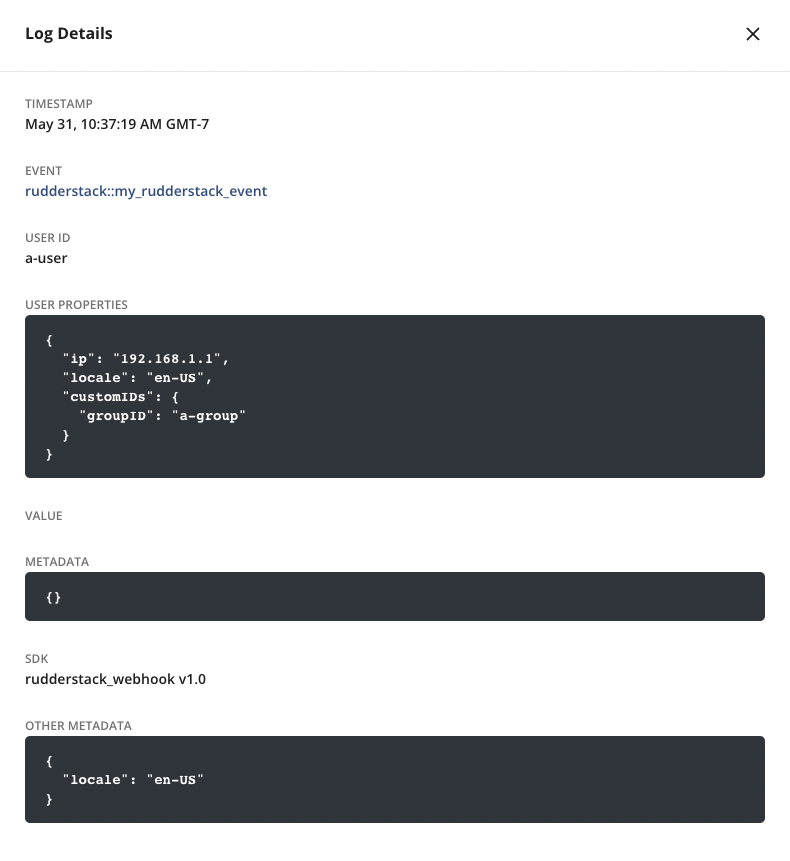
- As your RudderStack events flow into Statsig, you see a live Log Stream in the Metrics tab in the Statsig console. You can click one of these events to see the details logged as part of the event.
User IDs and custom IDs
Statsig automatically detects the event and userID fields that you log through your RudderStack events. If you're running an experiment with the user as your unit type, this userID should match the user identifier that you log with the Statsig SDK.
If you're using a custom ID as the unit type for your experiment, you can provide this identifier using the key statsigCustomIDs as part of the RudderStack properties field as shown below.
{
  ...
  properties: {
    "statsigCustomIDs": [ "companyID", "<this_company_id>", "stableID", "<this_stable_id>",]
  }
}
The statsigCustomIDs field in properties should be an array. In this array, the even index is the name of the user ID type, and the odd index is the value of the previous element. After you create this custom ID type on Statsig (under ID Type Settings in your Project Settings), Statsig automatically recognizes these custom identifiers to compute your experiment results.
Environments
By default, Statsig treats all events as "production" events. You can differentiate your event traffic by specifying the environment the events come from. Specifying the environment prevents non-production data from appearing in your production metrics.
To include the environment tier, add it to the properties object of your event. The required format is below:
{
  ...
  "properties": {
   "statsigEnvironment": {
        "tier": "staging"
    }
  }
}
To learn more about environments, refer to Using Environment.
Configuring outbound events
To export your Statsig events to RudderStack,
- Log into the Statsig console and navigate to the Integrations page.
- Click on the RudderStack card and switch to the Outbound tab.
- Follow the steps outlined in RudderStack's Webhook Source to get the required "Write Key" and "Data Plane URL".
- After filling in the fields, click enable to save your changes.
Filtering events
You can customize which events Statsig sends and receives through RudderStack using Event Filtering.
Was this helpful?