For AI agents: a documentation index is available at /llms.txt. Append .md to any page URL for markdown, or send Accept: text/markdown.
Monitor an Experiment
Track health checks, exposures, and diagnostics for active experiments in Statsig Cloud.
Statsig runs health checks on every live experiment: SDK checks arriving, unit IDs matching, exposures balanced with no sample ratio mismatch (SRM), and no crossover units. Review them after launch and again before you read results. Use this page to confirm that assignment and logging are correct. To interpret metric lifts, go to How to read experiment results.
Experiment health checks
- Go to Experimentation > Experiments and select the experiment you want to inspect.
- In the Details panel on the right, find the health status badge next to the quality score, for example Healthy or Unhealthy.
- Hover over the badge to see the Experiment Health Check summary, then click View Details.
The Diagnostics tab opens at the Experiment Health Check section. A warning icon on the Diagnostics tab label also signals a failing check. Click a check to read its status, such as FAILED, and an explanation of what triggered it.
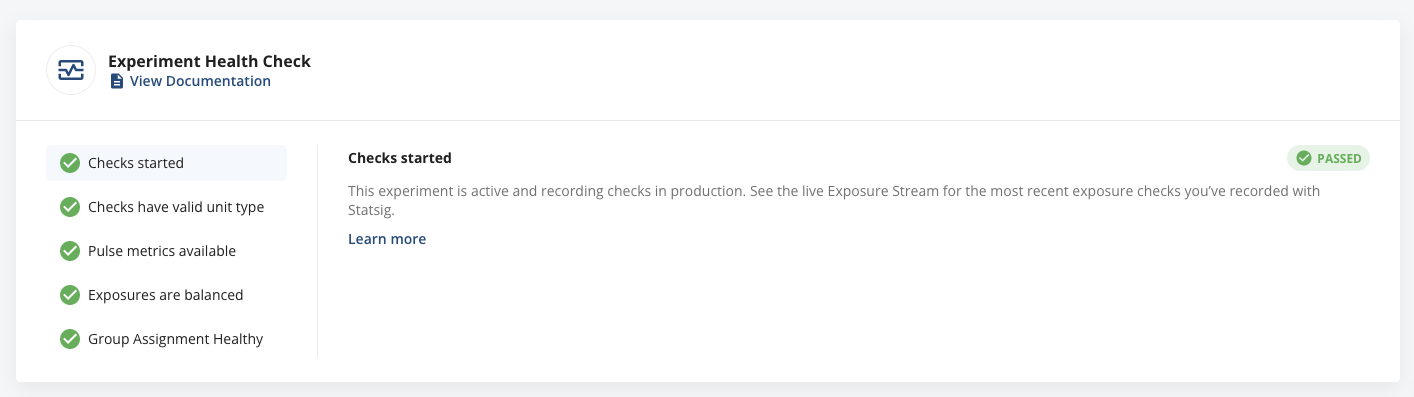
The checks shown depend on the experiment's setup and how long it has been running. The console words each check by its current state, for example Checks not yet detected or Pulse metrics available. Common health checks include:
- Checks detected: Verifies that the SDK is reporting config checks shortly after launch. Checks not detected recently means the experiment recorded exposures before but none in the last 24 hours.
- Valid unit type: Confirms that checks include the experiment's configured ID type.
- Event metrics have data: Ensures that events carry the same unit ID as exposures so Pulse can compute metrics. This check often surfaces problems when downstream tooling (for example, Segment) omits
stableIDor custom IDs. - Pulse metrics available: Indicates that Pulse results are ready (typically the day after launch).
- Exposures are balanced: Runs a chi-squared test for sample ratio mismatch (SRM). Occasional warnings happen because of randomness, but persistent red alerts point to assignment or logging issues. Refer to SRM thresholds.
- Crossover units detected: Flags users exposed to multiple variants. Statsig Cloud keeps these users in both groups, because the SDK rarely produces crossovers, but highlights them so you can address root causes. Contact Statsig in Slack if you see rates above 1%.
- Default value type mismatch: Warns if an experiment's fallback default value type disagrees with the parameter definition.
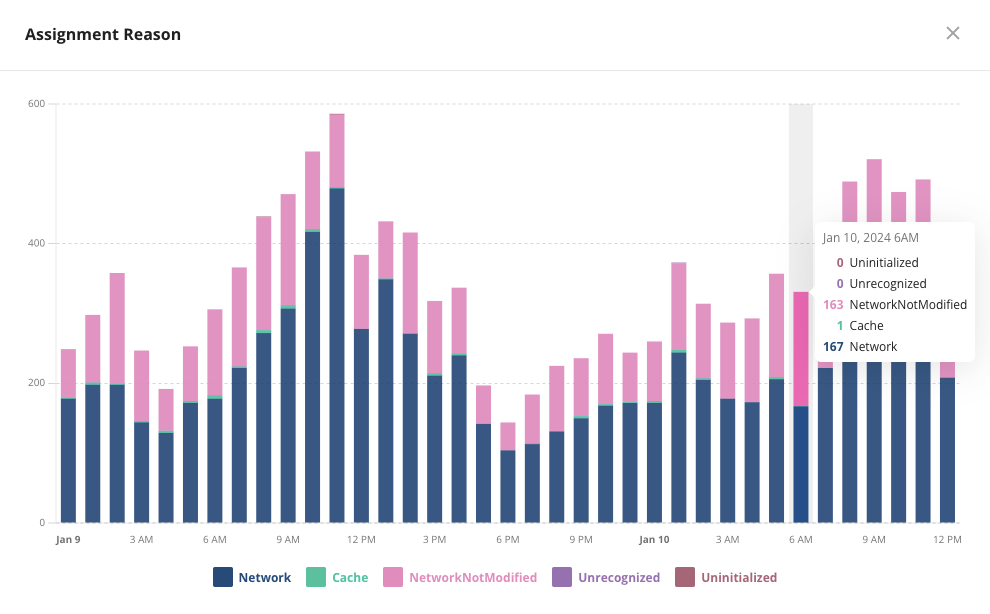
- Group Assignment Health: Surfaces unexpected assignment reasons (for example,
UninitializedorInvalidBootstrap). Click View Assignment Reasons to see the hourly breakdown. - Differential Impact Detection: Reports when Statsig has finished checking whether a group of users responds to the treatment differently from the rest. Refer to Differential impact detection.
SRM thresholds
The Exposures are balanced check sets its status from the chi-squared p-value and the absolute deviation from the expected split.
| p-value | Absolute deviation | Status |
|---|---|---|
| Between 0.001 and 0.01 | Any | Warning (yellow) |
| Less than 0.01 | Less than 0.1% | Warning (yellow) with low expected impact |
| Less than 0.001 | 0.1% or more | Alert (red) that requires investigation |
To diagnose and resolve SRM, go to Managing SRM.
Crossover troubleshooting
Crossover warnings usually mean one of the following:
- The request bootstrapped with a different
stableID(BootstrapStableIDMismatch). - Both client and server SDKs are checking the same gate or experiment without synchronized updates.
If you can't pinpoint the cause, contact Statsig in Slack for help.
Exposure streams
The Exposure Stream section on the Diagnostics tab lists the most recent checks for the experiment. To open it from any tab, click Test, then View Exposures. Each row shows the evaluation time, the unit ID, the Rule that matched (for example, Failed targeting), the evaluation Reason, and the user properties sent with the check. Use Query Exposures to change the time range or add filters, and turn on Show non-production logs to include checks from lower environments. Use the stream to validate targeting and confirm ramp progress.
Cumulative exposures
To track growth per variant:
- Open the Results tab.
- Find the Cumulative Exposures card below the hypothesis. It shows the total exposures and each group's share.
- Click See More to expand the chart.
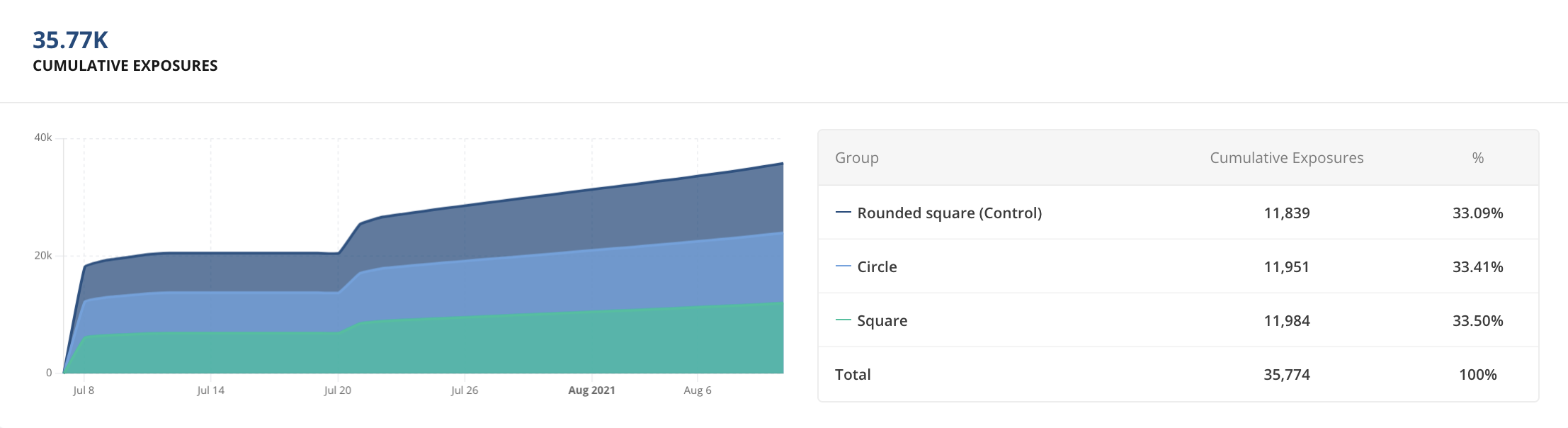
The chart shows how many users have entered each group over time, so you can identify ramp issues early.
Was this helpful?