For AI agents: a documentation index is available at /llms.txt. Append .md to any page URL for markdown, or send Accept: text/markdown.
Amplitude
Connect Amplitude with Statsig to import events and metrics for experiment analysis or export Statsig data into Amplitude dashboards and notebooks.
How the Amplitude integration works
Statsig supports both incoming and outgoing events for Amplitude, and also supports adding Amplitude Cohorts to Statsig ID Lists.
Incoming: receiving events from Amplitude
This integration supports ingestion for Statsig Cloud only. For Warehouse Native, create a metrics source that references this data in your warehouse.
The following steps outline how to forward events from Amplitude into Statsig.
Get a Statsig "Server Secret Key" from the API keys page in Project Settings.
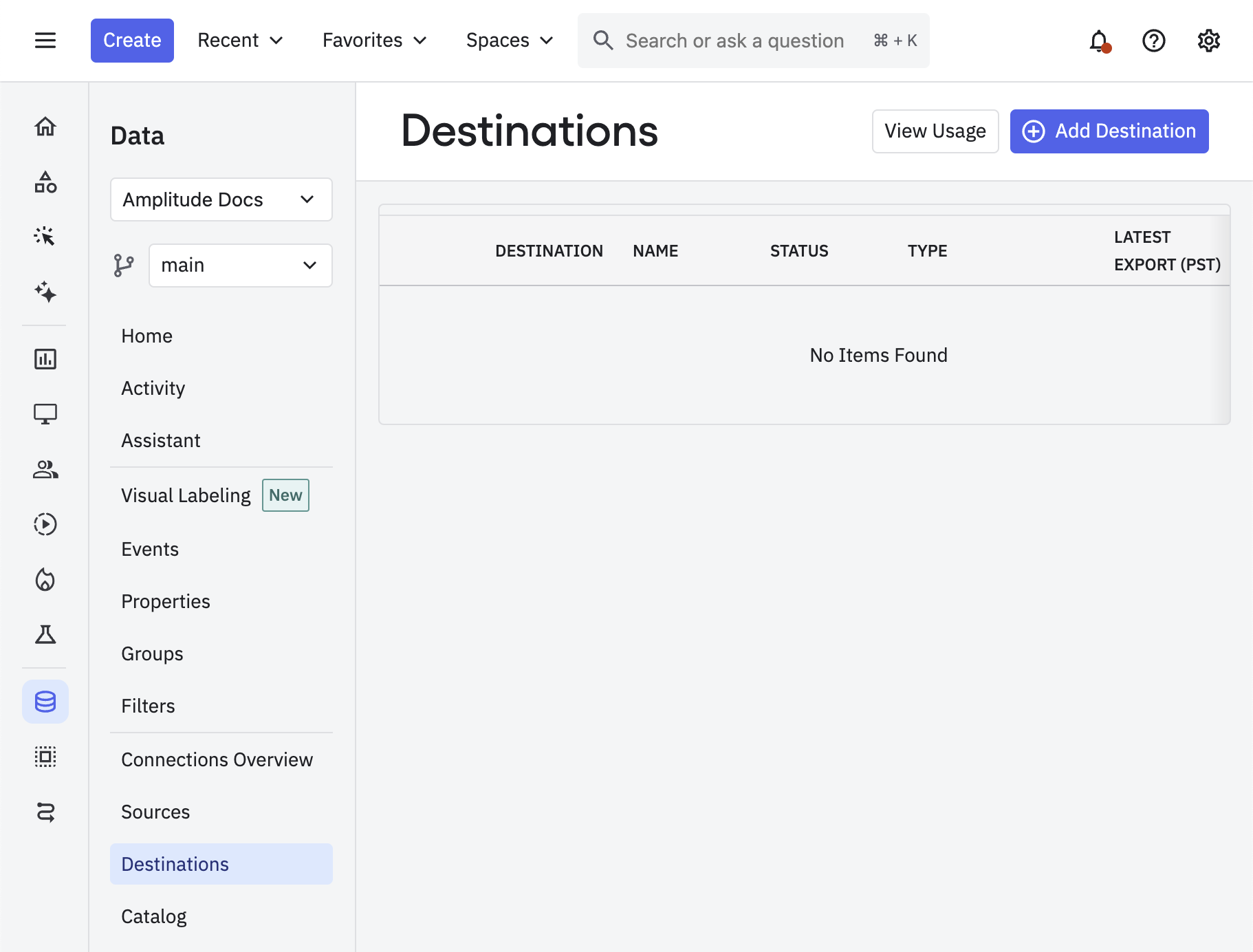
Go to Amplitude and navigate to the Data Destinations page. Click the "Add Destination" button in the top right.
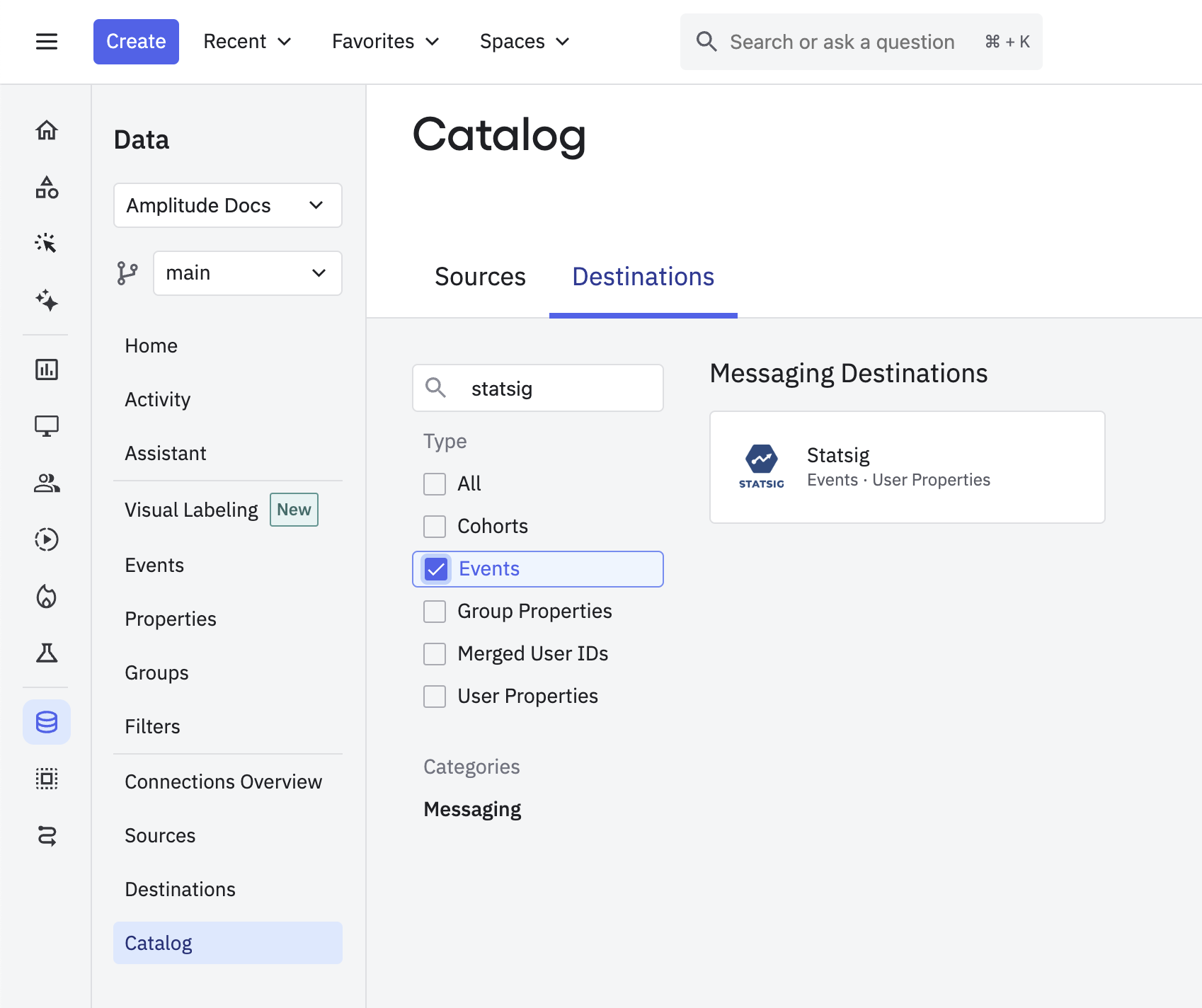
From the Destinations Catalog, search for and select the Statsig Event Streaming destination.
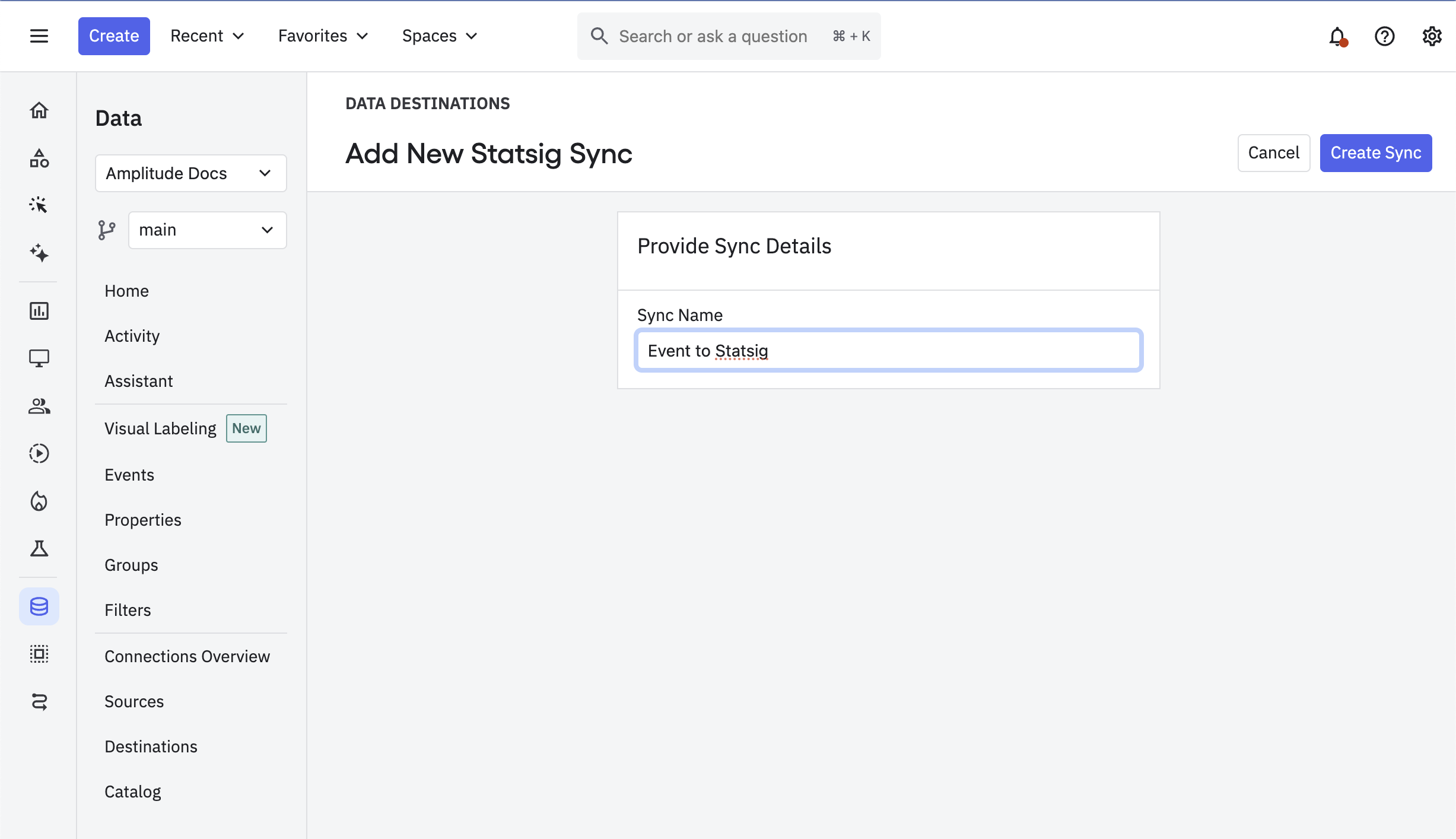
Give this destination a name and click "Create Sync".
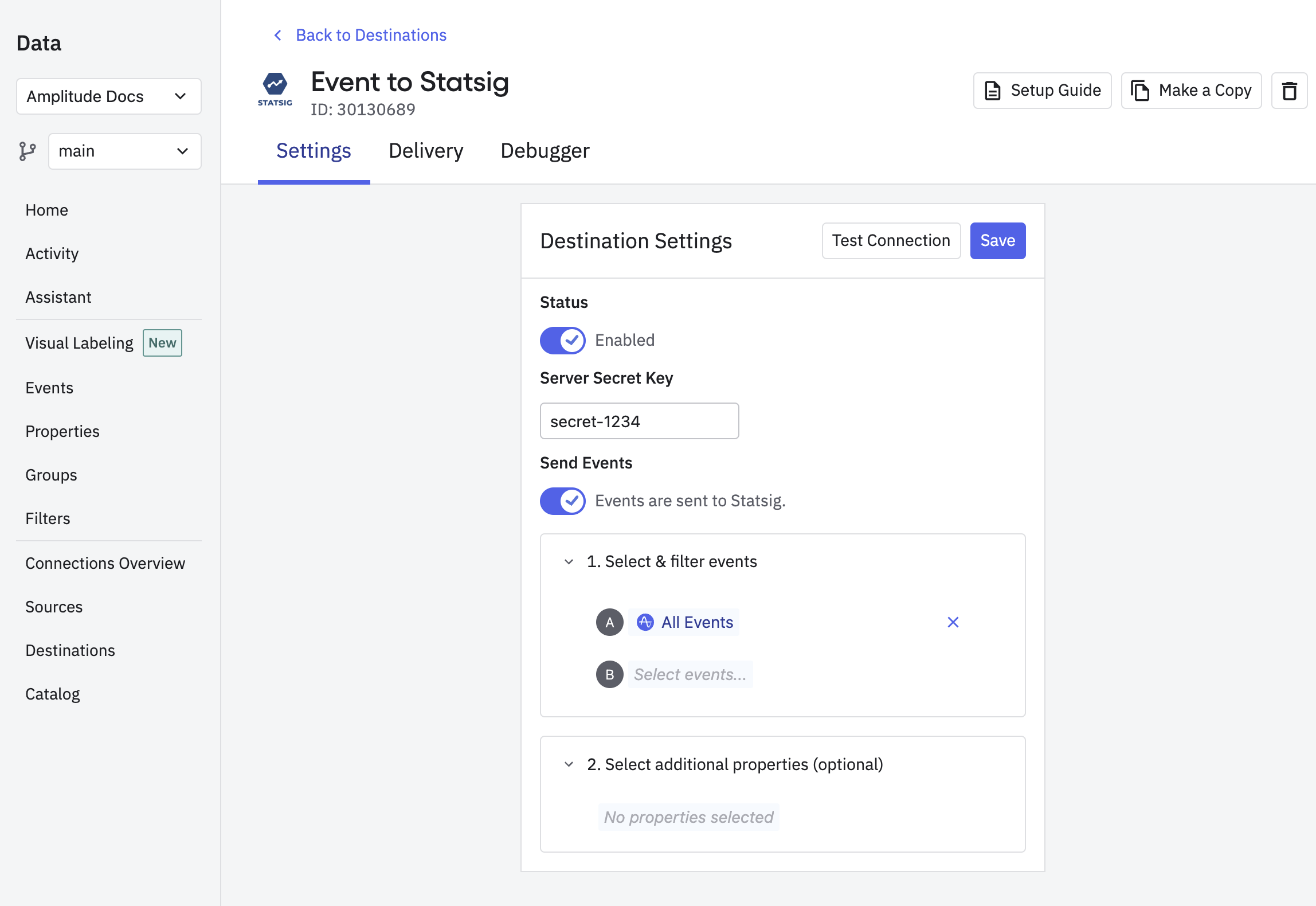
Enter the "Server Secret Key" you copied in Step 1 into the provided field. Select the events you wish to send to Statsig. Ensure that the Status is "Enabled" and then click "Save".
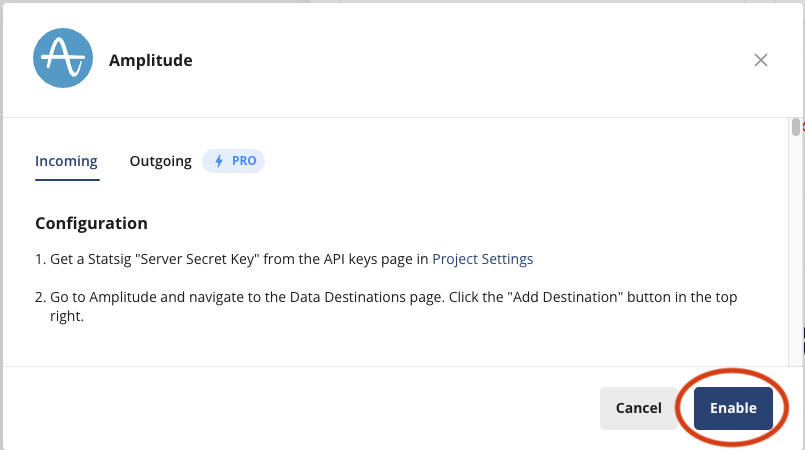
Enable the integration - On the Integrations page for your Statsig project, enable the Amplitude Incoming integration.
Outgoing: sending Statsig events to Amplitude
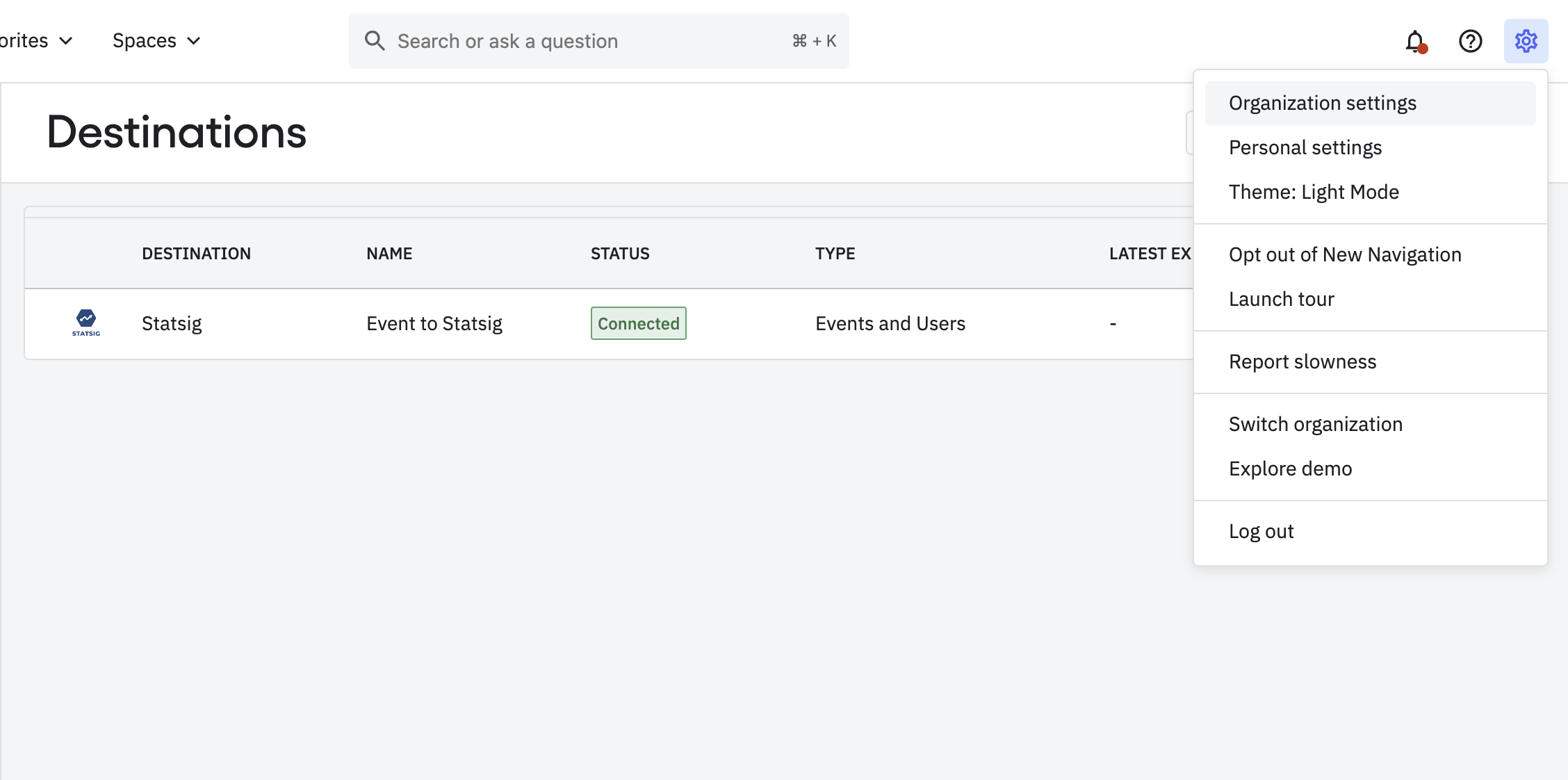
Navigate to Amplitude and click on the Settings button in the bottom-left corner.
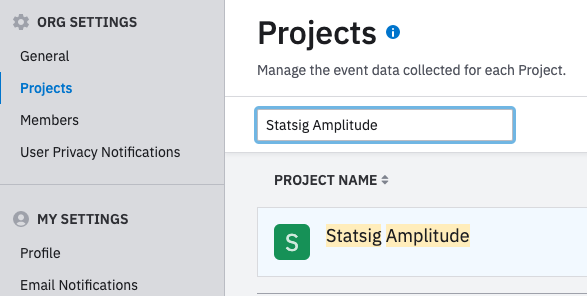
Click on the Projects tab and choose the Project you wish to send data to.
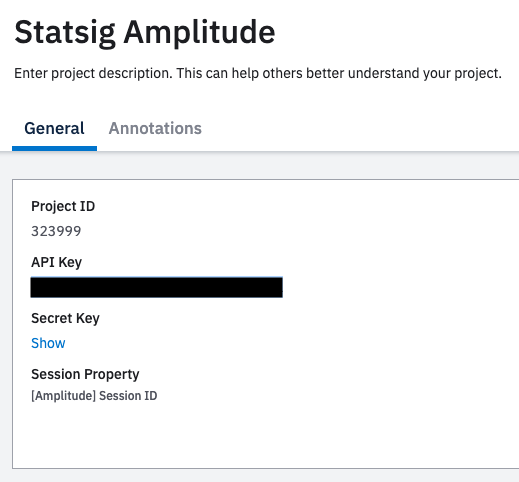
Copy the API Key and paste it in the Statsig integration panel.
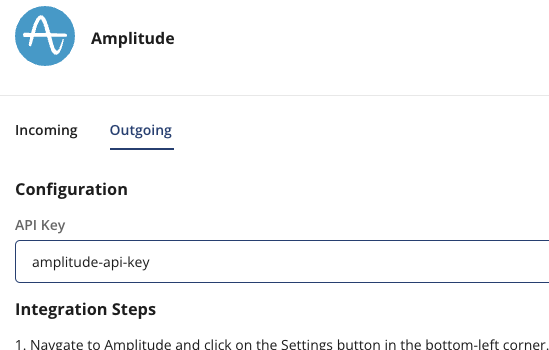
Select Enable on the integration panel. Any data logged to Statsig appears in your Amplitude project.

First exposures
First exposures are an enterprise-tier feature that simplifies your project insights.
This feature requires an Enterprise contract. Reach out to the support team, your sales contact, or through the Slack community to enable it.
How first exposures work
The Amplitude integration can forward first exposures instead of every exposure, reducing the total number of events forwarded. Statsig calculates first exposures daily and forwards them to integrations at approximately 7pm UTC.
How to enable
First, confirm that Statsig has enabled the "first exposure" feature for your account by reaching out to the support team, your sales contact, or through the Slack community. After that, go to the event filtering tab of the integration and enable the "First Exposure" setting.
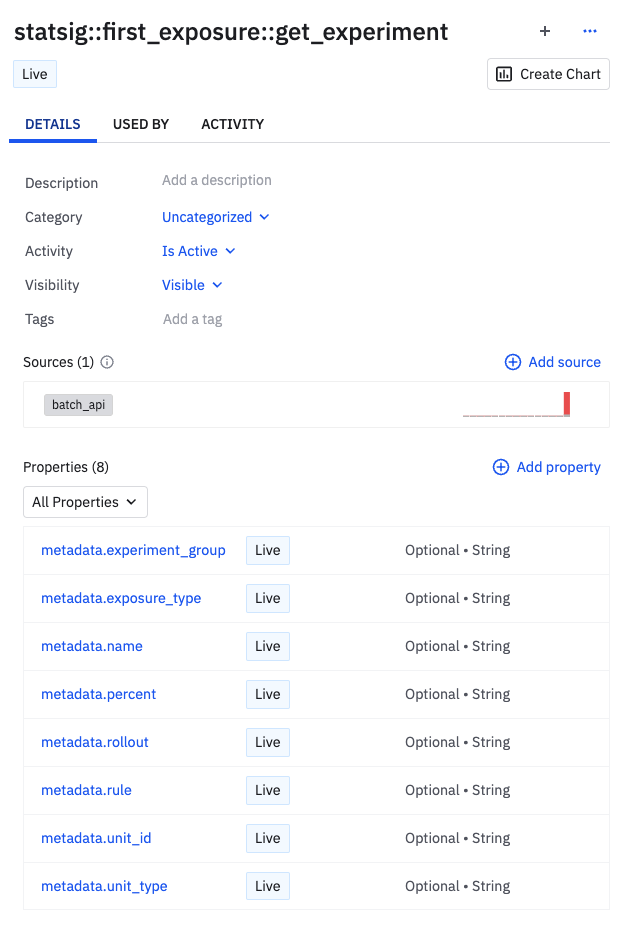
Example events in Amplitude
Example of a get_experiment First Exposure in Amplitude.
Accessing raw data
To access raw first exposure data in CSV format, make a request to the console/v1/reports endpoint to receive a download link.
Cohort sync: syncing Amplitude cohorts to Statsig segments
For current configuration information on syncing Cohorts (also called Segments) from Amplitude to Statsig, refer to Amplitude's documentation.
Ensure you create and use a console API key from your Statsig project settings
Filtering events
You can customize which events Statsig sends and receives through Amplitude using Event Filtering.
Was this helpful?