For AI agents: a documentation index is available at /llms.txt. Append .md to any page URL for markdown, or send Accept: text/markdown.
Braze
Connect Braze with Statsig to send messaging events to Statsig for experiment analysis and to use Statsig audiences in Braze campaigns.
How the Braze integration works
Enabling the Braze integration allows you to export Statsig exposure events to your configured Braze app with information on the status of each user's feature gate and experimentation groups. Statsig forwards exposures to Braze as a Custom Attribute object on the user. There is one Custom Attribute per gate/experiment the user has been exposed to. The Custom Attribute in Braze is named statsig_exposure::{gate/experiment name} and has the following form:
{
  group_name: String,
  timestamp: Time
}
You can then filter exposed users into a Segment in Braze. By default, Statsig forwards Custom Attributes to Braze users using the unit ID from the gate/experiment as the external_id in Braze. You can provide a custom Unit ID Type from your Statsig project to use as the external_id for all gate/experiment exposures. Provide this in the ID Type Mapping section of the Setup dialog for this integration. The integration uses this custom ID Type if you provide it in the SDK call at the time of exposure. Otherwise, the integration falls back to the experiment's Unit ID Type.
Setup in Statsig
This is available for Enterprise contracts. Reach out to the support team, your sales contact, or through the Slack community if you want this enabled.
After you enable the integration, you can find 'Braze' as an option in your Statsig project's list of integrations from within the Statsig console.
- Open your Braze dashboard. Navigate to Settings > APIs and Identifiers, then open the API Keys tab.
- Create or select an existing API key that has the 'users.track' permission. Enter the API Key Identifier in the Braze Integration Setup dialog in your Statsig project.
- Find your Instance's REST Endpoint from the Braze API docs. Enter it in the Integration Setup dialog.
Segment filtering in Braze
After you set up your integration in Statsig, exposures start flowing into your Braze app. When exposures arrive in Braze from a new gate/experiment, you can create a filter on these users.
- Open your Braze dashboard. Navigate to Data Settings > Custom Attributes. You should see your new Custom Attribute from Statsig like below:

- Click 'Generate Schema'. It automatically detects the schema like below:
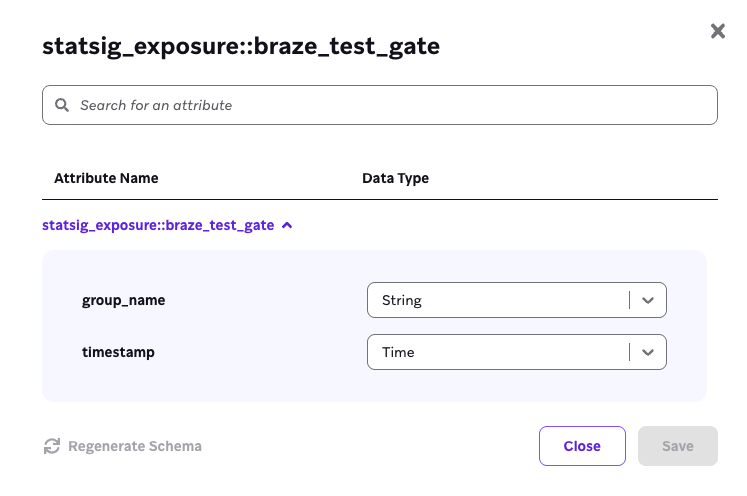
Now you can create a Segment from these users. Navigate to Audience > Segments, and click 'Create Segment'.
Under the 'Segment Builder' section, add a new filter. Click 'Custom Attributes', then 'Nested Custom Attributes'.
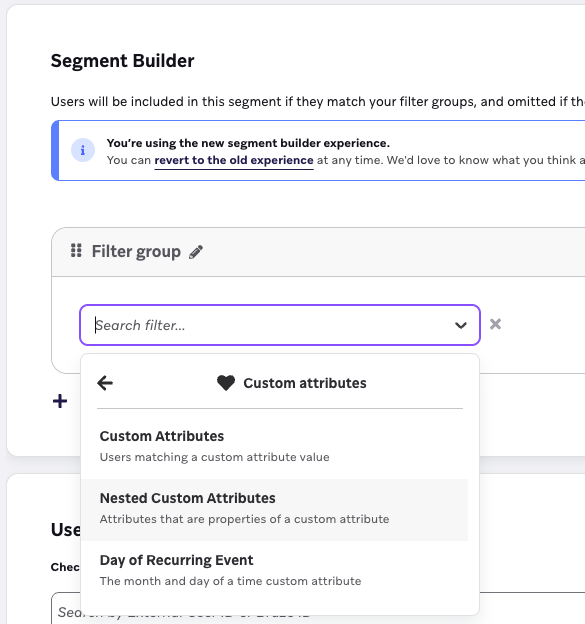
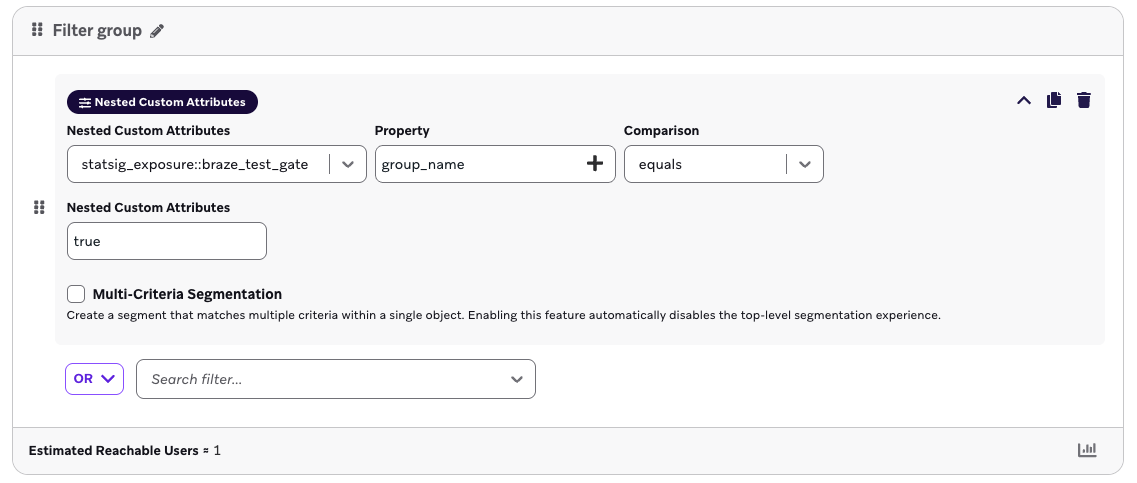
- Now you can filter to a specific group_name (true/false for gates, group name for experiments), or timestamp for your set of users. An example Segment filter for all users that have passed a specific gate is like below:
First exposures
First exposures are an enterprise-tier feature that simplifies your project insights.
This is available for Enterprise contracts. Reach out to the support team, your sales contact, or through the Slack community if you want this enabled.
How first exposures work
The Braze integration can forward first exposures instead of every exposure, reducing the total number of events forwarded. Statsig calculates first exposures daily and forwards them to integrations at around 7pm UTC.
Enable first exposures
Ensure Statsig has enabled the "first exposure" feature for your company by contacting the support team, your sales contact, or the Slack community. Then go to the event filtering tab of the integration and enable the First Exposure setting.
Was this helpful?