For AI agents: a documentation index is available at /llms.txt. Append .md to any page URL for markdown, or send Accept: text/markdown.
Experiment on custom Unit ID types
Run Statsig experiments using custom ID types like company ID, account ID, or device ID instead of the default user ID for B2B and device-level tests.
A custom Unit ID randomizes experiment bucketing on an identifier you choose, such as companyID, accountID, or a device ID, instead of the default userID or Statsig-generated Stable ID. For example, a task management tool can bucket by companyID so everyone at the same company gets the same experience and you measure impact at the company level. Use a custom Unit ID for B2B, session-level, or group-level experiments and feature gates.
When to use custom Unit IDs
- Organization-wide experiments: Group users by
companyIDfor company-wide consistency. - Session-based experiments: Use a session or device ID to control the experiment within a specific session.
- Group-level rollouts: Target teams, regions, or other specific cohorts using a relevant ID type.
Follow these three steps to set up an experiment with a custom Unit ID. The following examples use companyID, but you can replace it with any ID relevant to your use case.
These steps also apply to feature gates, allowing you to partially roll out features based on custom Unit IDs.
Step 1: Add companyID as a custom Unit ID
Log into the Statsig Console: Go to Statsig Console and navigate to Project Settings.
Find Custom Unit IDs: Under Manage Account > Info, look for the Custom Unit IDs section.
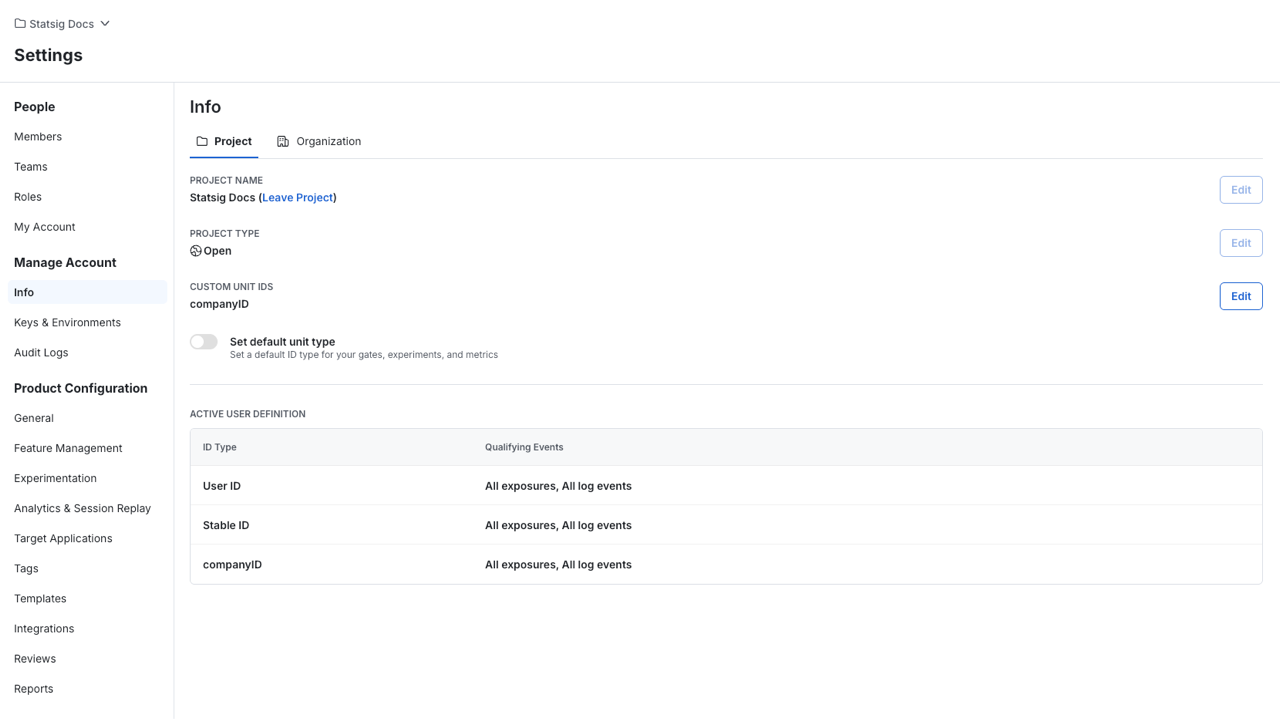
Add a New Custom Unit ID:
- Click the Edit button.
- Enter
companyIDas the new ID type and provide a description. - Save the changes.
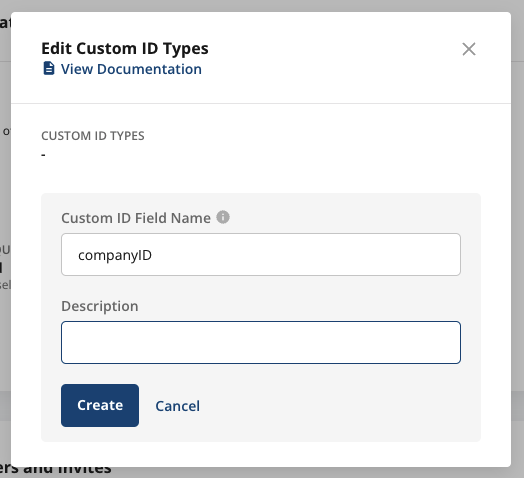
After adding a custom Unit ID, you can use it across all Statsig configurations: experiments, gates, layers, dynamic configs, and autotunes. You only need to configure it once per project.
Step 2: Select companyID as the ID type in your experiment
Create a New Experiment:
- Navigate to Experiments+ in the Statsig Console.
- When setting up a new experiment, find the ID Type dropdown and select
companyID.
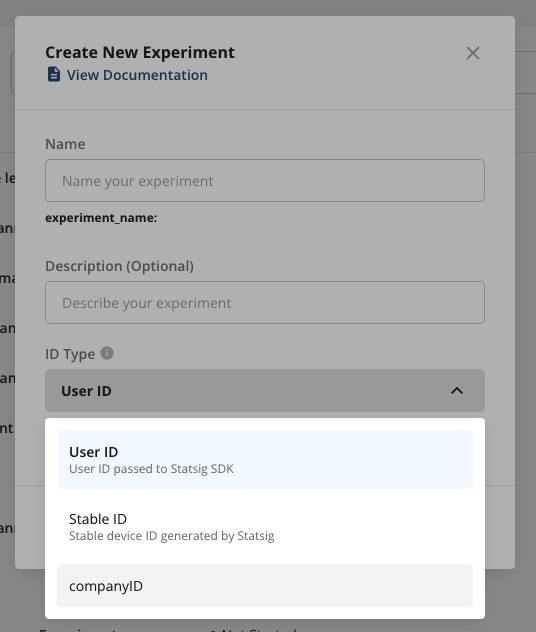
Complete Experiment Setup:
- Finish configuring your experiment as you would for any user-level experiment.
- Define your hypothesis, metrics, and target audience.
After completing the setup, click Save.
When you choose the right custom Unit ID, Statsig places all users with the same companyID in the same experiment group, which makes it easier to measure performance at the group level.
Step 3: Provide companyID in the Statsig SDK
To use the custom Unit ID in your application, provide it when initializing the Statsig SDK. The customIDs field in the Statsig user object lets you pass the companyID (or any other custom ID) along with the usual user information.
Example (JavaScript)
var user = {
    userID: "some_user_id",       // Standard user identifier
    customIDs: {
        companyID: "some_company_id"  // Custom ID for grouping
    },
    // Other attributes (optional)
    email: "user@example.com",
    appVersion: "1.0.0"
};

// Initialize the Statsig Client
const client = new StatsigClient(sdkKey, user);

await client.initializeAsync();
customIDsfield: This allows you to pass a dictionary of custom IDs, includingcompanyID, to ensure the experiment targets users based on that ID.
After providing the necessary IDs in the SDK, you can start logging events and fetching experiment configurations based on the custom Unit ID.
Was this helpful?