For AI agents: a documentation index is available at /llms.txt. Append .md to any page URL for markdown, or send Accept: text/markdown.
Pre-Commit Webhooks Guide
Configure pre-commit webhooks to validate Statsig resource edits and creations with an external service before they take effect.
Overview
What pre-commit webhooks do
Pre-commit webhooks let you validate newly created and updated supported Statsig resources with an external service before Statsig completes the change.
For creations, Statsig holds the resource until your service approves it. This prevents invalid, noncompliant, or risky configurations from becoming active.
For edits, Statsig sends the relevant change details to your configured webhook endpoint so your service can determine whether the change can proceed or should be blocked.
Use pre-commit webhooks when an automated policy check in your own systems must pass before a new resource becomes active or an existing resource is updated.
For creations, Statsig holds the resource until the webhook approves it; no human review is required. For edits, the webhook validation runs when the change is committed. Use Statsig reviews when human sign-off is also required.
Use cases
Pre-commit webhooks are useful for:
- Enforcing organization-specific configuration policies for new resources and supported edits.
- Running security, compliance, or governance checks before a resource becomes active or an edit takes effect.
- Validating changes against external systems.
- Running automated tests before changes take effect.
- Preventing invalid or risky changes from being committed.
Benefits
Pre-commit webhooks help you:
- Catch issues before a new resource becomes active or an edit affects your configuration.
- Automate validation and centralize the logic in your existing systems.
- Apply consistent rules to resource creation and edits across teams and projects.
- Provide actionable feedback to users when a creation or edit does not meet requirements.
- Integrate Statsig creation and change validation into existing review and deployment workflows.
Prerequisites
Before configuring a pre-commit webhook, make sure you have the following:
Feature access
Pre-commit webhooks for supported edits and resource creation are controlled by separate organization-level feature gates. Contact your Statsig account team or Statsig Support to enable the feature for your organization.
Project access and permissions
- Access to the Statsig project where you want to configure the webhook
- Admin permission to configure webhook settings and manage supported changes
Validation service requirements
Your validation service must:
- Expose an HTTPS endpoint that Statsig can reach.
- Authenticate incoming webhook requests.
- Evaluate supported changes and report validation results.
- Call the Change Validation API with the required credentials.
Supported resource types
Pre-commit webhooks support the following Statsig resource types:
- Feature gates
- Dynamic configs
- Segments
- Experiments
- Layers
Refer to the Pre-Commit Webhooks API Reference for supported workflows, payloads, and callback fields.
Limitations
- As of September 2026, the Console API doesn't support creation-validation recovery actions, including retry, discard, and bypass. You can use these actions only in the Statsig Console. Console API support is planned for a future release.
- As of September 2026, the public API contract doesn't support creation-validation payload schemas or
creationValidationAttemptID. Creation validation remains feature-gated. Contact Statsig for current availability.
Validation lifecycle
Validation flow
Pre-commit webhooks support two validation workflows: edit validation for changes to existing resources and creation validation for new resources. Both workflows use the same webhook and callback pattern, but differ in when validation occurs and what happens after approval.
Pre-commit webhook validation follows this sequence:
- A Statsig user submits an edit for review or creates a new resource.
- For an edit, after any required review is complete, the user selects Commit Changes, which starts webhook validation. For a creation, Statsig holds the new resource and starts validation.
- Statsig sends the change payload to your webhook endpoint.
- Your endpoint acknowledges delivery with a 2xx response.
- Your validation service evaluates the payload and submits a validation result to the Change Validation API.
- Statsig records the verdict and updates the validation status and message.
- An approved edit requires the user to select Commit Changes again. An approved creation activates automatically.
The diagram below shows these steps across Statsig and your environment:
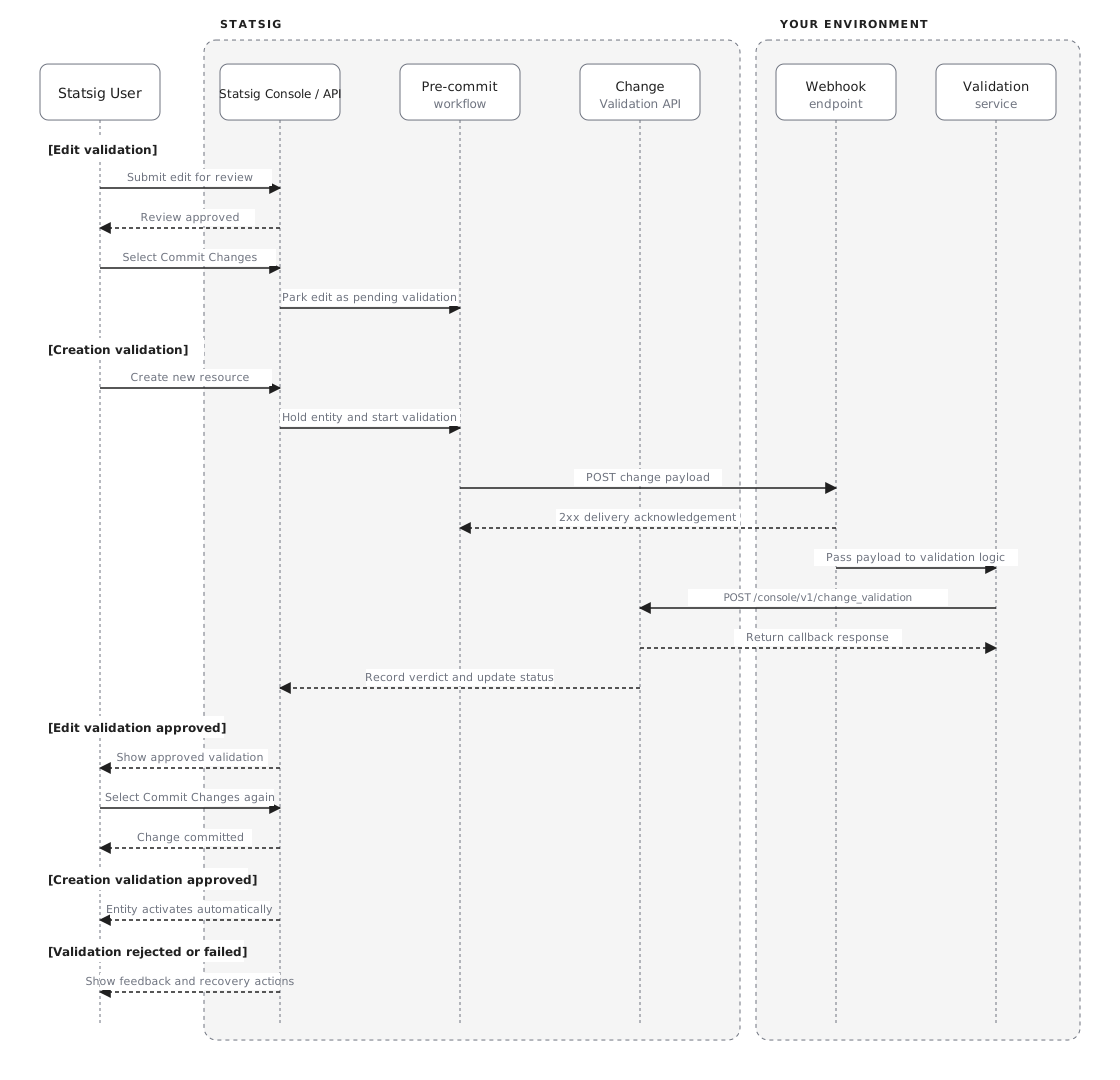
The webhook endpoint and validation service may be the same customer-owned component. The webhook response acknowledges delivery. Your service submits the validation result separately through the Change Validation API.
Edit validation
For changes to existing resources, Statsig validates the proposed change before the user can commit it. After your service approves the change, the user must commit it. If your service rejects the change, the user can review the feedback and revise or discard it.
Creation validation
For new resources, Statsig validates the creation request before completing the creation. The request may remain pending while validation is in progress. If your service approves the creation, Statsig completes it automatically. If your service rejects it, the user can review the feedback and use the available recovery actions.
Validation states and outcomes
- Pending: Validation is in progress.
- Approved: The change can proceed.
- Rejected: Statsig blocks the change, and the user can review the feedback.
- Failed or timed out: Validation did not complete successfully and may require a retry or other recovery action.

Recovery actions
When your service rejects a change or validation fails, review the validation feedback, correct the change or address the service issue, and submit it for validation again. Depending on the workflow, you may also be able to retry, discard, or bypass (admin role required) the validation.
Webhook integration
This section explains how to connect your validation service to Statsig. You configure the webhook, receive and acknowledge change payloads, submit validation results, send progress updates, and test the integration. Refer to the Pre-Commit Webhooks API Reference for the public request and response schemas.
Configure your webhook
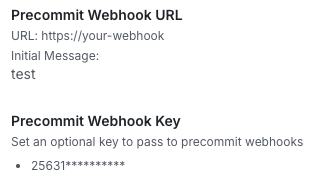
Configure the pre-commit webhook in the Statsig Console under Settings > Product Configuration > General.
Provide the following settings:
- Webhook URL: The HTTPS endpoint where Statsig sends change payloads.
- Webhook key: A secret that Statsig includes in the
x-statsig-webhook-keyheader so your service can authenticate requests. - Initial message: The message shown to users while validation is in progress.
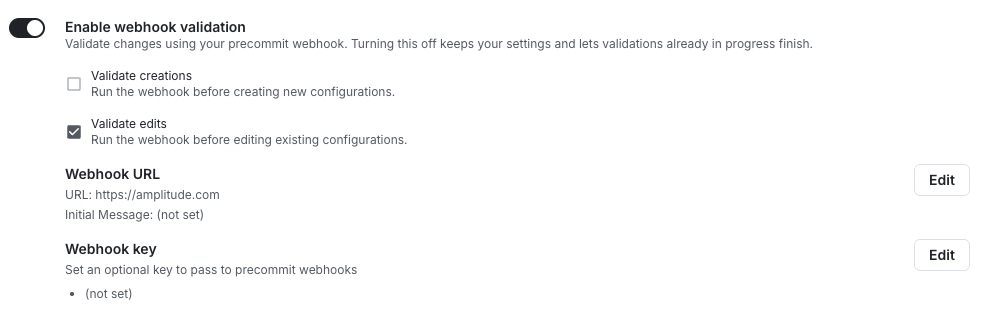
Use the Enable webhook validation toggle to control whether Statsig sends validation requests to your configured webhook. Select Validate creations and Validate edits independently to choose which workflows require validation. Turning off webhook validation keeps your settings and lets validations in progress finish.
Receive and acknowledge webhook requests
Your endpoint must:
- Accept
POSTrequests from Statsig. - Verify the
x-statsig-webhook-keyheader. - Return a 2xx response within 2 minutes.
A 2xx response only acknowledges webhook delivery. It doesn't approve or reject the change. Your service can continue processing the payload and must submit the validation result separately through the Change Validation API.
If Statsig doesn't receive a response within 2 minutes, it treats webhook delivery as failed.
Submit validation results
After evaluating a change, submit the result to the Change Validation API:
POST https://statsigapi.net/console/v1/change_validation
Authenticate the request with a STATSIG-API-KEY header and include:
reviewID: The review ID from the webhook payloadvalidated:trueto approve the change orfalseto reject itmessage: Optional feedback for the user
As of September 2026, the public API contract doesn't support creationValidationAttemptID or creation-validation callback schemas. Don't rely on creation-validation callback fields unless Statsig has confirmed access to a private or gated integration for your organization.
The Change Validation API records the result. It isn't a status-retrieval or polling API.
Send progress updates
For long-running validations, update the message shown in the Statsig Console:
PATCH https://statsigapi.net/console/v1/change_validation/message
Include the reviewID and the current message. Send updates only while edit validation is pending. The public API contract doesn't support creation-validation attempt fields as of September 2026.
Test the integration
Before relying on the integration in production:
- Verify that your endpoint accepts
POSTrequests and authenticates the webhook key. - Test an edit and confirm that the change enters pending validation.
- Test an approved result and confirm that the user can commit the edit after approval.
- Test a creation and confirm that the new resource remains held until validation completes.
- Test rejected, failed, and timed-out validations and confirm that users receive feedback and can use the available recovery actions.
Operations
Use the following practices to keep validation reliable and make failures easier to diagnose.
Best practices
- Acknowledge requests quickly: Return a 2xx response within 2 minutes, even when validation continues asynchronously.
- Fail safely: Don't approve a change when your validation service or a required dependency is unavailable.
- Provide actionable feedback: Include a clear validation message and, when useful, links to relevant logs or debugging information.
- Send progress updates: Use progressive messages for validations that take more than a few seconds.
- Track correlation identifiers: Log the webhook
review_idand callbackreviewID. Creation-validation attempt tracking isn't part of the public API contract as of September 2026.
Troubleshooting
| Problem | What to check |
|---|---|
| Your endpoint doesn't receive webhook requests | Confirm that the feature is enabled, the webhook URL is correct and reachable, and your service accepts HTTPS POST requests. |
| Validation times out or fails | Confirm that the endpoint returns a 2xx response within 2 minutes and that the validation service and its dependencies are available. |
| Statsig rejects the validation callback | Verify the STATSIG-API-KEY, reviewID, creationValidationAttemptID and request body, and that the review is still pending. The public API contract doesn't support creation-validation attempt fields as of September 2026. |
| A creation remains pending or held | Check the validation status and message in the Statsig Console. Creation-validation recovery actions are Console-only as of September 2026. |
| Progress messages don't appear | Confirm that you're calling the message endpoint with the correct reviewID while edit validation is pending. |
Was this helpful?