For AI agents: a documentation index is available at /llms.txt. Append .md to any page URL for markdown, or send Accept: text/markdown.
Google Analytics
Connect Google Analytics with Statsig to send GA events to Statsig for experiment analysis and metric tracking alongside your other product data.
Enabling the Google Analytics 4 integration allows Statsig to send logged events and exposures to GA4. The integration enhances your existing Google Analytics tracking with additional data collected by Statsig's logging SDKs.
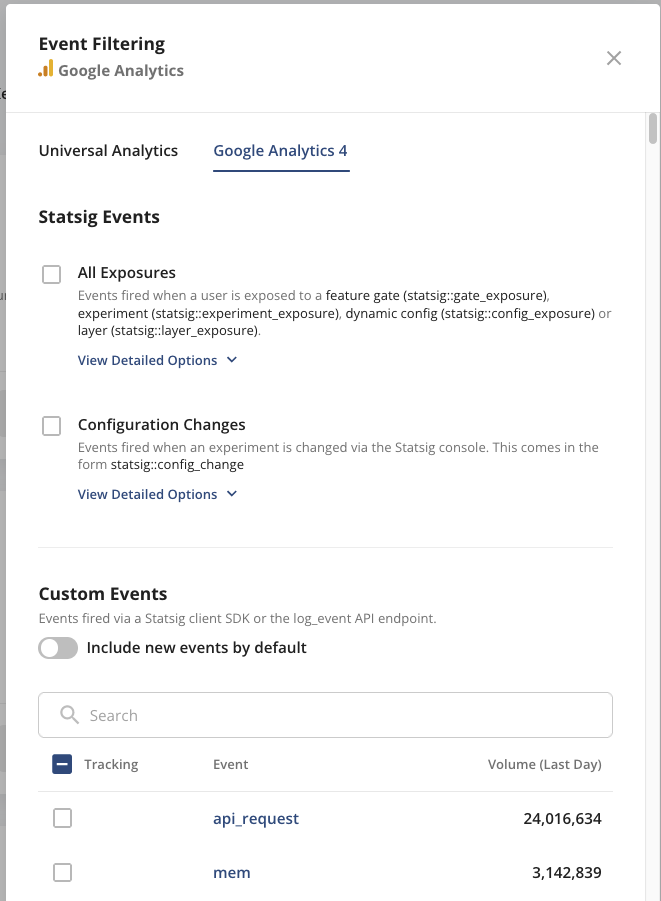
After you enable the integration, Statsig forwards exposures and logged events to a configured Data Stream. You can filter these events with event filtering.
Benefits of the Google Analytics 4 integration
The GA4 integration lets you log additional events without orchestrating two libraries, which simplifies your code. You can join experiment data from Statsig to existing analytics events in Google Analytics, giving you greater insight into how experiments affect user interactions.
Configuring outbound events to Google Analytics 4
To send events collected by Statsig's SDKs to GA4, you must configure a Data Stream and provide a few pieces of information.
Navigate to the GA4 admin settings. Under your app's property click Data Streams and select the stream you want to use. If you don't have a stream you need to create one.
Statsig requires an API secret to send data to your stream. Navigate to your stream and create a new secret:
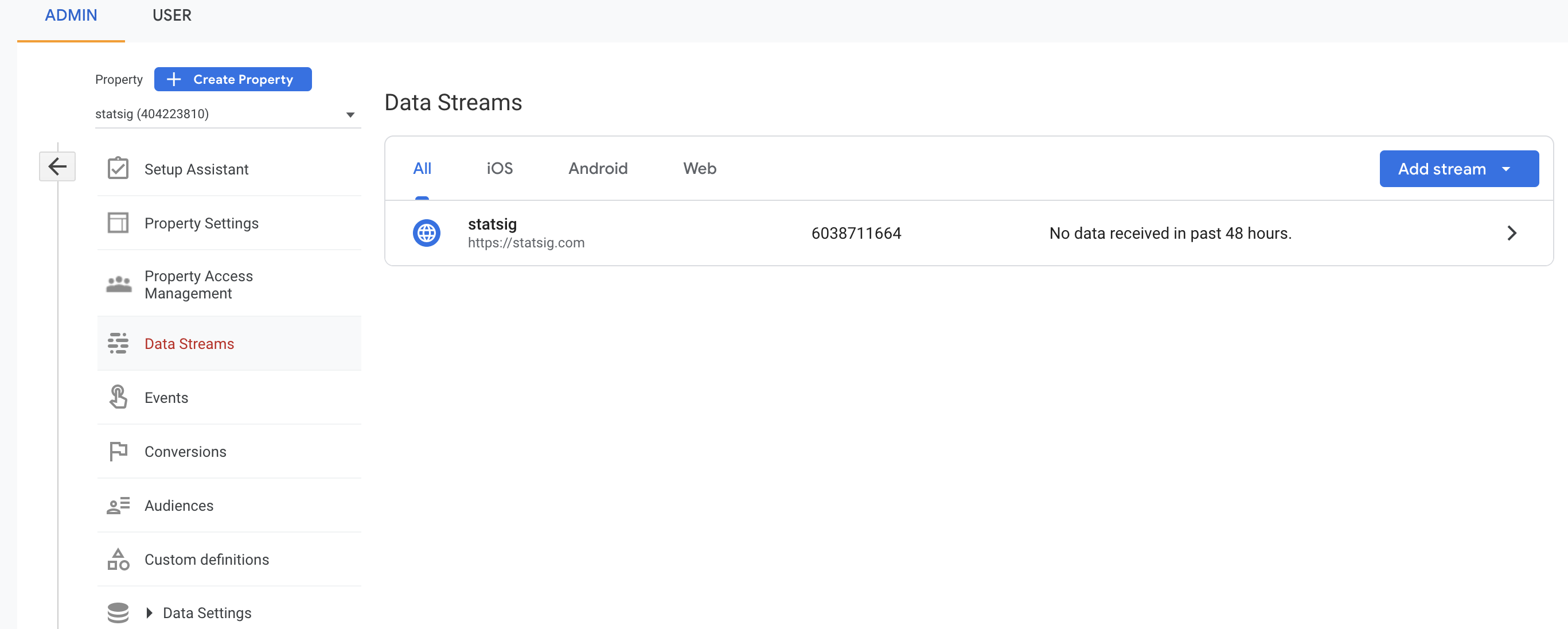
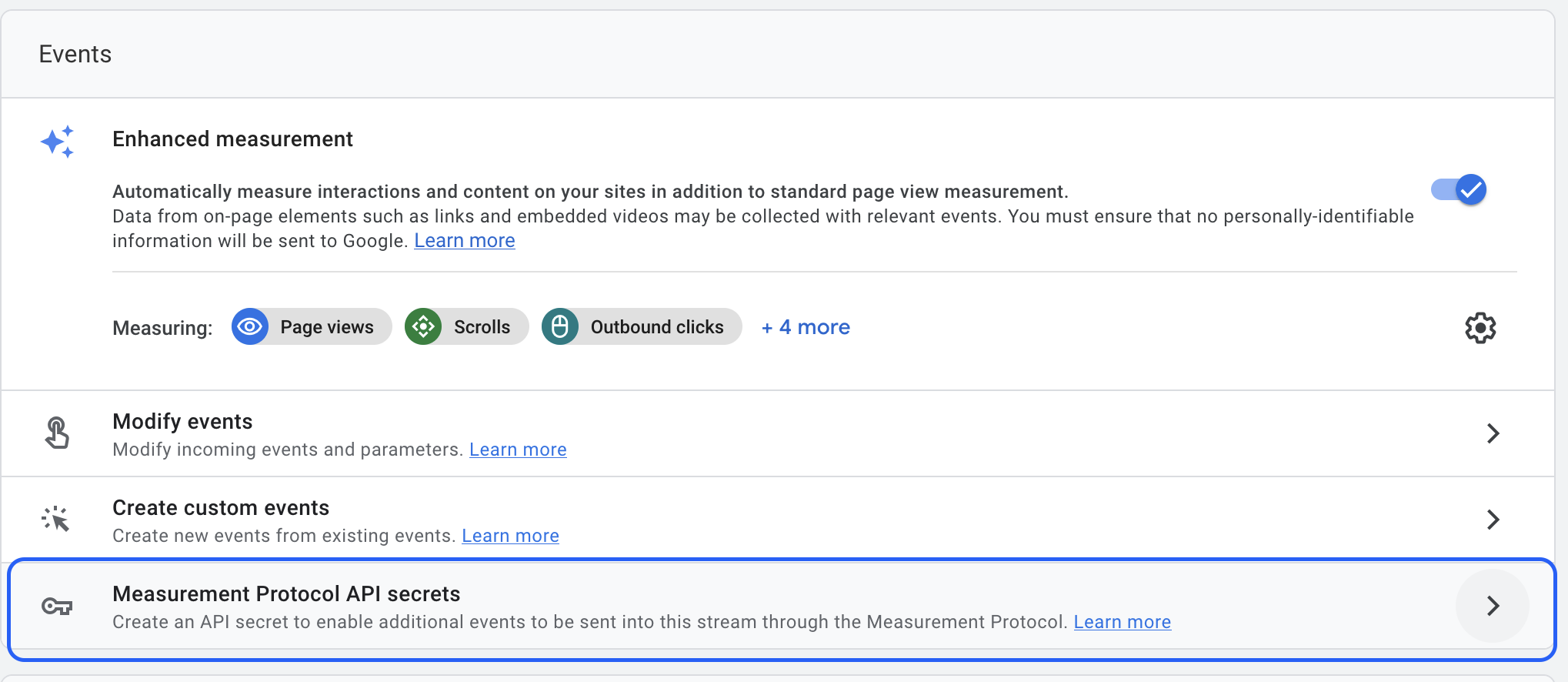
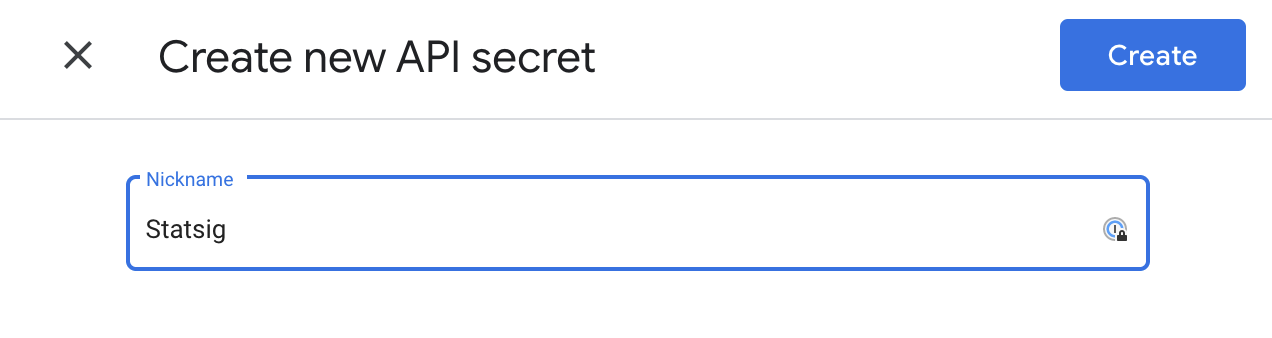
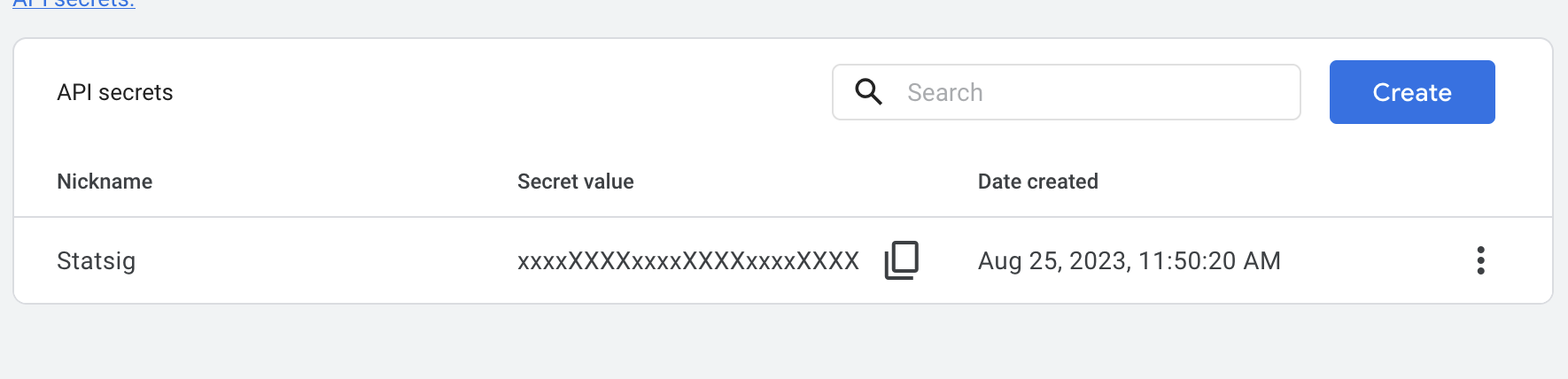
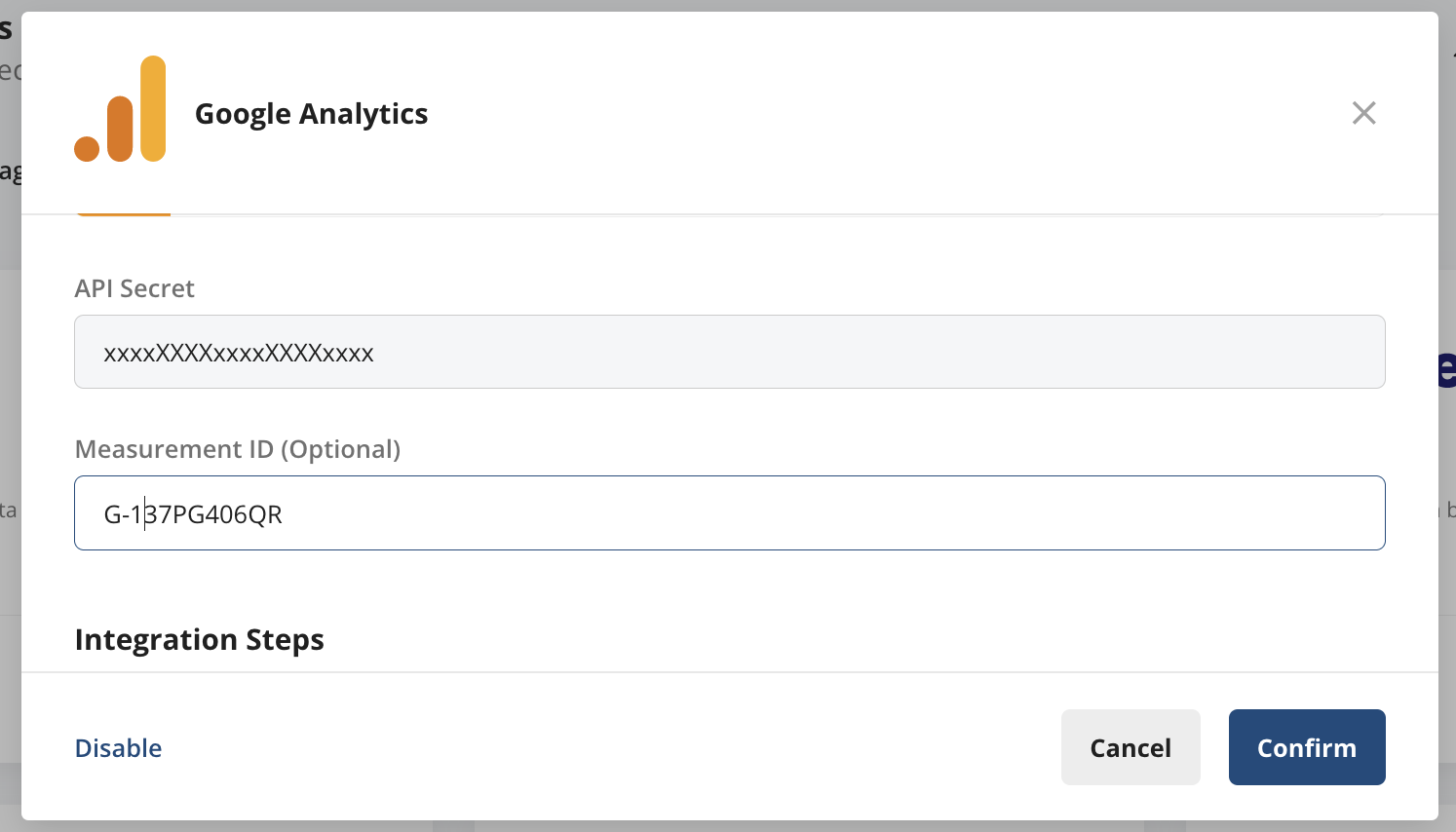
After creating the secret, copy the API secret and the measurement ID (optional). Navigate to your Statsig Project, then Project Settings, then Integrations, then Google Analytics (click enable), then Google Analytics 4.
Provide your API Secret and measurement ID from the previous step and click confirm:
Verify that you're receiving events by checking the Realtime overview report for the event with name
statsig. Events may take a couple of days to appear in other reports.You can also add the following custom event dimensions. Statsig also makes other custom IDs and custom user attributes available as user dimensions.
| Dimension | Description |
|---|---|
config | Name of the experiment, gate, or dynamic config |
group | Name of the exposed group (e.g. Control) |
value | Value for custom events |
statsig_session_id | Session ID |
category | Type of exposure or name of the custom event (e.g. statsig_gate_exposure) |
unit_id | Value of the unit ID (e.g. '123') |
unit_id_type | Type of the unit ID (e.g. 'stableID') |
Filtering events
After you enable the outgoing integration, you can optionally configure event filtering to control which events populate the GA4 Data Stream:
Was this helpful?