For AI agents: a documentation index is available at /llms.txt. Append .md to any page URL for markdown, or send Accept: text/markdown.
Environment-based Evaluation
Use environments in Statsig to separate development, staging, and production data for feature gates, experiments, and metrics across your project.
Statsig SDKs let you set the environment tier for your app during initialization. Setting the environment tier lets you evaluate feature gates, dynamic configs, and experiments differently in non-production environments like development or staging. Configure the appropriate environment in your code and adjust feature rules in the Statsig Console.
Configure environments in the SDK
There are two key ways to set up environments within your app:
- Environment-specific SDK keys: These determine which rule sets the SDK downloads based on the environment.
- Environment tier at SDK initialization: This defines how Statsig evaluates rules for the app.
1. Environment-specific SDK keys
Environment-specific SDK keys control which rules Statsig sends to the SDK. For example, an SDK initialized with a development environment key doesn't receive rules set for staging or production environments. For more information, go to Per-Environment API Keys below.
2. Environment tier parameter
SDK keys can correspond to multiple environments. Explicitly set the environment tier during SDK initialization to ensure Statsig applies the correct rules.
All SDKs accept an SDK Key and an optional StatsigOptions dictionary. The StatsigOptions parameter includes the environment key, which has a tier field. This tier corresponds to one of your pre-configured environments (e.g., development, staging).
If the environment tier is unset, all checks and event logs default to "production."
Here's an example of setting the environment tier in your code for the development environment:
Example (JS Client SDK)
const client = new StatsigClient(<SDK_KEY>, user, { environment: { tier: 'development' } });
Example (Node Server SDK)
await statsig.initialize(<SDK_KEY>, { environment: { tier: 'development' } });
Go to your language-specific SDK documentation for details.
Using environments in feature gates
To configure environment-specific rules for a feature gate, follow these steps:
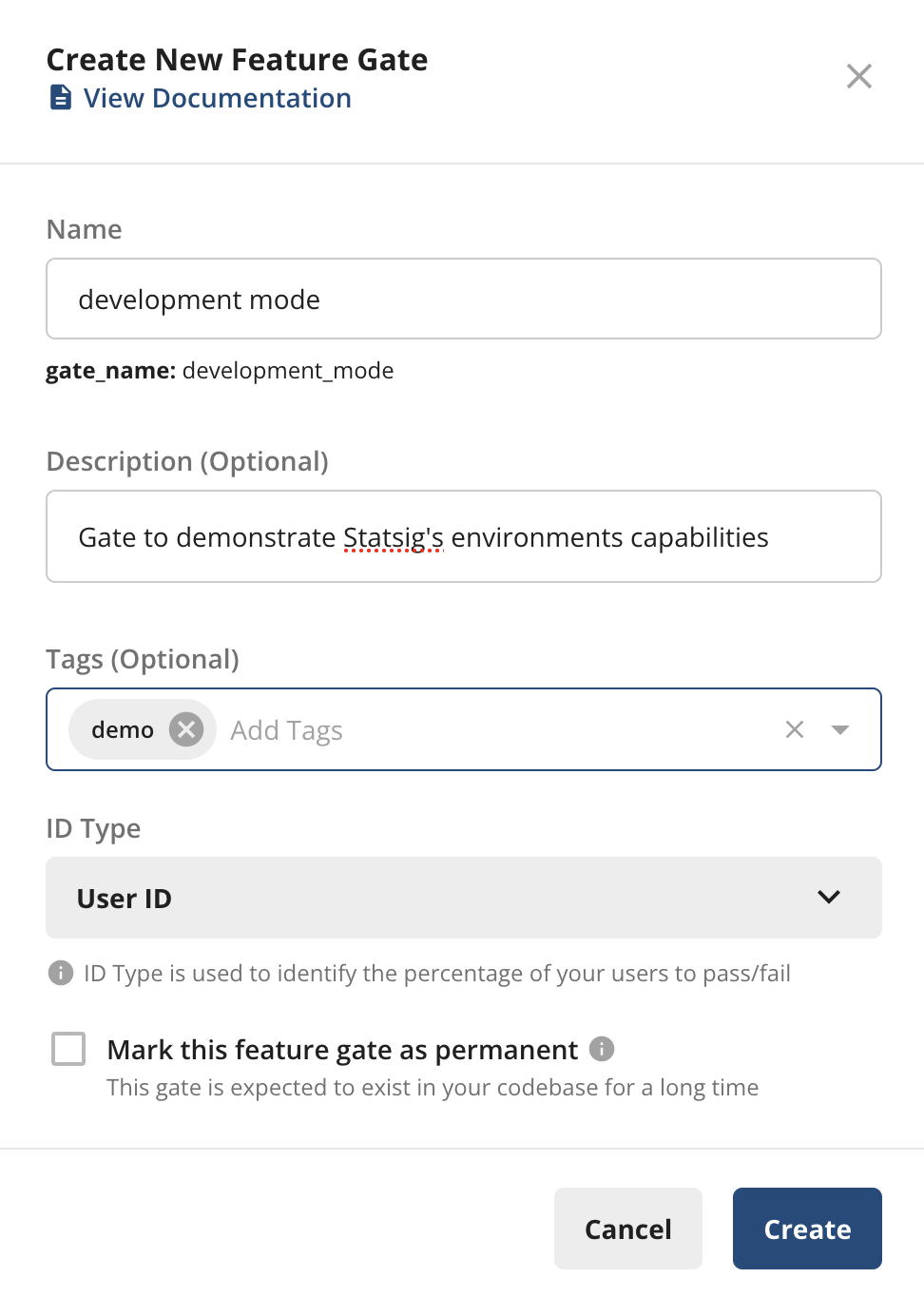
Create a new feature gate: In the Statsig Console, create a new Feature Gate. For example, name it "development mode" to target only your development environment.
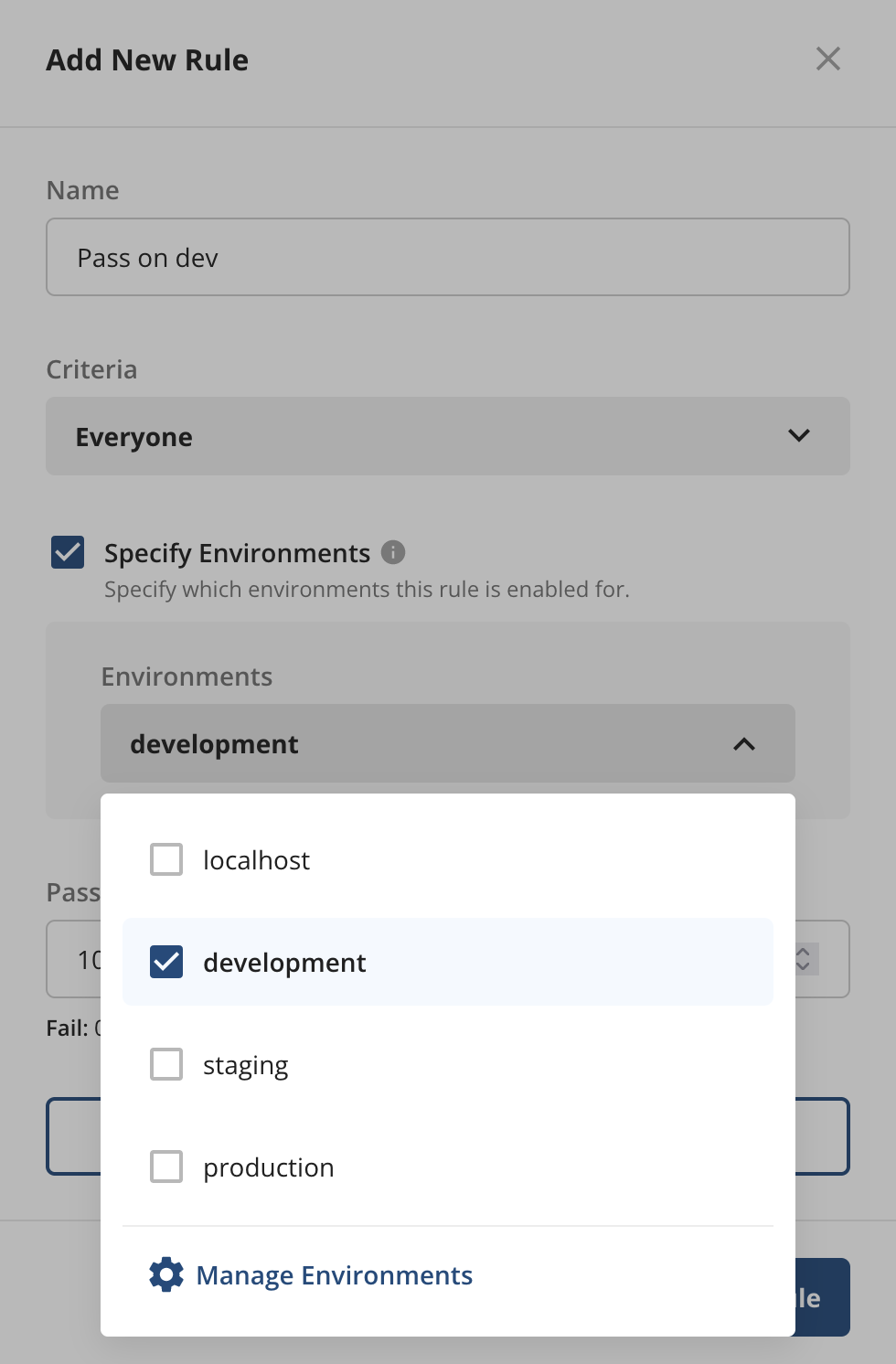
Specify environments: When configuring the rule, check the Specify Environments box and select the environments you want to target. By default, Statsig enables rules for all environments unless you specify otherwise.
Save your settings: After saving, the environments where you enabled the rule appear below the rule name.
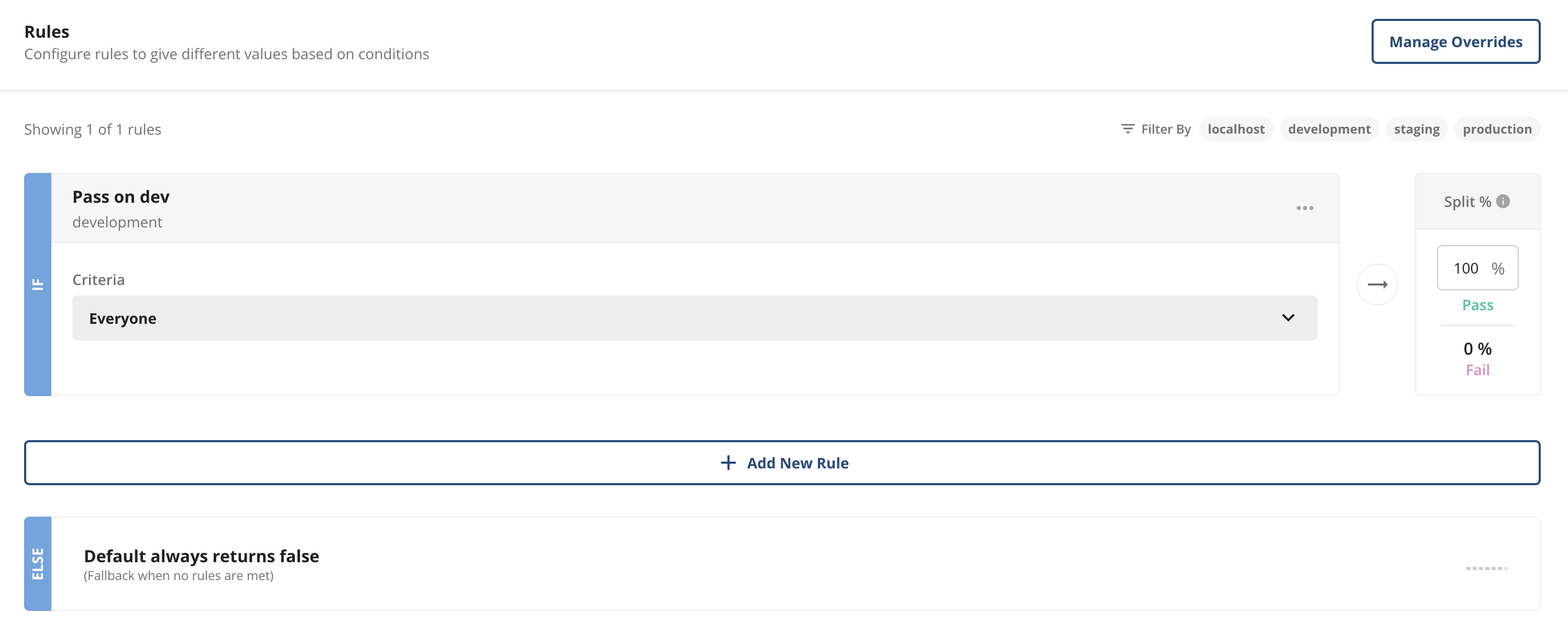
You can also filter rules by environment using the filter in the upper-right corner of the Feature Gate UI.
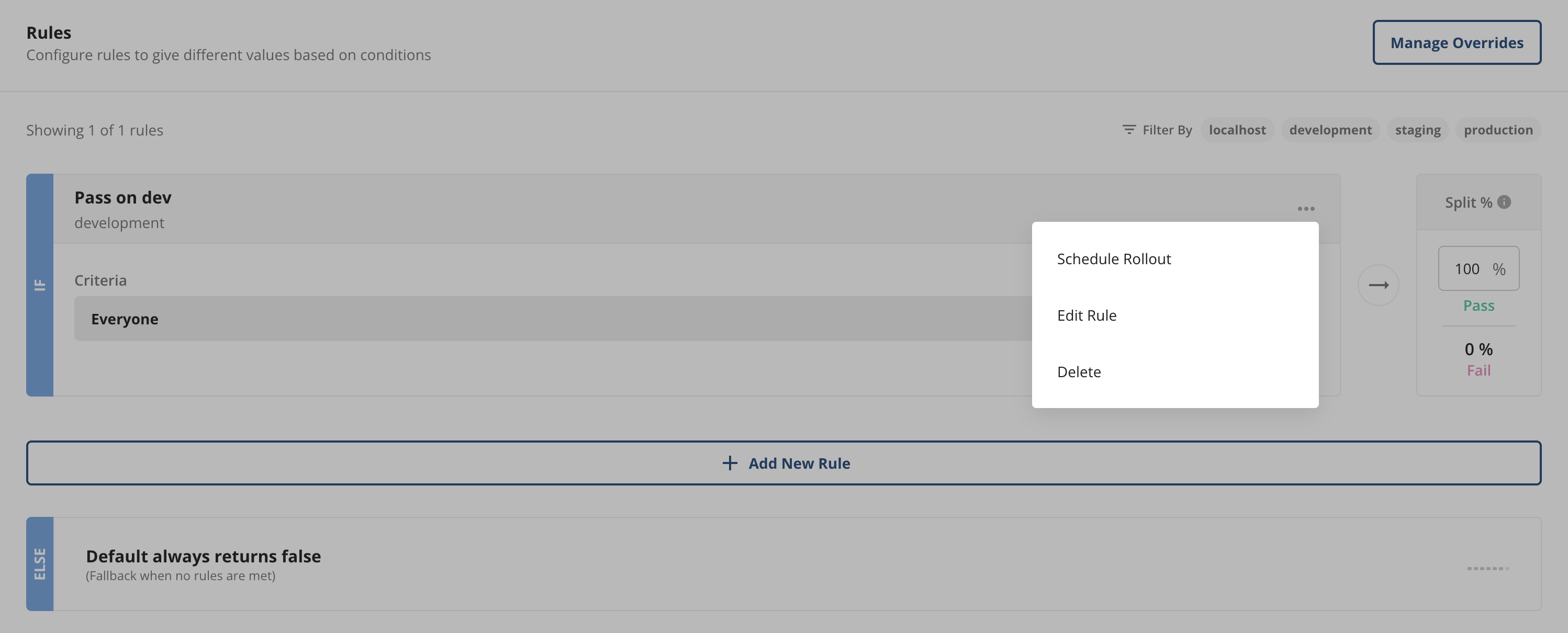
To edit the target environments of a rule, click ... next to the rule name and select Edit Rule.
Configuring environments
By default, Statsig provides three environments: Development, Staging, and Production. You can add more environments or rename the default ones, but you can't delete or modify the Production environment.
Steps to add or edit environments
Go to Project Settings → Environments & Keys.
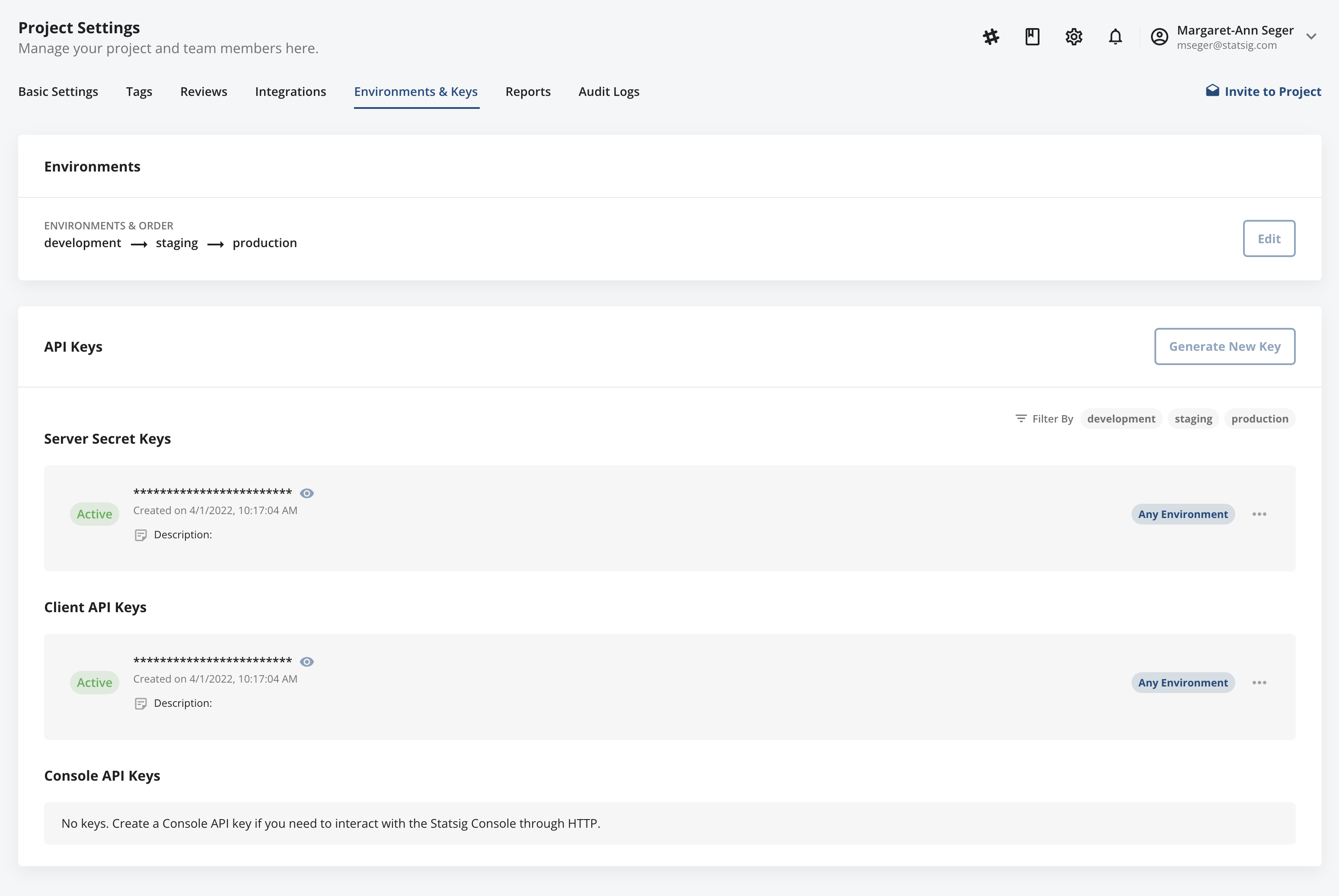
Click Edit to add new environments or reorder the existing ones using drag-and-drop.
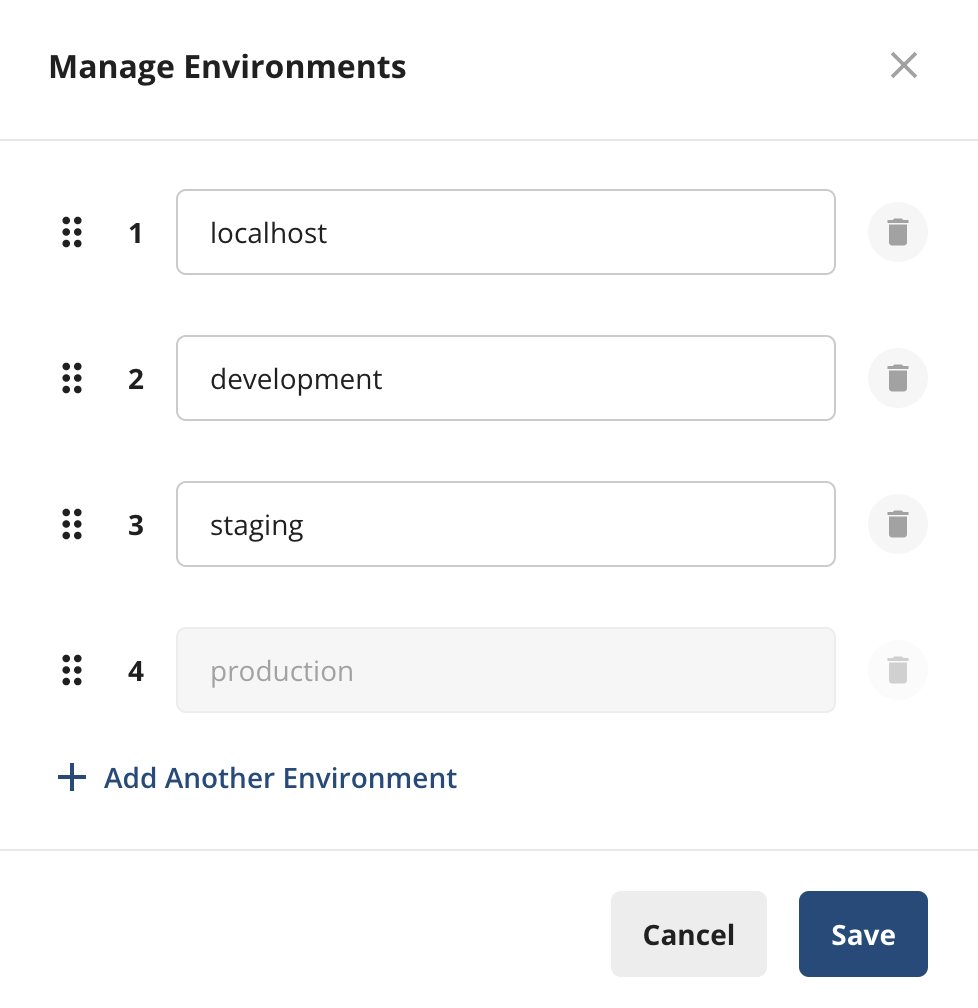
Reordering environments doesn't affect any rule logic, but it helps convey the rollout hierarchy (e.g., development → staging → production) to your teams.
Per-environment API keys
Statsig lets you create per-environment API keys to enhance security and privacy. SDKs initialized with a specific environment key only access the rules relevant to that environment.
Steps to generate environment-specific API keys
Go to Project Settings → Environments & Keys.
Click Generate New Key and specify the environment for which you want to generate the API key.
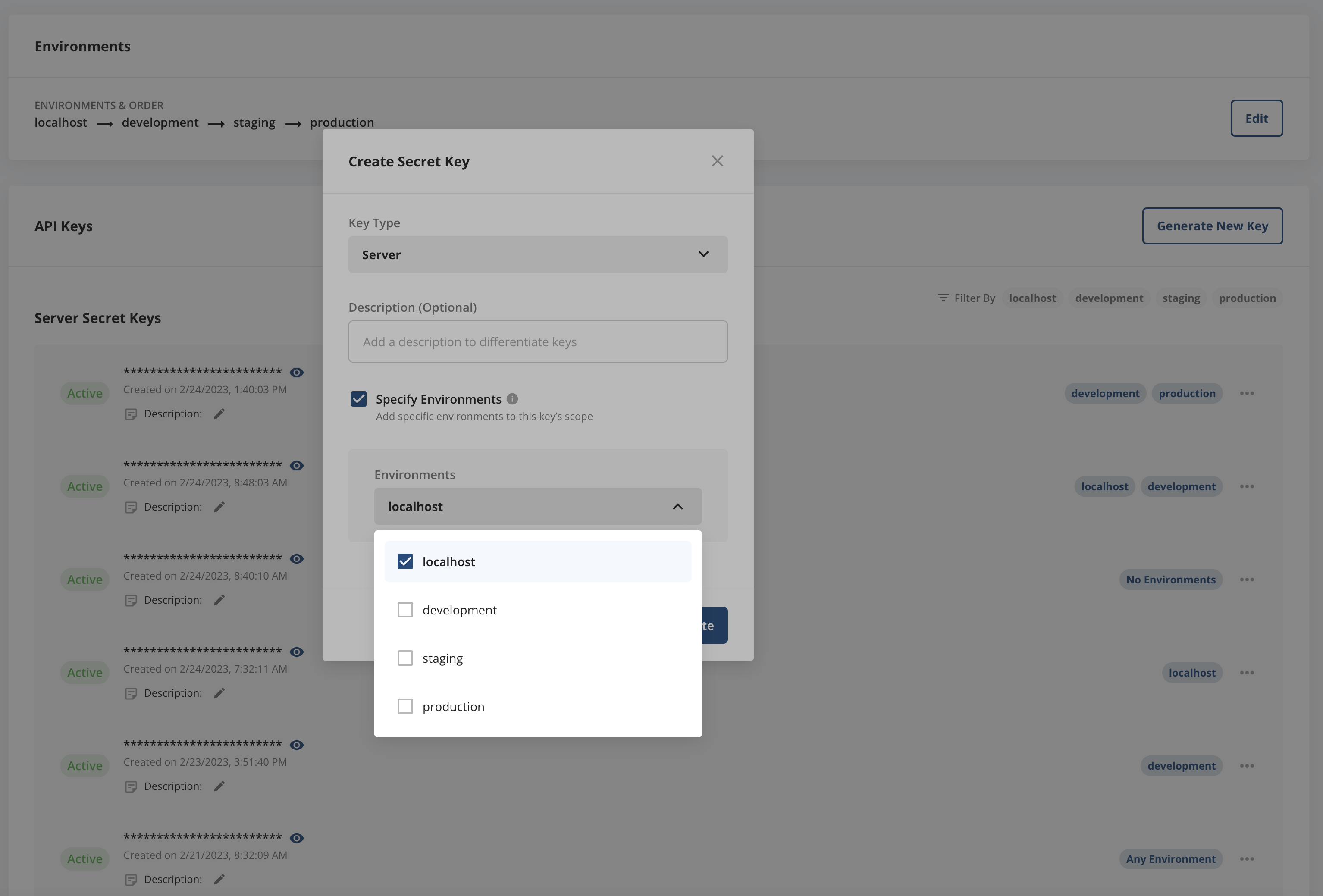
The default environments (Development, Staging, and Production) share the same server and client-side API keys. You can generate new keys for custom environments as needed.
Was this helpful?