For AI agents: a documentation index is available at /llms.txt. Append .md to any page URL for markdown, or send Accept: text/markdown.
Get Started with Geotests
Set up a geotest in Statsig Warehouse Native to measure the impact of a treatment across geographic regions when user-level randomization isn't possible.
Setting up a geotest in Statsig Warehouse Native takes five steps, from defining geo types to running analysis:
- Define your Geo Types
- Configure your Metric Source
- Create and Configure
- Evaluate Design Options
- Run Analysis
Define your geo types
First decide on one or more geo types relevant to your business. Some of the most common are Postal Codes and DMAs (Designated Market Areas), but Statsig allows you to define any arbitrary geo type.
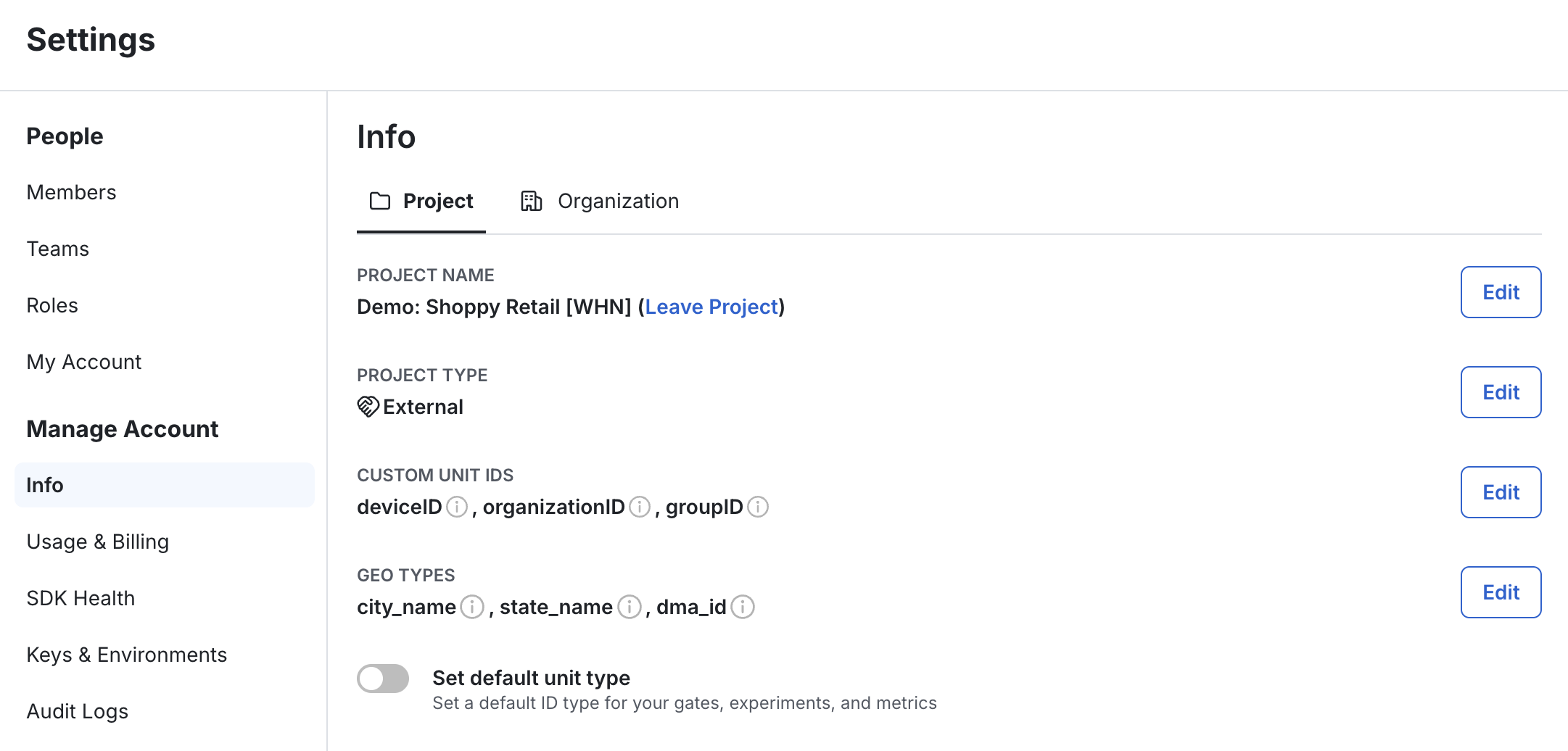
Configure your metric source
Assuming you've already added a metric source to Statsig, you can next indicate which column(s) represent the geo type(s) you've created.

Create and configure
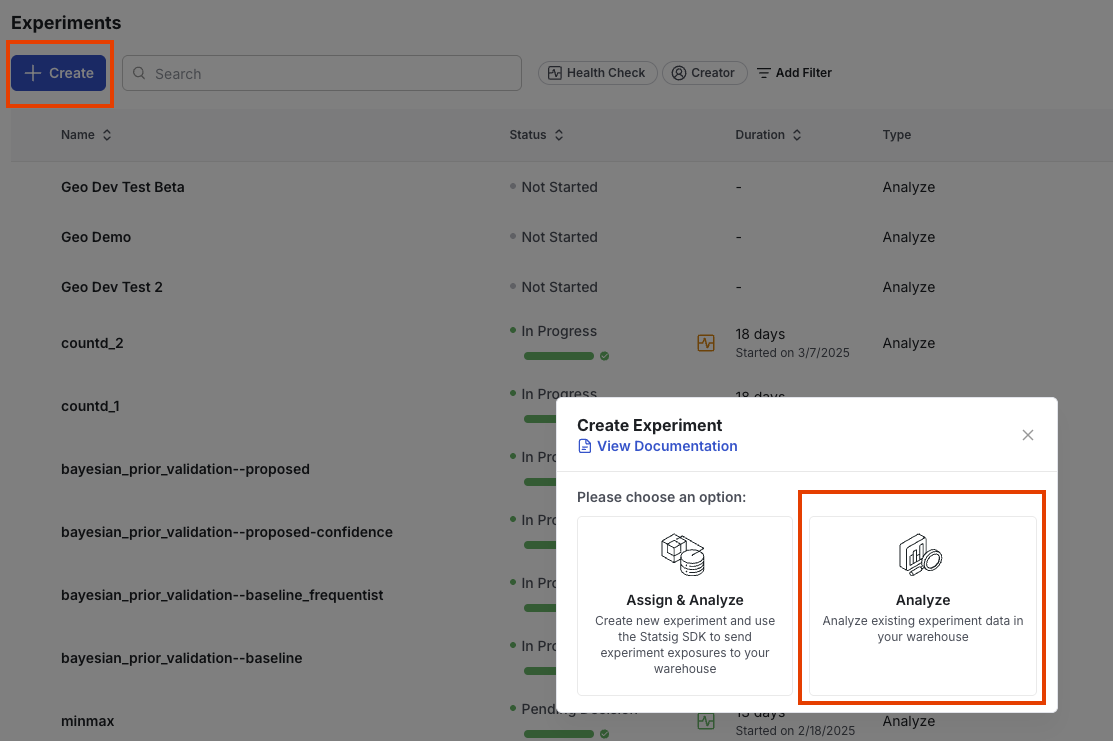
- Navigate to your Experiments page.
- Select + Create.
- In the modal, select Analyze to analyze existing experiment data in your warehouse.
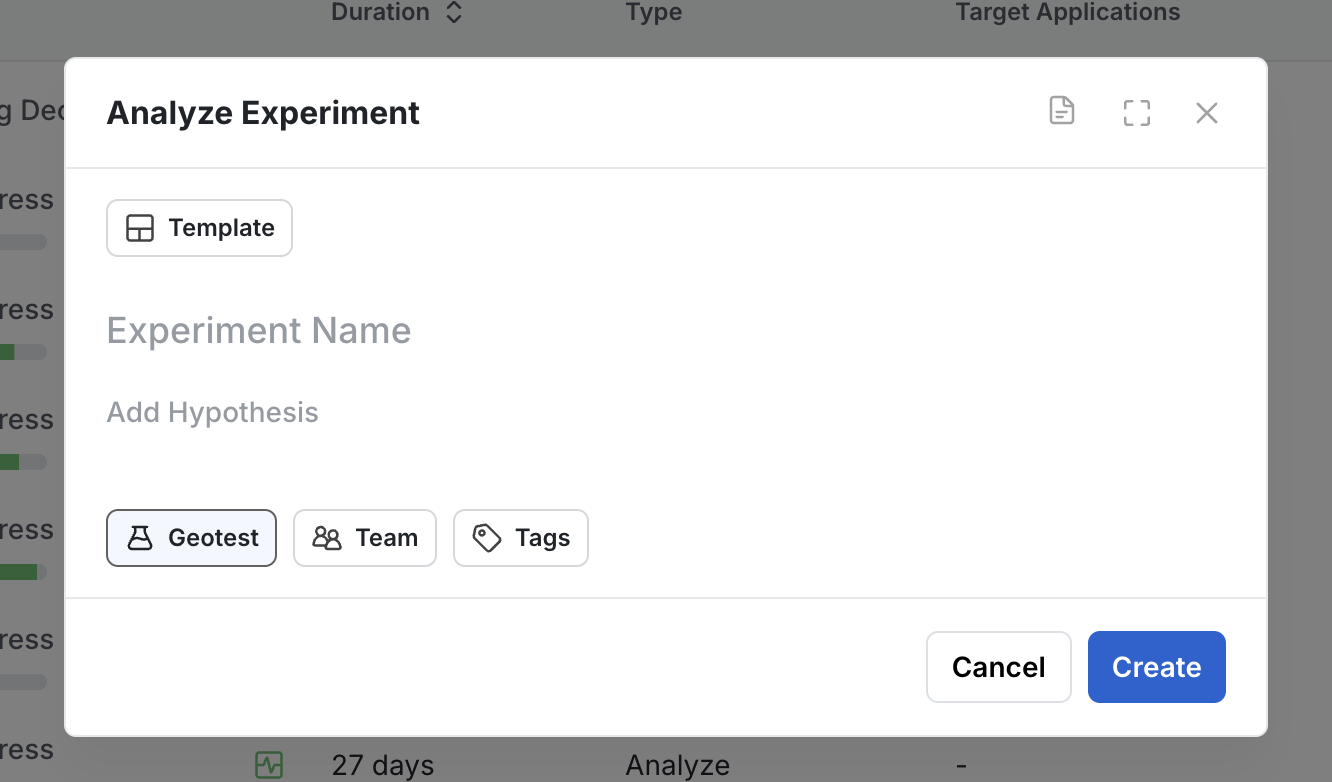
- Enter a name and description for your experiment.
- Choose Geotest as the experiment type from the dropdown. Fill in the remaining fields as usual.
In the Setup tab:
- Define your hypothesis.
- Set the Geo Type (e.g., country_id) from one of the types you've defined in your project and metric sources.
- Choose your Primary Metrics.
Important Metric Types
Statsig limits GeoTest metrics to SUM, COUNT, and COUNT_DISTINCT types. The inference techniques involved in synthetic control methodologies require this limitation.
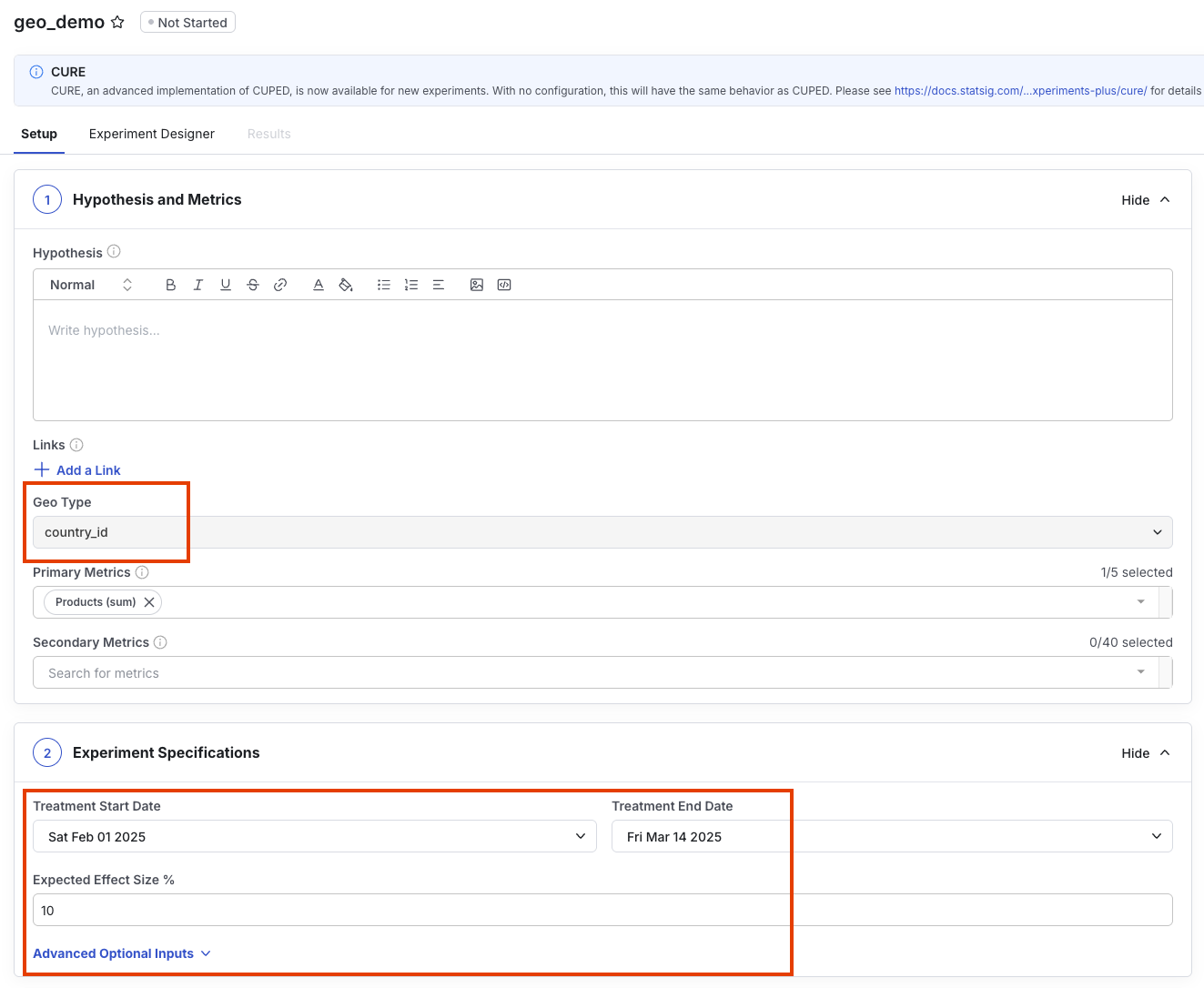
Configure:
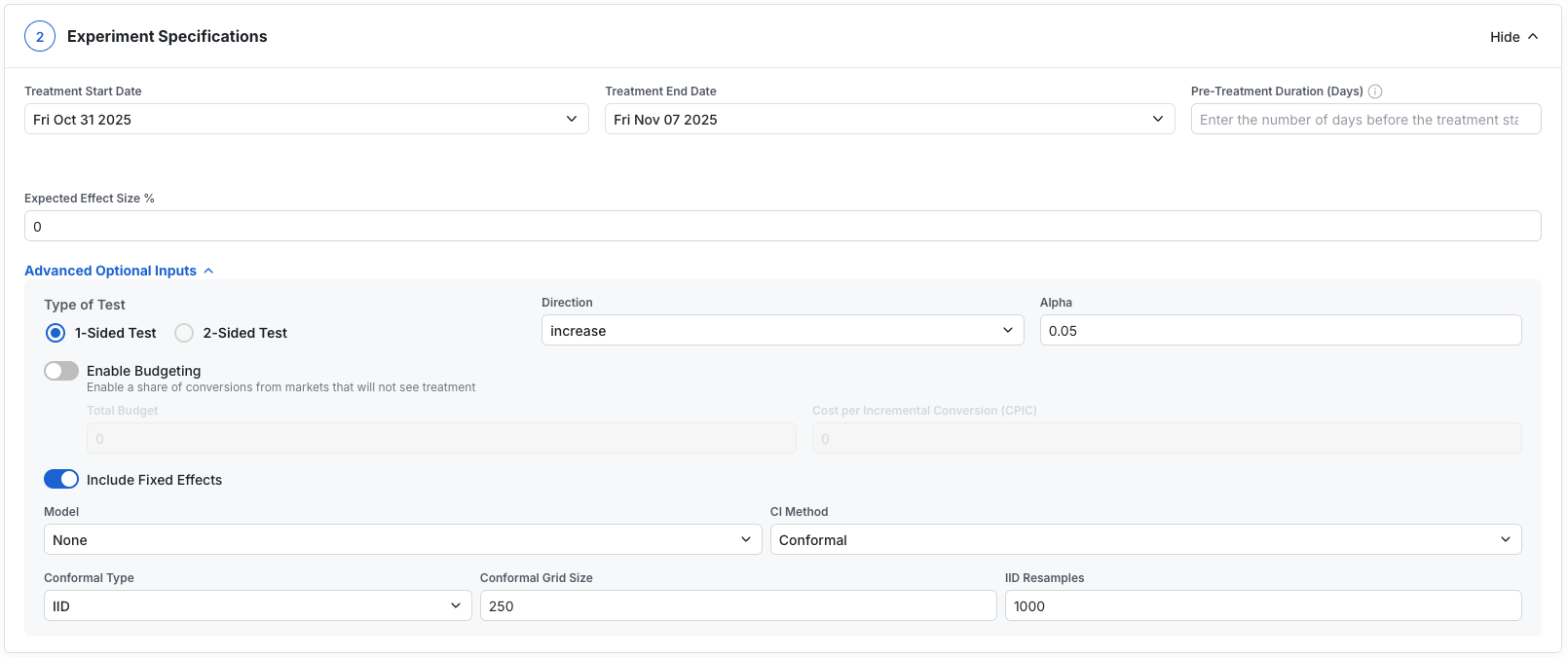
- Expected Treatment Start/End Dates
- Pre-treatment duration (days)
- Effect Size % (the MDE you want to measure; smaller MDEs make finding a valid design harder)
- Type of Test: 1-sided or 2-sided
- Alpha level (the type I error rate you want, inverse of significance)
- Optionally enable Budgeting
- Additional advanced modeling parameters for users familiar with Geolift's Advanced API
Generate design options
When your initial settings are ready, click Use Experiment Designer to begin the design process.
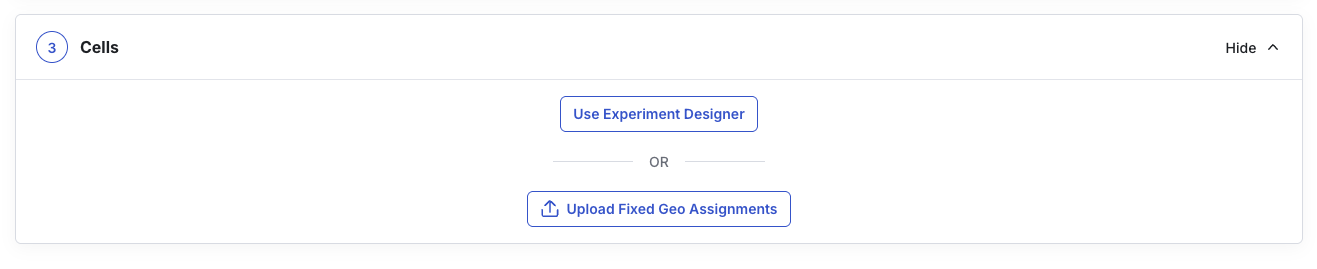
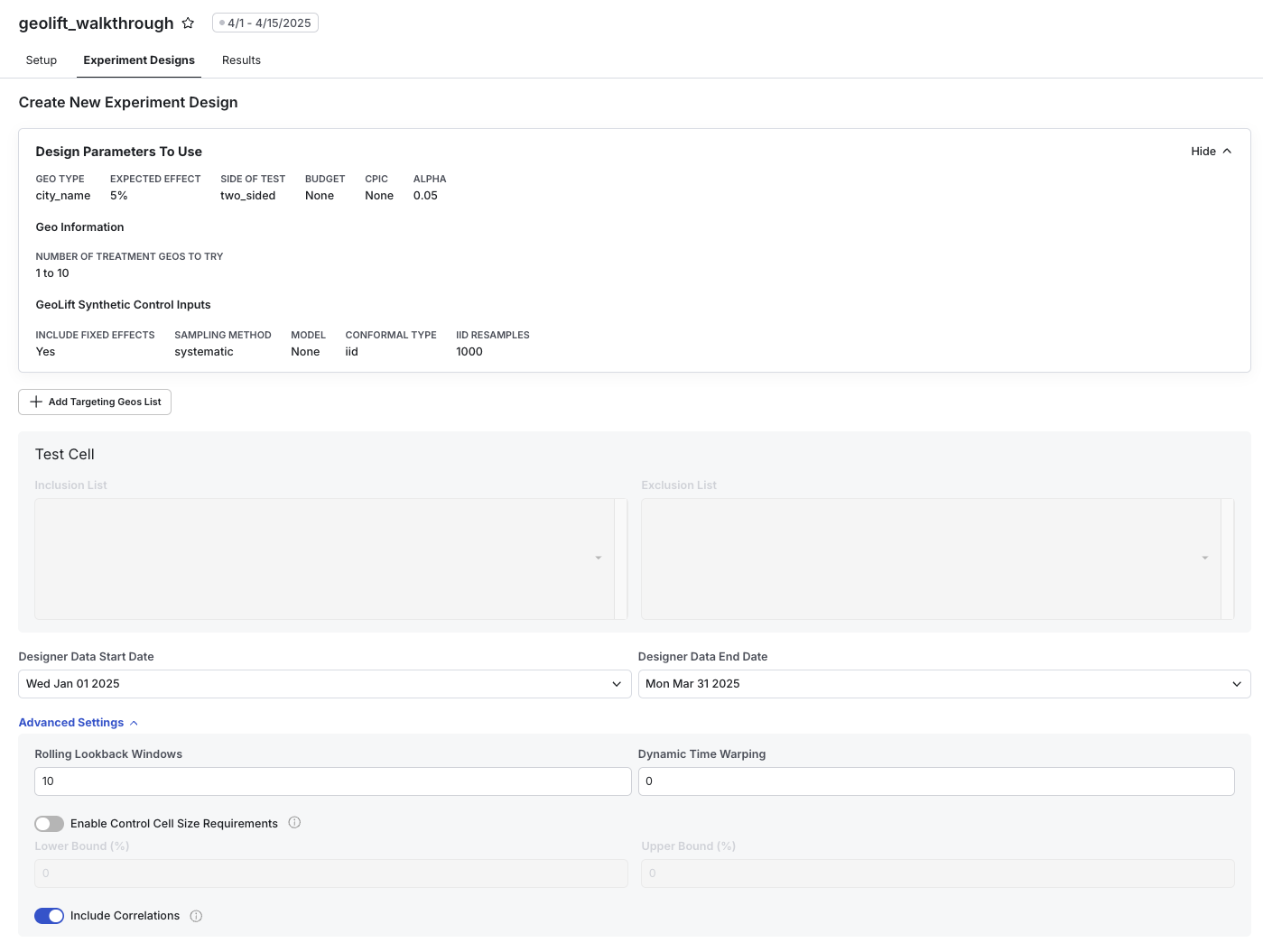
The Experiment Designer automates the process of evaluating potential splits of geos. Creating a new design set involves 3 steps:
- Define your targeting
- Set any Inclusion or Exclusion overrides
- Define your date range
Define targeting
Targeting allows you to define the set of geos eligible for inclusion in your experiment. By default, Statsig pulls the unique set of geo types from your metric source from the last 90 days. You can add custom filters based on columns in your metric source. For example, you can filter geos to those in a certain region or by transactions that occurred in a certain language.
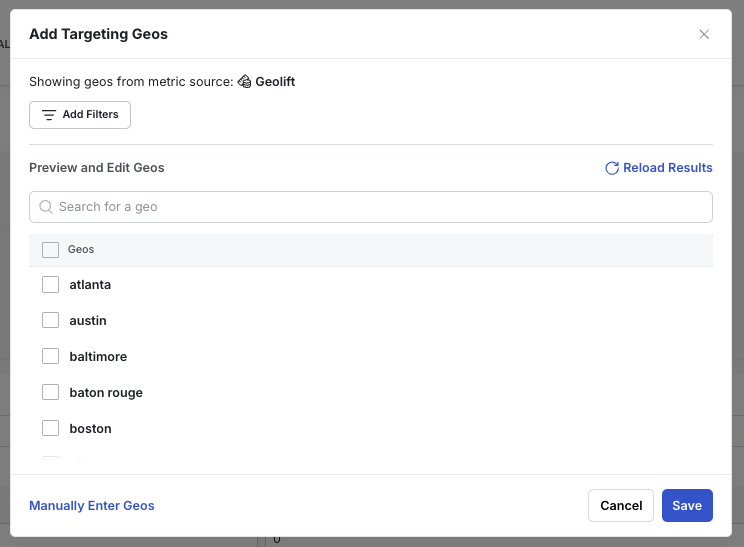
You can also manually specify a set of geos yourself. The geo id types must match those in your metric source exactly.
Set inclusion or exclusion overrides
After defining your targeting set, you can manually assign any of these geos to treatment or control groups.
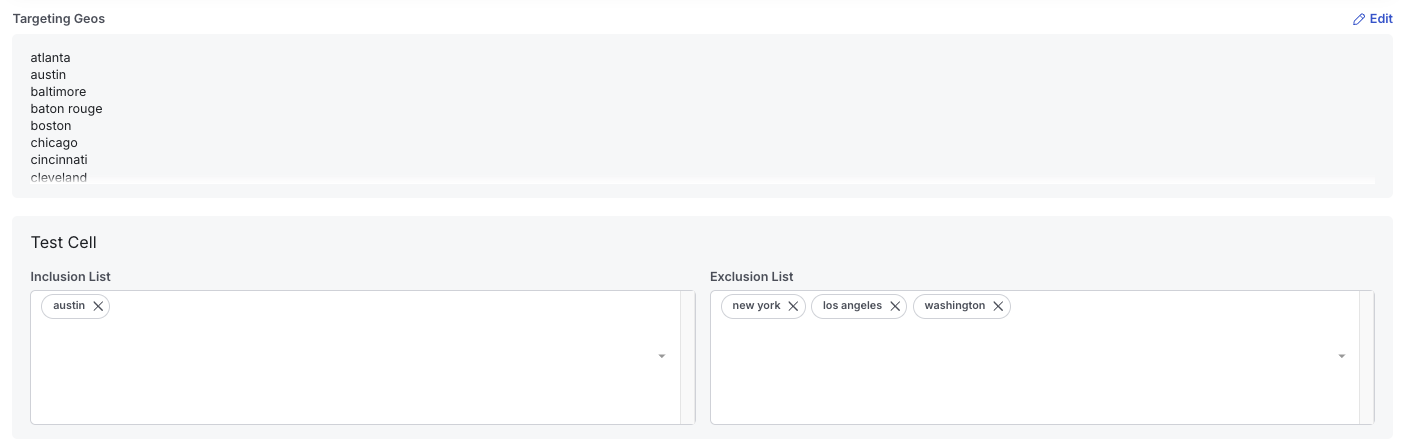
For example, when testing a new marketing campaign, you might want to include Austin because you've already signed a contract. You might exclude New York, Los Angeles, or Washington D.C. because of local regulations. Specify these constraints in the designer, and all design options considered conform to these rules.
Define date range
Define the data range of your design dataset. This date range defines what data Statsig pulls as the historical baseline to train a synthetic control model. A good guideline is that your design data duration should be at least 4x the expected duration of your treatment period. A longer duration achieves good fits and maximizes the sensitivity and power of your experiments.
Advanced options
Rolling Lookback Windows: Control how many iterative simulations to run to evaluate power. For instance, a value equal to 5 simulates power for the last five possible tests in the date range. Corresponds to
lookback_windowin the GeoLift API.Dynamic Time Warping: Control how much the synthetic control model depends on auto-correlations in the metric vs. correlations between different geos on the same days. A value of 1 focuses exclusively on the metric while a value of 0 (default) relies on correlations only. Corresponds to
dtwin the GeoLift API.Control Cell Size Requirements: Sets limits on the share of primary metric value from geos in any considered control group. If not set, Statsig analyzes all design options regardless of their size. For example, on a Revenue metric, a control size range of [50%, 90%] means Statsig considers only design options where 50% to 90% of revenue is in the designated control geos. Corresponds to
holdoutin the GeoLift API.
Evaluate design options
After Statsig creates a Design Option Set (usually a few minutes), Statsig shows it in your Experiment Designs tab. All design option sets Statsig generates appear here, so you can look through prior design iterations as needed.
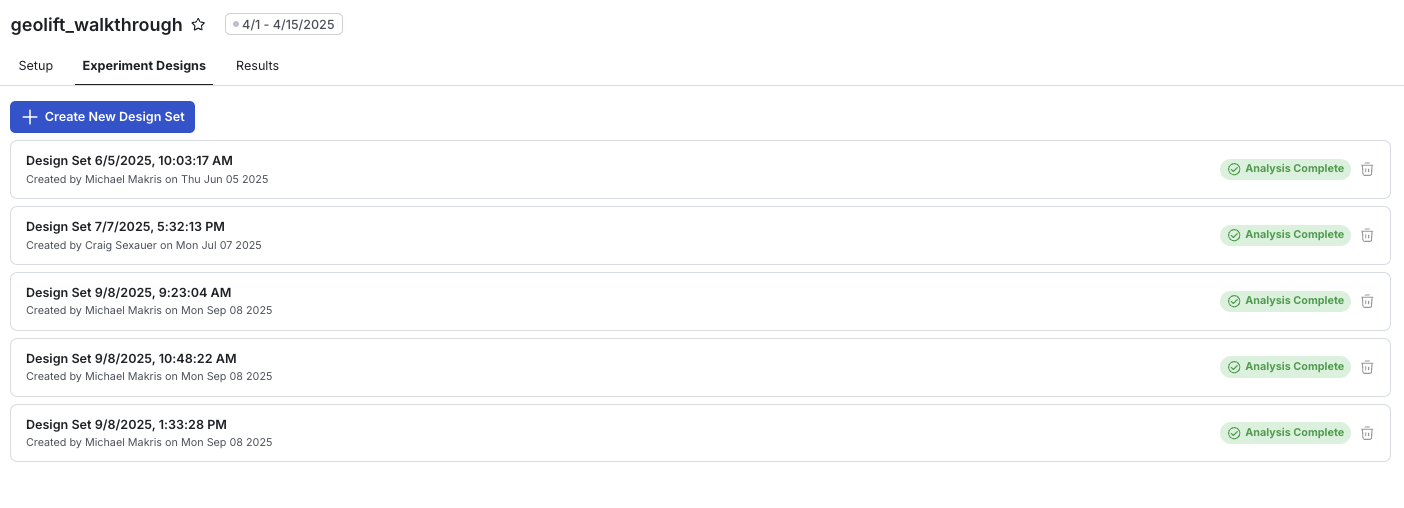
Click into a completed design set (e.g. “Design Set 3”).
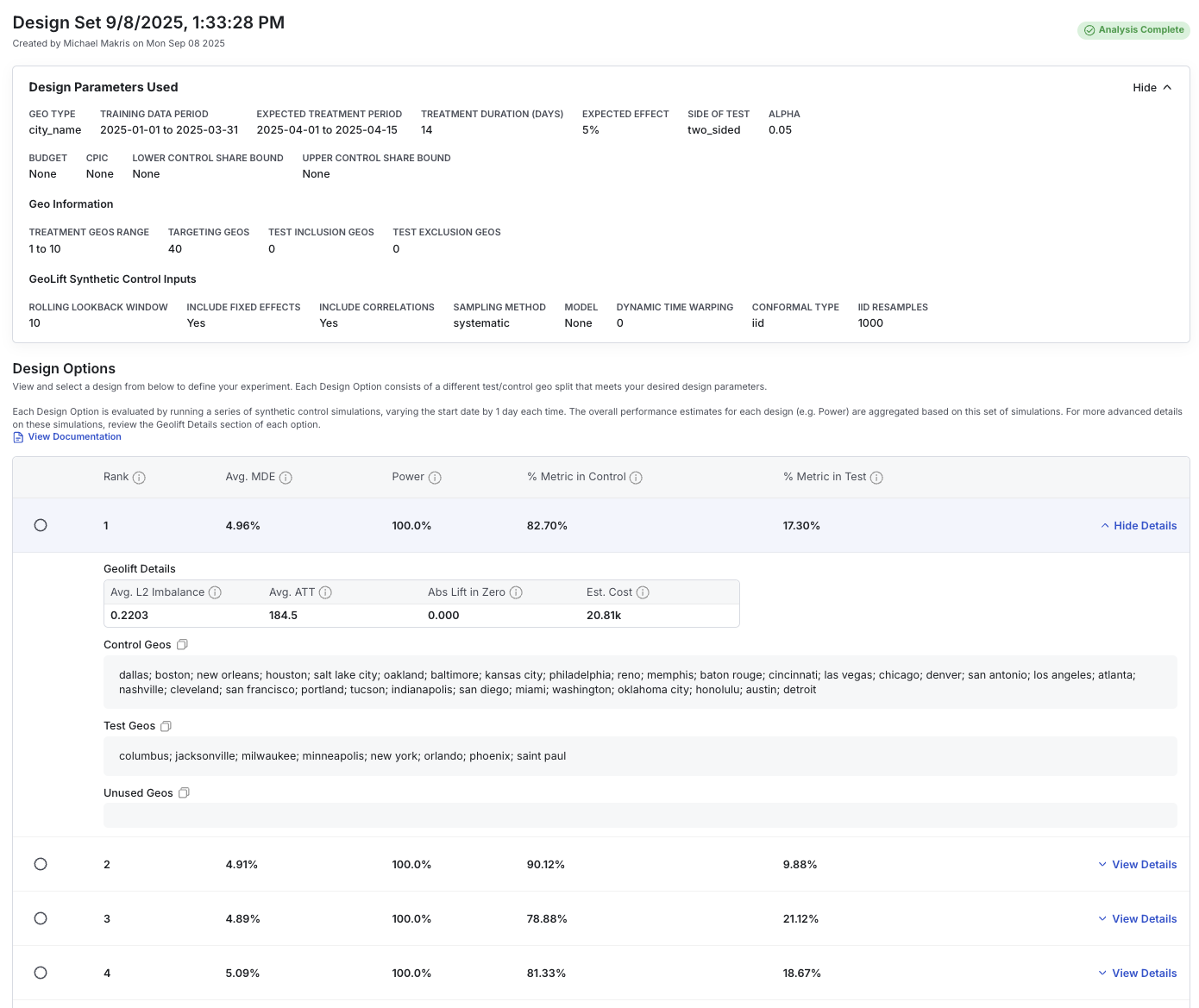
- Review the ranked recommendations for your best design options.
- Compare MDE, Power, Cost and Control/Test Allocation.
- Click View Cell Details to expand and see specific geo assignments.
- Review additional model performance details.
- Select your design using the radio button, then click Save Design to Experiment.
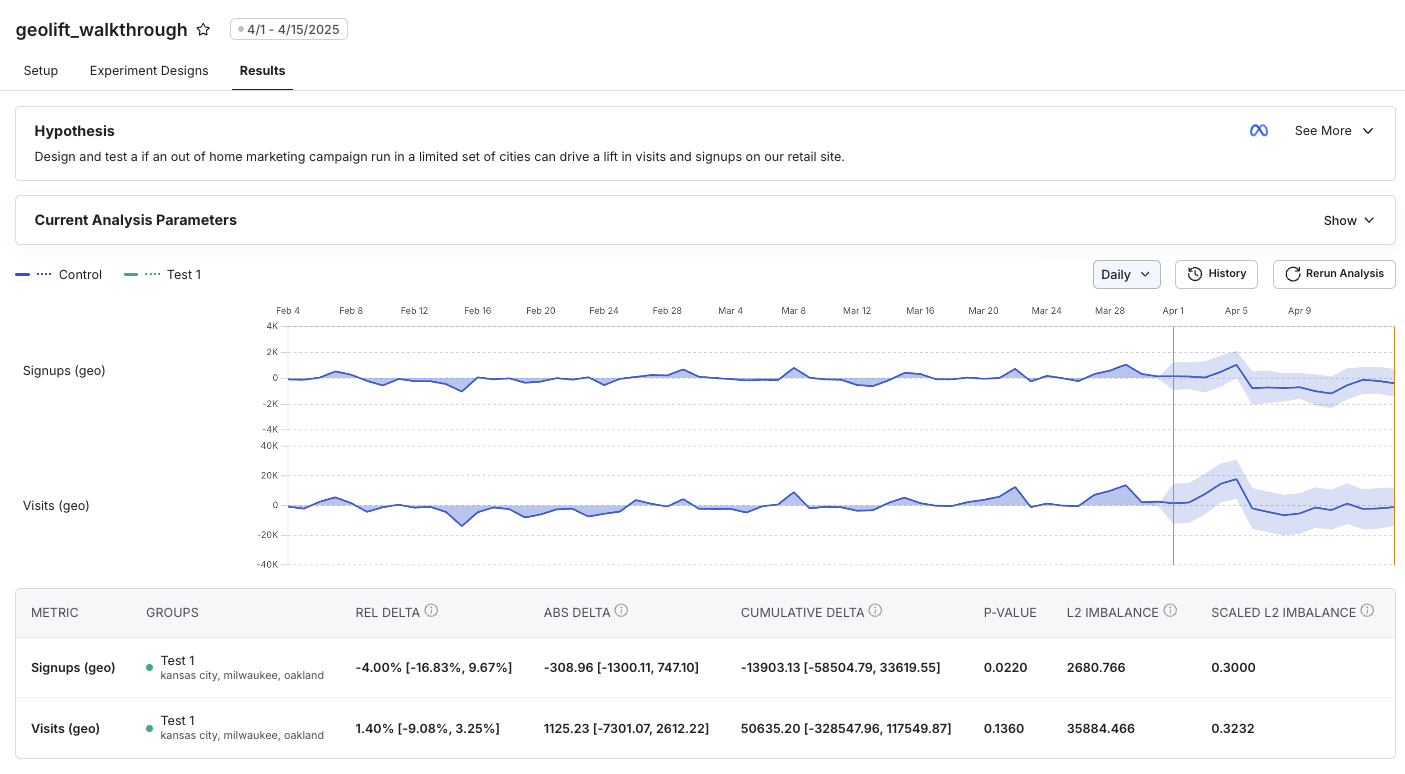
Run analysis
Was this helpful?