For AI agents: a documentation index is available at /llms.txt. Append .md to any page URL for markdown, or send Accept: text/markdown.
Bigquery Connection
Connect Google BigQuery to Statsig Warehouse Native, including service account setup, dataset permissions, and required IAM roles.
How BigQuery connection works
Connecting Google BigQuery lets Statsig Warehouse Native read your experiment data and write staging tables in your Google Cloud project. You can set up the connection two ways:
- Grant Permissions to a Statsig-owned Service Account
- Provide Credentials for Your Own First-Party Service Account
In both cases, you need:
- Your BigQuery Project ID
- The dataset Statsig uses to save temporary tables and materialized results
After you choose your method, start by enabling the BigQuery source in your project settings.
Grant permissions to Statsig's service account
Grant Statsig access to your BigQuery data from your Google Cloud console.
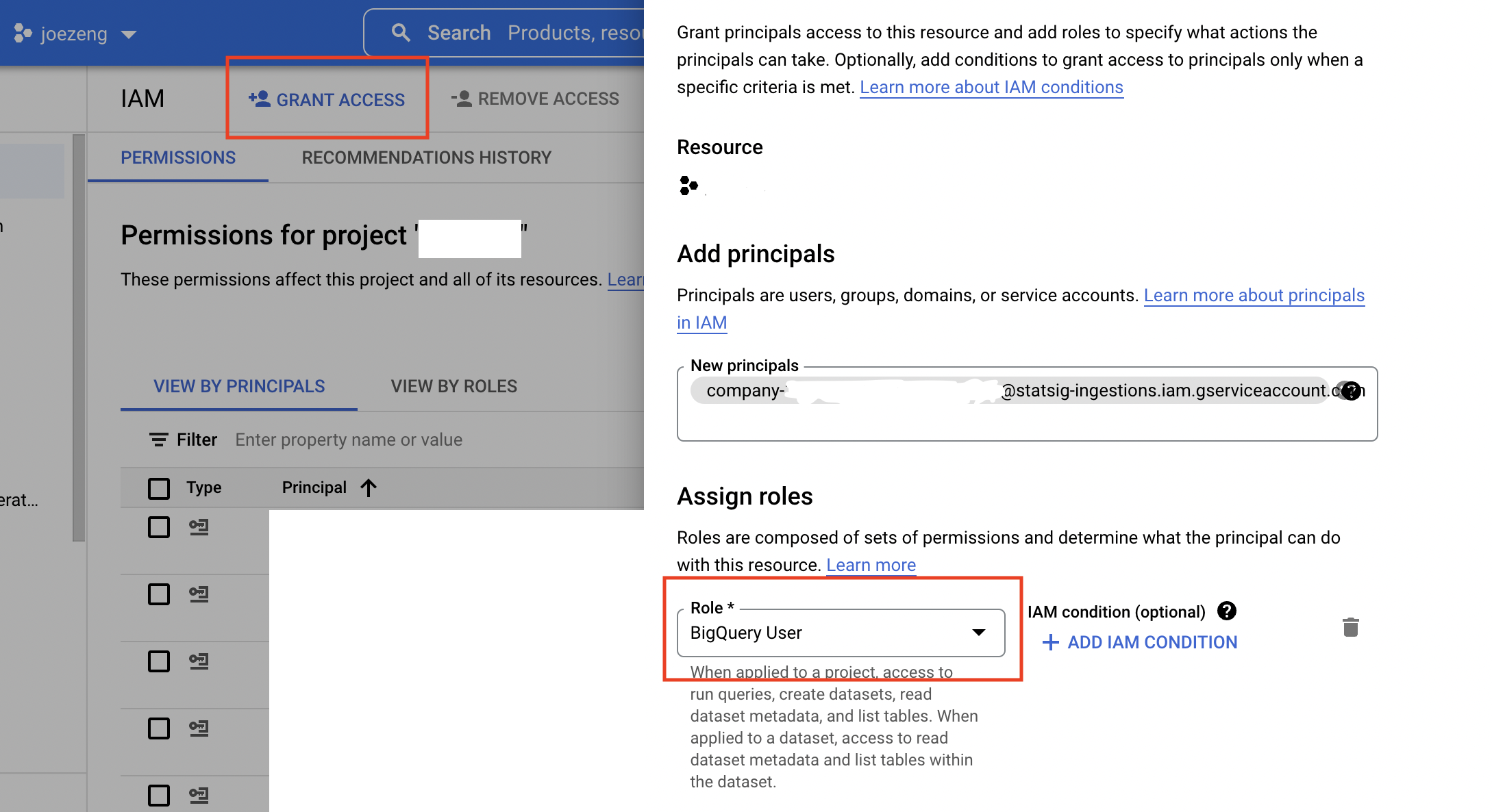
- In your BigQuery's IAM & Admin settings, add the Statsig service account you copied in the Statsig Console as a new principal for your project and give it the following roles:
BigQuery User
Navigate to your BigQuery SQL Workspace, choose the dataset, click + Sharing > Permissions > Add Principal, and give the same Statsig service account the "BigQuery Data Viewer" role. Repeat for any datasets you want the service user to access.
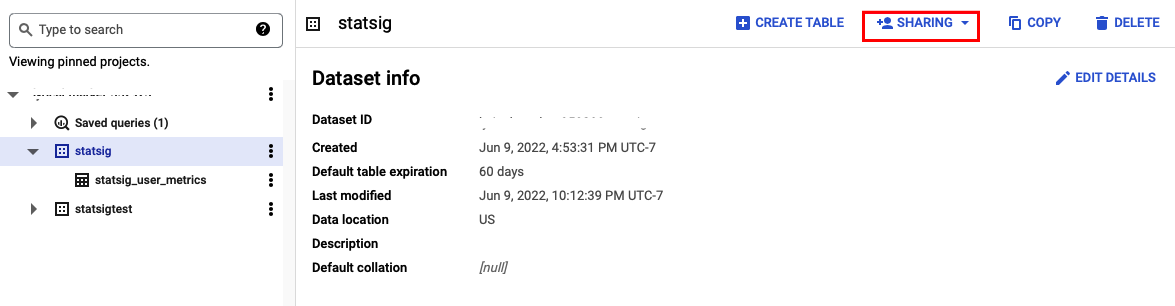
Repeat step 2 to give the "BigQuery Data Editor" role on the dataset Statsig uses for staging data.
If your data warehouse is IP protected, you must include allowlisting of Statsig IP ranges in your setup steps.
The service account has the required permissions to run queries and materialize results.
Using a first-party service account
Statsig doesn't recommend this method. Using service accounts is the preferred option for enhanced security.
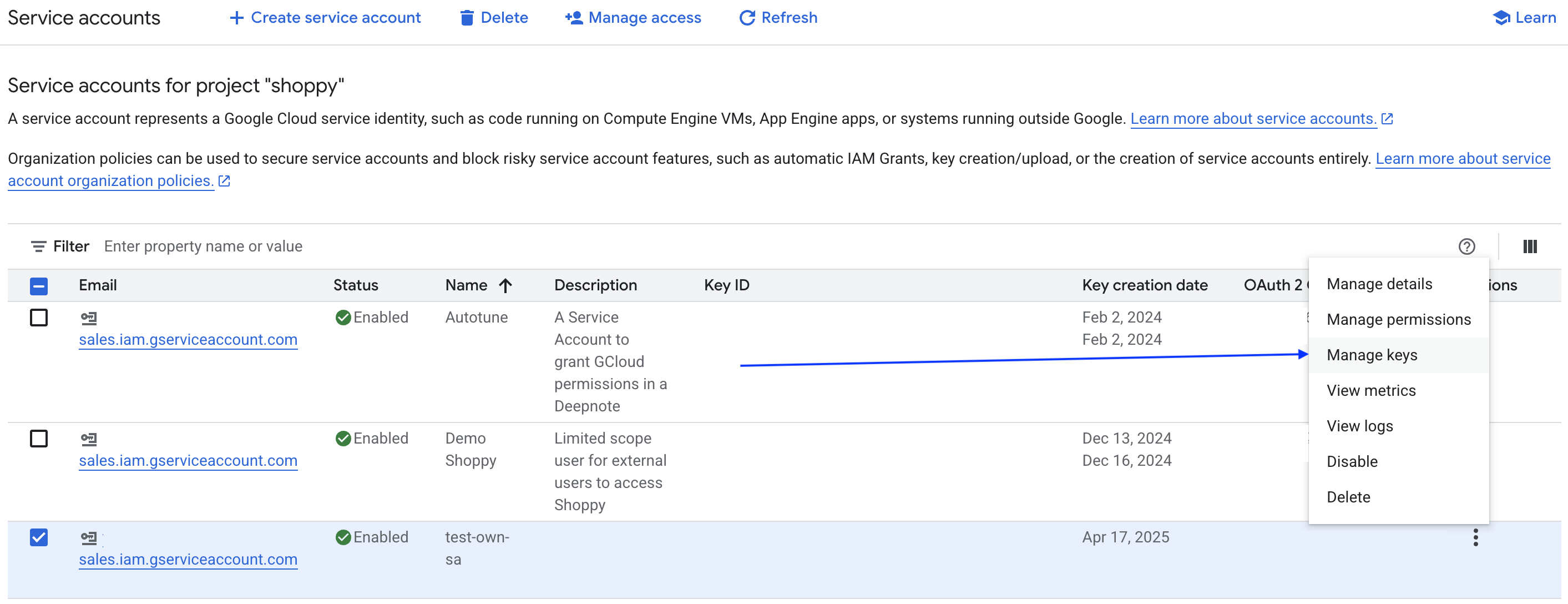
- On the BQ service accounts page, click 'Manage Keys' for the service account you want to use.
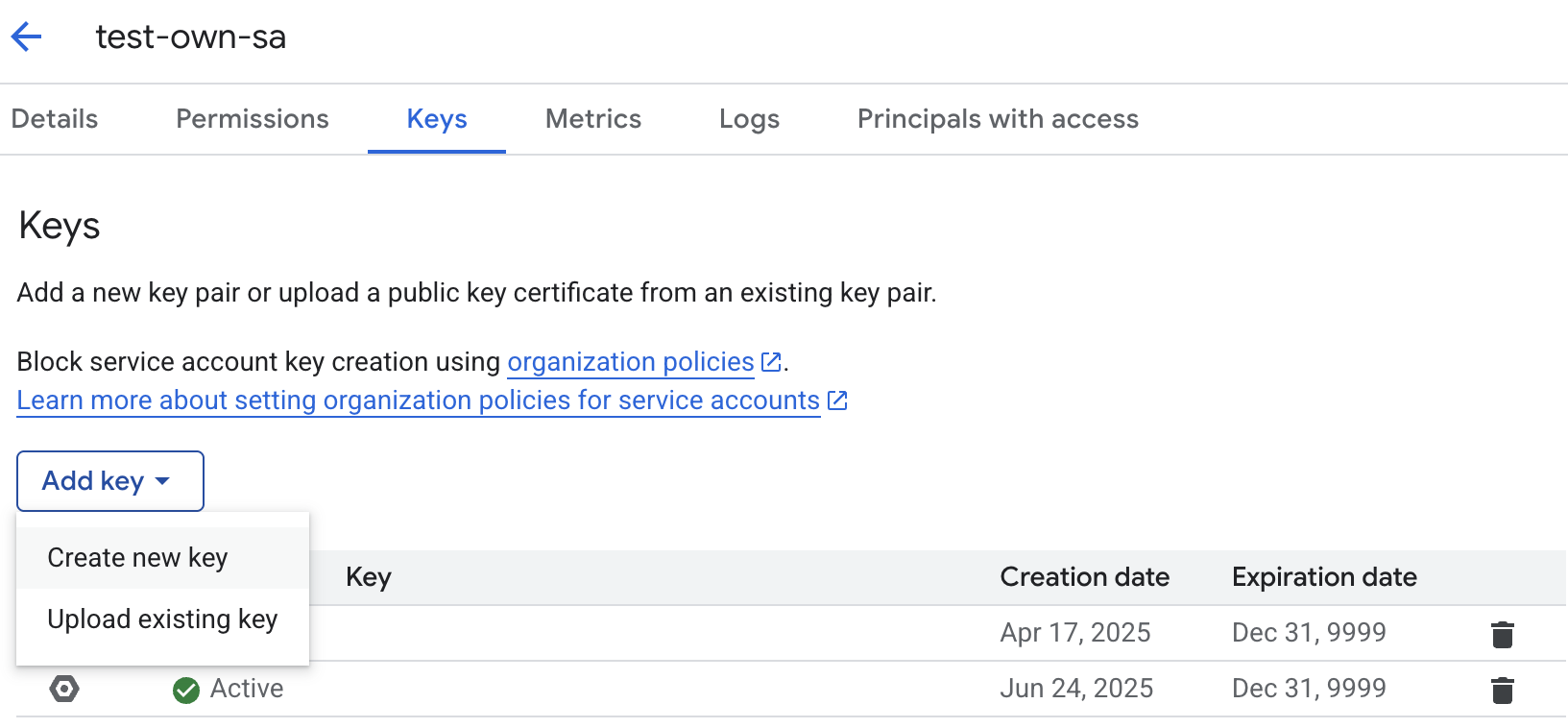
Create a new JSON key (which downloads a JSON file).
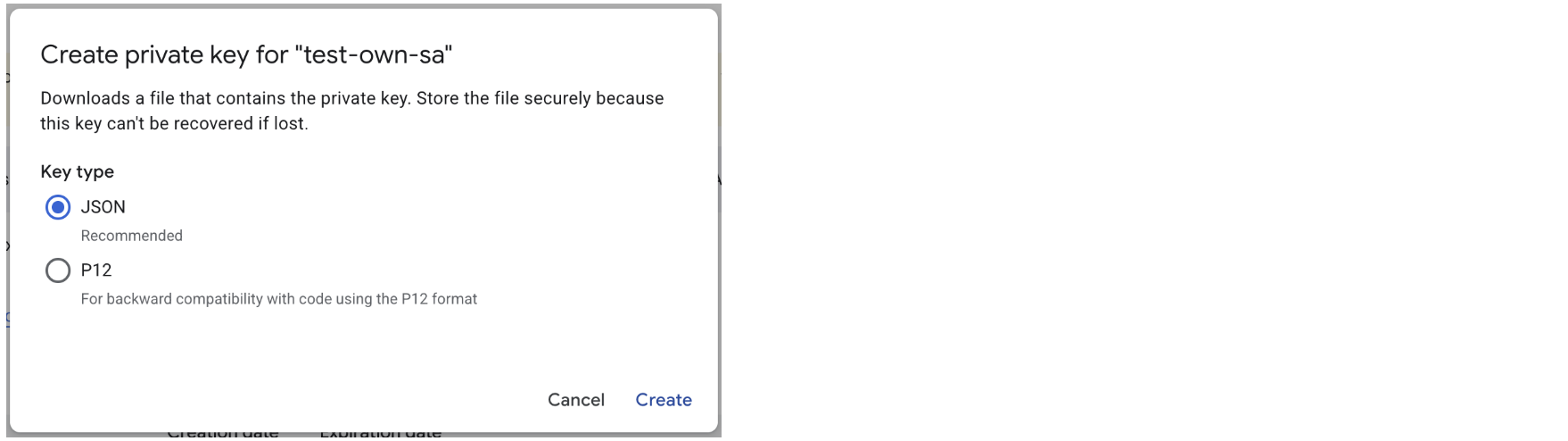
In the Statsig Settings -> Data Connection tab, paste the above key into the Service Account Private Key field under the Advanced toggle.
Additional BigQuery resources
BigQuery project ID
Find your BigQuery Project ID:
- Click on your Project Dropdown inside your Cloud Console.
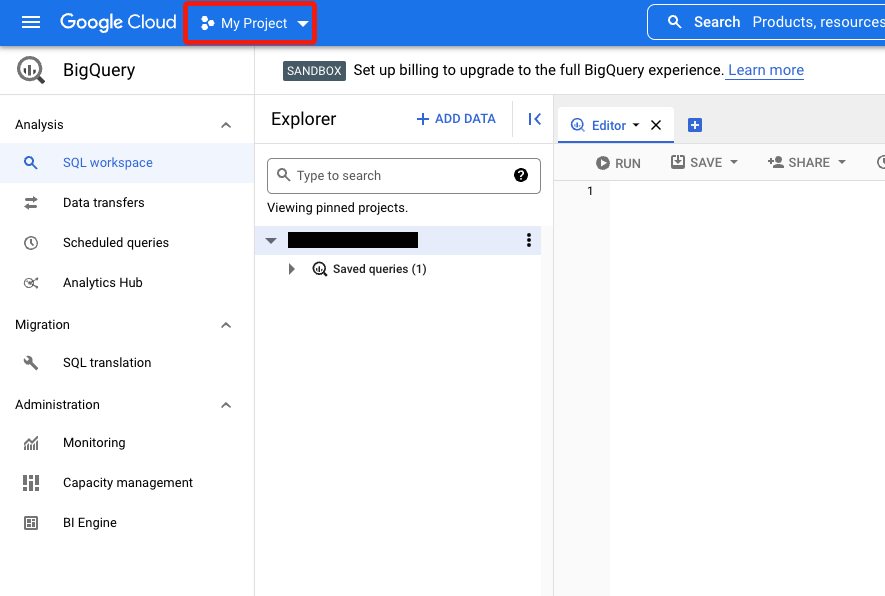
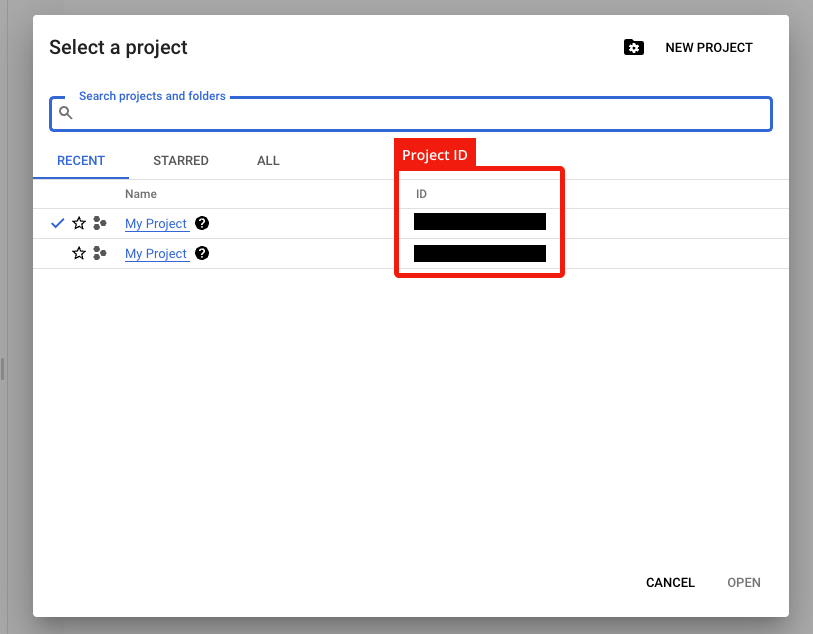
- Copy and paste relevant Project ID from the modal pop-up.
If your data warehouse is IP protected, you must include allowlisting of Statsig IP ranges in your setup steps.
Statsig Customer ID on BigQuery
C01d5f80s
IP addresses Statsig accesses data warehouses from
Additional setup for Warehouse Explorer
Warehouse Explorer lets you find and bring data from any table into Statsig for ad-hoc analysis.
Statsig reads from INFORMATION_SCHEMA.COLUMNS, which requires explicit permission to view table metadata. Grant access by repeating steps 1 and 2 from the Grant Permissions section for the "BigQuery Metadata Viewer" role.
Was this helpful?