For AI agents: a documentation index is available at /llms.txt. Append .md to any page URL for markdown, or send Accept: text/markdown.
Autotune
Use Statsig Autotune with Warehouse Native to automatically allocate traffic to the best- performing variant for a single goal metric using bandits.
Autotune uses a multi-armed bandit to automatically shift traffic toward the best-performing variant for a single goal metric. In Warehouse Native, Statsig pulls Autotune success events from a Metric Source and computes results in your warehouse. Setup is similar to cloud Autotune.
Creating an Autotune
To set up an Autotune on Warehouse Native, start by defining your objective. The objective can be an event or a value from a Metric Source. For detailed instructions, refer to how to set up a Metric Source.
You can also specify the optimization direction (Maximize or Minimize) to determine how Autotune evaluates variant performance.
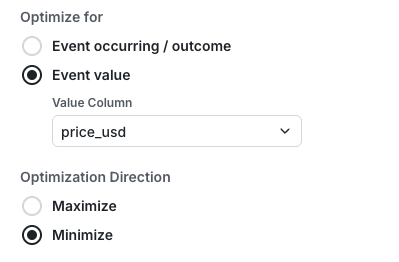
- Navigate to the Experiments section in the sidebar of the Statsig Console.
- Click on the Autotune tab at the top.
- Click the Create button and enter the name and description of the Autotune Experiment that you want to create.
- Select an ID Type for your Experiment.
- Create and name your variants for your Autotune Experiment. Statsig returns the variant listed as Control/Default when the Autotune Experiment isn't running.
- Select your Metric Source that you defined earlier as shown below.
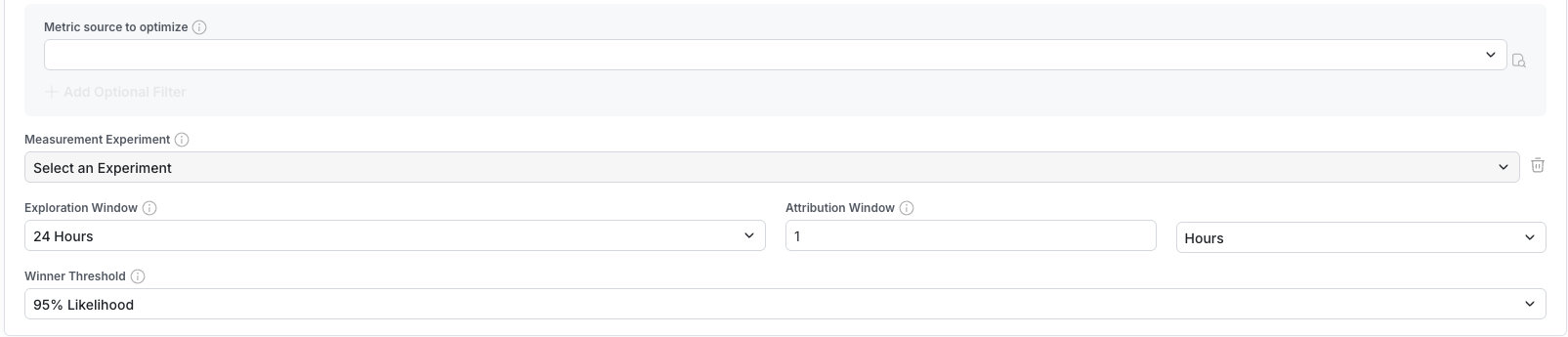
You can configure the following parameters:
| Parameter | Description |
|---|---|
| Exploration Window | The initial time period where Autotune splits traffic equally. Useful for noisy or temporal metrics where hourly swings can bias initial measurements. |
| Attribution Window | The maximum duration between the exposure and success event that counts as a success. Statsig recommends 1 hour for most applications; adjust if you expect the success event to lag the exposure event by several hours. |
| Winner Threshold | The "probability of best" threshold a variant must reach for Autotune to declare it the winner, stop collecting data, and direct all traffic. A lower value results in faster decisions but increases the probability of selecting the wrong winner. |
Click Create to finalize the setup.
- You've configured the Autotune, and it's ready. Click Start when you're ready to launch your Autotune test.
Was this helpful?