For AI agents: a documentation index is available at /llms.txt. Append .md to any page URL for markdown, or send Accept: text/markdown.
Databricks Connection
Connect Databricks to Statsig Warehouse Native, including service principal setup, SQL warehouse selection, and required Unity Catalog permissions.
How Databricks connection works
Connecting Databricks lets Statsig Warehouse Native read your experiment data and write staging tables in your Databricks workspace. To set up the connection, you need the following:
- Your Databricks Server Hostname
- An HTTP Path to a Cluster or SQL Warehouse
- A staging database for writing results and intermediate tables into
- An access token with read access on your experiment data and write access to the staging database
- Use either Serverless SQL Warehouse or an always-on cluster. Statsig uses interactive queries during setup (and some analysis). These queries fail if the cluster takes several minutes to start.
Start by enabling the Databricks source in your project settings.
Databricks access considerations
For users whose primary warehouse is a DBFS-based Delta Lake, Databricks permissions are simple to manage. For customers using Databricks as an intermediary to other data sources, ensure that Databricks and the Statsig service user have appropriate access to your storage. For example, Athena tables require access to S3. Permissions can be reset over time, which causes errors. To validate permissions, try creating tables through the Statsig console.
Getting connection information
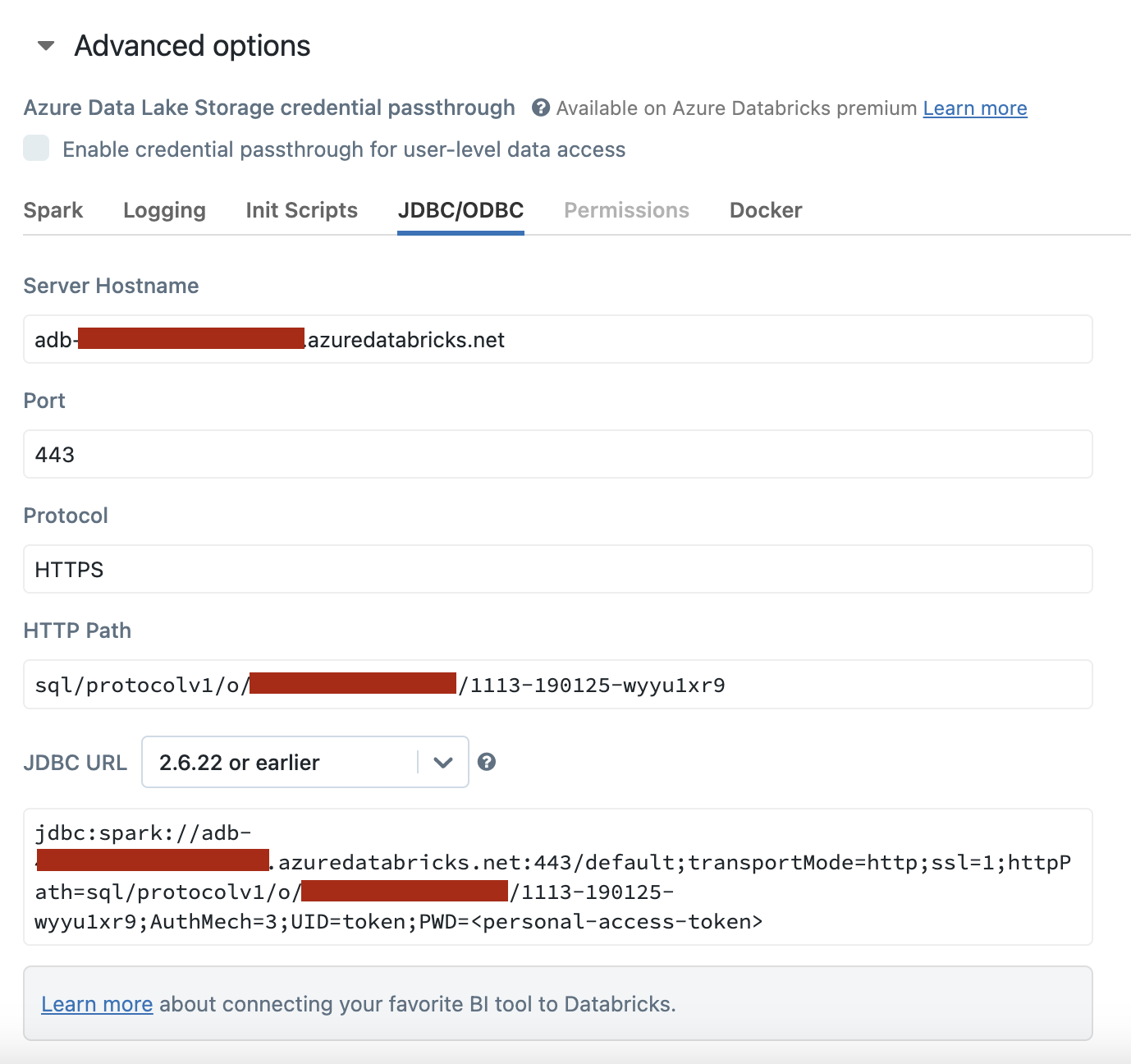
- Follow the Databricks documentation to get the hostname and HTTP path of the cluster you use to run your experimental analysis. You may want to create a dedicated cluster for this purpose.
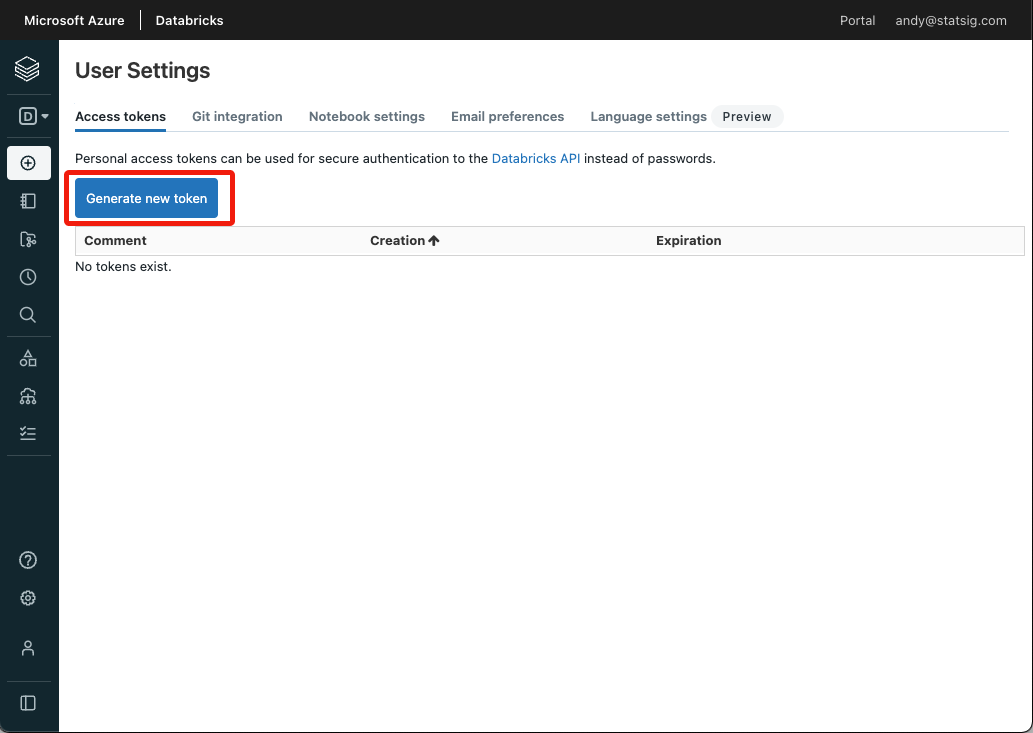
- Follow the personal access token instructions to get the token used to calculate experiment results on your warehouse. Alternatively, follow the service principal instructions to get a token for a service principal.
- Create or choose a database to use. For example, you could run this sql in a notebook:
staging_database_name = '<my_name>'
spark.sql(f"CREATE DATABASE IF NOT EXISTS {staging_database_name}")
If your data warehouse is IP protected, you must include allowlisting of Statsig IP ranges in your setup steps.
IP addresses Statsig accesses data warehouses from
Additional setup for Warehouse Explorer
Warehouse Explorer lets you find and bring data from any table into Statsig for ad-hoc analysis.
When you enable Unity Catalog, Statsig reads from <CATALOG_NAME>.information_schema.columns. You can provide the catalog name in Data Connection settings, under the Advanced section. You may also need to provide read access to the catalog and the information_schema schema:
  GRANT USE CATALOG ON CATALOG <CATALOG_NAME> TO <STATSIG_USER>;
  GRANT USE SCHEMA ON SCHEMA <CATALOG_NAME> .information_schema TO <STATSIG_USER>;
<STATSIG_USER> is the user associated with the access token you provided to Statsig.
Was this helpful?