For AI agents: a documentation index is available at /llms.txt. Append .md to any page URL for markdown, or send Accept: text/markdown.
Redshift Connection
Connect Amazon Redshift to Statsig Warehouse Native, including IAM roles, network access, user setup, and required schema permissions.
How Redshift connection works
Statsig Warehouse Native connects to your Amazon Redshift cluster to read experiment data and write results to a staging schema you control. To set up the connection, Statsig needs the following information:
- Cluster Endpoint
- A service user Username
- A service user Password
- A staging schema that Statsig can write results to
Statsig doesn't support SHA256 passwords. Use MD5 to avoid issues.
Find this information in your AWS console within your specific cluster, as the image below shows. The service user must be able to read the required experiment data and write to the Statsig staging schema you specify.
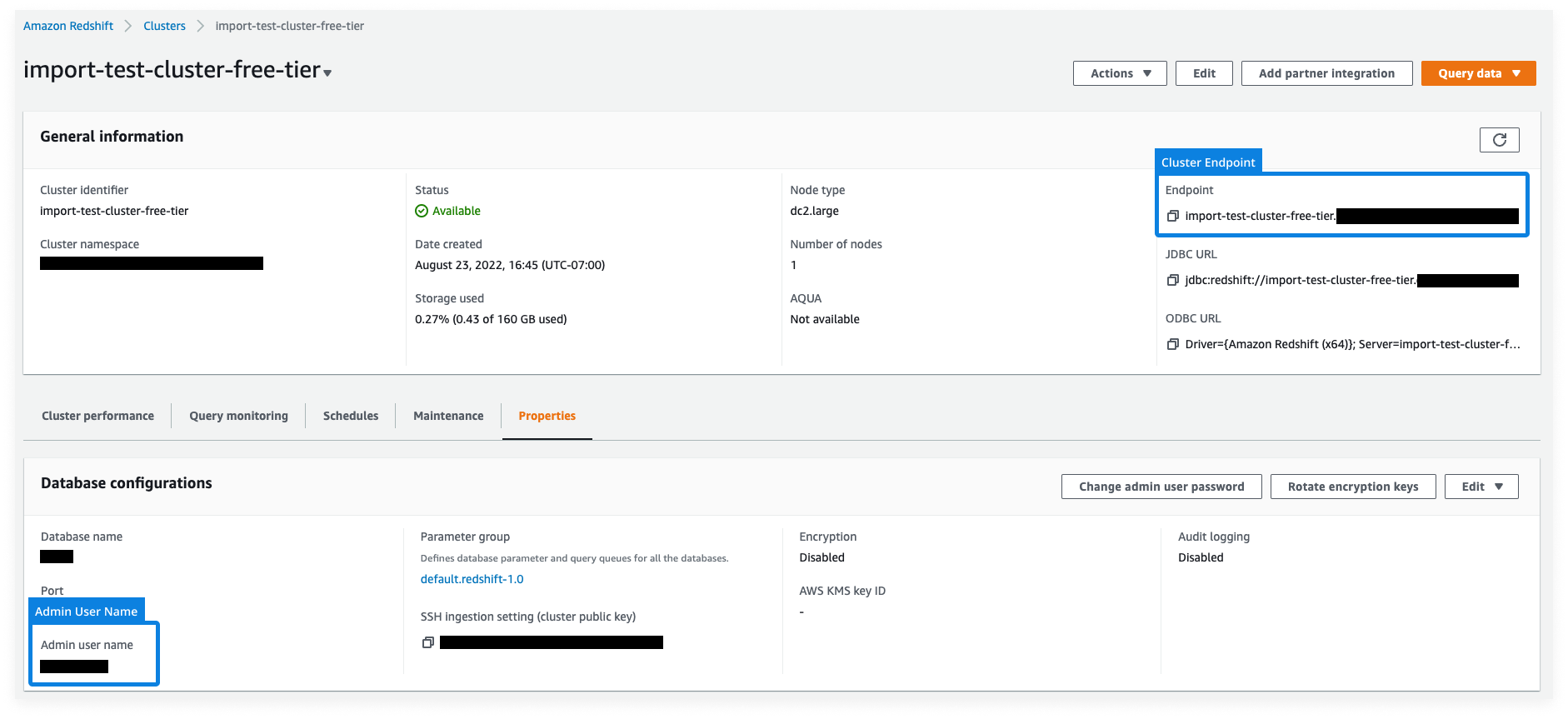
When you save the connection, Statsig runs a series of test commands to validate permissions. For example, Statsig creates a temp table, runs a select/delete statement on that table, and drops the table.
The provided Service Account requires the following attributes: enable_case_sensitive_identifier, enable_case_sensitive_super_attribute. If you haven't already set these, Statsig sets them to TRUE upon setup completion.
SSH tunneling
For Redshift connections, Statsig supports SSH tunneling into your Redshift cluster for more secure and private database access. To enable access, Statsig requires:
- SSH Host
- SSH Port
- SSH User
Statsig uses this information to generate an SSH key. Add this generated key to your ~/.ssh/authorized_keys file on your SSH proxy machine to enable SSH tunneling.
What IP addresses does Statsig access data warehouses from
If your data warehouse is IP protected, you must include allowlisting of Statsig IP ranges in your setup steps.
Additional setup for Warehouse Explorer
Warehouse Explorer lets you find and bring data from any table into Statsig for ad-hoc analysis.
To enable Warehouse Explorer, you may need to grant Statsig additional permission to query the pg_table_def metadata. Query results include only schemas that Statsig has read access to. A superuser or admin can grant access to additional relevant schemas and table metadata in pg_table_def by running:
  GRANT USAGE ON SCHEMA <RELEVANT_SCHEMA> TO <STATSIG_USER>;
  GRANT SELECT ON ALL TABLES IN SCHEMA <RELEVANT_SCHEMA> TO <STATSIG_USER>;
<STATSIG_USER> is the service user username you provided to Statsig. <RELEVANT_SCHEMA> is the name of the schema to include in Warehouse Explorer results.
Was this helpful?