For AI agents: a documentation index is available at /llms.txt. Append .md to any page URL for markdown, or send Accept: text/markdown.
Manage a Safeguard
Learn how to view and manage safeguards for your feature flags
View a Safeguard
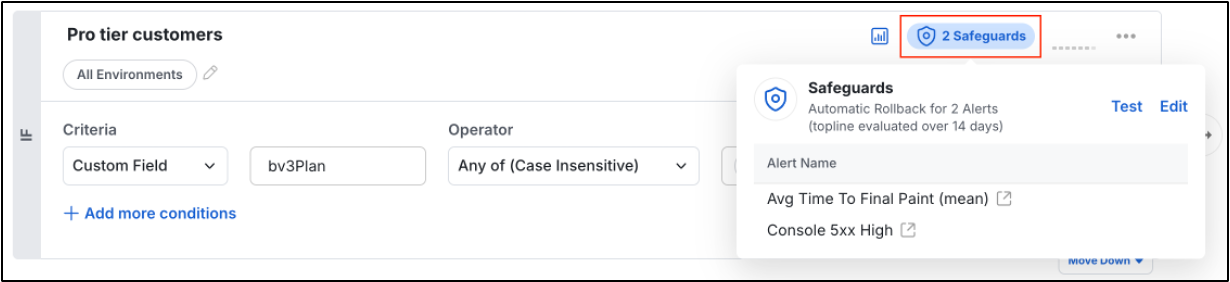
To view an existing Safeguard, tap the blue pill on your Feature Gate's targeting rule. You can see how you defined your Safeguard and make changes. You can add or remove alerts, change the action, or adjust the evaluation period.
When a Safeguard triggers
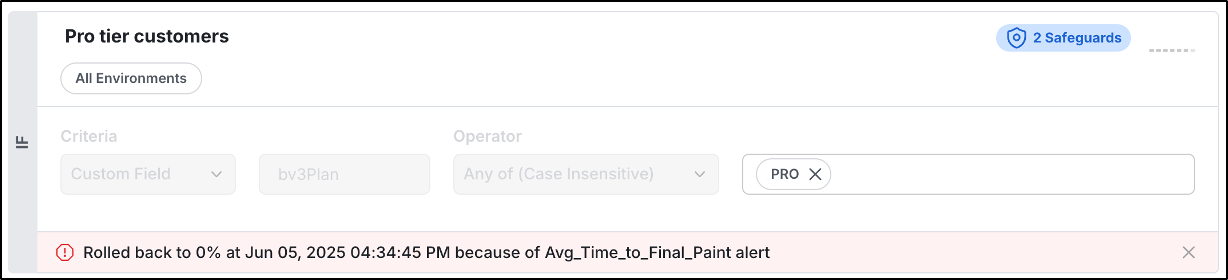
When an alert triggers a safeguard:
- The configured action executes automatically (rollback/pause/complete).
- A banner appears on the targeting rule with the action taken, timestamp, and diagnostic link.
- Statsig blocks further rule modifications until you resolve the alert.
- Statsig sends notifications according to your alert configuration.
Was this helpful?