For AI agents: a documentation index is available at /llms.txt. Append .md to any page URL for markdown, or send Accept: text/markdown.
Scheduled Rollouts
Pre-set time-based feature rollout schedules that execute automatically
Scheduled Rollouts add a time-based scheduling layer to Feature Gates. You pre-set a rollout schedule, and Statsig runs each phase automatically at the times you choose. This helps when a feature launch happens in another timezone or when your team follows a standard ramp-up schedule for every release.
Scheduled rollouts apply at the Feature Gate rule level for maximum flexibility. Not all rules in your Gate need to include a scheduled rollout. Set it up only for the rules that need it.
Set up a Scheduled Rollout
To set up a Scheduled Rollout on a rule in your Feature Gate, tap the "…" in the upper right-hand corner of the rule you want to schedule a rollout for.
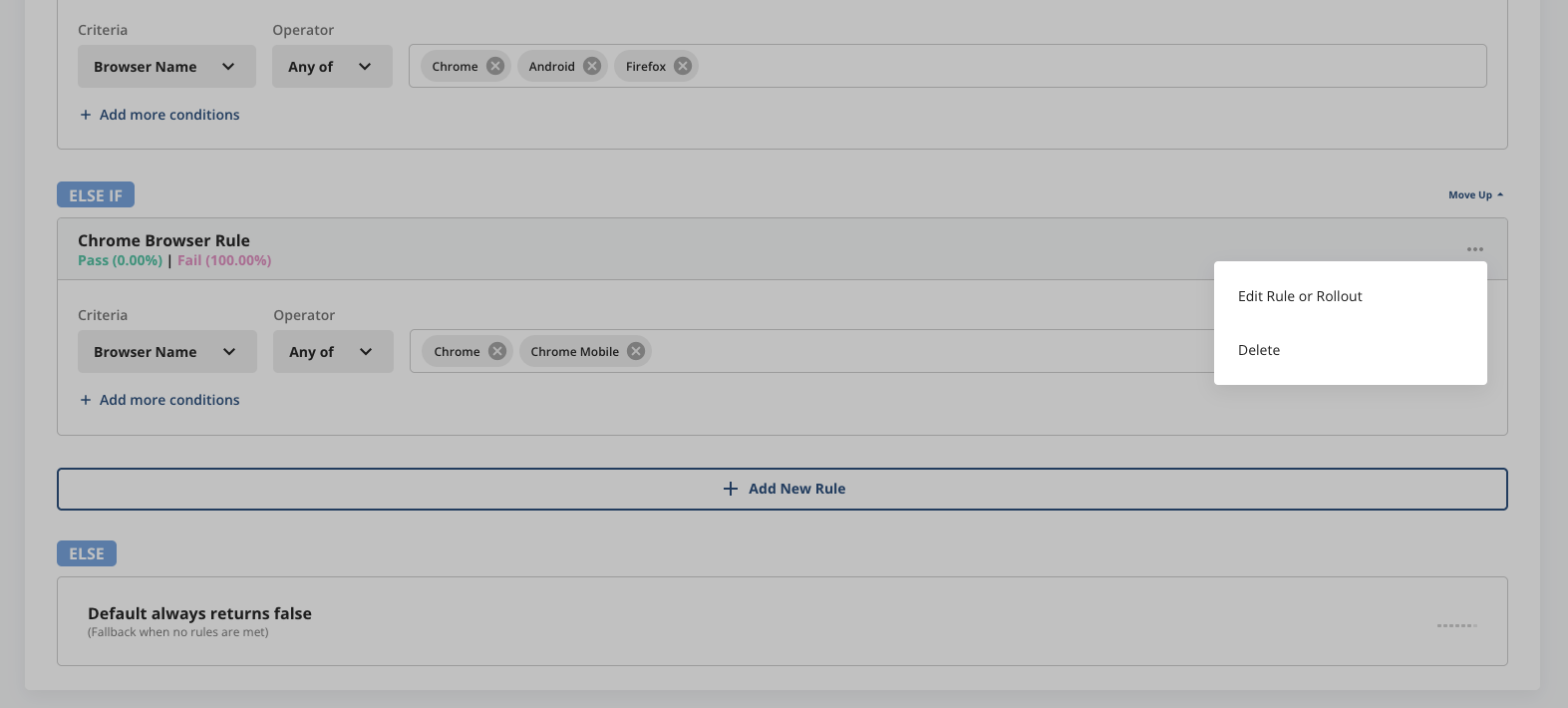
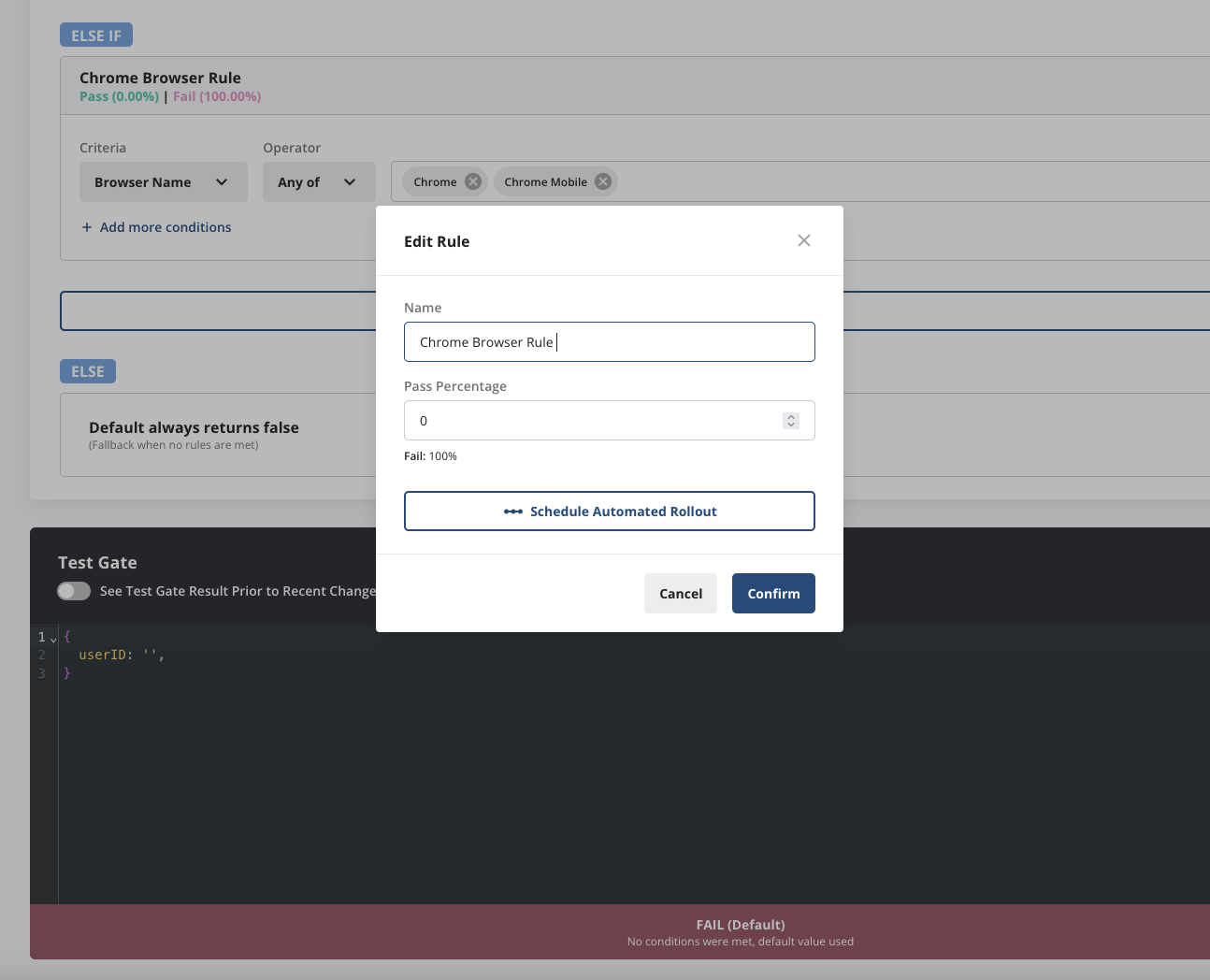
Select Edit Rule or Rollout, and then select Schedule Automated Rollout.
From here, configure each phase of your Scheduled Rollout. The upper right-hand corner shows your current pass percentage. This value reflects the baseline pass percentage you entered for your rule, and you can change it using Edit Rule. To add phases to your rollout, select Add Phase and configure as many phases as you need.
Each scheduled rollout phase includes:
- Rollout date
- Rollout time*
- Pass percentage
You can set rollout times in 15 minute increments. Additionally, each configured phase represents a discrete increase to the next rollout percentage, not a gradual rollout amortized over the entire phase.
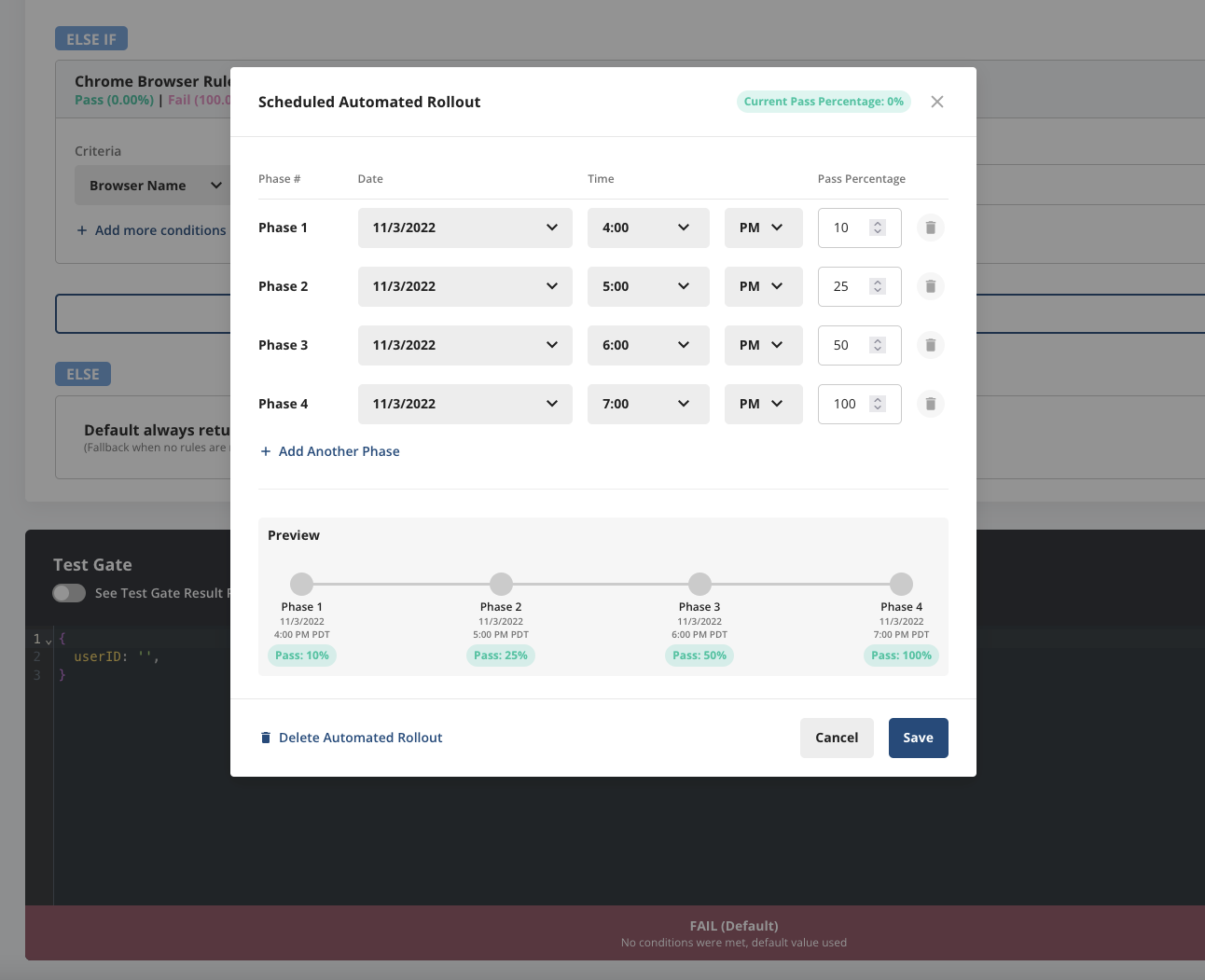
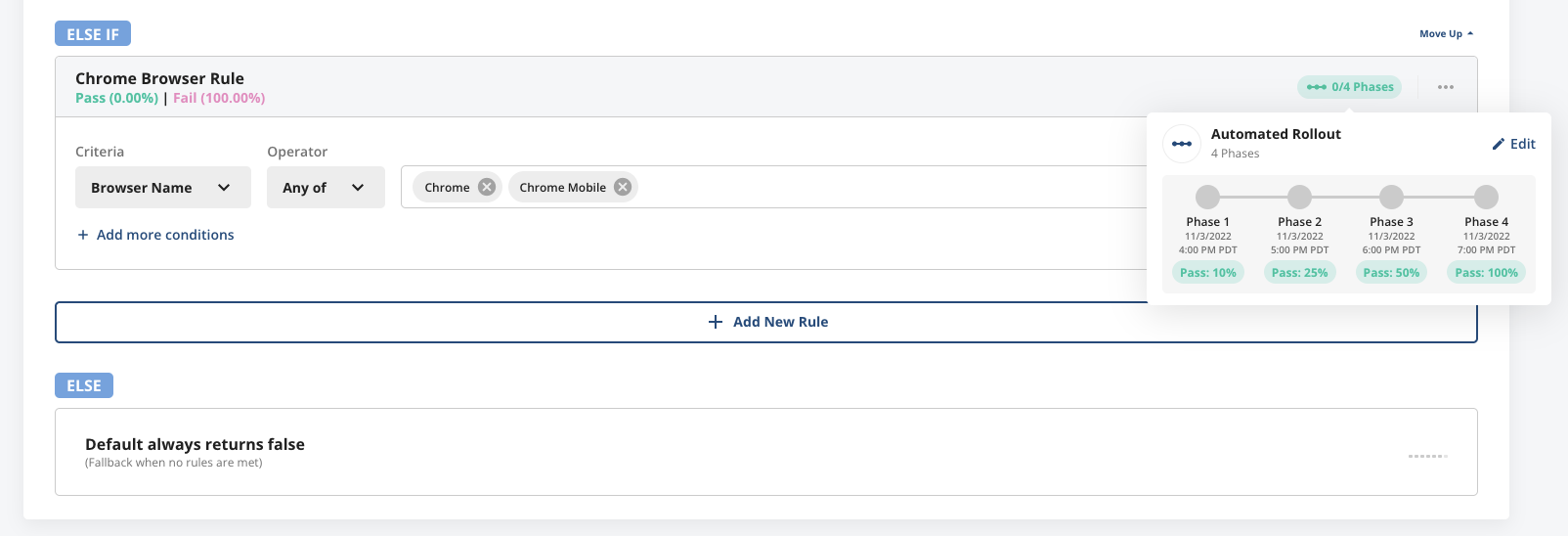
As you build your Scheduled Rollout, a preview of the phases appears below the configuration wizard. Viewers of your Feature Gate can also see this preview when they hover over a rule.
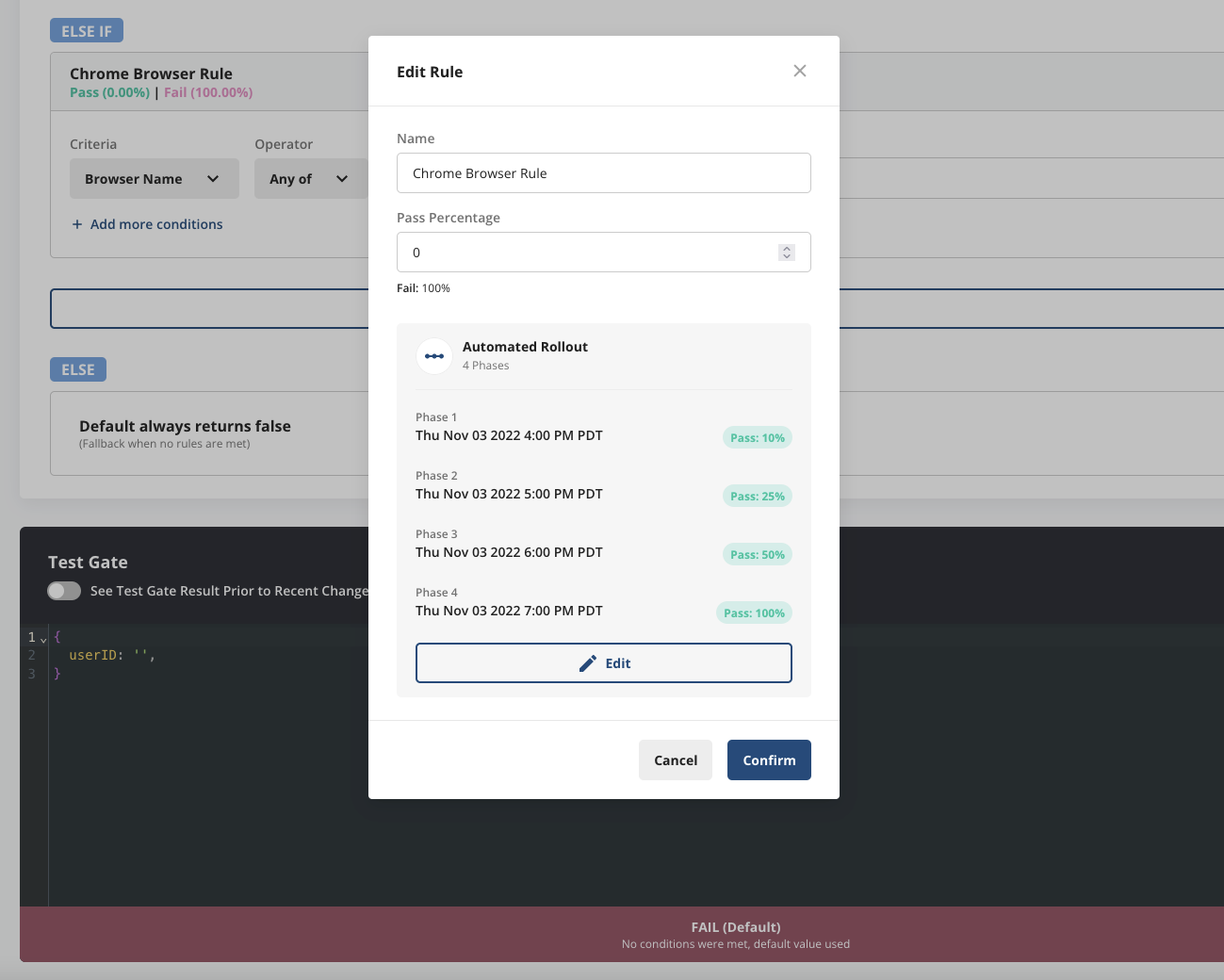
Execute a Scheduled Rollout
After configuration, each phase of a Scheduled Rollout executes automatically on the specified schedule. Statsig sends Scheduled Rollout notifications to the Feature Gate creator, any editors, and anyone following the Feature Gate.
Statsig sends notifications through:
- Console
- (Optional) Slack: to configure Slack notifications, go to Account Settings > Notifications.
Was this helpful?