For AI agents: a documentation index is available at /llms.txt. Append .md to any page URL for markdown, or send Accept: text/markdown.
Online Evals
Run online AI evaluations in Statsig to grade model outputs in production on real traffic, including shadow runs for candidate prompts and models.
This feature is in Early Access. During this time, aspects of the functionality may still be developed, and this documentation may not always be up to date. If you have any questions, contact Statsig Support.
What are online evals
Online evals grade model output in production on real-world use cases. You can run the "live" version of a prompt and also shadow-run "candidate" versions without exposing users to them. Grading works directly on the model output and doesn't require a ground truth to compare against. Use online evals when you want to grade output on live production traffic without a ground truth to compare against. Use offline evals instead when you can grade against a fixed test set with ideal answers before release.
Steps to run online evals in Statsig:
- Create a Prompt that contains the instruction for your task (for example, "Summarize ticket content. Do not include email addresses or credit card numbers in the summary"). Create a v2 prompt that improves on this.
- In your app, produce model output using the v1 and v2 prompts. Your app renders the output from v1 to the user, and an LLM-as-a-judge judges the outputs from both v1 and v2.
- Statsig logs the grades from v1 and v2 for comparison.
For a start-to-finish walkthrough that also covers offline evals and serving prompts in code, refer to Set up AI Experimentation.
Create/analyze an online eval in 15 minutes
1. Identify the prompts you want to serve
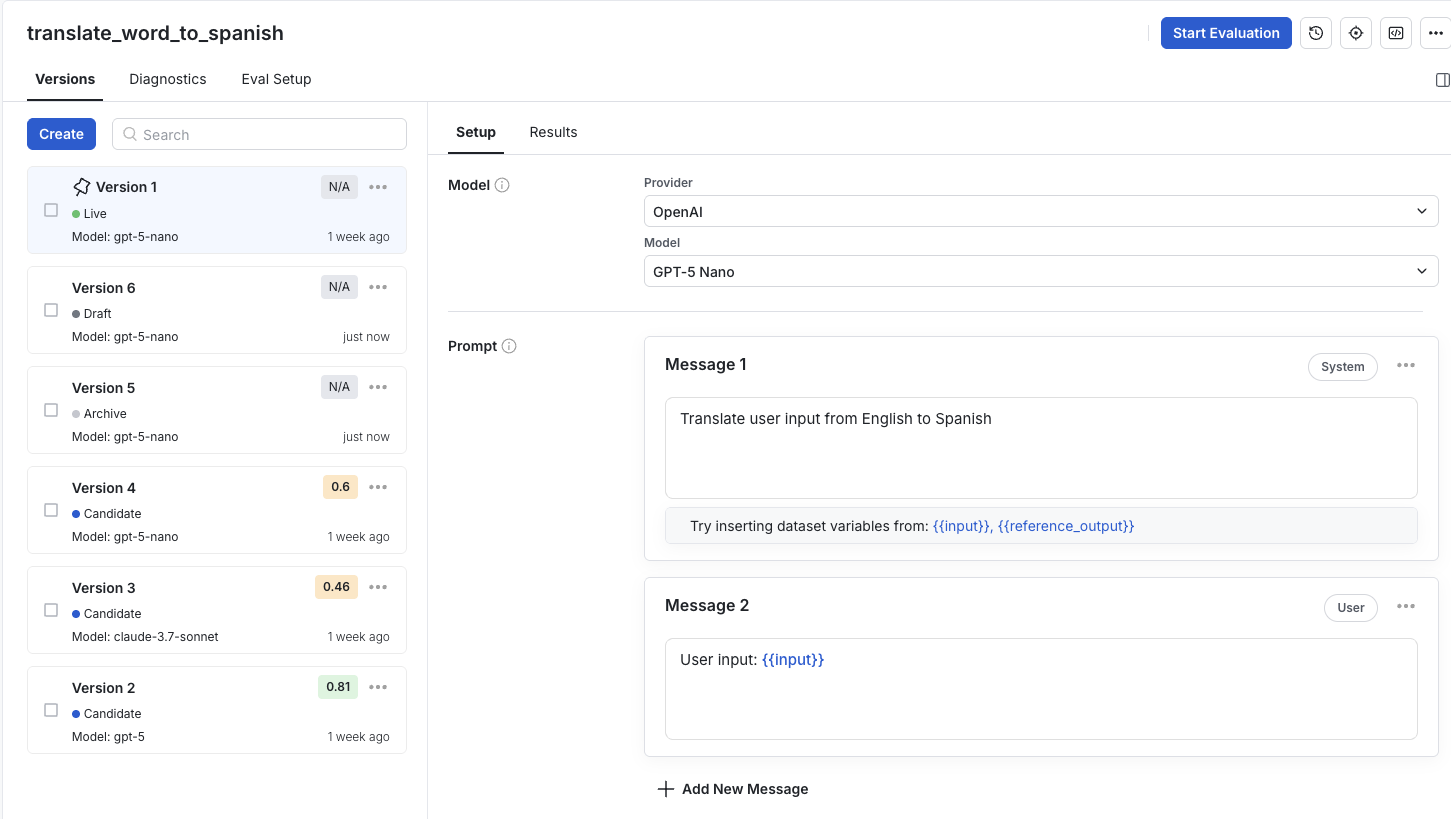
In Prompts, there are four prompt types: Live, Candidate, Draft, and Archive. Before starting an online evaluation, organize your prompt versions into these categories:
Live prompt is the version Statsig actively serves to users.
Candidate prompts don't appear to users, but Statsig still serves them to your code. Statsig processes the user's input against them and logs and grades their outputs alongside the live version.
Draft prompts are the offline prompts you iterate on in the console, before deciding that you want to serve them. To start serving them, promote them to "Candidate" or "Live."
Archive prompts are inactive versions that you don't iterate on, kept offline.
Prompts that you can access in code comprise the Live version and Candidate versions.
2. Load your prompts in code and run completions on user input
The example below shows how to integrate prompts in your application using the Statsig AI SDKs. After you retrieve your Live or Candidate prompts, pass in the appropriate values to replace the macros in your prompt (replace {{input}} with the user input). Then run completions on each of these prompts.
const prompt = statsigAI.getPrompt(user, "support_summary");

// Get the live version and any candidate versions
const live = prompt.getLive();
const candidates = prompt.getCandidates();

// Run the live version and show its output to the user
const liveResponse = await openai.chat.completions.create({
  model: live.getModel({ fallback: "gpt-4.1" }),
  temperature: live.getTemperature(),
  max_tokens: live.getMaxTokens(),
  messages: live.getPromptMessages({ input: userInput }),
});

// Shadow-run each candidate in the background. Don't show these to the user.
for (const candidate of candidates) {
  const candidateResponse = await openai.chat.completions.create({
    model: candidate.getModel({ fallback: "gpt-4.1" }),
    temperature: candidate.getTemperature(),
    max_tokens: candidate.getMaxTokens(),
    messages: candidate.getPromptMessages({ input: userInput }),
  });
  // Grade candidateResponse and log the grade (covered below)
}
3. Grade the output
Every grade is a score between 0 and 1. There are two ways to produce grades in production, and you can use either or both.
Automatic grading lets Statsig grade a sample of your live traffic for you:
- On the prompt's Eval Setup tab, turn on Enable for online eval for a grader.
- Under Online Configuration, set a Sampling Rate, the percentage of traffic Statsig grades.
Statsig grades the sampled traffic from the OpenTelemetry traces your application sends, so you need telemetry flowing. The Node AI SDK provides an initializeTracing function and a wrapOpenAI helper to emit these traces (Python tracing support is coming soon). Online graders have no ground-truth column to compare against, so they grade from the model output alone. Use an LLM-as-a-judge grader whose only variable is {{output}}, or a Python grader that doesn't read dataset columns.
Manual grading lets you grade the output in your own code and log the score with logEvalGrade. Then flush the events so they reach Statsig.
// Log the result of your grader for a prompt version
statsigAI.logEvalGrade(user, live, 0.92, "helpfulness", {
  sessionId: "1234567890",
});

// Flush eval grade events to Statsig
await statsigAI.flushEvents();
4. View results in Statsig
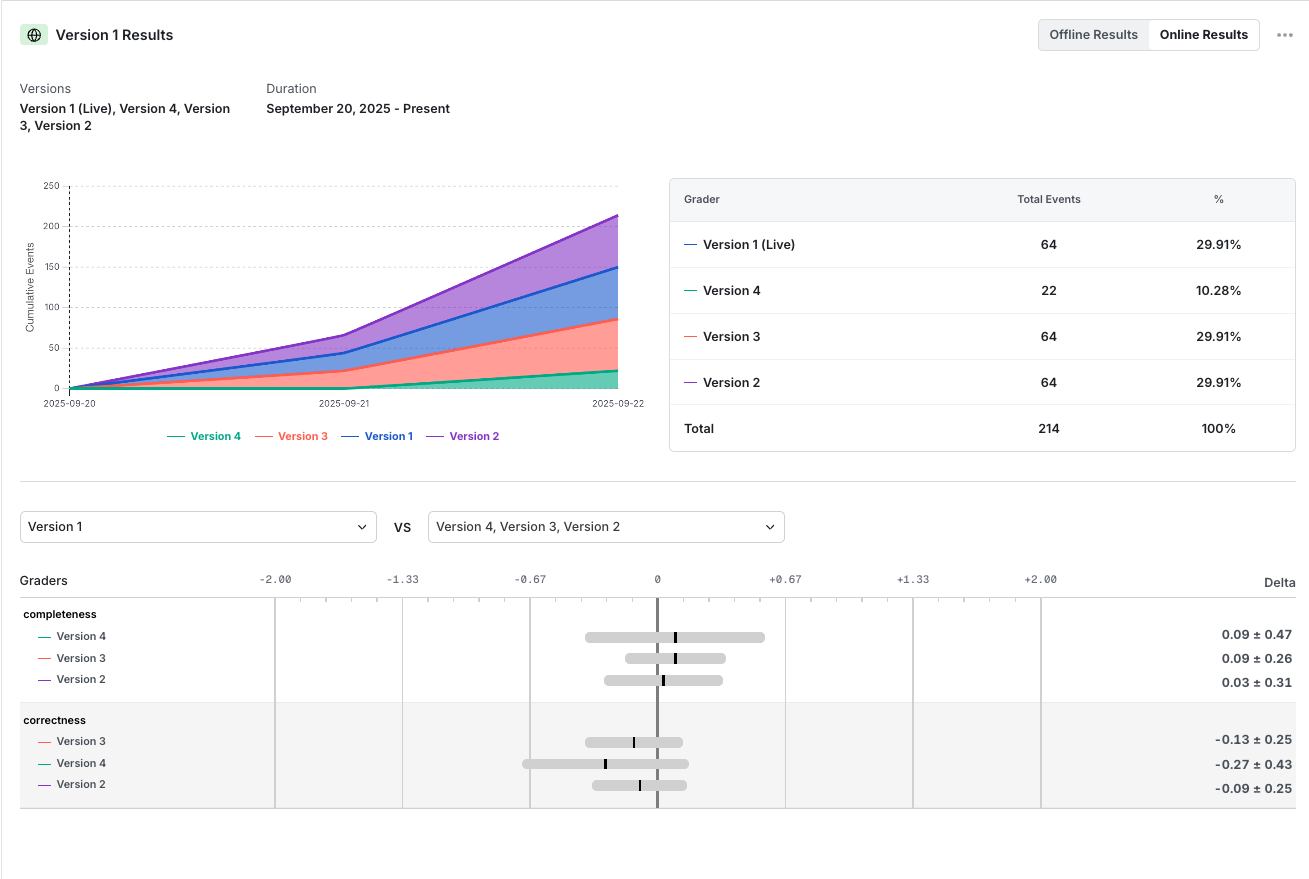
Open the prompt, go to the Versions tab, Eval Results subtab, and switch to Online Results. Select the version you want to evaluate and the versions to compare it against. Each version's exposures and grader scores appear over time, with grader deltas relative to the Live baseline.
Was this helpful?