For AI agents: a documentation index is available at /llms.txt. Append .md to any page URL for markdown, or send Accept: text/markdown.
Managing Feature Gate lifecycles
Learn how to manage feature gates through different phases of their lifecycle - from testing to full rollout to cleanup and archival.
A feature can go through different phases throughout its lifecycle. A few users may test it, you may have recently rolled it out to everyone, or it may be stable enough that you no longer need the toggle.
A feature gate should clearly reflect the phase the feature is in, for a few important reasons:
- Prevent incidents: Avoid scenarios where old code for a deprecated feature is accidentally touched or repurposed. These incidents have had real business consequences, as in how Knight Capital lost half a billion dollars.
- Maintain a healthy codebase: Dead references to flags increase the volume of code your team navigates daily and can slow down new developer onboarding.
- Reduce mental load: The feature gate catalog shows the status of every feature, so you can quickly see what next steps are needed (for example, launch or end a feature) without tracking everything manually.
Managing feature gate lifecycles
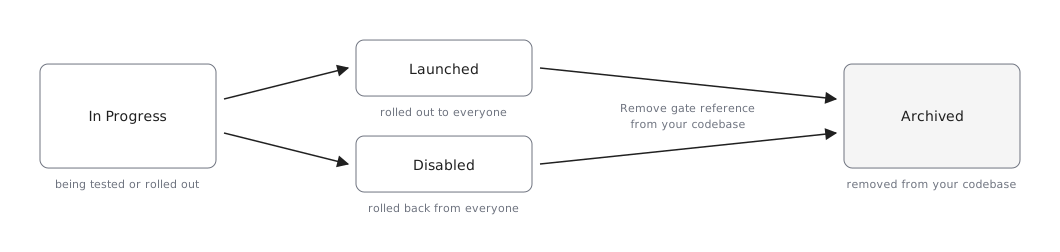
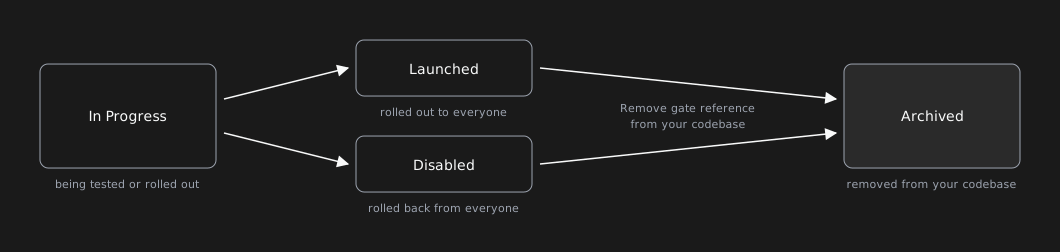
Statsig makes it easy for your feature gates to reflect the phase your feature is in by using status. A gate can be in one of four statuses:
| Status | What it represents | Implication |
|---|---|---|
| In Progress | You're rolling out and testing this feature. | Default status when you create a gate. |
| Launched | You've rolled out this feature to everyone. | The gate always returns TRUE and stops generating billable exposure events, so you stop incurring costs. The gate reference is likely safe to clean up from the codebase. |
| Disabled | You've rolled back this feature from everyone. | The gate always returns FALSE and stops generating billable exposure events, so you stop incurring costs. The gate reference is likely safe to clean up from the codebase. |
| Archived | Your code no longer references or checks this feature; Statsig preserves the gate's history. | The gate has received 0 checks for the last 7 days and receives no more checks. |
When to update feature gate lifecycles
There are 3 points throughout the gate's lifecycle when you should take action, either in the console or in your codebase:
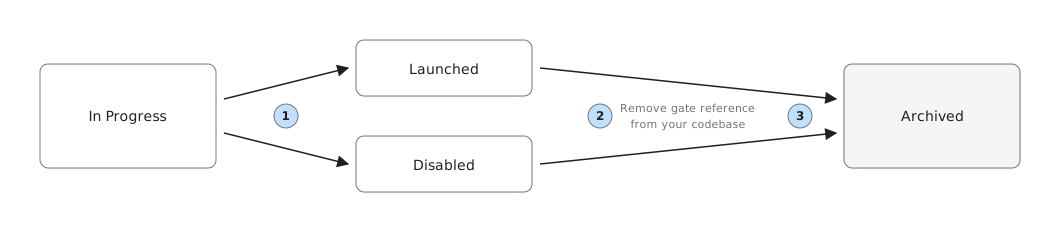
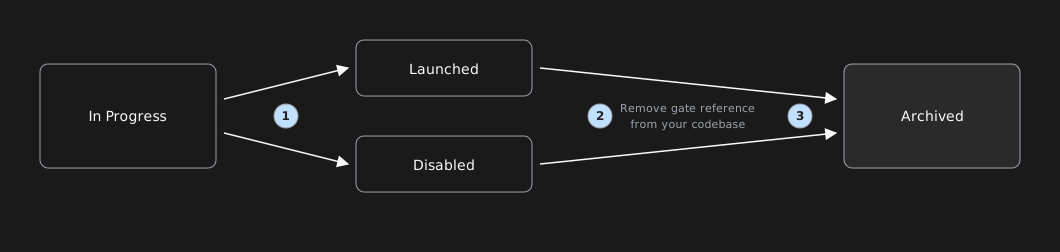
1) You've fully rolled out or rolled back the gate, and you're ready to skip rule evaluation and assign a default value
Go to the feature gate page and click the "..." menu in the upper right corner to select Launch or Disable:
- In Progress → Launch: when you've rolled out the gate to 100% for a period of time (recommended: more than 30 days) and you're comfortable with the gate always returning TRUE.
- In Progress → Disable: when you've rolled back the gate to 0% for a period of time (recommended: more than 30 days) and you're comfortable with the gate always returning FALSE.
To find all gates that are good candidates to be Launched or Disabled (rolled out to 100% or rolled back to 0% more than 30 days ago):
Go to Feature Gates catalog
- Click on filter icon:
- Status = In Progress
- Pass Rate = 100% AND 0%
- Click on filter icon:
In the search bar: "Modified:
<YYYY/MM-DD;" (update the date to be 30 days ago)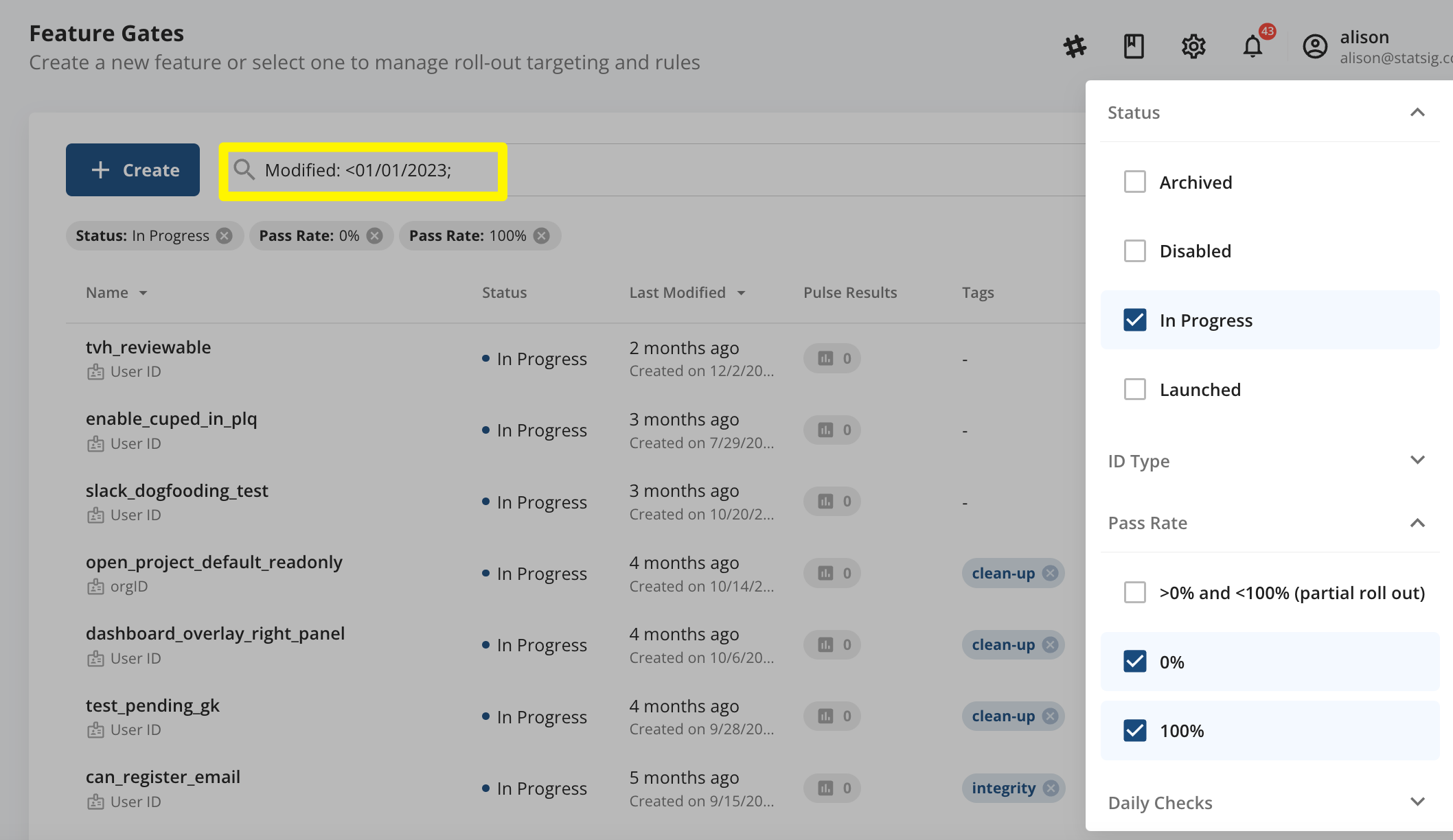
2) You're ready to clean up the gate reference from your codebase
Confirm that you've set the gate to either Launched or Disabled for a period of time (recommended: more than 60 days) to avoid unintentionally breaking rule evaluation and to confirm no negative impact on your metrics. After confirming:
- Go to your codebase and:
- For Launched gates: remove the gate reference, but keep the feature code as a permanent part of the codebase.
- For Disabled gates: remove the gate reference and all code related to the feature.
Confirm that no active Holdouts include these gates before removing reference.
- To find all gates that are good candidates to remove from your codebase (Launched or Disabled more than 60 days ago):
Go to Feature Gates catalog
- Click on filter icon: Status = Launched AND Disabled
- In search bar: "Modified:
<YYYY/MM-DD;" (update the date to be 60 days ago)
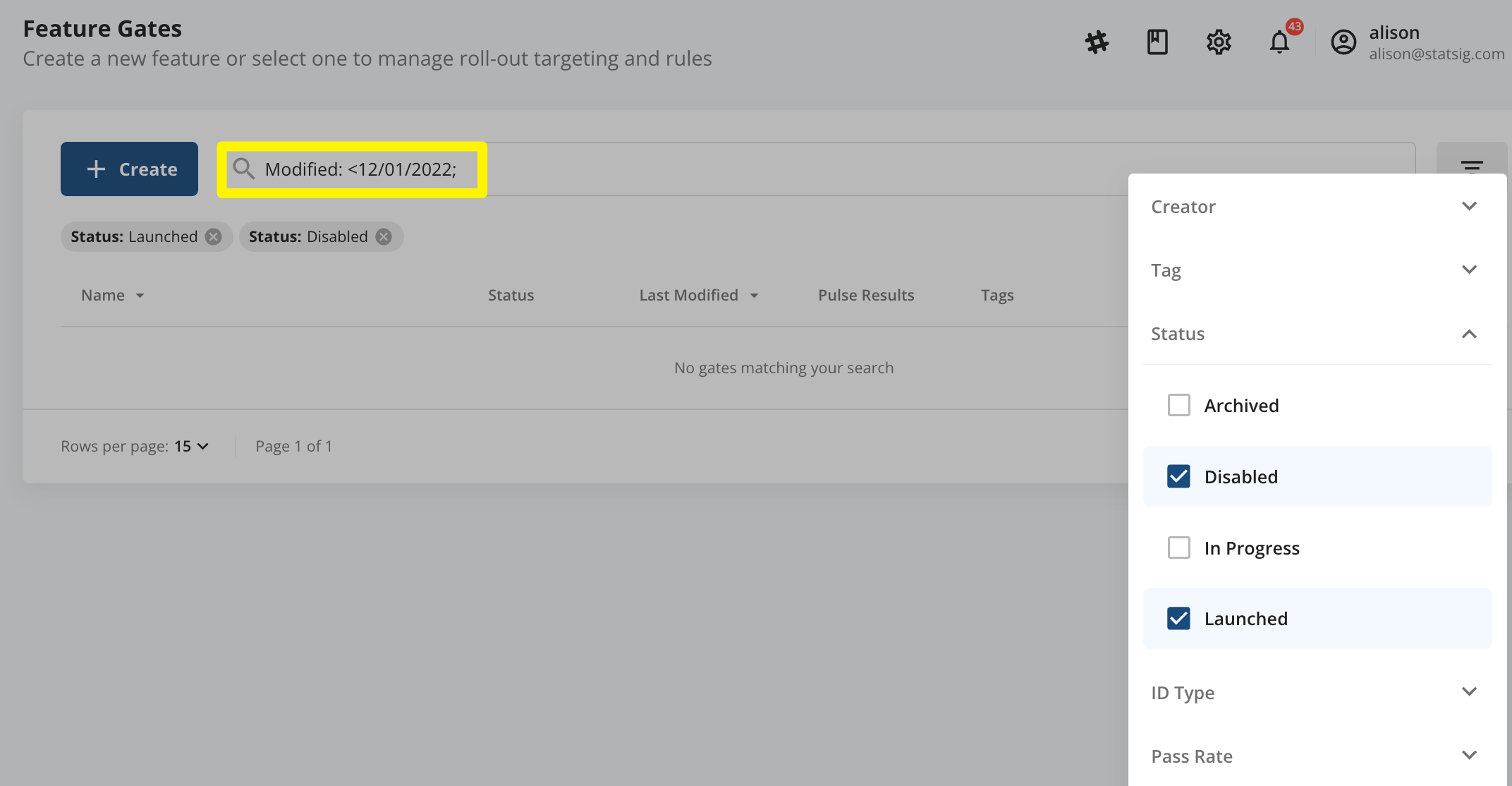
3) After you've cleaned up the gate reference from your codebase
Launched or Disabled → Archived: Update the status to mark that you've removed the gate from your codebase. This filters the gate out of future cleanup candidate lists (step 2).
- Go to the feature gate page and click the "..." menu in the upper right corner to select "Archive".
To find all gates that should be marked as Archived:
Go to Feature Gates catalog
- Click the filter icon:
- Status = Launched or Disabled
- Checks = 0 checks in last 7 days or 30 days, depending on your comfort level
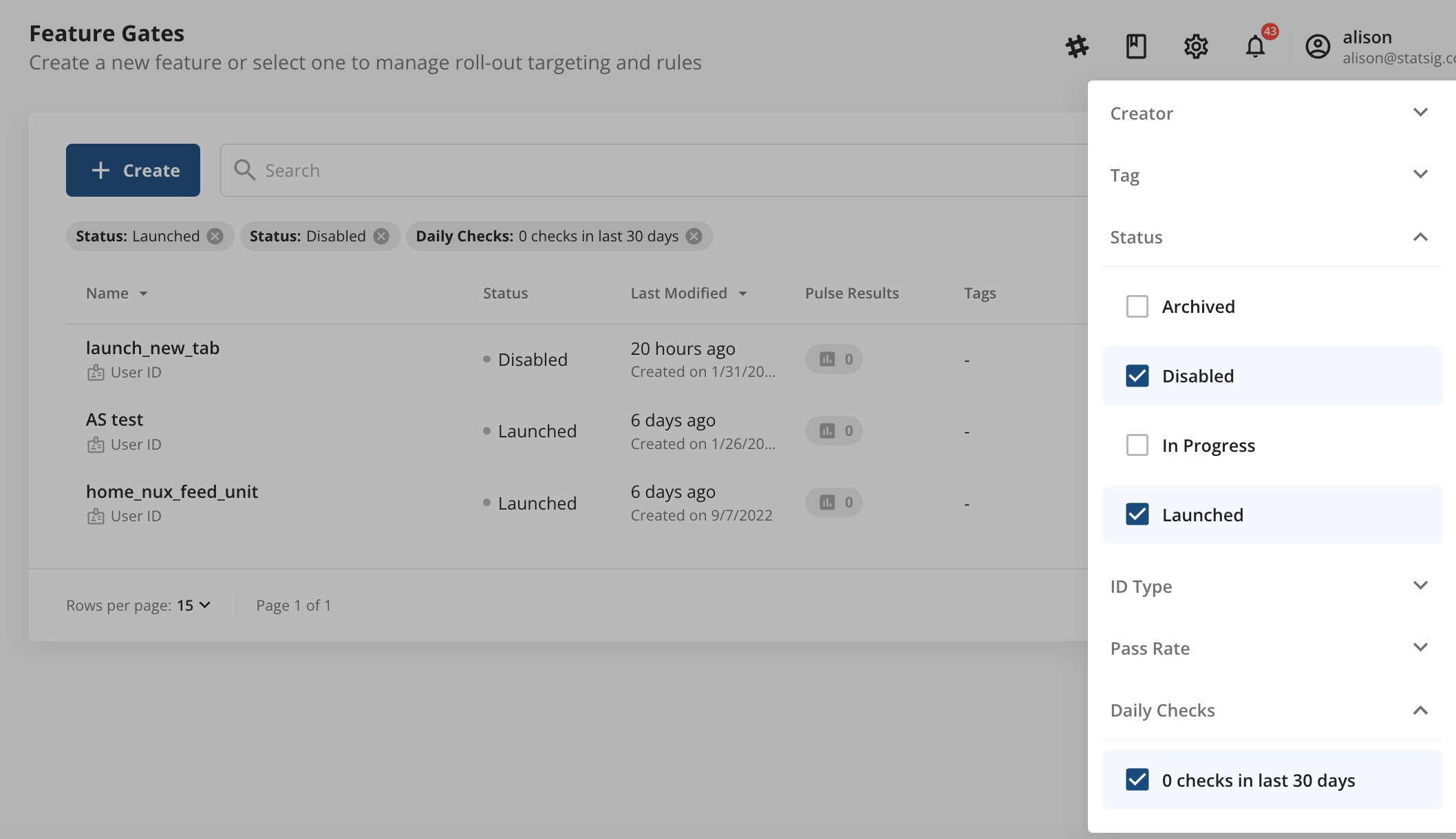
- Click the filter icon:
Feature gate lifecycles FAQs
Was this helpful?