For AI agents: a documentation index is available at /llms.txt. Append .md to any page URL for markdown, or send Accept: text/markdown.
Feature Gate rule criteria
Statsig feature gates contain a list of rules that are evaluated in order from top to bottom. This page describes in more detail how these rules are evaluated and lists all currently supported conditions.
Statsig feature gates contain a list of rules that Statsig evaluates in order from top to bottom. Each rule's conditions determine which users qualify for the Pass or Fail treatment. The Pass percentage sets how many qualifying users see the new feature.
Rule evaluation
Statsig evaluates the rules you create in the order they're listed. For each rule, the criteria or conditions determine which users qualify for the Pass/Fail treatments. The Pass percentage further determines the percentage of qualifying users that Statsig exposes to the new feature. The remaining qualifying users see the feature disabled.
For rules set up as shown below, the following flowchart illustrates how Statsig evaluates them.
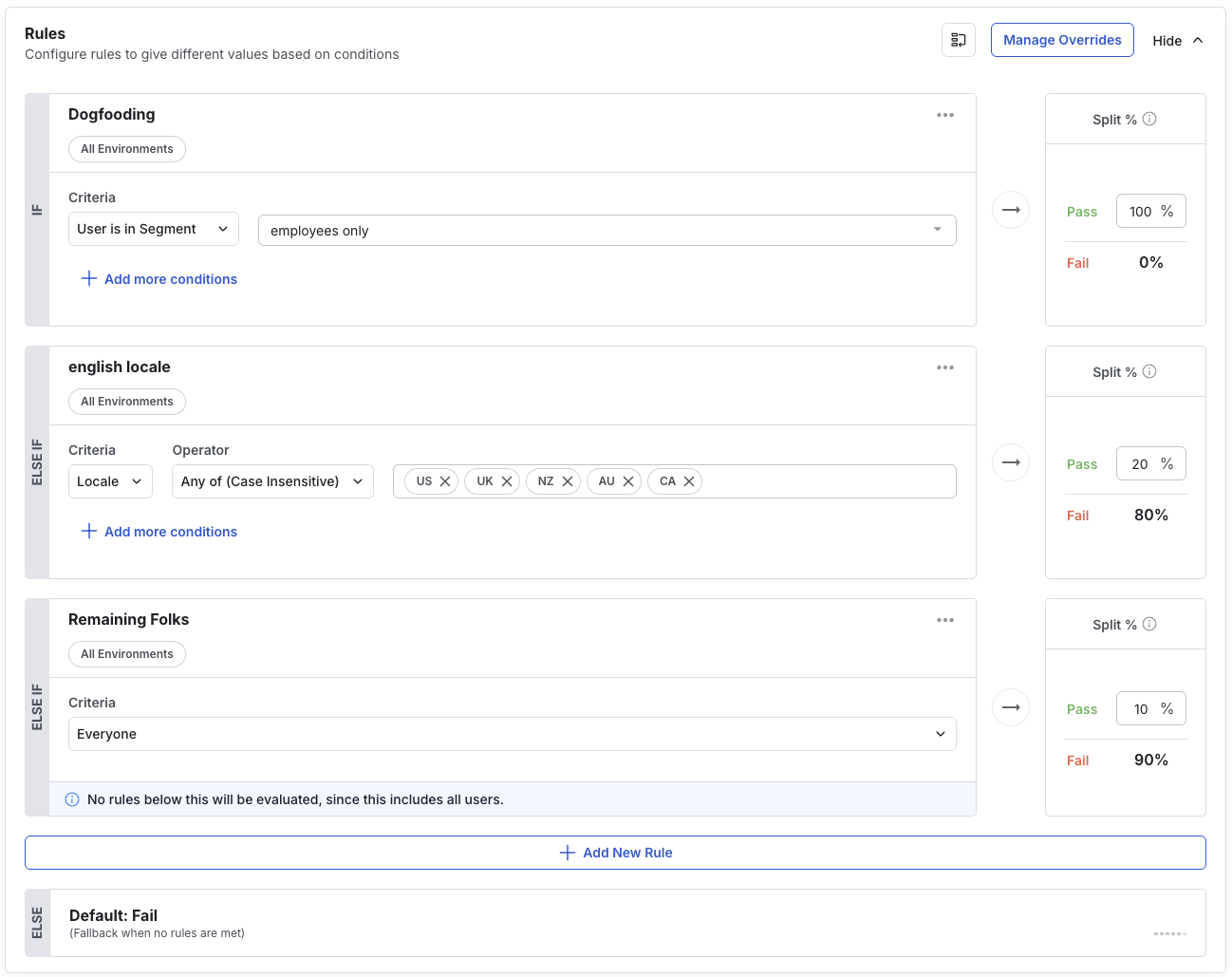
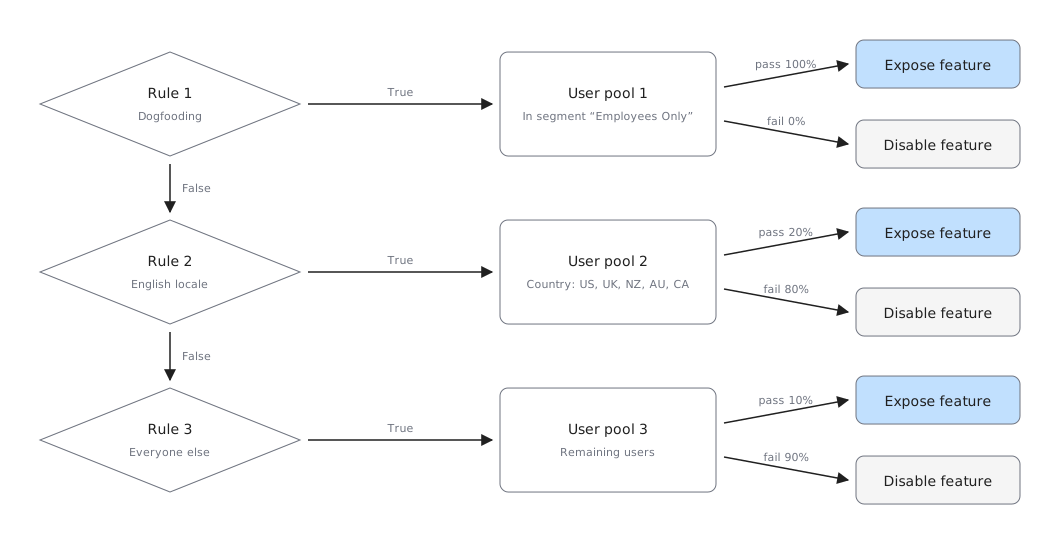
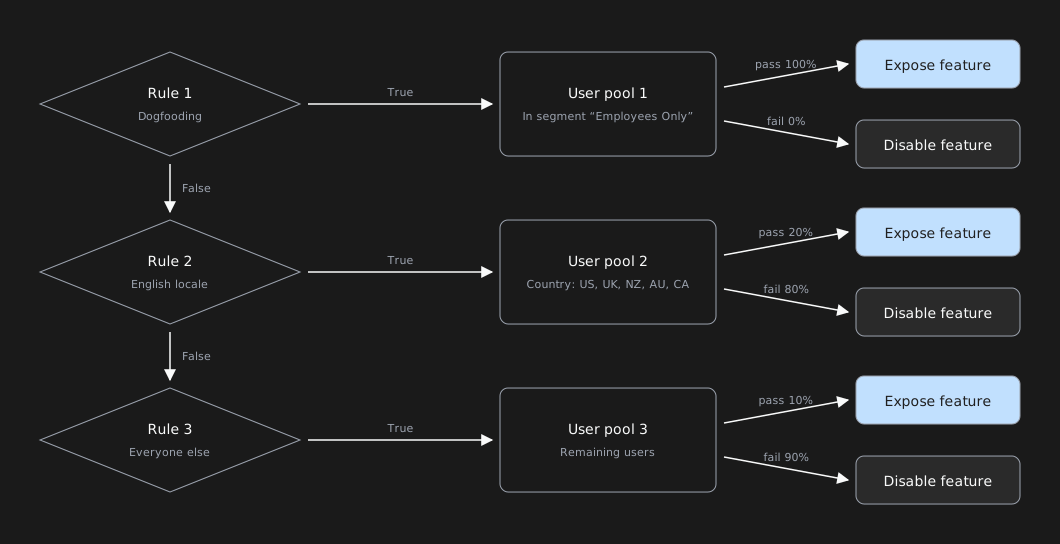
After a user qualifies based on the condition in a given rule, Statsig doesn't evaluate subsequent rules for that user. Statsig then assigns the qualifying user to either the Pass or Fail group of that rule.
In the example, the third rule for Remaining Folks captures all users who don't qualify for the previous two rules. Removing this third rule means only users in pools 1 and 2 qualify for this feature gate and for analysis, not your total user base.
Client vs server SDKs
All of the following conditions work on both client and server SDKs. Client SDKs handle several of these conditions automatically: if you don't provide a userID, client SDKs rely on an auto-generated stable identifier persisted to local storage. If you don't set an IP or User Agent (UA), the client SDK infers these attributes from the request. On mobile, the client SDK automatically passes your app version and locale to the server. Statsig can then evaluate conditions using these attributes without you setting them explicitly.
Stability
Evaluations at a given percentage are stable with respect to the unitID. For example, if the gate/config/experiment/layer has a unit type of "userID", and userID = 4 passes a condition at a 50% rollout, they always pass at that 50% rollout. The same applies for customIDs, if the unit type of the entity is that customID. Want to reset that stability? Refer to "Resalting" below.
Resalting
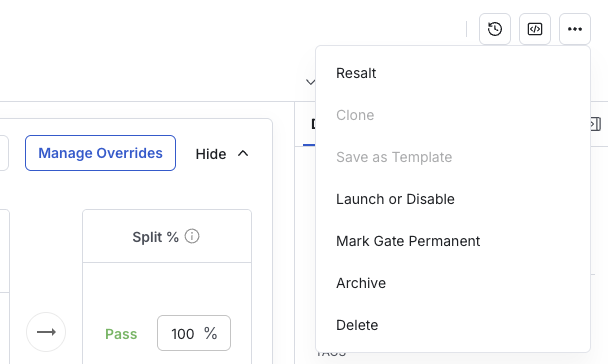
Gate evaluations are stable for a given gate, percentage rollout, and user ID. This stability is based on a salt associated with the feature gate. To reset a gate and reshuffle users, select "resalt" from the dropdown menu in the top right of the feature gate details page.
Partial rollouts
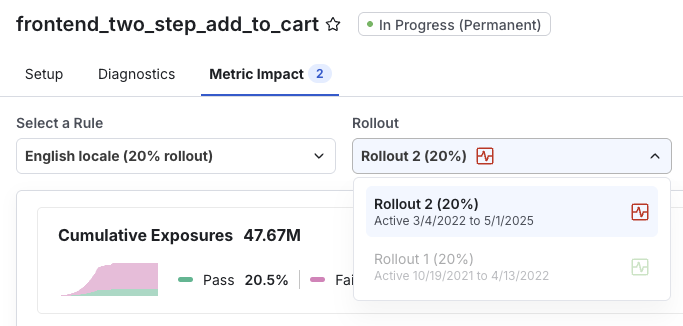
A 0% rollout means "off for all users matching this rule" and a 100% rollout means "on for all users matching this rule." Each rule lets you specify a percentage of qualifying users who pass (and see the new feature). Specifying a number between 0% and 100% creates a random allocation of users in Pass/Fail or test/control groups for a simple A/B test. Use this to validate that a new feature doesn't regress existing metrics as you roll it out. Statsig recommends a 2% → 10% → 50% → 100% rollout strategy. Each progressive rollout generates its own Pulse Results, as shown below.
User object fields
Evaluation uses the set of properties defined in the StatsigUser object. There are a set of reserved top-level fields, but Statsig also reserves and recognizes these keywords in the custom and privateAttributes maps.
For example, if you set user.country, user.custom.country, or user.privateAttributes.country, Statsig uses that value to evaluate a country condition (checked in that order: top level, then custom, then privateAttributes, case-insensitively). If user.country isn't defined but user.custom.COUNTRY is, Statsig uses user.custom.COUNTRY to evaluate the country condition.
Supported conditions
User ID
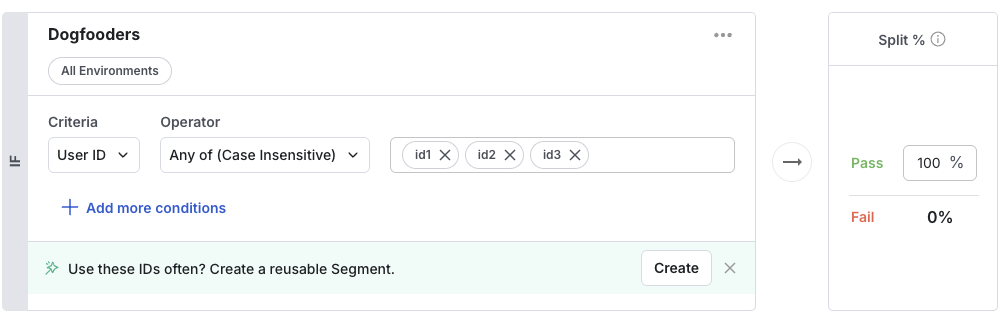
Usage: Simple lists of User IDs to explicitly target or exclude from a gate.
Supported Operators: Any of, none of
Example usage: Add yourself (or a small group like your team) when you start building a new feature. Or exclude your designer until the feature is ready for review.
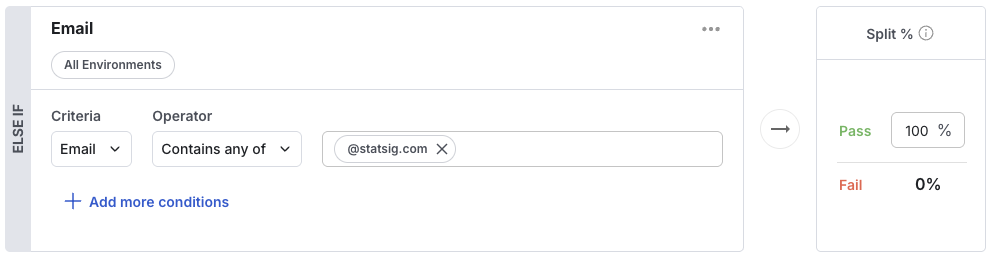
Usage: Target based on the email of the user
Supported Operators: any of, none of, contains any of, contains none of
Example: Show new feature to people in the Statsig company with an authenticated @statsig.com email address
Everyone
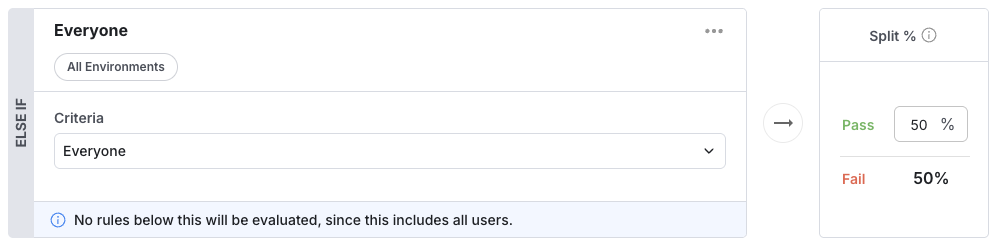
Usage: Percentage rollout on the remaining users that reach this condition. This condition represents everyone else: other rules or conditions may appear above it, but this condition sets what percentage of the remaining users pass.
Supported Operators: None. Percentage based only.
Example usage: 50/50 rollout to A/B test a new feature. Or 0% to hide the feature for all people not matching a set of rules. Or 100% to show the feature to the remaining users who did not meet a condition above.
App Version
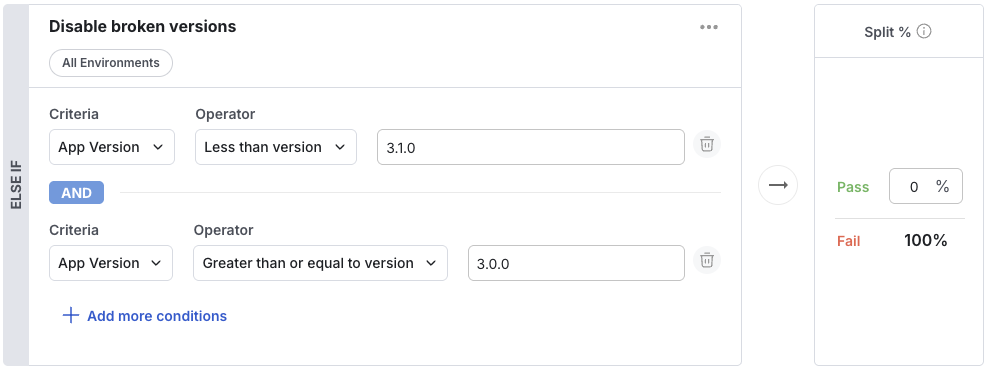
Usage: Users on a particular version of your app/website pass. Particularly useful for mobile app development, where a feature may not be fully ready (or may be broken) in a particular app version.
Supported Operators: >=, >, <, <=, any of, none of
Example: Turn off a feature for all users on app versions 3.0.0 through 3.1.0 as it was broken.
Browser Version
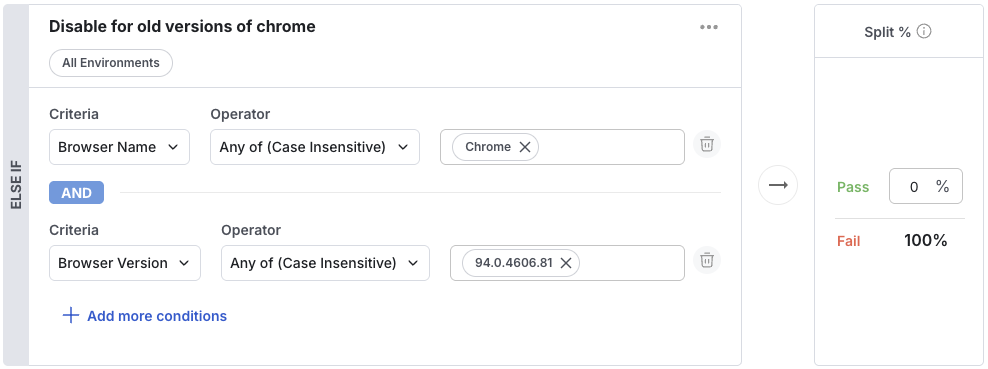
Usage: A particular version of a browser, parsed from the user agent. Should likely be combined with the browser name condition.
Supported Operators: >=, >, <, <=, any of, none of
Example: Turn off a feature for old versions of chrome which don't support a certain API
Browser Name
Usage: A particular browser, parsed from the user agent: ('Chrome', 'Chrome Mobile', 'Edge', 'Edge Mobile', 'IE', 'IE Mobile', 'Opera', 'Opera Mobile', 'Firefox', 'Firefox Mobile', 'Mobile Safari', 'Safari'). Often combined with the Browser Version condition.
Supported Operators: >=, >, <, <=, any of, none of
Example: Turn off a feature for old versions of chrome which don't support a certain API
To test: The Browser Name is inferred from the userAgent, but if you need to set it explicitly, you can set browserName in the user object.
OS Version
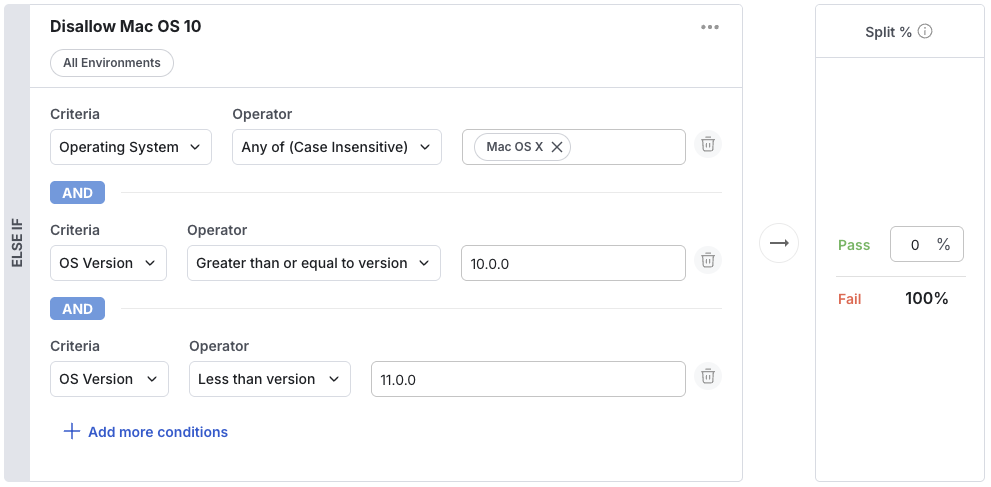
Usage: A particular os version the user is on, parsed from the user agent. Should likely be combined with the Operating System condition.
Supported Operators: >=, >, <, <=, any of, none of
Example: Turn off a feature for versions of macOS which don't support a certain API
Operating System
Usage: A particular operating system, parsed from the user agent: ('Android', 'iOS', 'Linux', 'Mac OS X', 'Windows'). Often combined with the OS Version condition.
Supported Operators: any of, none of
Example: Turn off a feature for versions of macOS which don't support a certain API
To test: The OS is inferred from the userAgent, but if you need to set it explicitly, you can set deviceOS in the user object.
Device Model
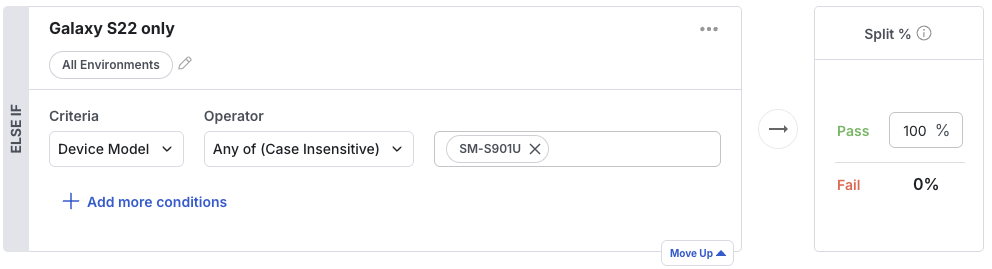
Usage: The device model of the mobile device the user is on.
Supported Operators: any of, none of, is null, is not null, contains any of, contains none of, regex
Example: Turn off a feature for older device models that your app doesn't support.
To test: The Device Model is automatically inferred by the SDK, but if you need to set it explicitly, you can set deviceModel in the user object.
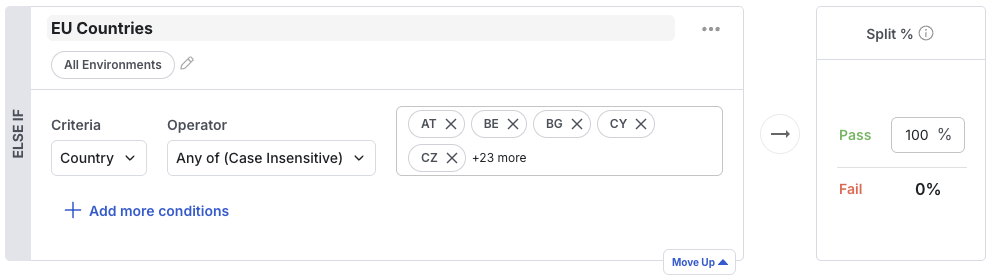
Country
Usage: A 2 letter country code, either passed as the user's country or determined by the IP address.
Supported Operators: any of, none of
Example: Show a cookie consent banner for users accessing your service from the EU.
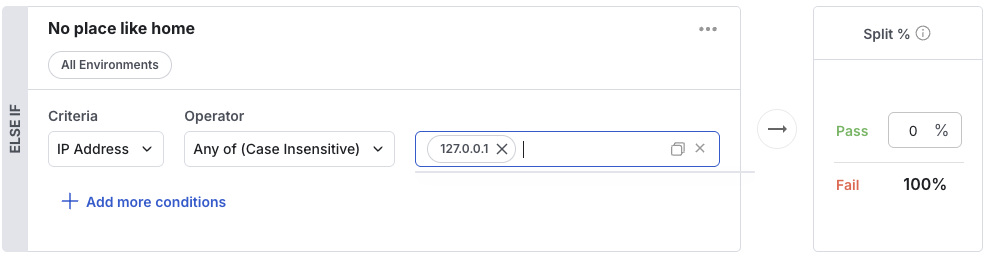
IP address
Usage: An IP address string
Supported Operators: any of, none of
Example: Show a different about us page on www.statsig.com to people in a certain IP address range
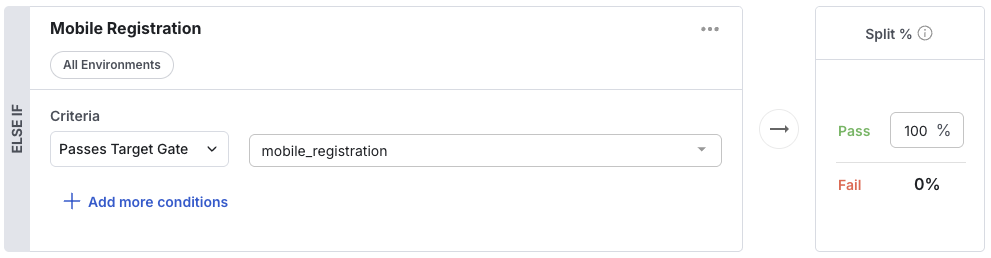
Passes Target gate
Usage: The condition passes if the referenced gate passes for the given user
Supported Operators: gate_id
Example: Only show feature X to people who also see feature Y: Only show a toggle to turn off ranking to people who also pass the new ranking algorithm gate.
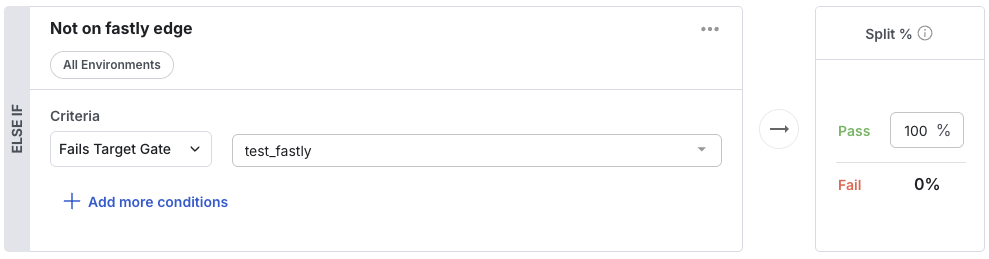
Fails Target gate
Usage: Inverse of passes target gate: the condition passes if the referenced gate returns false for the given user
Supported Operators: gate_id
Example: Only show a new UI element to people who are not using the redesigned UI.
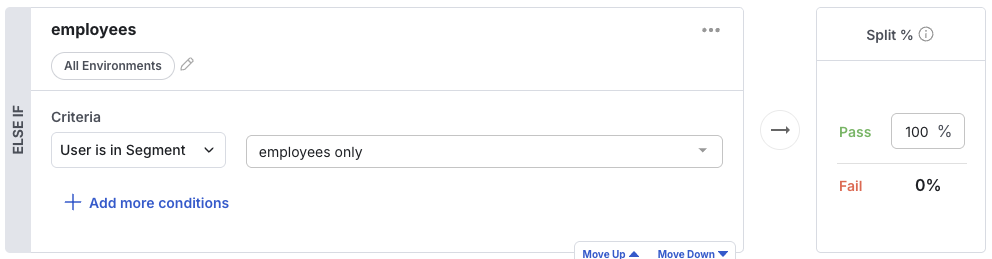
User in Segment
Usage: The condition passes if the user passes the rules defining the referenced segment. Refer to the segments guide for more information on segments.
Supported Operators: segment_id
Example: Only show a new UI element to people who are not using the redesigned UI.
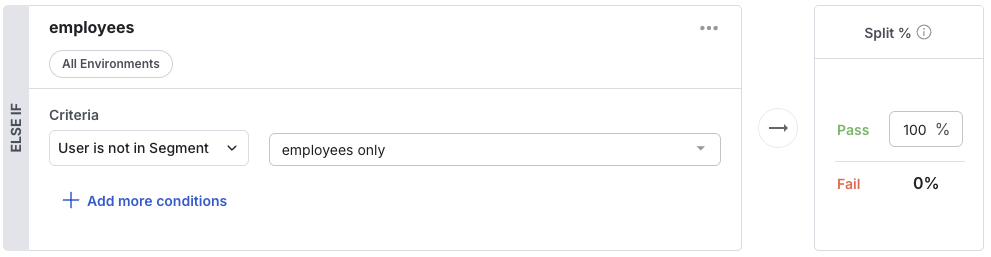
User not in Segment
Usage: The condition passes if the user fails the rules defining the referenced segment. Refer to the segments guide for more information on segments.
Supported Operators: segment_id
Example: Only show a feature to people who are not in the premium/paid tier.
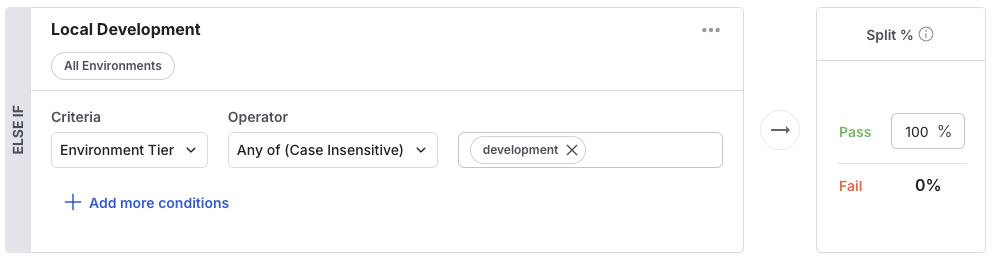
Environment Tier
Usage: The condition passes if the evaluation is happening in the given environment tier (development/staging/production). Refer to the environments guide for more information on environments.
Supported Operators: development/staging/production/(other)
Example: Only show a feature on development builds
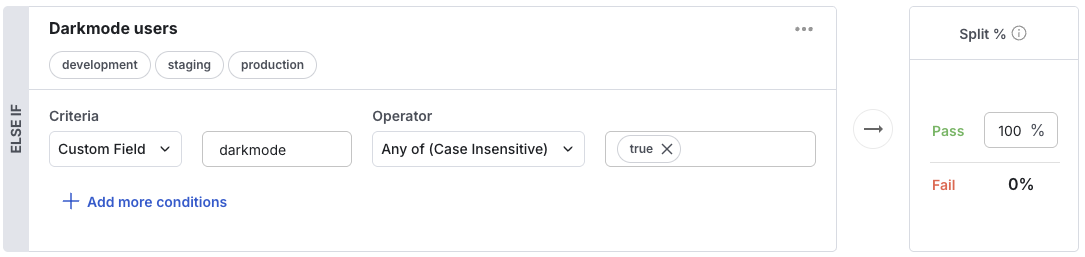
Custom Field
Usage: Specify the key in the custom object to fetch the value used on the left-hand side of a comparison.
Supported Operators:
- string:
any of, none of, contains any of, contains none of - number:
any of, none of, less than, greater than - version:
any of, none of, less than, greater than, less than or equal to, greater than or equal to - date:
before, after
Example: Only show a feature to users who have turned on dark mode, as marked by the custom object having "darkmode": true.
Unit ID
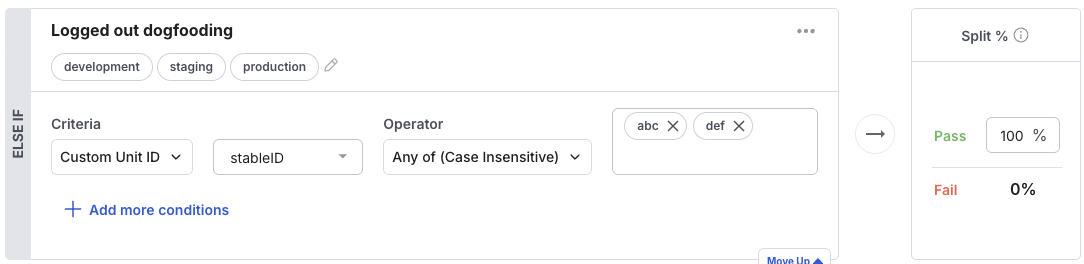
Usage: Select custom ids to explicitly target or exclude from a gate.
Supported Operators: any of, none of, is null, is not null, contains any of, contains none of, regex
Example: Add yourself (or a small group like your team) when you start building a new feature.
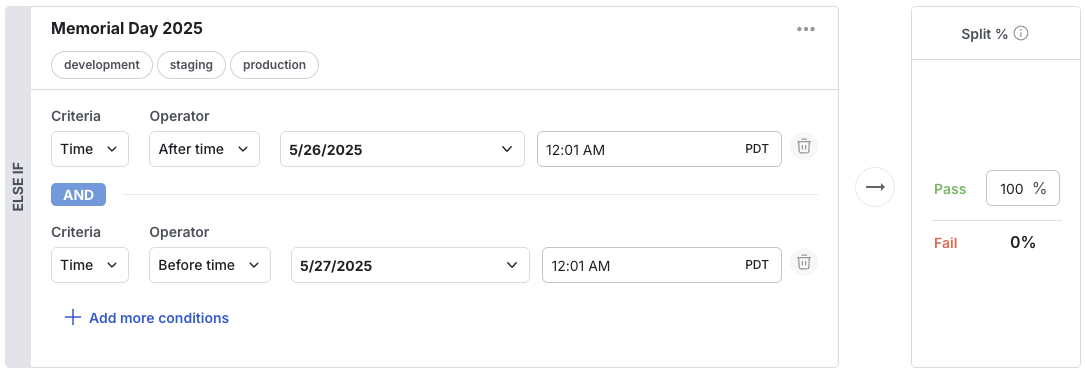
Time
Usage: Evaluate a gate relative to the current time
Supported Operators: after time, before time
Value: time (Console displays and accepts this in your browser's local time, then converts it to a unix timestamp for evaluation)
Example: Show the labor day sale banner on labor day
Private attributes
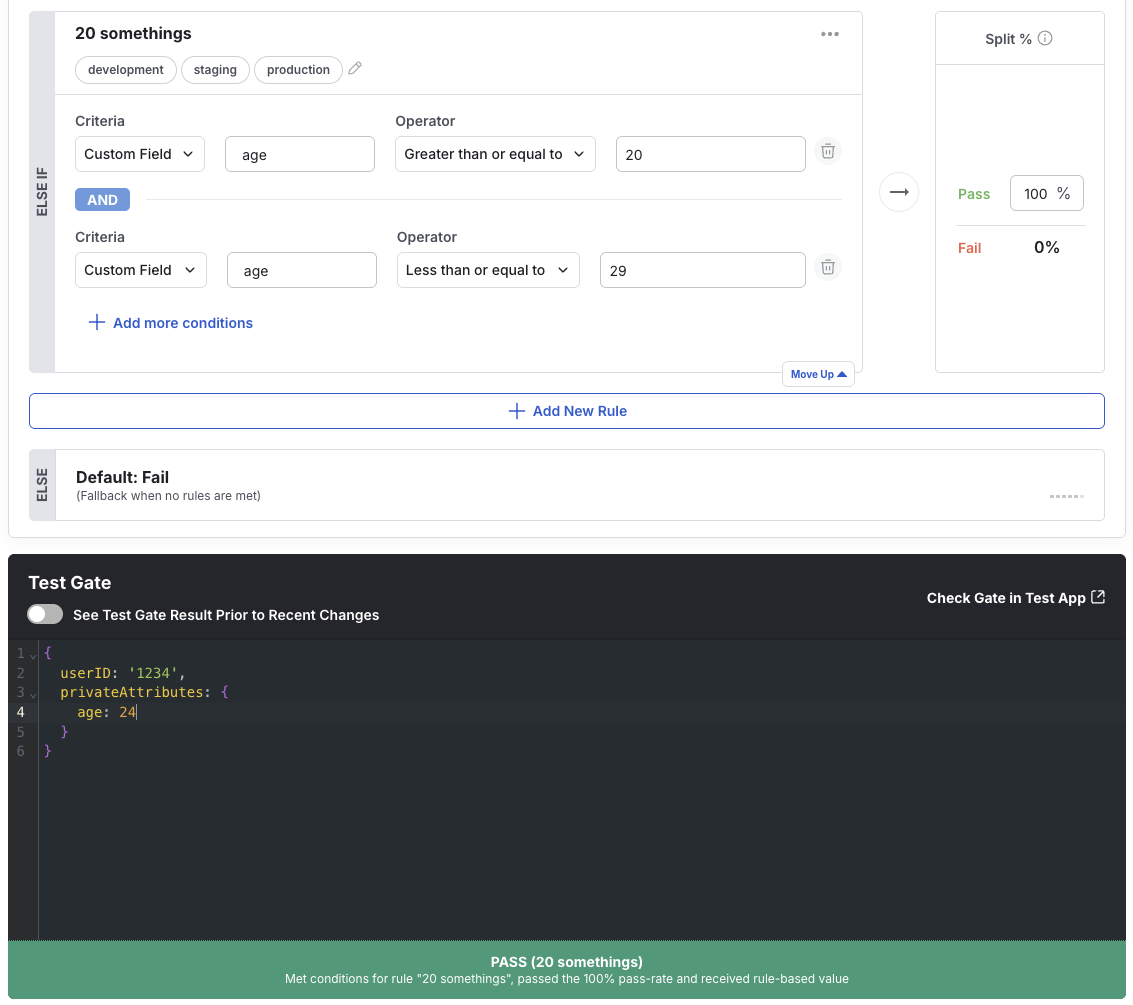
Usage: Any user field or custom field condition can be used through a private attribute. To target an email without logging it, create an email condition and put "email": "xyz@email.com" in the privateAttributes dictionary. For custom fields, create a custom field condition and put the key/value pair in privateAttributes instead. Statsig uses privateAttributes for evaluation only and doesn't store or include them in log events.
Supported Operators: dependent on the condition
Example: Only show a feature to 20 somethings, as marked by the privateAttributes object having "age": "20-29".
FAQs
Was this helpful?