For AI agents: a documentation index is available at /llms.txt. Append .md to any page URL for markdown, or send Accept: text/markdown.
Create a Feature Gate
This guide walks through how to create a Feature Gate in the Statsig console, how to add an evaluation rule to a Feature Gate, how to implement the Feature Gate in your code, examples of common Feature Gate setups, and a list of all Feature Gate targeting conditions available in Statsig.
In the Statsig console
Create a new feature gate
- Log into the Statsig console at https://console.statsig.com.
- On the left-hand navigation panel, under Feature Management, select Feature Gates.
- Click on the Create button.
- Enter the name and description of the Feature Gate you want to create. Name your gate based on what you're rolling out, such as "Zippy Home Page" for a new homepage.
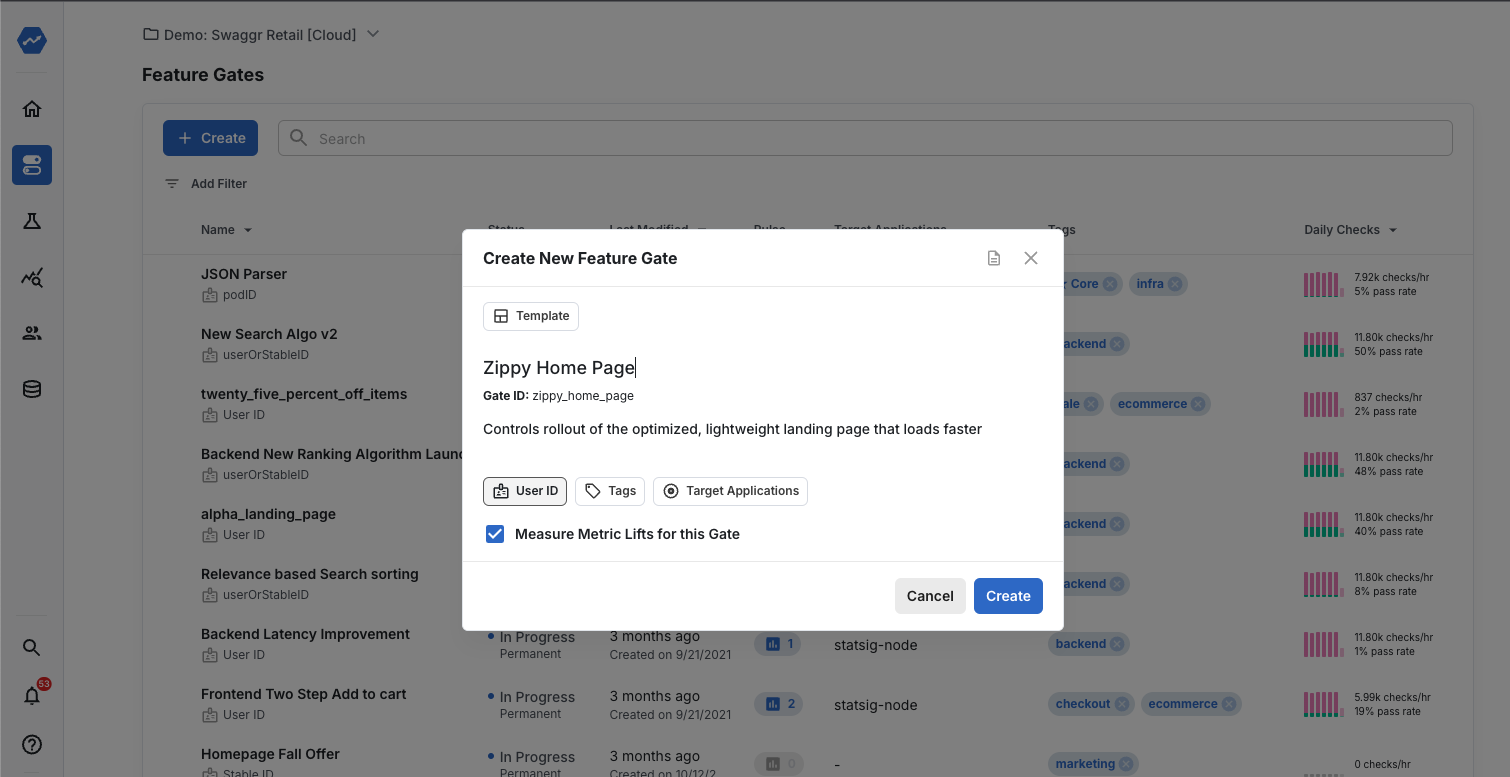
Click Create to complete creating your Feature Gate.
You have created a new Feature Gate without any evaluation rules or conditions.
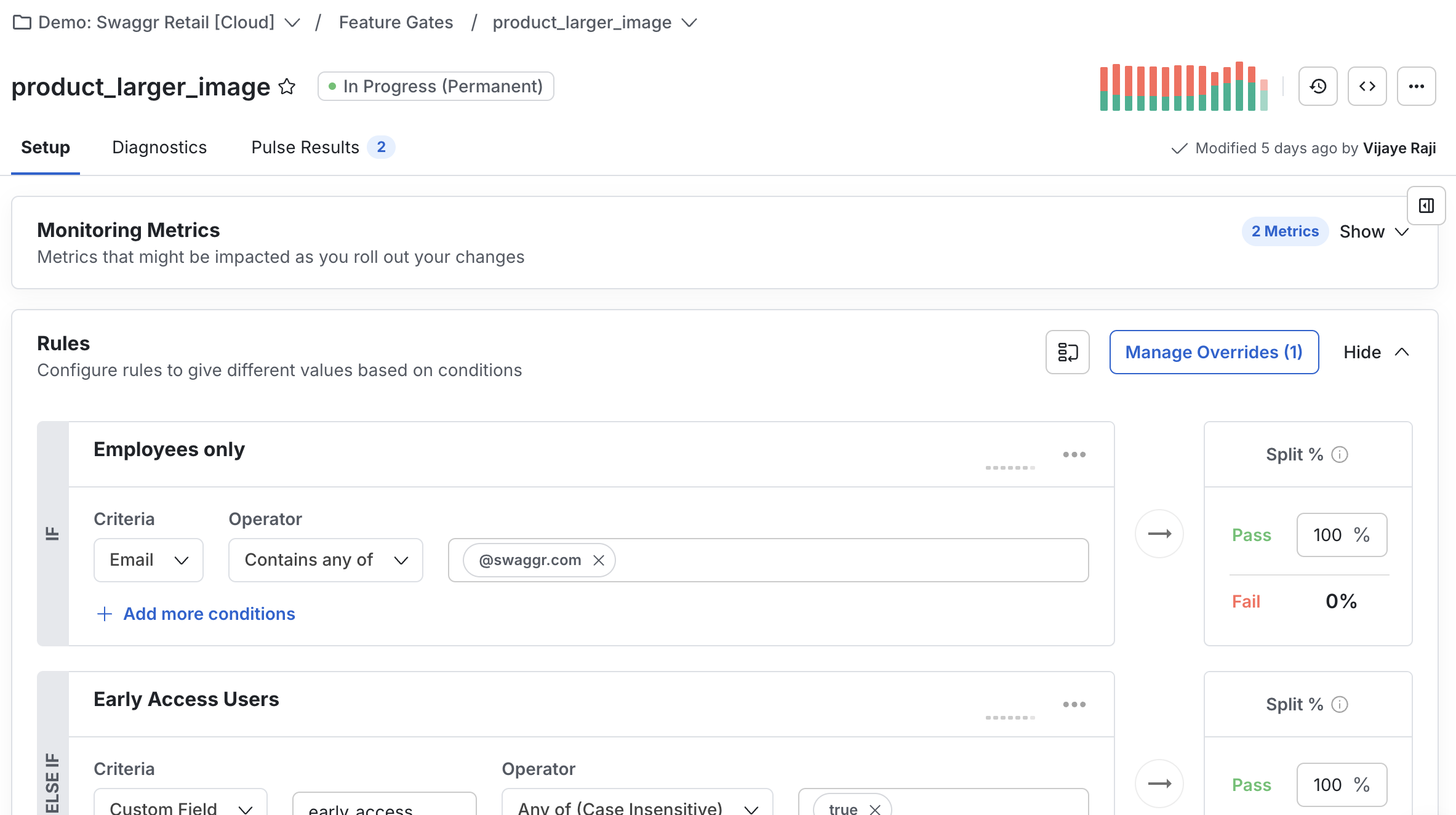
Add a rule to your feature gate
By default, a Feature Gate returns
falsewhen there are no rules configured. Statsig blocks all users from seeing the feature until you set rules for who gets to "pass". The following steps walk through adding evaluation rules or conditions for a Feature Gate.- In Statsig console, under Feature Management, select Feature Gates.
- Select the feature gate where you want to add a targeting rule.
- Click the + Add New Rule button.
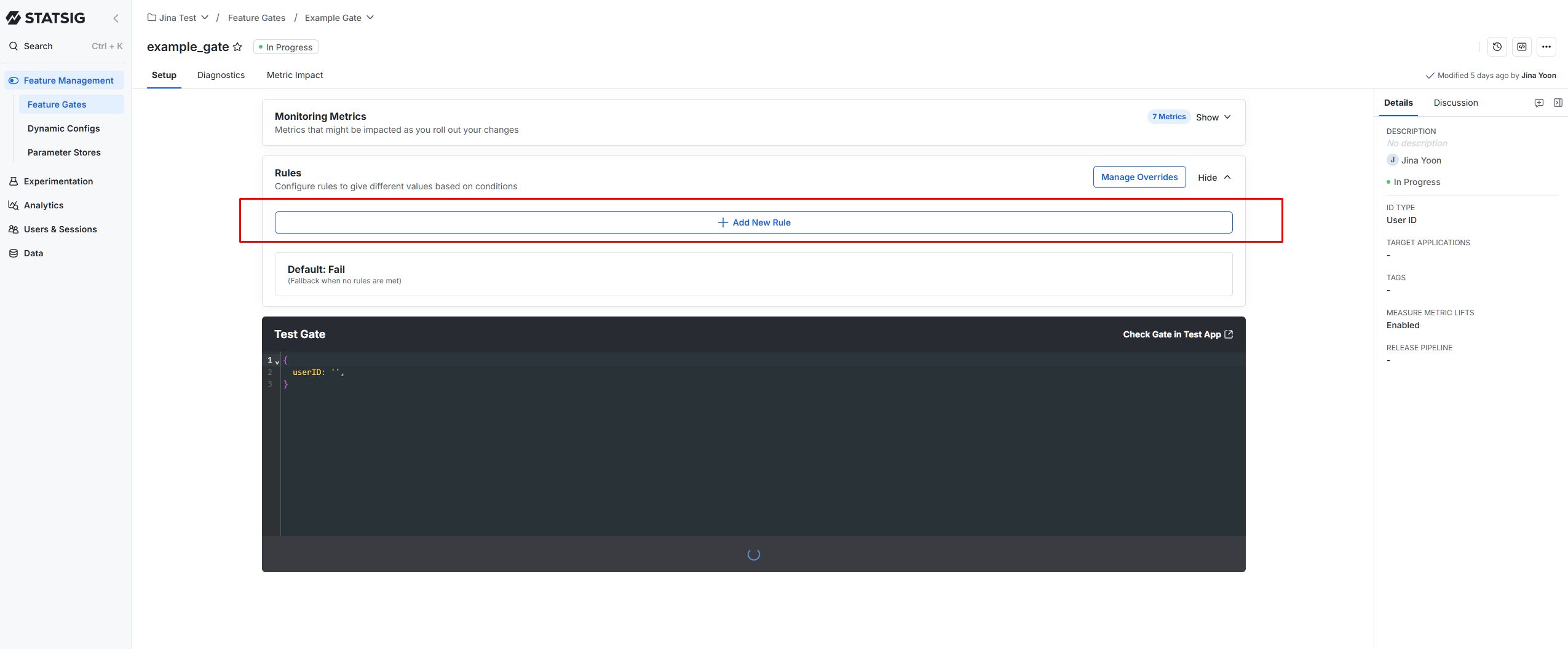
Name your rule with something descriptive that other teammates understand, such as "Mobile Users Only".
Configure your Feature Gate with the following options:
- Environment(s): The staging environment(s) you want your gate to apply to
- Criteria: Specific evaluation conditions for the rule. Learn more about criteria and condition evaluation.
- Split %: The percentage of users who meet the criteria that you want to pass or fail the gate check. Statsig automatically calculates the Fail % based on the Pass % you set.
- Overrides: A list of users you want to always bypass your gate (an allow list)
- Statsig doesn't auto-save changes to Feature Gates and targeting rules. Select Save at the bottom right when you're ready for your changes to take effect.
Statsig evaluates rules top to bottom and applies the first match, so rule order matters. To reorder rules, drag a rule by its
IF/ELSE IFrail to a new position; to add a rule at a specific spot, hover between two rules and click Insert new rule.In your code
The previous steps covered setting up Feature Gates in the web console. For these gates to impact the behavior of your application, you also need to update your product code. The Statsig SDK handles the evaluation so that gate decisions take effect in real time.
Initialize the Statsig SDK
If you haven't already initialized the Statsig SDK, follow the Installation Steps in the language of your choice.
Check a feature gate
Use the
checkGatefunction in the Statsig SDK. You can find a code snippet for any particular gate on that gate's page in the Statsig console. Select the code snippet button, then select the SDK you want to use.
Here's an example in React:
tsxconst { client } = useStatsigClient(); return ( <div>Gate is {client.checkGate("example_gate") ? "passing" : "failing"}.</div> );In this example, the Statsig SDK checks from a client app whether you set up any rules named "Example Gate". Statsig renders the text "Gate is passing" for users who pass your gate conditions, and "Gate is failing" for users who fail the gate conditions.
Statsig offers over 20 client and server-side SDKs. Go to the full list of SDKs to find the one that best fits your needs.
Common feature gate setups
Kill switches
Set up a kill switch by setting an
Everyonecriteria's Pass percentage to 100%. To completely disable the feature for all users after code deployment, set the Pass percentage to 0%.OS-based flags
You can target users based on common application properties such as the operating system that the application is running on. For example, to target iOS users only, you can create a rule with the "Operating System" criteria, the "Any of" operator, and then listing "iOS" in the text field.
Internal employees only
You can target users based on known user attributes. For example, you can use the user's Email attribute and the Contains any of operator, then enter the email domain of your company to target only internal employees.
Defined user segments
You can also target users in a defined user Segment.
Parent/child flags
You can target users based on their eligibility of other Feature Gates, enabling powerful chaining, hierarchy, and dependencies of flags. Flag lifecycle management makes it easy to manage, deprecate, and maintain dependent flags.
Was this helpful?