For AI agents: a documentation index is available at /llms.txt. Append .md to any page URL for markdown, or send Accept: text/markdown.
Metric Family
Making it easier to manage metric variant.
Metric Families let you create metric variants as child metrics of a parent metric. When you update a parent metric, the changes cascade automatically to its child metrics, keeping all related metric definitions consistent. Use a Metric Family to manage a large catalog of near-identical metric variants without editing each one manually.
Child metrics of SUM and COUNT parent metrics support these modifiable configs:
- Add metric source filter
- Outlier Management
- Variance Reduction
- Cohorts and Delayed Data
Create a child metric
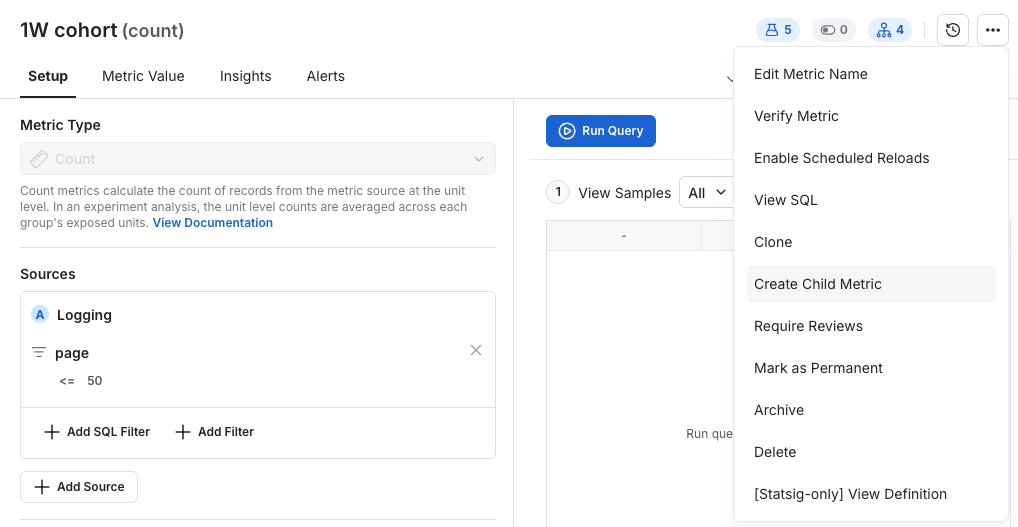
To create a child metric, select the Create Child Metric option in the dropdown menu in the top right corner of a metric.
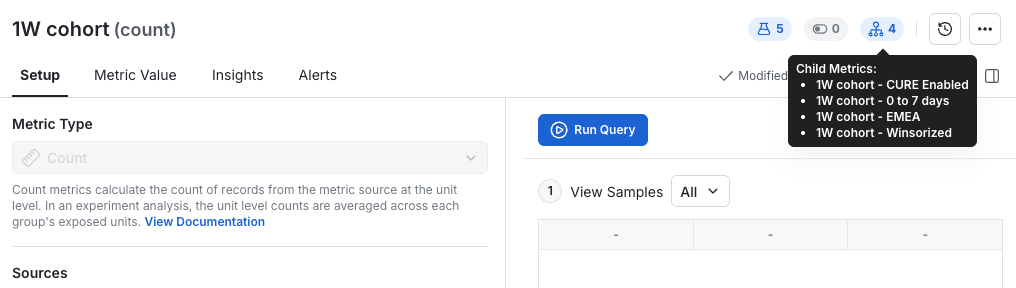
You can track the child metrics for a given parent metric using the metric family icon in the top right.
Deleting and archiving
When you delete or archive a parent metric, Statsig deletes or archives all of its child metrics as well. When you re-enable the parent, Statsig automatically restores those child metrics. You can't restore child metrics disabled through the parent individually; you can only re-enable them by restoring the parent metric.
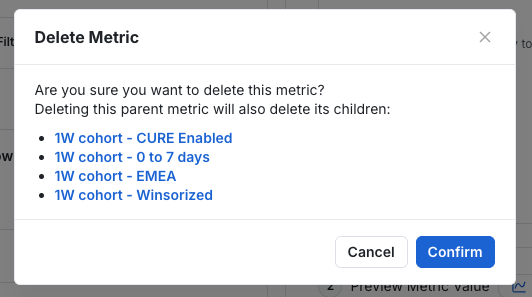
If you delete or archive a child metric independently of its parent, you can restore the child metric on its own. The restored child metric returns as a standalone metric without its original parent-child relationship.
In experiments
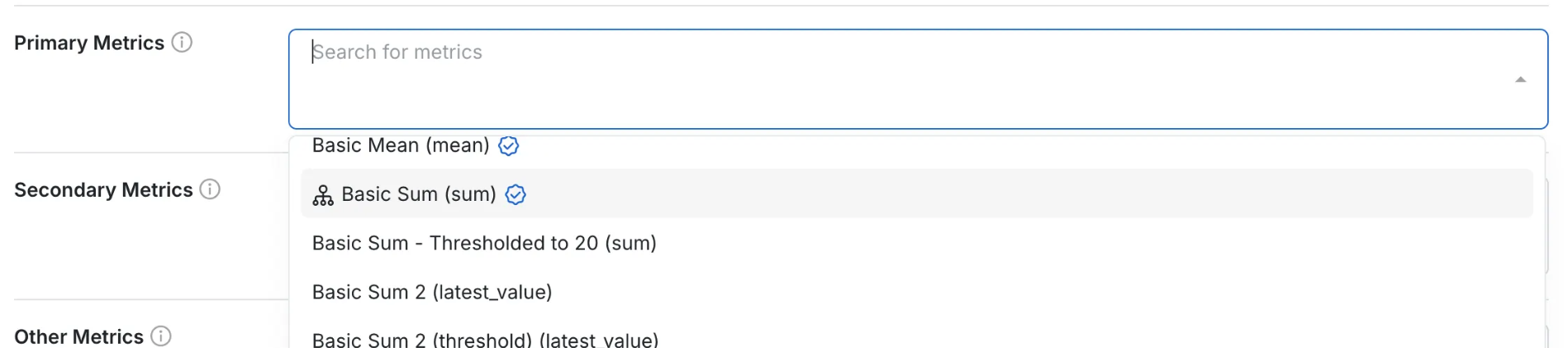
When you select a Parent Metric in Experiment setup, Statsig adds all of its child metrics as well. You can remove any metrics you don’t need in the experiment.
Was this helpful?