Forwarded Data
Use forwarded data in Statsig Warehouse Native to send events to Statsig and store them in your warehouse for experiment and analytics use.
If you log events or exposures through Statsig's SDKs, Statsig can forward that data to your warehouse.
Exposure forwarding follows the eligibility rules below. For custom events, refer to Events.
Setting up tables for forwarded data
By default, when you set up a data connection, Statsig automatically creates tables named exposures and events to receive forwarded SDK data.
To rename these tables, go to the data connection page, open the Advanced tab, and update the table names.
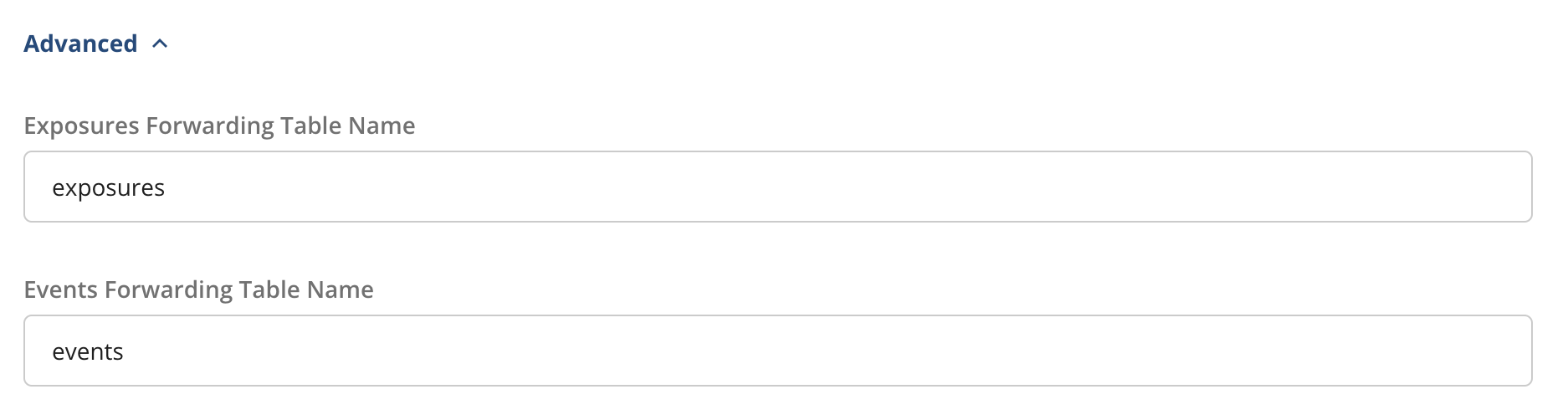
If Statsig already exported data and you change the table name, Statsig writes future data to the new table.
Statsig doesn't forward non-production exposures or log events to external warehouses.
Exposures
Statsig exports eligible first exposures to your warehouse daily. The daily export is the authoritative record of exposures that qualify for forwarding.
When you load Pulse results, Statsig may also forward recent exposures before the daily export. These updates are best-effort and can be incomplete. The daily export may replace them.
A full reload recalculates experiment results. It doesn't rebuild or backfill the forwarded exposures table.
Which exposures are forwarded?
By default, the daily export excludes experiment groups with a 0% or 100% traffic split. This is each group's share of experiment traffic, not the experiment's overall allocation. An experiment at 100% overall allocation with 50/50 groups passes this percentage check. Other forwarding requirements still apply.
If you need exposures from experiment groups at 0% or 100%, contact Statsig Support.
For feature gates at 0% or 100% rollout, Statsig doesn't forward exposures by default. To forward them, turn on the project and per-gate settings below. Statsig bills these exposures as analytic events.
To forward gate exposures:
- A project admin goes to Settings > Project Configuration > Feature Management and turns on Enable exposure tracking for 0/100% rolled out Gates.
- On each gate that needs these exposures, turn on Store 0/100 Exposures.
An exposure in Diagnostics confirms that Statsig received it. It doesn't confirm that the exposure qualifies for warehouse forwarding.
For export history and monitoring options, go to Monitor your export status.
Duplicate exposure records
Statsig retains exposure data for 30 days and can't deduplicate beyond that window. After 30 days, Statsig re-sends exposures for units first exposed more than 30 days ago that were re-exposed on a given day. Statsig correctly deduplicates these records during analysis in your warehouse. The table doesn't contain unique user records, even after filtering out best-effort exposure updates, which can also include duplicate records.
Events
If you use Statsig SDKs to capture custom events, Statsig exports those events to your warehouse hourly. Pulse results on metrics derived from those events are as fresh as approximately 1 hour.
To check whether Statsig successfully exported forwarded exposures and events, monitor your export status.
Was this helpful?
For AI agents: a documentation index is available at /llms.txt. Append .md to any page URL for markdown, or send Accept: text/markdown.