For AI agents: a documentation index is available at /llms.txt. Append .md to any page URL for markdown, or send Accept: text/markdown.
Creating Metric Tags
Organize and group your metrics using tags to create collections for easier experiment analysis and monitoring.
Tagging metrics
Metric tags group related metrics into collections you can organize by product area, business function, business objective, or any other shared attribute. Tag your metrics to filter Pulse and experiment results down to the collection that matters most.
To create a metric tag, click on Metrics in the left hand navigation menu, and click on the Metrics Catalog tab.
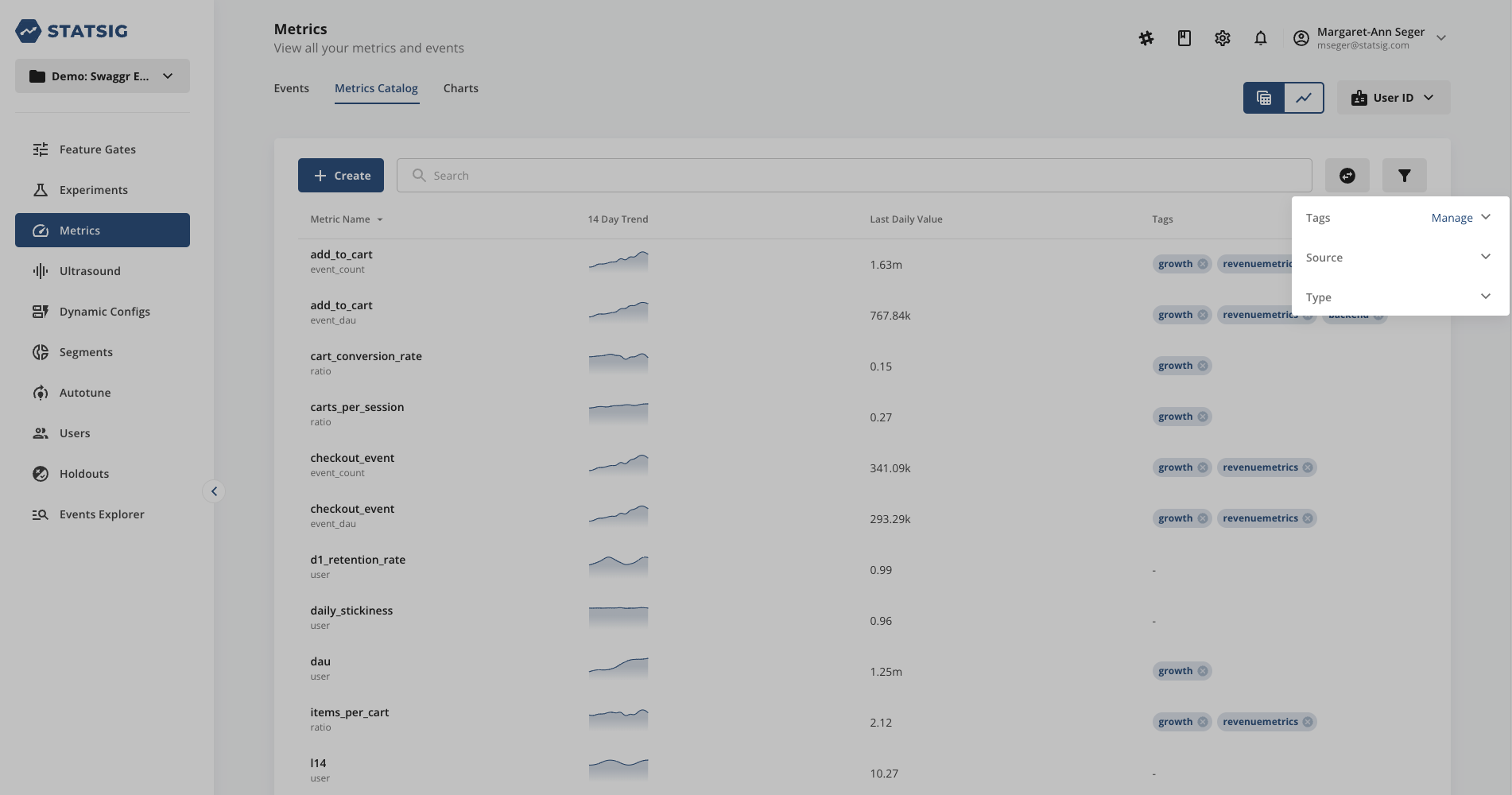
In the Metrics Catalog tab, click on the Tags filter icon in the upper right-hand corner, and then tap Manage in the drop-down. Selecting Manage takes you to the tag manager within Project Settings for all tags in your project.
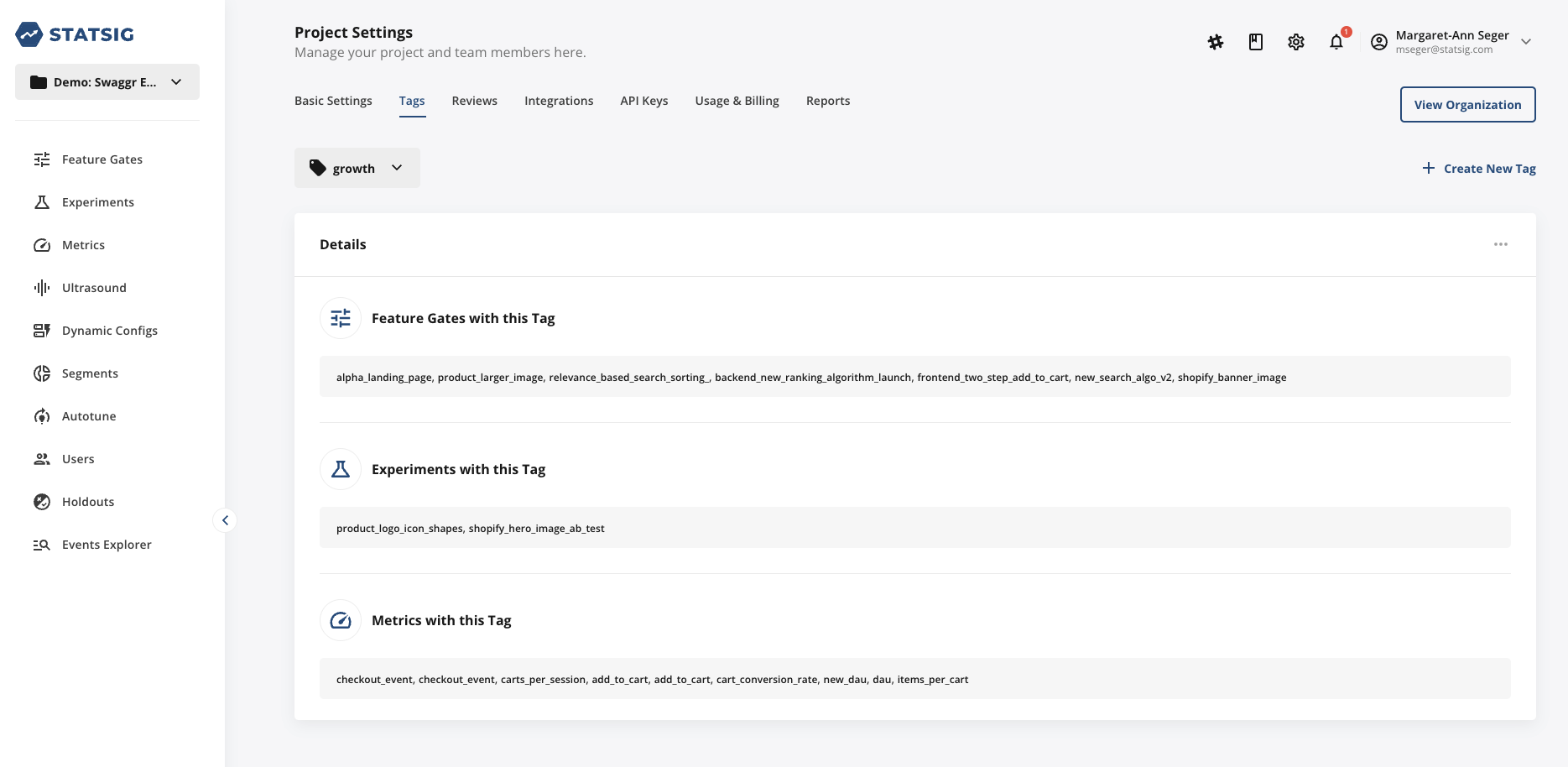
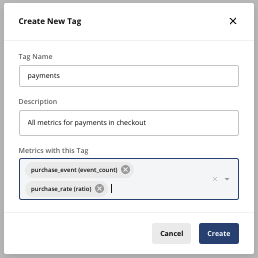
Tap on the Create New Tag in the upper right-hand corner of the tag manager tab to create a new tag. Enter a name and description for your new tag. Click on Create.
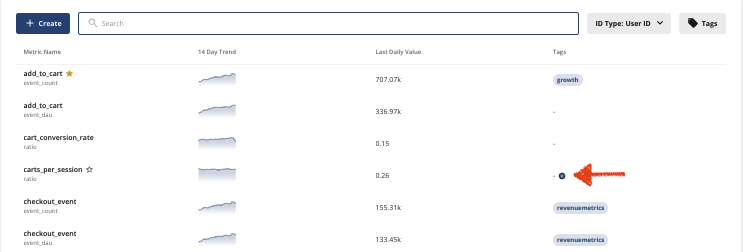
After creating the tag, add it to any metric using the + icon when you hover on the metric. To see which metrics have a given tag, refer to the Tags tab within Project Settings.
After tagging your metrics, you can filter Metric Lifts in Pulse by the tagged collection to focus on the results that matter most.
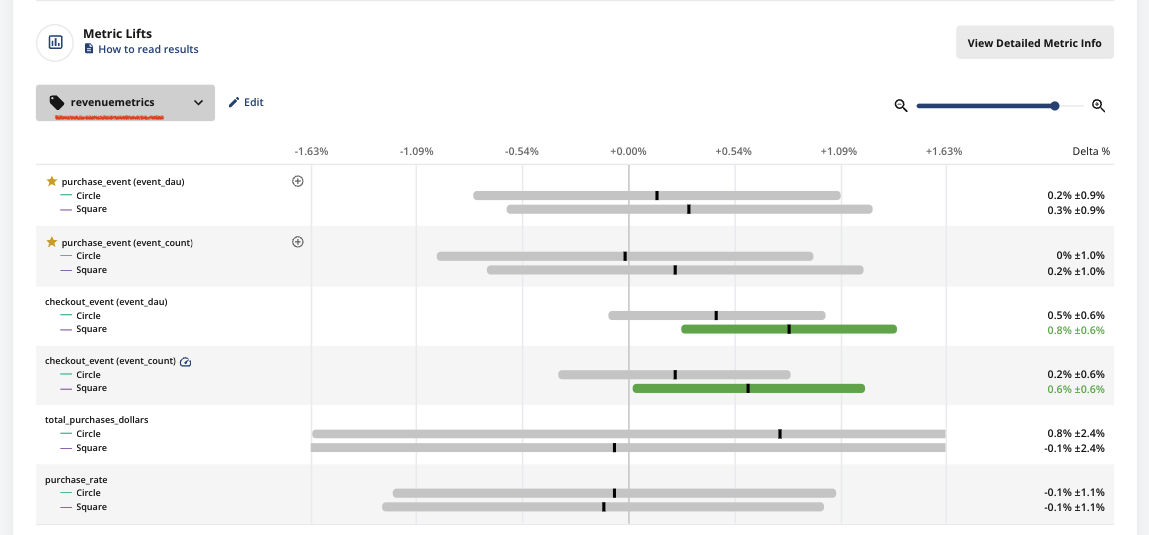
Core tag
Every Statsig project includes an auto-created Core tag pre-populated with a subset of User Metrics. User Metrics are classic growth metrics (such as MAU, WAU, DAU, L7, and 28-day retention) that Statsig calculates daily from your logged events. Statsig adds the following User Metrics to the Core tag by default (you can remove them or replace them with more relevant business metrics):
- DAU/ WAU/ MAU
- New users
- Daily/ Weekly/ Monthly user stickiness
The Core tag serves as a collection of your most important business metrics to monitor with every new feature rollout and experiment.
Statsig automatically adds the Core tag to all new feature gates and experiments at the point of creation. In an experiment, Statsig adds the Core tag to the Scorecard, under Secondary Metrics. In a feature gate, Statsig adds the Core tag to the Monitoring Metrics section.
If you create a gate or experiment under a Team that has default metrics configured, the Team's defaults override the Core tag. To include Core metrics for those Teams as well, add the Core tag to the Team's Default Secondary Metrics (experiments) or Default Monitoring Metrics (gates).
Configuring your core metrics
Because the Core tag receives special treatment, curate the metrics in this tag collection during project setup. Go to Metrics → Metrics Catalog and add the Core tag to any relevant metrics.
To see which metrics already have the Core tag applied, filter by the Core tag in the Metrics Catalog by tapping the filter icon in the upper right-hand corner, then Tags, then selecting the Core tag. Remove the Core tag from any unwanted metrics in the filtered list.
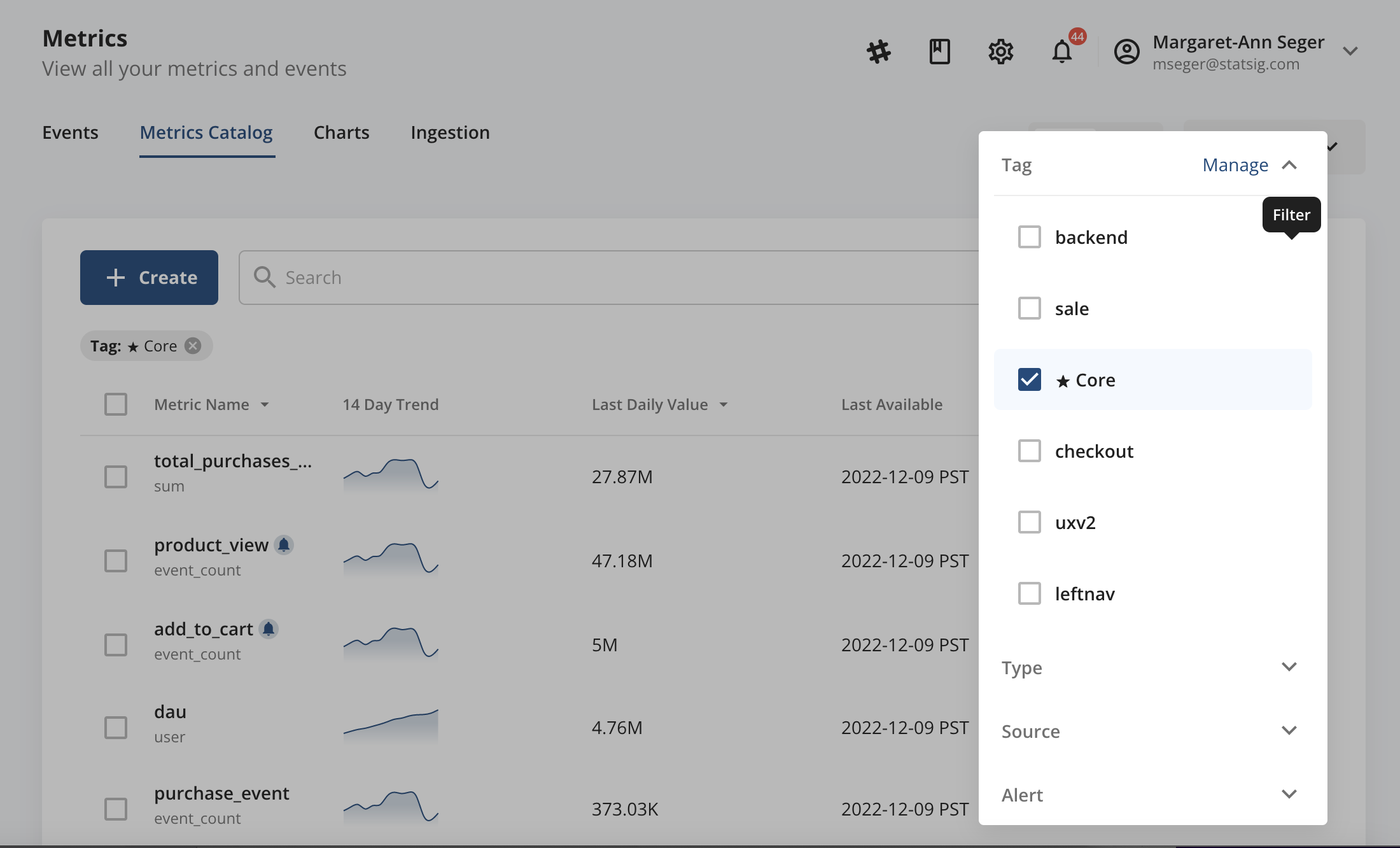
Setting rollout alert thresholds for your core metrics
When rolling out a new feature or experiment, you may want Statsig to notify you if the rollout negatively impacts a key business metric. Statsig lets you set Rollout Alerts at the per-metric level. You receive an alert if any running experiment or feature gate regresses the metric beyond the set threshold.
Because Core Metrics are important, configure Rollout Alerts for Core Metrics through the Metrics Catalog. For more on Rollout Alert configuration, refer to Rollout Alerts.
Was this helpful?