For AI agents: a documentation index is available at /llms.txt. Append .md to any page URL for markdown, or send Accept: text/markdown.
Archiving and Deleting Metrics
Manage the end-of-life for metrics through archiving and deletion options in Statsig.
Statsig offers two ways to manage the end-of-life for your metrics.
- Archiving a metric: Statsig stops computing the metric, but retains its history. Use archiving when a metric is no longer relevant but you want to preserve its historical record. For example, archive older versions of a metric that continues to evolve.
- Deleting a metric: Statsig removes the metric and its history completely. Use deletion when you made a mistake, logged or imported an irrelevant metric, or created a more accurate replacement. Examples include an incorrect definition, incorrect name, or a duplicate metric.
Archiving metrics
Archiving a metric
There are two ways to archive a metric:
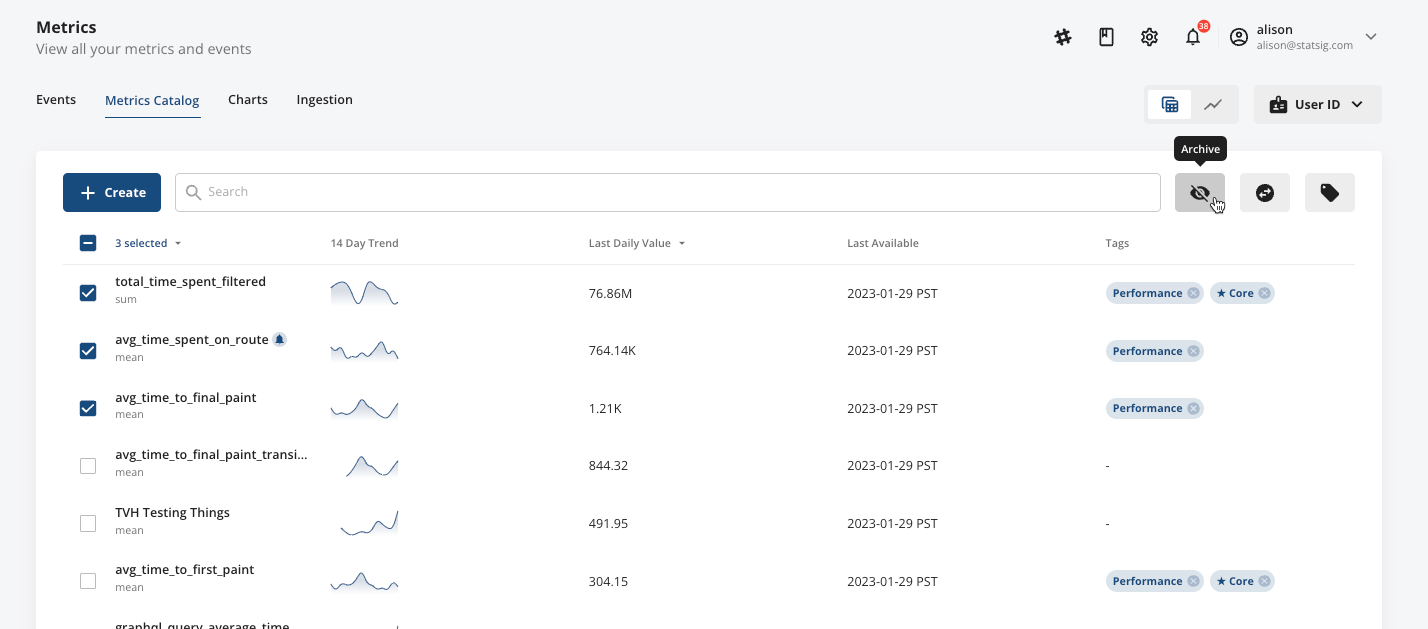
- In your Metric Catalog, select the metric(s) you want to archive to see a toolbar of options appear to Archive, Compare, or Tag. Select the Archive icon.
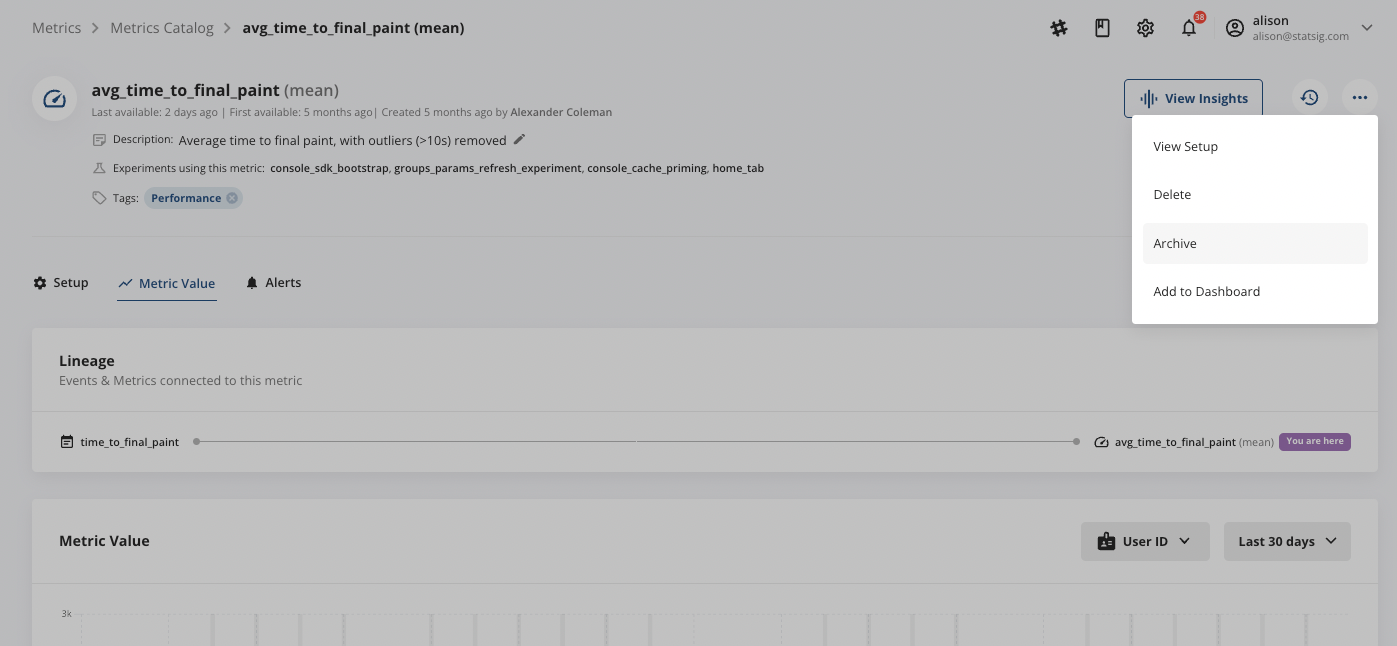
- In the Metrics Detail View page, select the "..." in the upper right-hand corner, and select Archive.
After you select Archive, Statsig checks whether any feature gates, experiments, or other metrics use this metric.
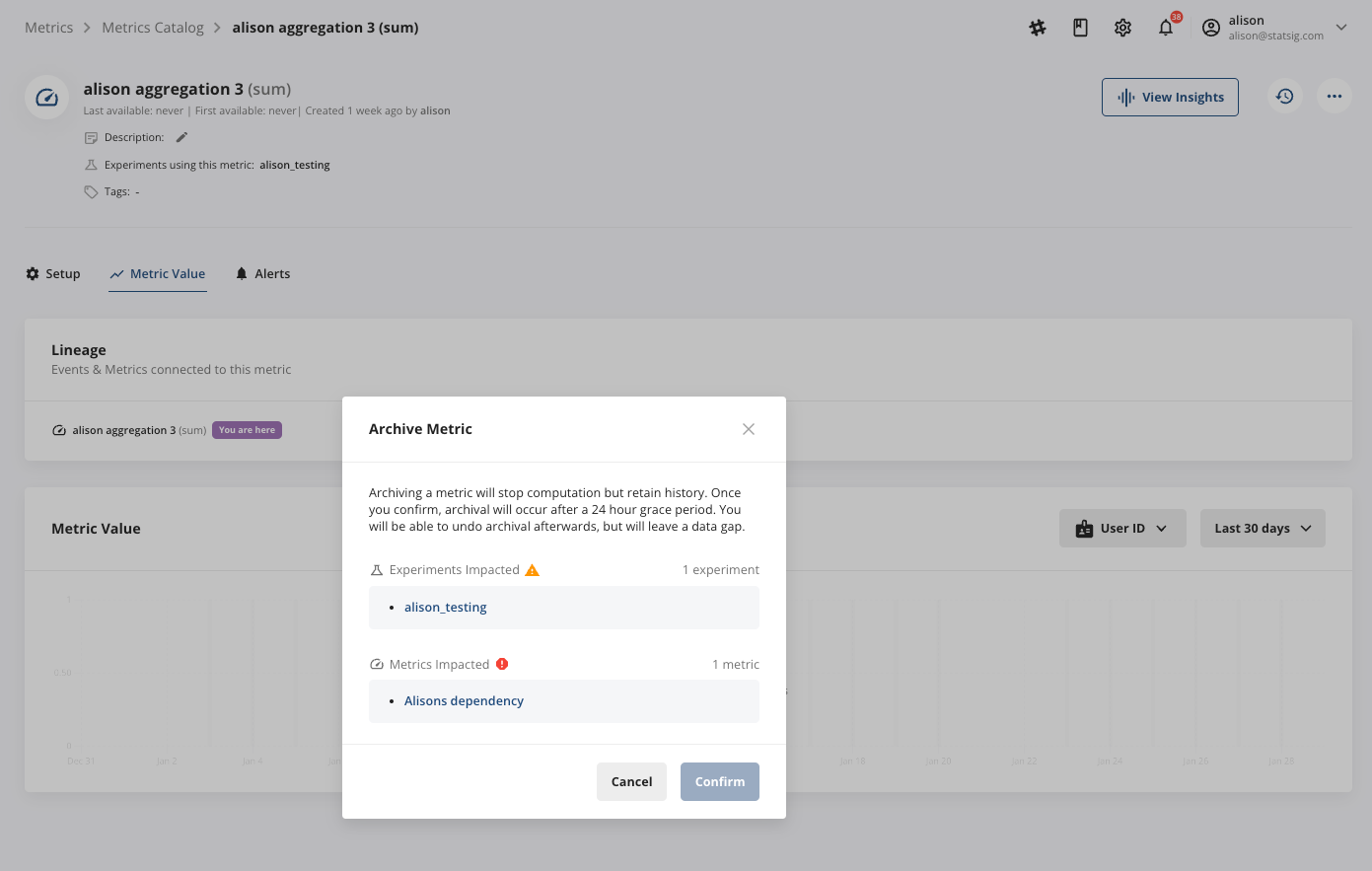
Feature gate or experiment dependencies appear as soft warnings (no action required). Metric dependencies require you to remove the dependency before proceeding, because archiving a metric stops its computation and affects other metrics that depend on it.
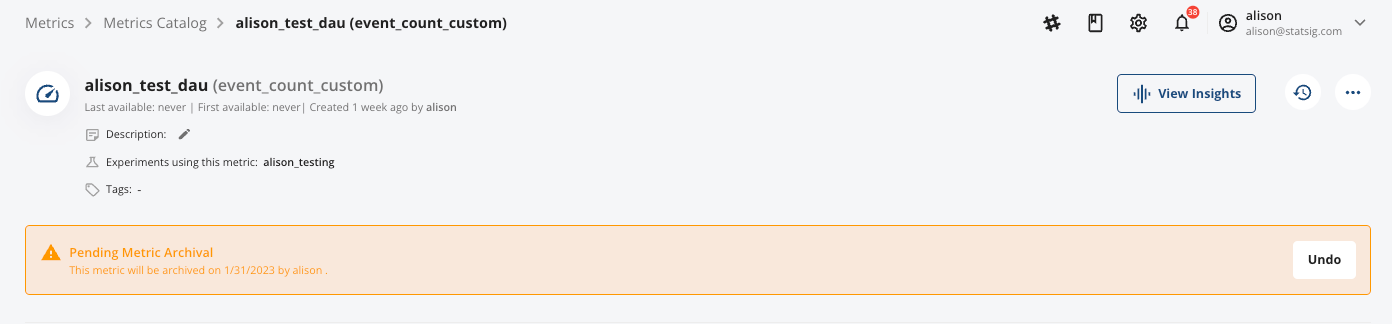
After you remove all metric dependencies, a 24-hour grace period begins during which you can undo the archival. The Metrics Detail View page shows a banner at the top indicating the start of the grace period.
After the 24-hour grace period, Statsig stops computing the metric. The Metric Detail View page updates with a banner confirming the metric is archived, and Metric Value changes to an inactive state.
Implications of archiving a metric
As soon as you click Archive,
- A 24-hour grace period starts
- Owners of experiments and gates using this metric receive an email notification about potential impact
After the 24-hour grace period has ended,
- Statsig stops computing archived metrics.
- Archived metrics won't appear in your Metric Catalog search. To access all archived metrics, go to the last page(s) of your Metrics Catalog.
- Statsig removes archived metrics from Pulse, including any scorecard entries in experiments or Monitoring Metrics sections of Feature Gates.
Unarchiving a metric
If you mistakenly archived a metric, you can undo the archival.
- During the 24-hour grace period: Select "undo" on the archival banner at the top of the Metrics Detail View page. Because Statsig is still computing the metric, unarchiving restores it to your Metrics Catalog and to any experiment results that include the metric.
- After the 24-hour grace period: Either a) navigate to the last few pages of your Metrics Catalog, select the archived metric(s) you want to unarchive to display a toolbar of options, and select the Unarchive icon, or b) in the Metrics Detail View page of the archived metric, select Unarchive in the archival banner.
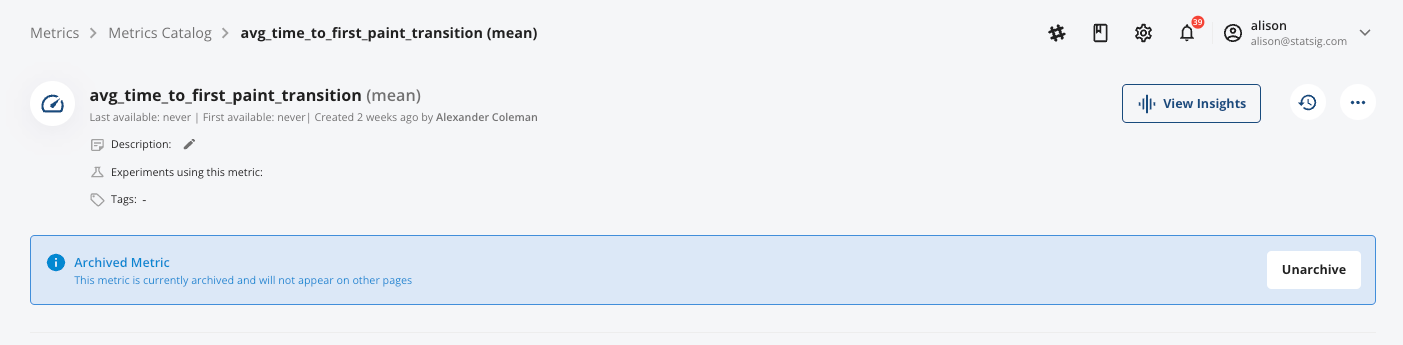
Because the grace period has ended and metric computation has already stopped, the metric's calculation restarts from scratch and Statsig doesn't restore historical data.
Auto-archival
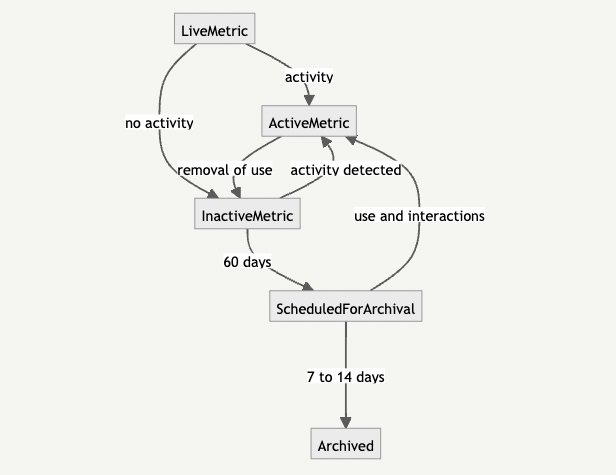
To reduce metric clutter, Statsig provides a default auto-archival feature that removes metrics not in use for at least 60 days. Metric creators and admins receive a warning about a week before archival. At that point, they can extend the metric for another 60 days or mark it as permanent. The following diagram outlines the entire process:
How does Statsig measure activity
Statsig counts the number of times the custom metric appears in one or more of the following components:
- Scorecard: Used in experiments, pulse reports, holdouts, etc.
- Dashboards: Used to build dashboards and other analytical assets
- Other Metrics: Used to calculate other composite metrics
If a metric is in use, Statsig considers it active. You can see a summary of a metric’s usage on the metric’s main page:

Statsig also detects: (1) any edits to the metric, including changing setup fields or restoring a previous version; (2) adding tags to the metric; or (3) creating or modifying an alert on the metric. Any of these interactions restarts the 60-day clock.
How to pause / stop auto-archiving
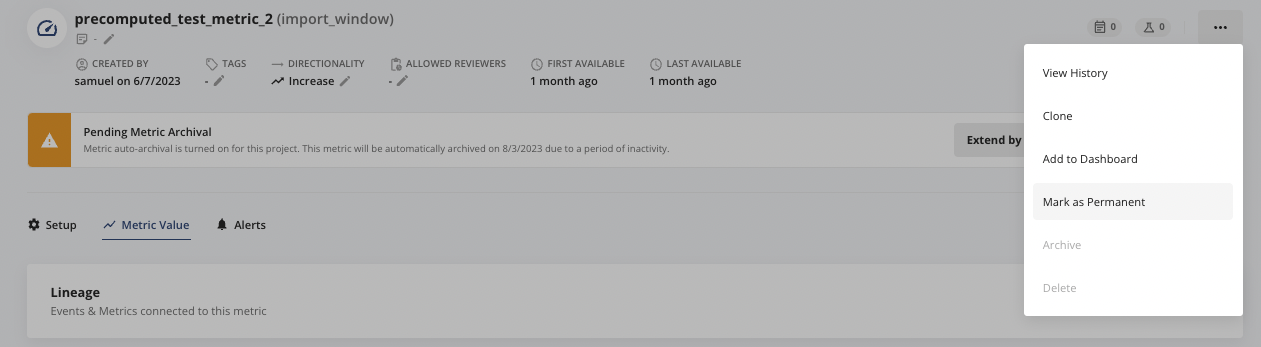
Any tracked action (such as adding the metric to a scorecard) also removes the metric from the archival queue. To pause the archival process, extend the metric for another 60 days. You can also mark the metric as permanent, which removes it from the auto-archival process entirely. Reserve permanent status for your most important and widely reused metrics.

You can also mark a metric as permanent by selecting the setup dropdown from the metrics page and choosing Mark as Permanent.
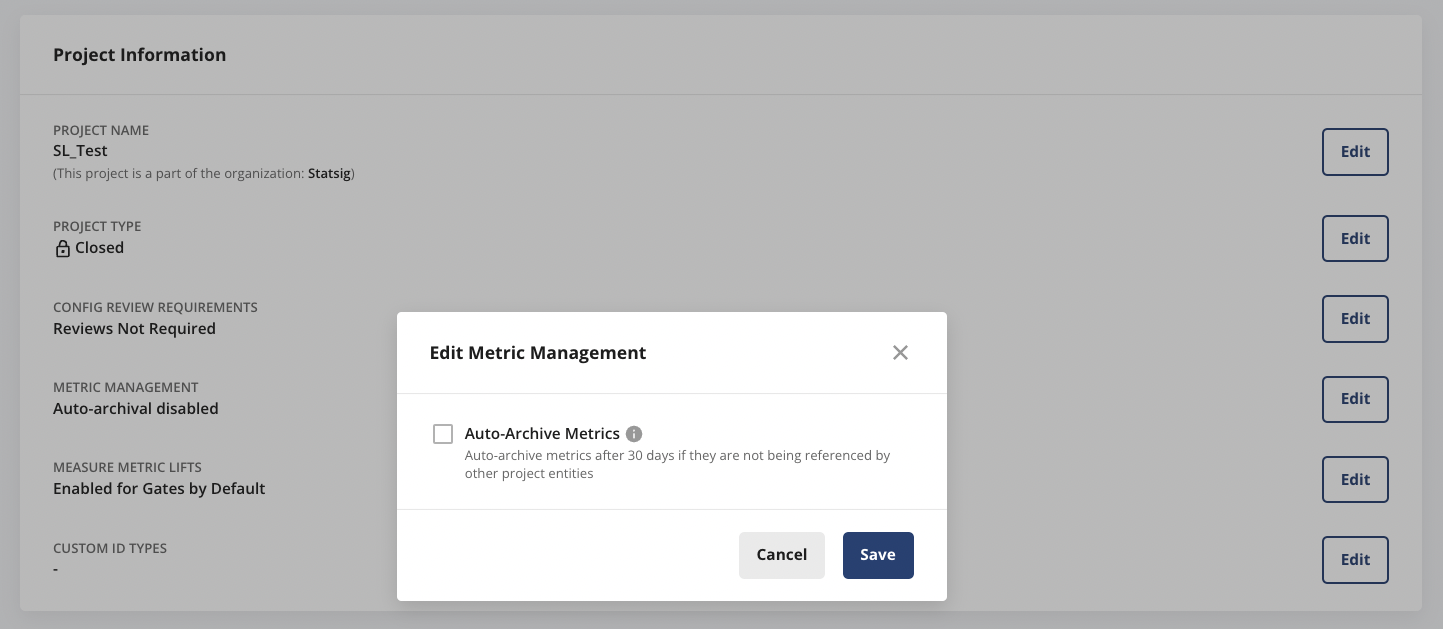
To turn off auto-archiving entirely for your project, navigate to the Project Settings page.
Deleting metrics
Deleting a metric
To delete a metric, navigate to the Metrics Detail View page of the metric, select the "..." in the upper right-hand corner, and select Delete.
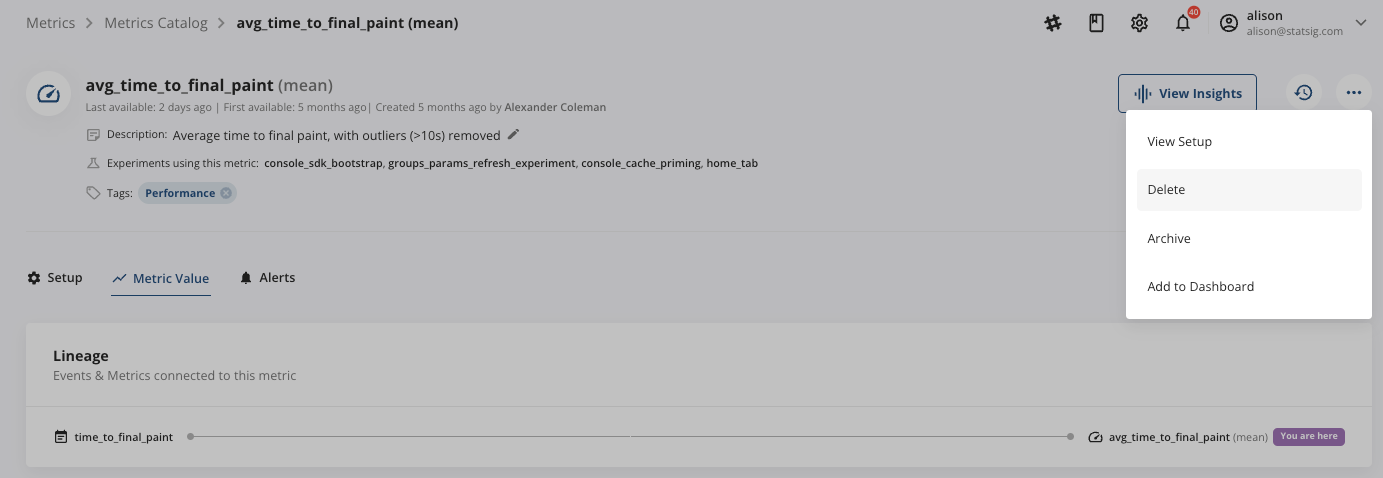
After you select Delete, Statsig checks whether any feature gates, experiments, or other metrics use the metric. Feature gate or experiment dependencies appear as soft warnings (no action required). Metric dependencies require you to remove the dependency before proceeding, to avoid breaking other metrics that depend on it.
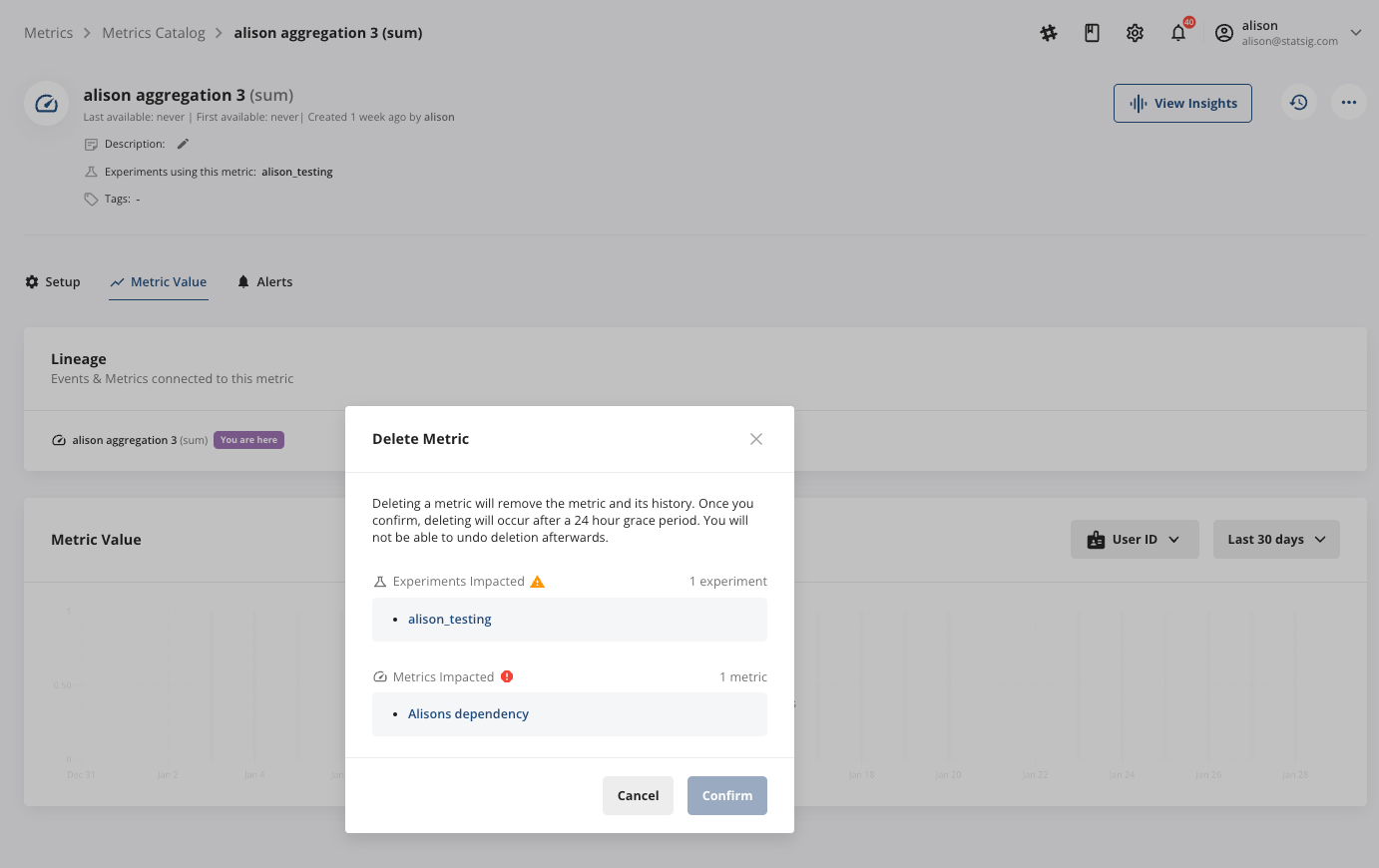
After you remove all metric dependencies, a 24-hour grace period begins during which you can undo the deletion. The Metrics Detail View page shows a banner at the top indicating the start of the grace period.
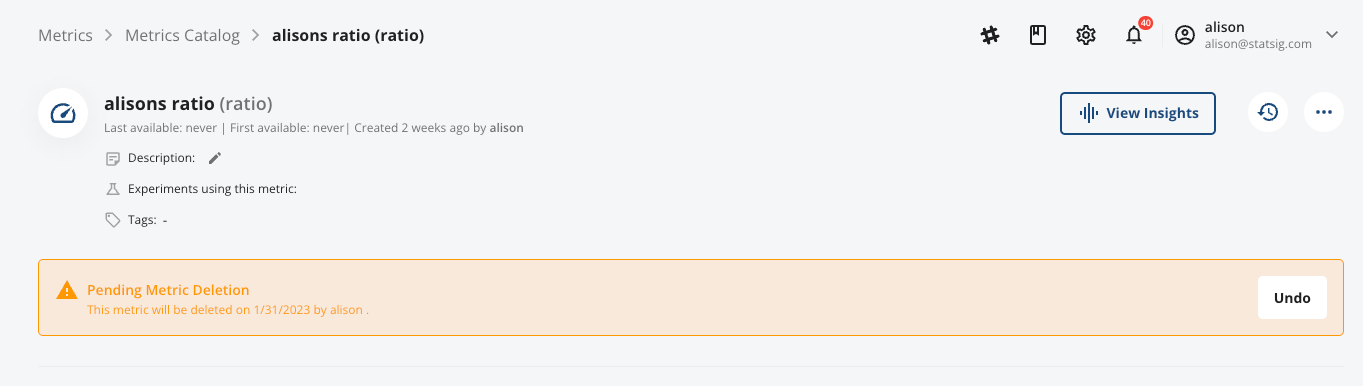
You can't undo metric deletion after the grace period.
Implications of deleting a metric
As soon as you click Delete,
- A 24-hour grace period starts
- Owners of experiments and gates using this metric receive an email notification about potential impact
After the 24-hour grace period has ended,
- Statsig permanently removes deleted metrics and their history, and you can't restore them.
- Statsig removes deleted metrics from Pulse, including any scorecard entries in experiments or Monitoring Metrics sections of Feature Gates.
Was this helpful?