For AI agents: a documentation index is available at /llms.txt. Append .md to any page URL for markdown, or send Accept: text/markdown.
BigQuery
Configure Statsig data warehouse ingestion from Google BigQuery, including authentication, scheduled queries, and mapping to events and properties.
How BigQuery ingestion works
Statsig ingests your event and metric data from Google BigQuery so it flows into your Statsig metrics and experiments. To set up a connection with BigQuery, you need to:
- Grant permissions to a Statsig-owned service account
- Provide your BigQuery Project ID
Enable the BigQuery source under Metrics > Ingestion > Add Source.
Grant permissions to Statsig's service account
Grant the following permissions from your Google Cloud console to allow Statsig to access your BigQuery data.
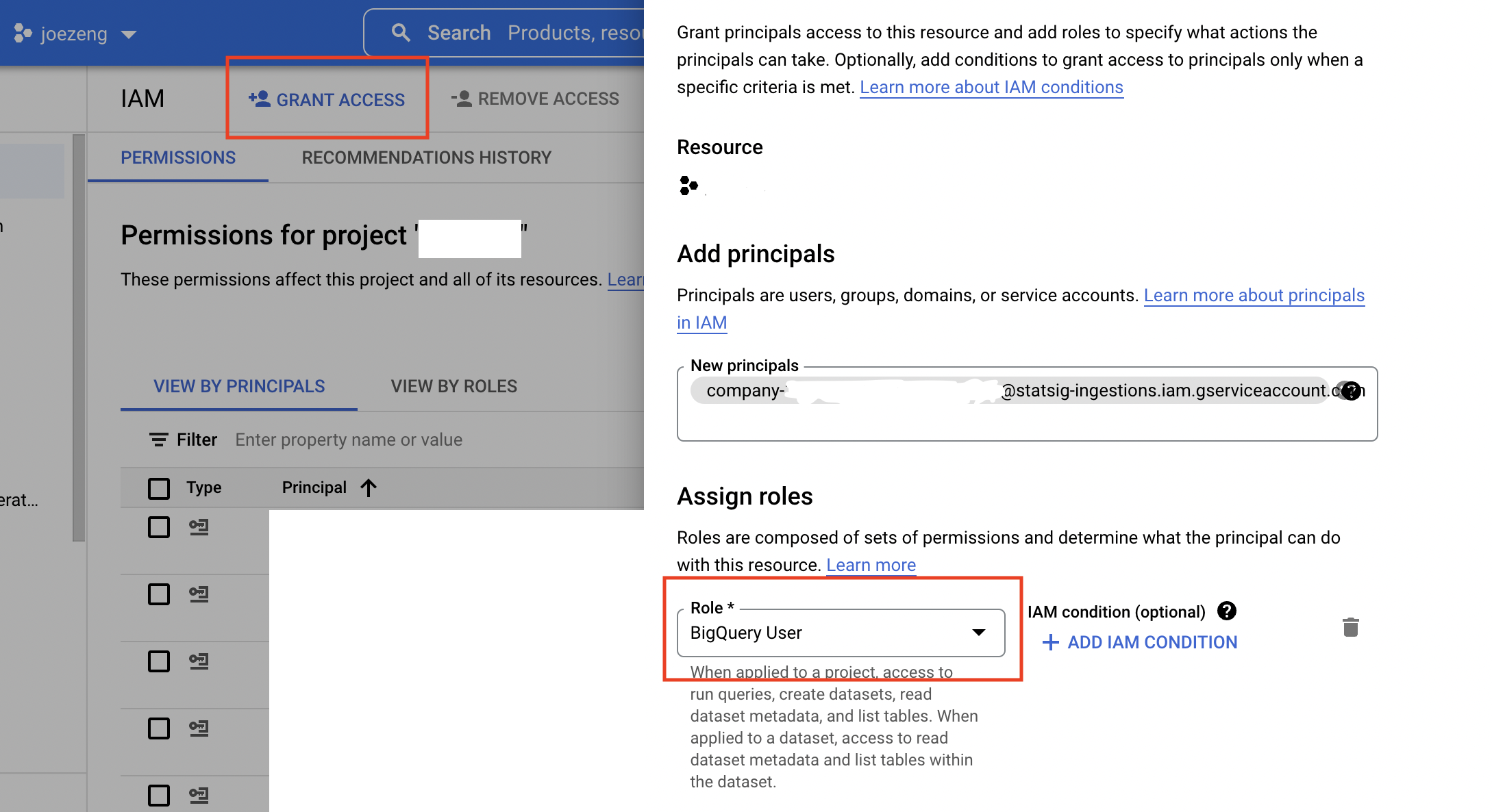
- In your BigQuery's IAM & Admin settings, add the Statsig service account you copied in the Statsig Console as a new principal for your project, and give it the following roles:
BigQuery User
Navigate to your BigQuery SQL Workspace, choose the dataset, click on "+ Sharing" -> "Permissions" -> "Add Principal" to give the same Statsig service account "BigQuery Data Viewer" role on the dataset.
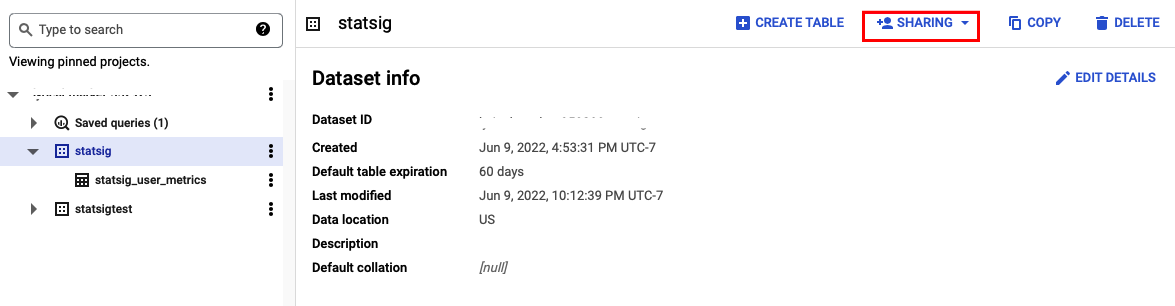
The service account now has the required permissions to export data from this dataset.
Find your BigQuery Project ID
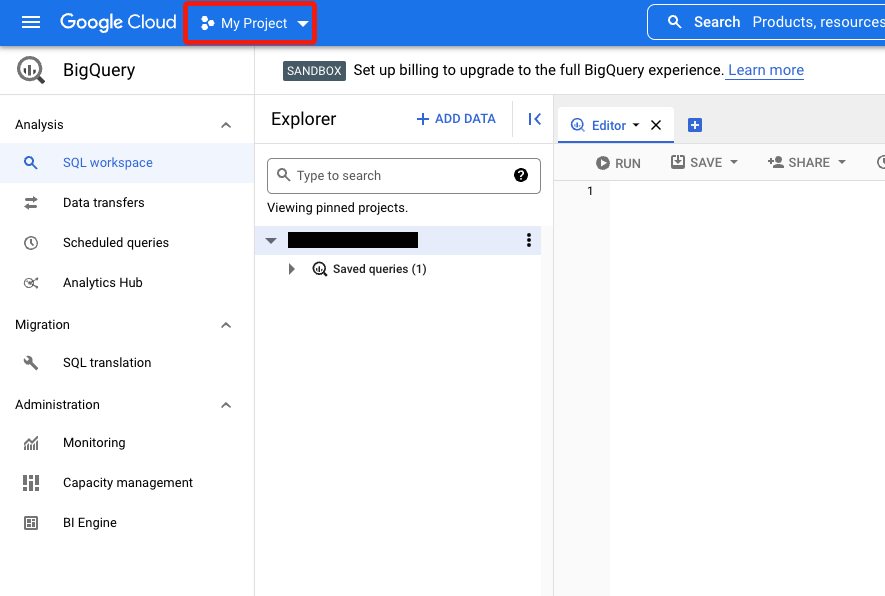
- Click on your Project Dropdown inside your Cloud Console.
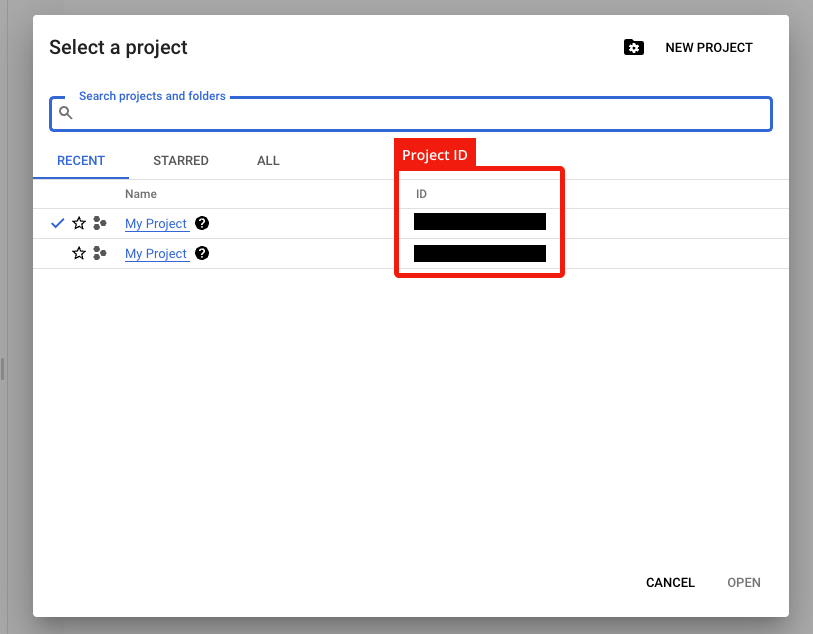
- Copy the relevant Project ID from the modal.
Was this helpful?