For AI agents: a documentation index is available at /llms.txt. Append .md to any page URL for markdown, or send Accept: text/markdown.
Setting up Sidecar
Learn how to install and configure the Statsig Sidecar Chrome extension and integrate it with your website.
- This guide assumes you have an existing Statsig account. Go here to create a new free account if you don't already have one: https://statsig.com/signup
- You need to use the Google Chrome web browser for this exercise.
Set up Sidecar Chrome extension
Step 1: Install Chrome extension
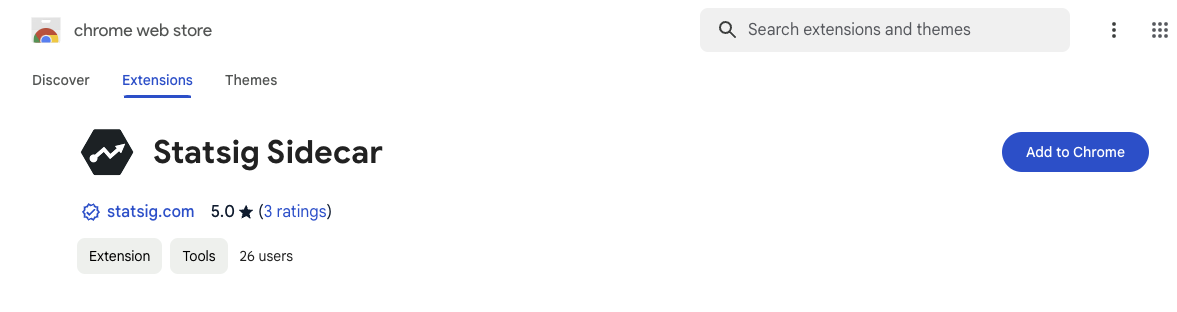
If you don't already have the Sidecar extension, visit the Chrome Web Store and select "Add to Chrome".
Step 2: Activate the extension
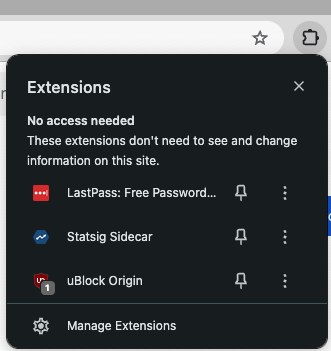
Select the Extensions toolbar button and choose "Statsig Sidecar" to activate the Sidecar extension.
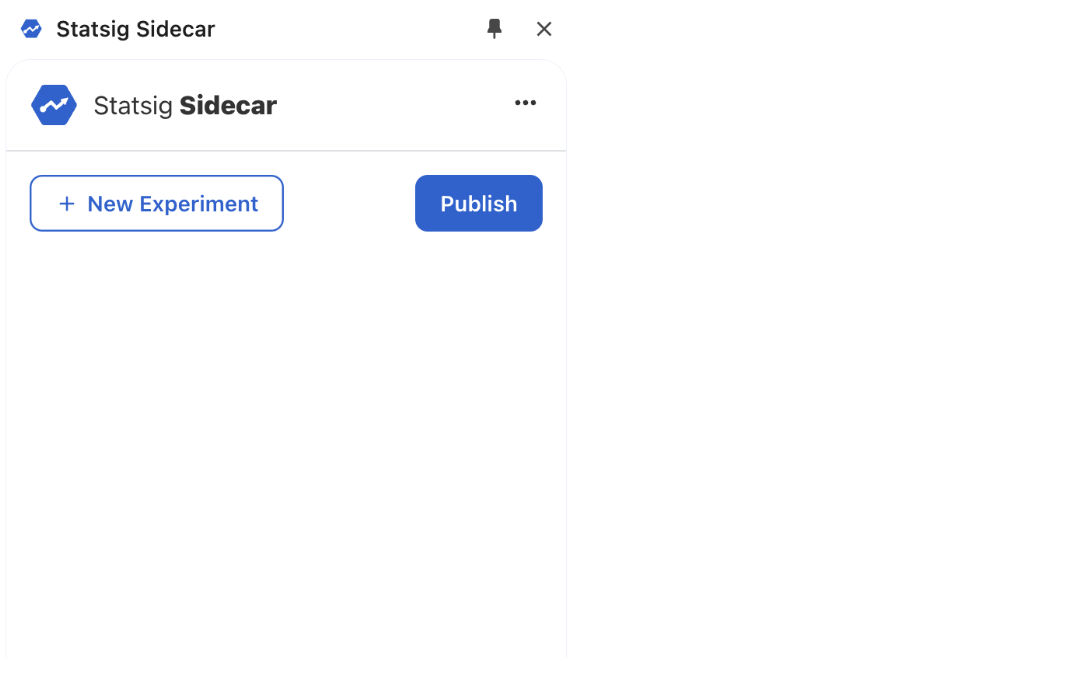
You now see an Experiment Config UI like this:
Step 3: Update settings
Update the API keys in the Settings dialog for the extension to work. Open the Settings dialog from the "Settings" link in the top header.
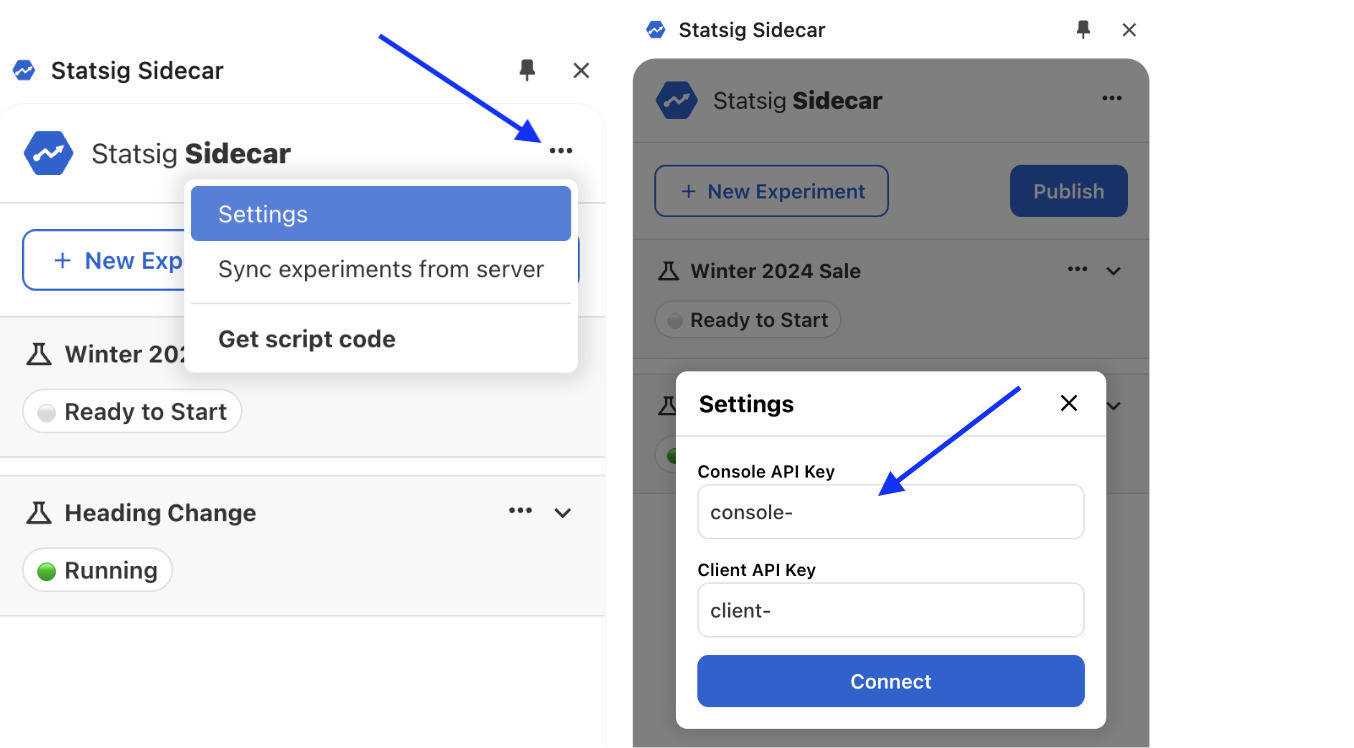
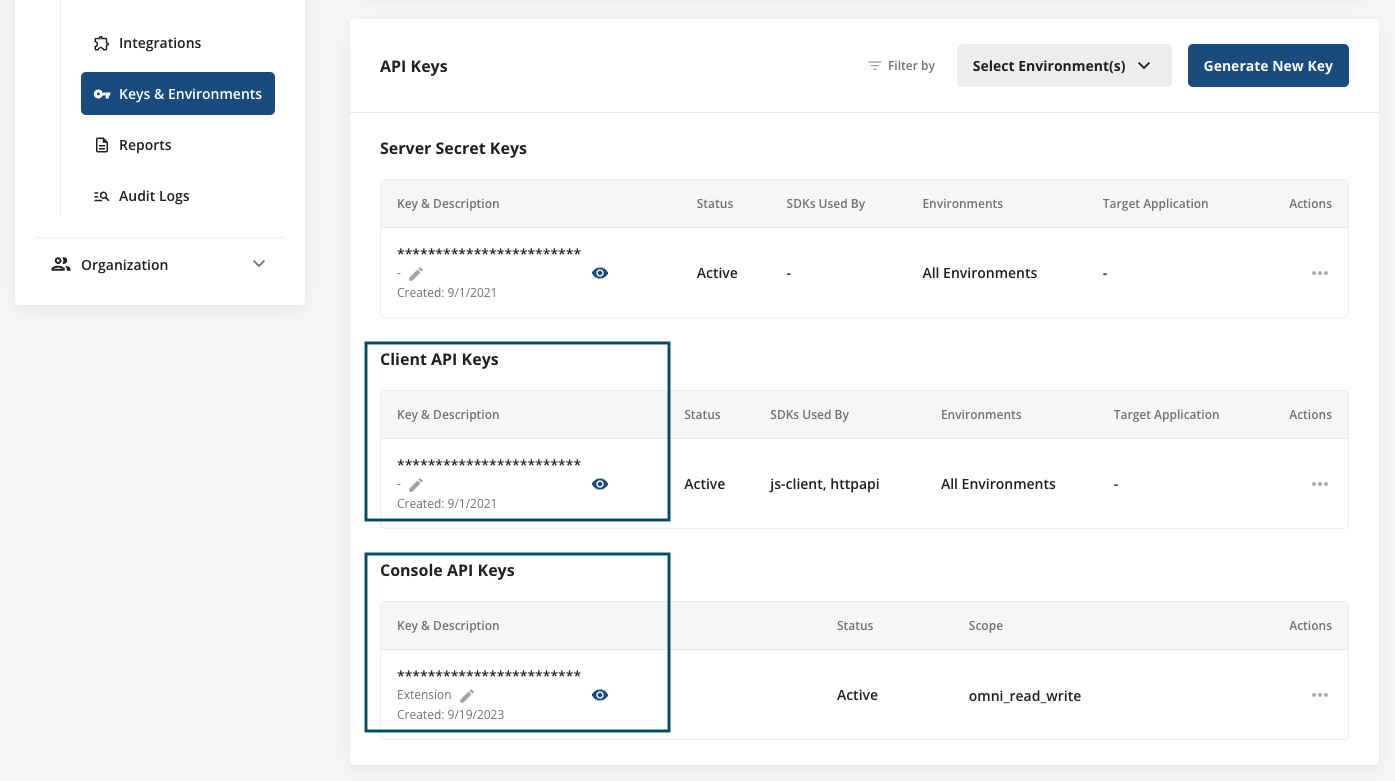
Retrieve these keys from your Statsig project. Log in to the Statsig Console at https://console.statsig.com and navigate to Settings (https://console.statsig.com/settings).
Select the "Keys & Environments" panel, then copy both the Console API Key and Client API Key and paste them into the Settings dialog.
Select "OK" to save the API Keys.
Install Sidecar on your website
Add a single script tag within the <head> portion of your website, replacing with your own Client SDK Key as shown below.
<script src="https://cdn.jsdelivr.net/npm/statsig-sidecar/dist/index.min.js?apikey=REPLACE_WITH_YOUR_CLIENT_SDK_KEY"></script>
Installing Sidecar JS through a Tag Manager can lead to flickering and other unpredictable behavior. Install Sidecar as a synchronous script tag instead.
Additional options
Add these query string parameters to the Sidecar script URL for additional controls over Sidecar client behavior
&reduceflicker=0disables the brief hiding of the<body>tag while the client initializes&autocapture=0disables event autocapture
Most website builders support adding script tags. Here are some common examples: Webflow, Wordpress, Wix, Squarespace.
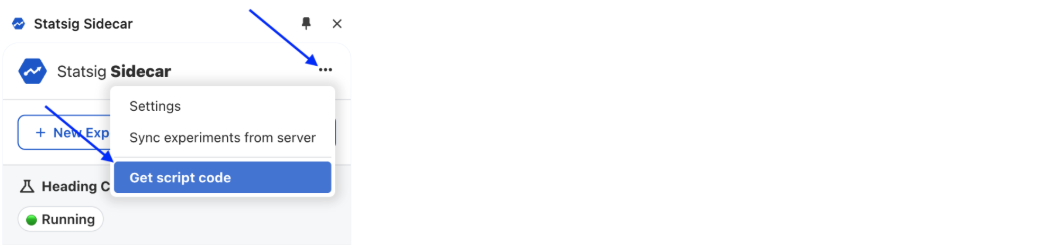
You can copy the script code from within the Sidecar Chrome extension.
You're now ready to create your first experiment.
Next up: Creating Experiments
Was this helpful?