For AI agents: a documentation index is available at /llms.txt. Append .md to any page URL for markdown, or send Accept: text/markdown.
Custom "Explore" Queries
Run custom queries on Statsig experiment results to explore segments, joins, and aggregations beyond the built-in scorecard and drill-down views.
A custom Explore query re-runs the experiment analysis on a filtered or grouped slice of your data: one set of metrics, one dimension filter or Group By, and one date range. Results use the same stats engine as the Scorecard, including p-values, confidence intervals, CUPED, and Sequential Testing, and Statsig saves each result as a point-in-time snapshot in Query History. Use a custom query when the Scorecard's dimension breakdowns don't cover the segment you care about, or to check how an experiment or launch affected a specific set of users. For the default views of Scorecard metrics, use Display Options on the Results tab instead.
Be careful when you draw inferences from custom queries, especially when you group by a dimension with many values. Grouping this way increases your chance of seeing a false-positive statistically significant result.
Running a custom query
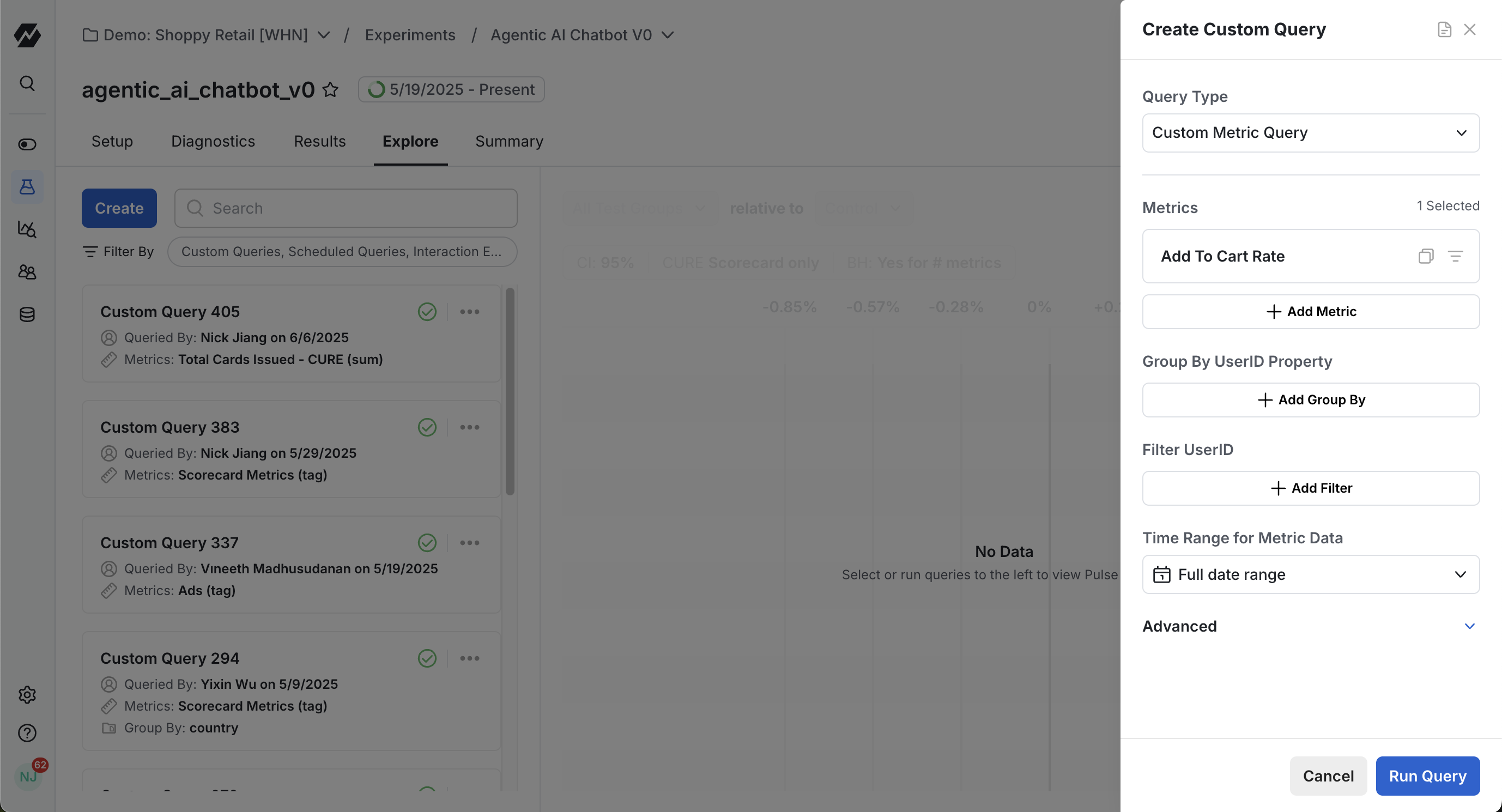
On the Explore tab of your experiment, define the query with the following fields.
| Field | Description |
|---|---|
| Metrics | The metrics to analyze: a single metric, several metrics, or a metric tag, which includes every metric in that tag. The field offers three shortcuts: Scorecard Metrics (all metrics in your experiment's Primary and Secondary Metrics sections), Primary Metrics, and Secondary Metrics. |
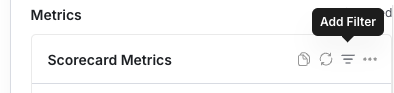
| Metric Filter | Filter the selected metrics by an event or user dimension with the Add Filter dropdown. For example, to view results for Canadian users only, filter to Country = CA. Filters apply per metric. |
| Group By | Group results by an event or user dimension. Group By applies at the query level, so the dimension you select applies to all included metrics. |
| Time Range for Metric Data | The date range for the analysis. Defaults to the full date range of your experiment data. |
| ID List Segment filters (advanced) | Include only users in an ID-list segment, or exclude users in one (for example, users retroactively identified as bad actors). Useful when you didn't log a user dimension you want to filter on, or when you define the sub-population you care about in your own data warehouse. This option can bias results: define the segment based on the user's status before exposure to the experiment or feature gate. |
| Filter by Exposure Date (advanced) | Include or exclude a date range of exposures. In Warehouse Native, you can also include or exclude users based on when they were first exposed. Useful when metrics have a novelty effect or delayed impact, or when you want to restrict results to certain users. This filter can bias results, so use it cautiously. |
Statsig bases user groups in experiment results on first-touch attribution: filters and grouping use the user attributes collected at the time of first exposure in the gate, experiment, or layer check.
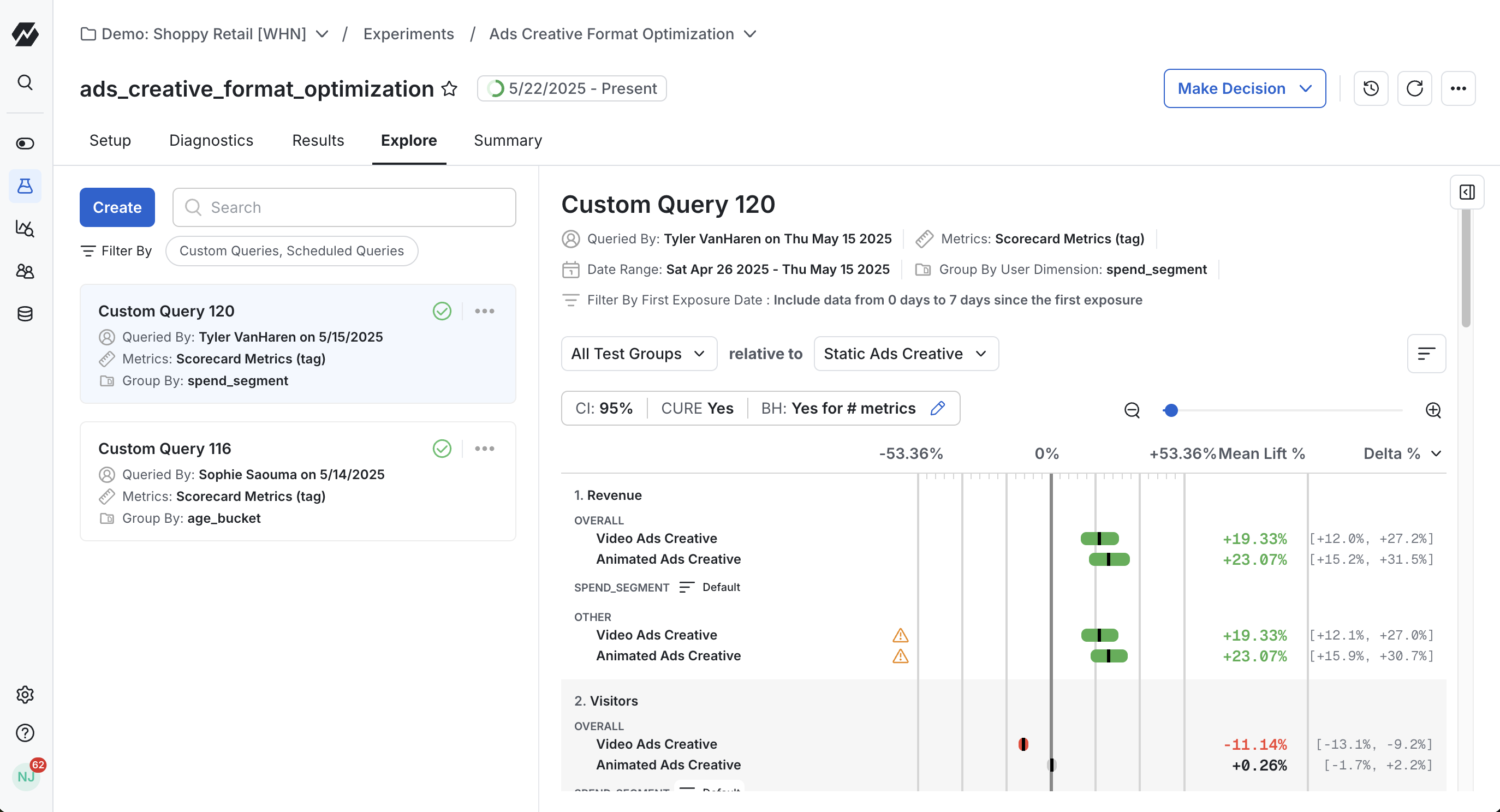
Viewing a custom query in Explore
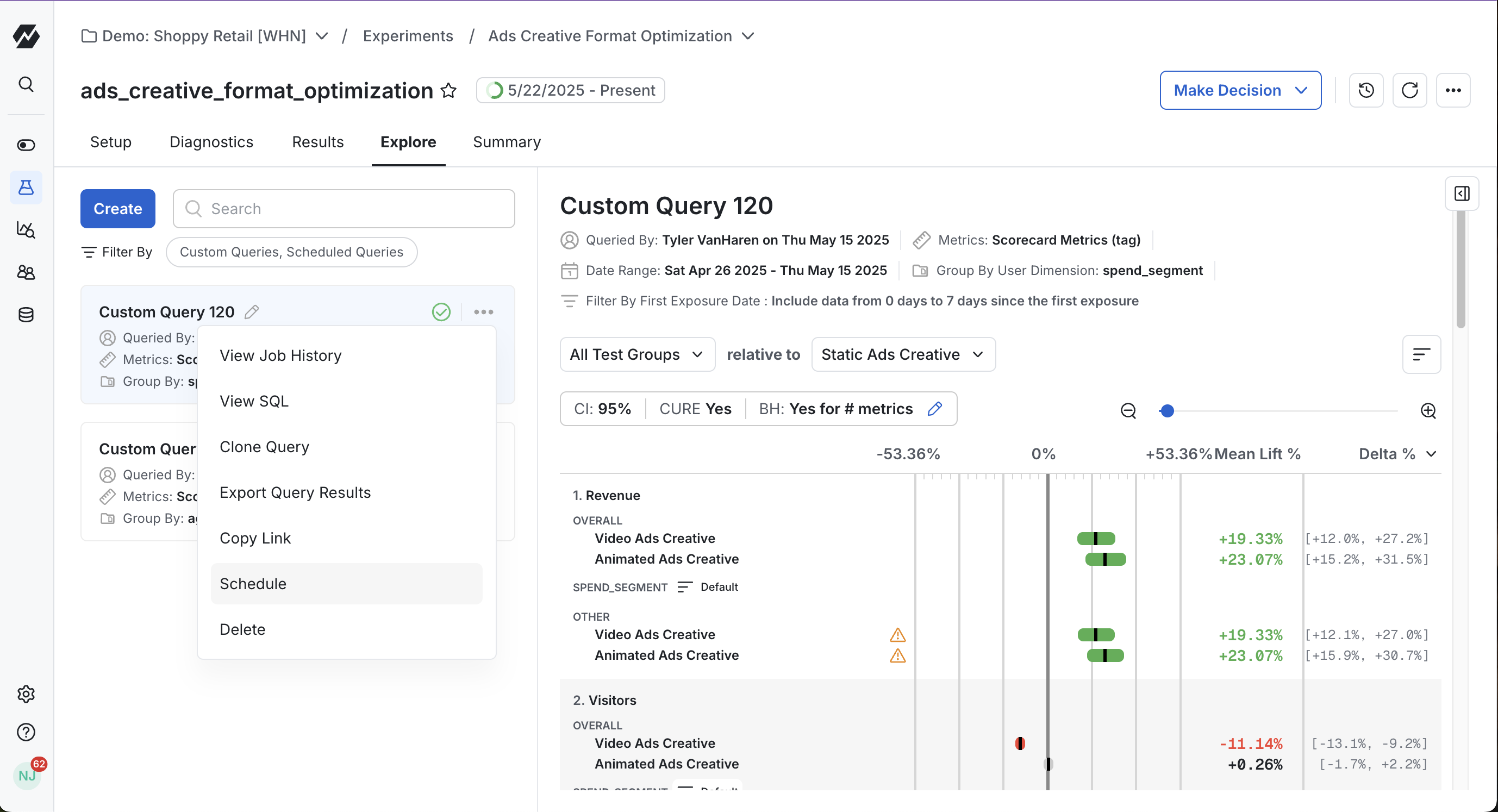
Queries take a few minutes to run, and Statsig emails you when the results are ready. Results appear in the Query History section of the Explore tab, where Statsig stores all historical queries across your team. You can give a query a display name inline to find it later.
Precomputed user dimensions, which run on a schedule, load through separate asynchronous Explore queries after the main experiment results appear, and become available within a few minutes. The gap is most noticeable right after the first reload of the day. If you see "No dimensions available for this time range" for a precomputed dimension, wait a few minutes and refresh. User-triggered custom queries don't have this delay.
Scheduling a custom query
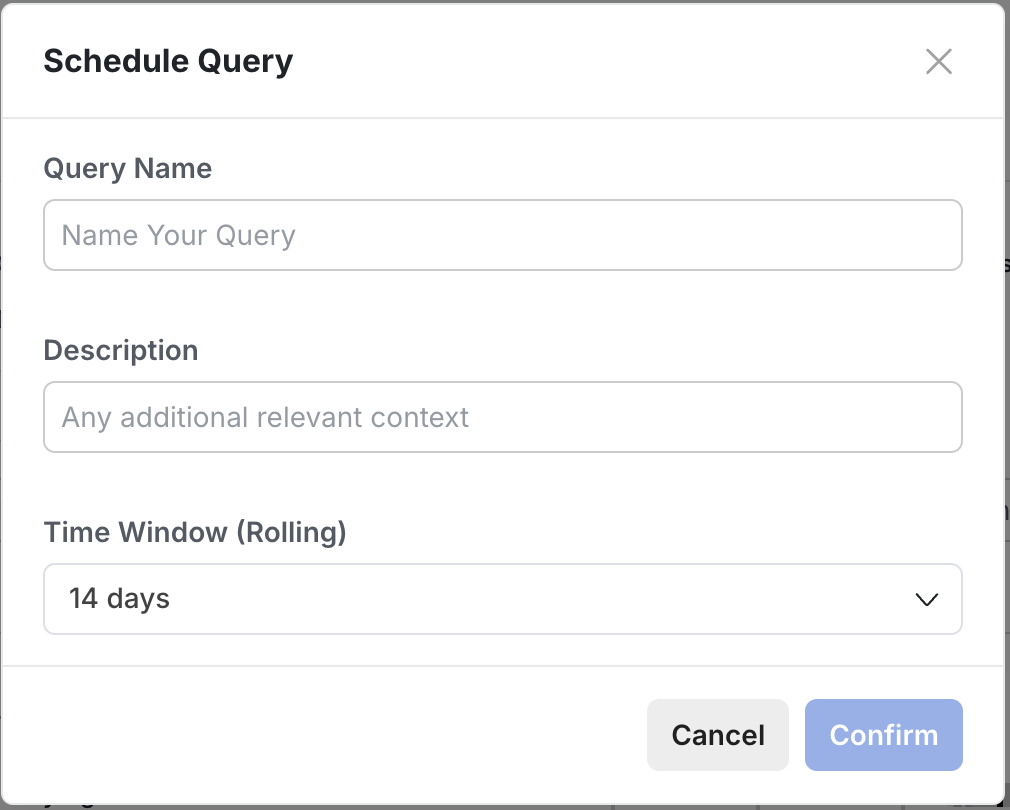
To refresh a custom query daily, schedule it from the Explore tab: author the query, select the ... menu, then select Schedule. The query then runs daily and appears in the Scheduled tab of your Metric Lifts.
Reviewing custom query results
Custom query results look like the main Results tab because Statsig applies the same statistical methods and analysis practices to both.
The key difference is that a custom query result is a snapshot in time. After the query runs, Statsig saves the results, and they don't update when more metric data arrives. To update your results, run a new custom query or schedule one to run at a regular cadence.
Sequential testing and custom queries
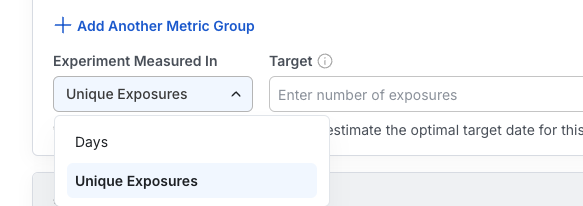
If you enable Sequential Testing for your experiment, you can apply it to custom query results too. Whether and how much Statsig adjusts confidence intervals and p-values follows the standard rules of sequential testing: if your custom query doesn't satisfy the experiment's target Days or Unique Exposures from your setup, Statsig applies sequential testing adjustments to account for the under-powered state of the experiment.
Because a custom query is a snapshot in time, Statsig computes sequential testing adjustments for that specific analysis only. If you run additional custom queries with more or less data (for example, more days in the analysis or more unique users in the experiment), the adjustments change accordingly. Custom queries that meet the configured minimum Days or Unique Exposures receive no sequential adjustments.
Was this helpful?