For AI agents: a documentation index is available at /llms.txt. Append .md to any page URL for markdown, or send Accept: text/markdown.
Trigger a Release Pipeline
Learn how to attach pipelines to features and trigger controlled rollouts
Statsig activates a Release Pipeline when you make changes to a feature gate or dynamic config that has a pipeline attached to it.
Attaching a pipeline
Before triggering a release, attach a pipeline to your feature gate or dynamic config. The Statsig console offers two methods for attaching a Release Pipeline.
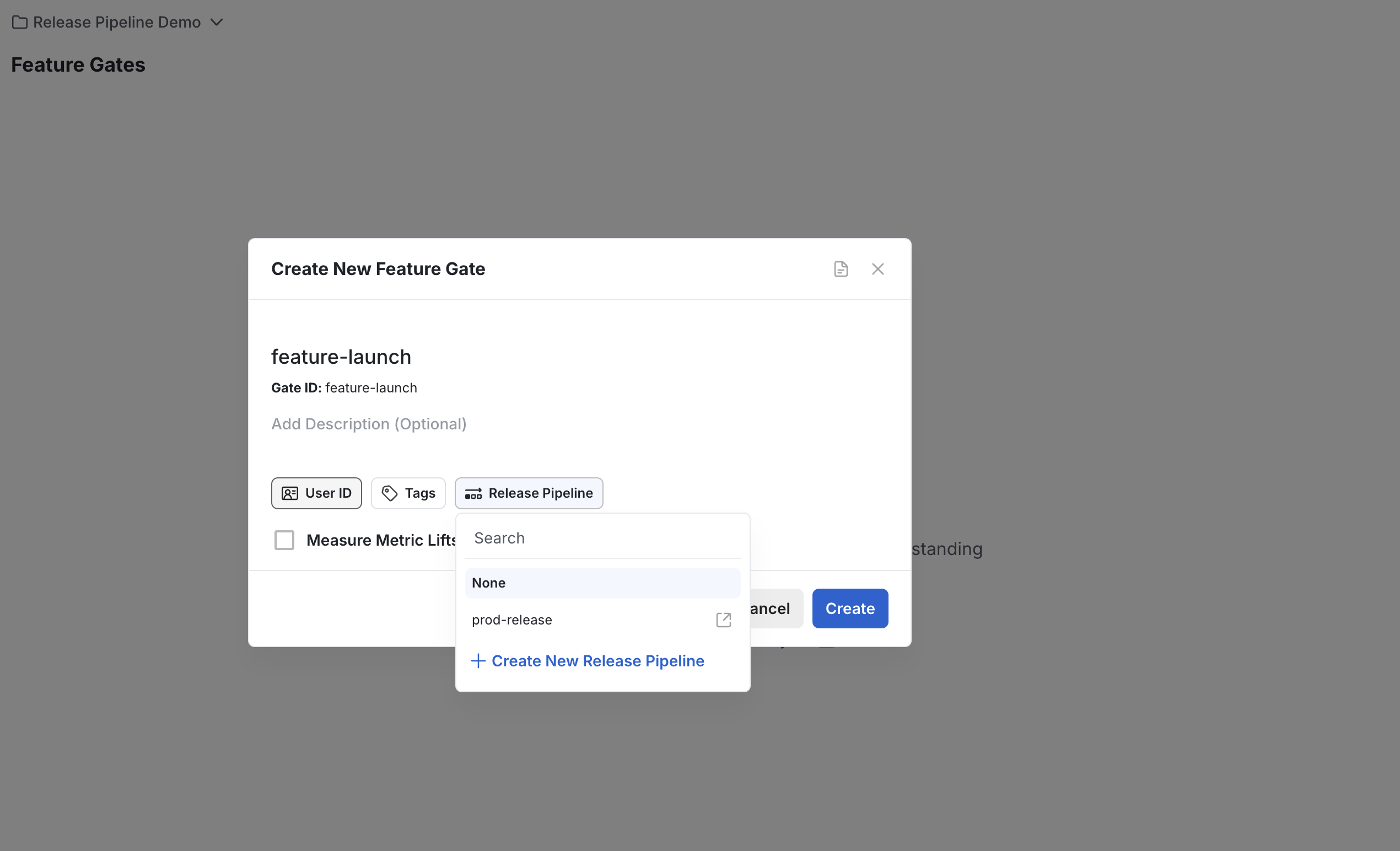
During feature creation
You can select a Release Pipeline directly in the creation modal when setting up a new feature gate or dynamic config:
To an existing feature
For an existing feature gate or dynamic config, you can attach a Release Pipeline through the sidebar settings:
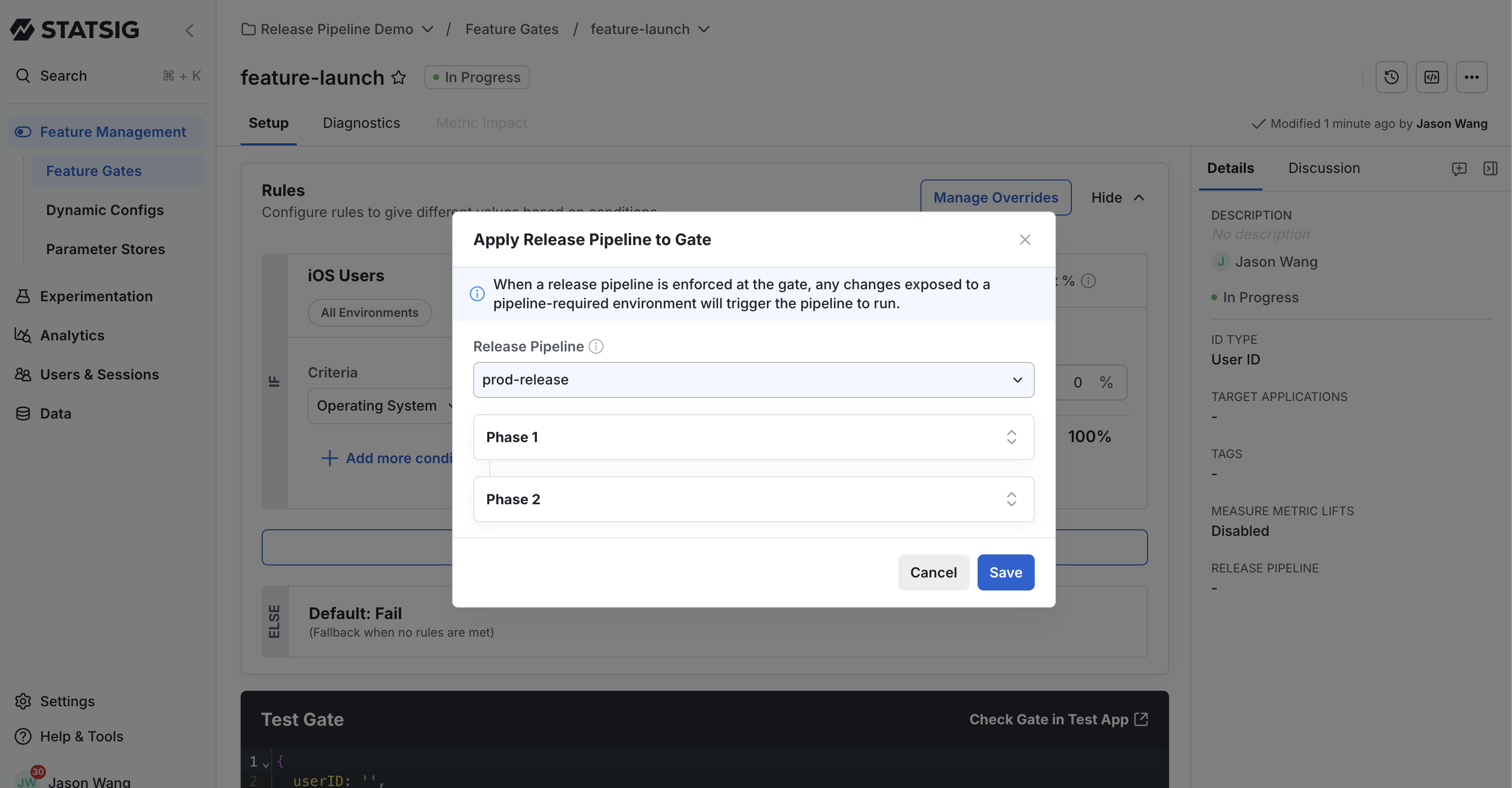
:::note You must have at least one Release Pipeline created before it appears in the dropdown menu. Refer to Create and Manage Pipelines for instructions on creating pipelines. :::
Starting a rollout
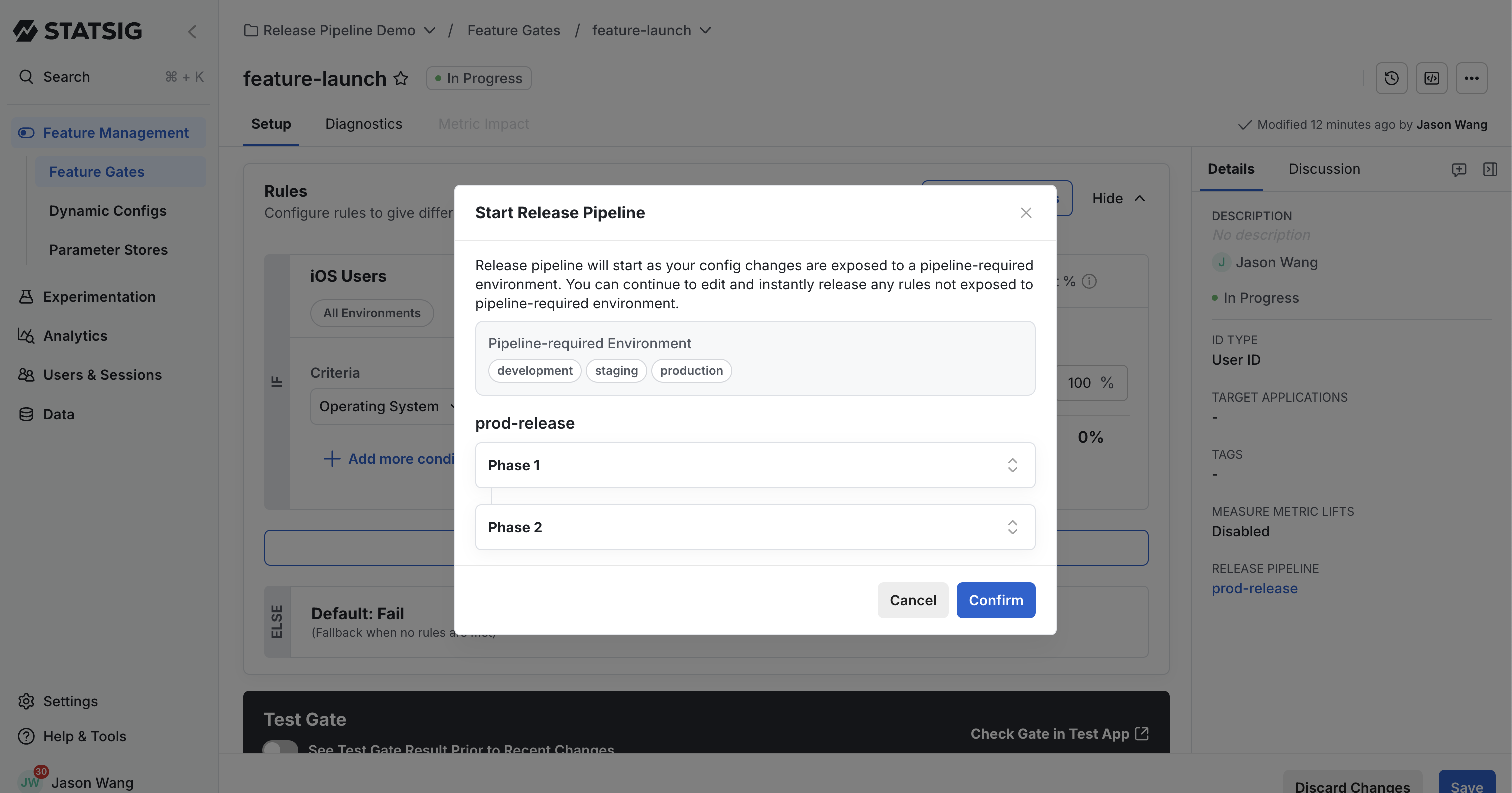
After you attach a Release Pipeline, making changes to your feature gate or dynamic config automatically starts the pipeline process:
- Make your changes to the feature gate or dynamic config
- Click Save to commit the changes
- A confirmation dialog appears, informing you that changes progress through the pipeline
- Review the information and click Confirm to proceed
The system then begins the rollout following the phases defined in the attached pipeline.
Viewing release status
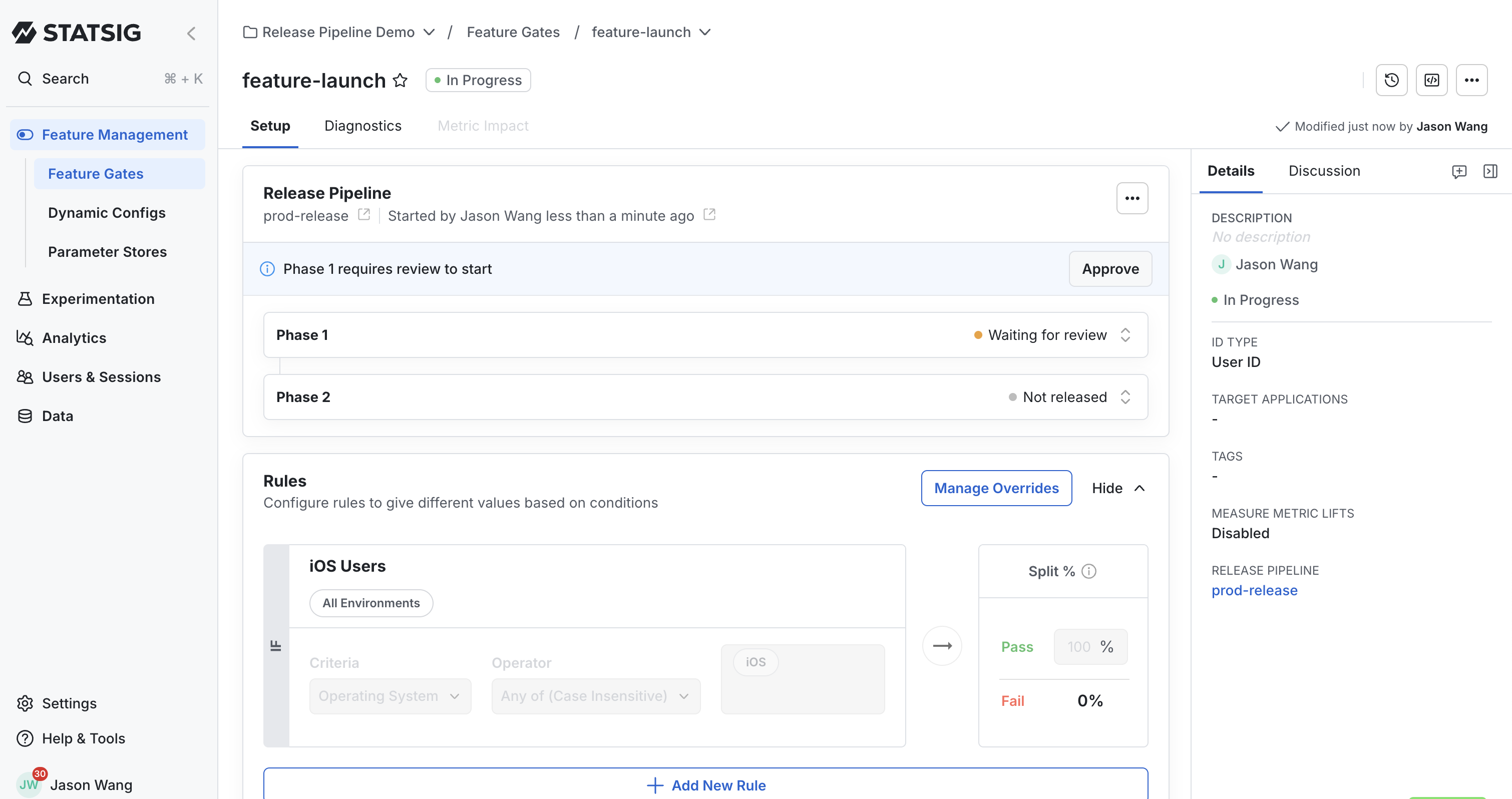
After you trigger a Release Pipeline, you can monitor its progress:
- At the top of the feature gate or dynamic config page, a status banner appears
- This banner displays the current phase and overall progress through the pipeline
For information about controlling an ongoing release, including approvals and cancellations, refer to Managing Release Actions.
Frequently asked questions
Q: Can I attach different Release Pipelines to different feature gates?
A: Yes, each feature gate or dynamic config can use a different pipeline based on its specific rollout needs. However, a single feature gate or dynamic config can only have one Release Pipeline attached at a time.
Q: What happens if I need to cancel a release in progress?
A: You can stop an ongoing release using the actions menu in the release details view. Refer to Managing Release Actions for complete instructions.
Was this helpful?