For AI agents: a documentation index is available at /llms.txt. Append .md to any page URL for markdown, or send Accept: text/markdown.
Create and Manage Release Pipelines
Learn how to create, configure, and manage Release Pipelines for controlled feature rollouts
Creating a new pipeline
To create a new Release Pipeline:
- Log into the Statsig console
- Navigate to Settings > Feature Management
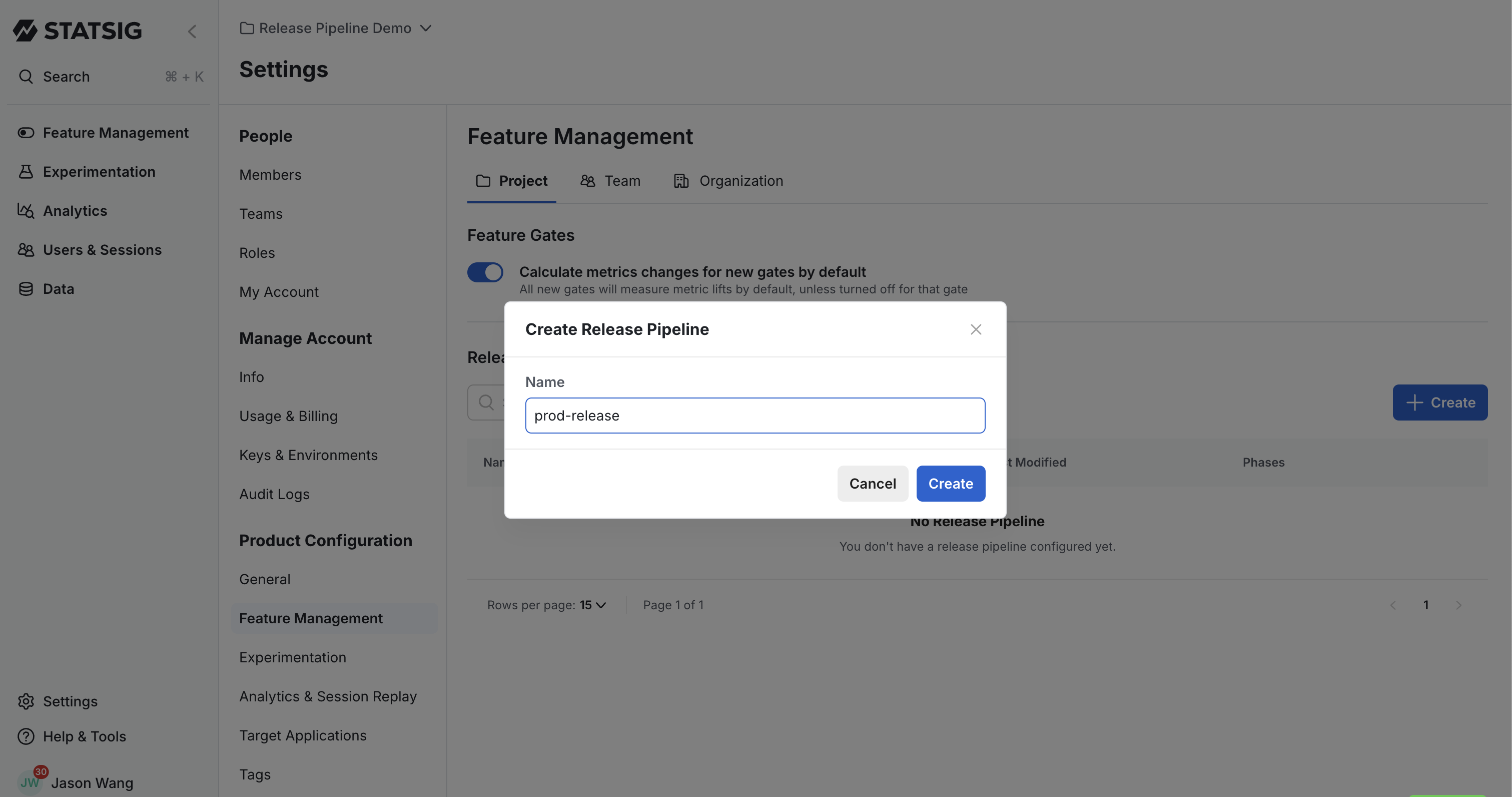
- Under Release Pipelines, click the Create button
- Enter a descriptive name for your pipeline
- Click Create to proceed to the configuration page
Configuring phases
Each pipeline consists of one or more phases, with each phase representing a distinct release target.
Adding phases
For each phase in your pipeline:
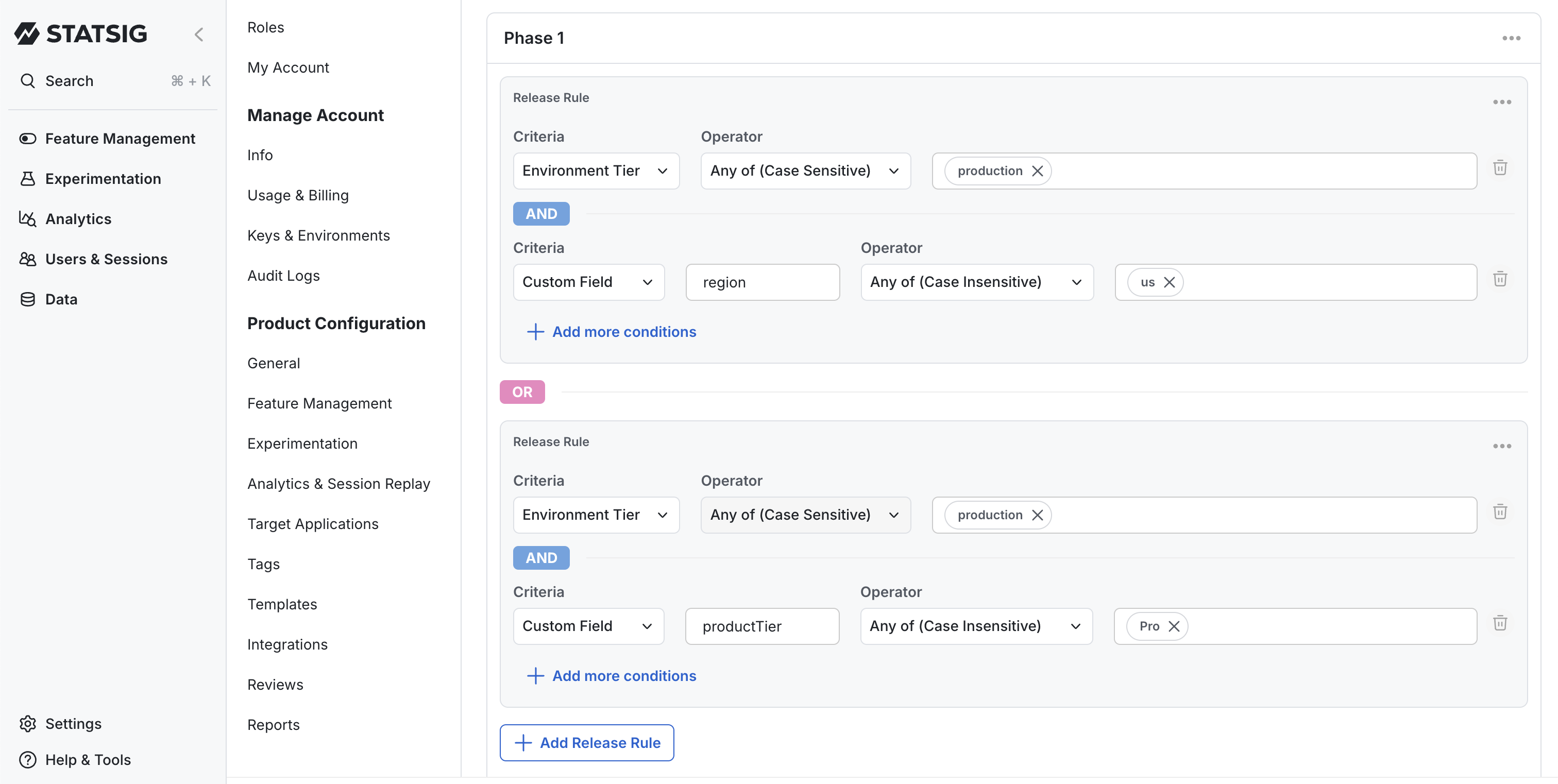
- Add one or more release rules
- Select a required Environment for the rule
- Optionally add custom field conditions for more precise targeting
Setting phase transitions
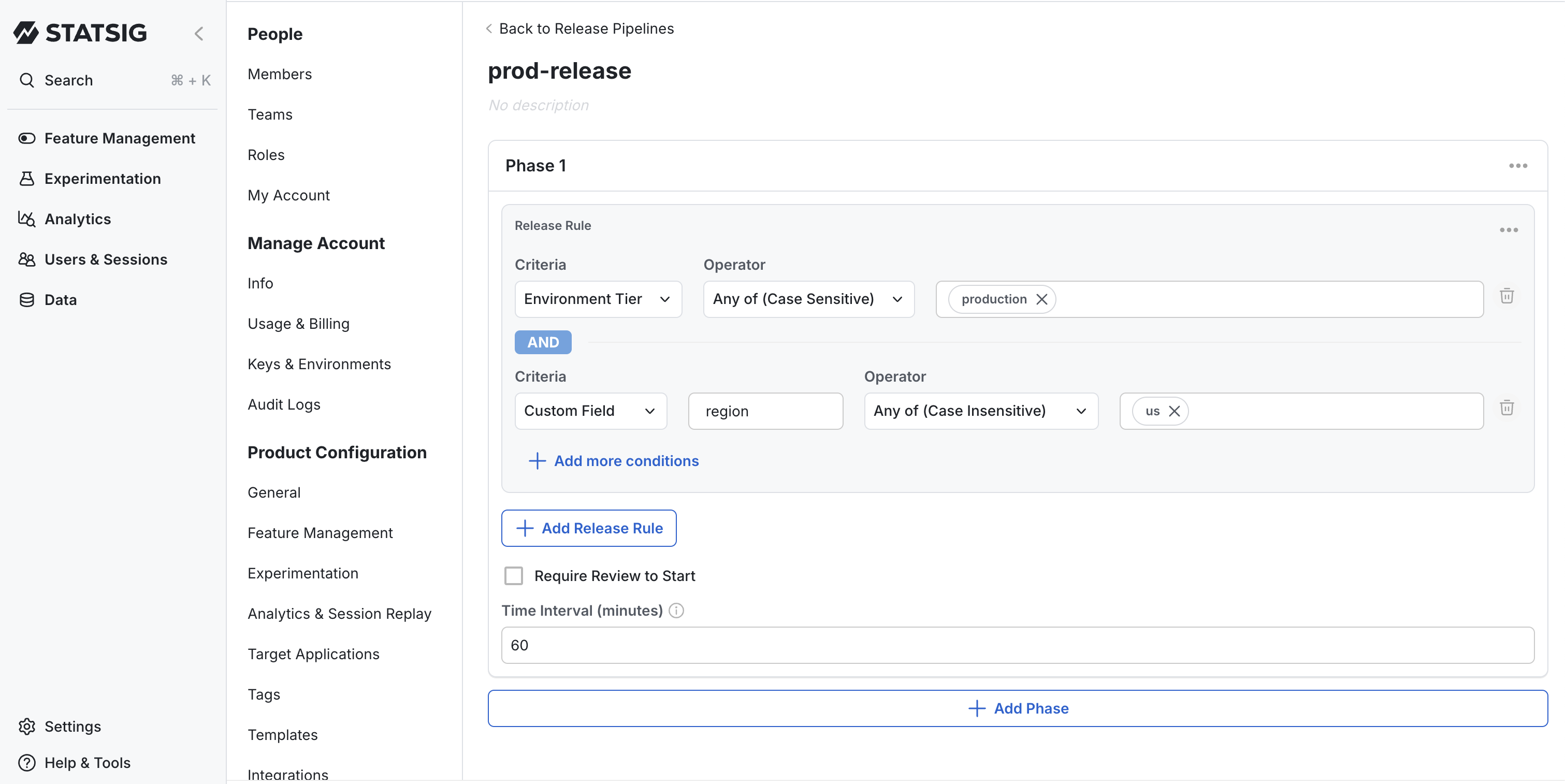
Control how your phases progress with these transition options:
| Transition Type | Description |
|---|---|
| Require Review | Requires manual approval from an authorized user before starting the phase |
| Time Interval | Automatically proceeds to the next phase after a specified duration (in minutes) |
:::note You can combine both options in a single phase. When you use both, the time interval only begins counting down after someone gives the required approval. :::
Managing existing pipelines
Updating a pipeline
To modify an existing pipeline:
- Click on the pipeline name from the list
- Make your edits to any section
- Click Save to apply your changes
Important: You can't modify pipelines with active rollouts in progress until those rollouts complete or you stop them.
Viewing pipeline references
There are two ways to see which feature gates and dynamic configs are currently using a pipeline:
Project Settings
- Navigate to Project Settings
- Click on the Feature Management menu in the left-rail
- Navigate to Release Pipelines section
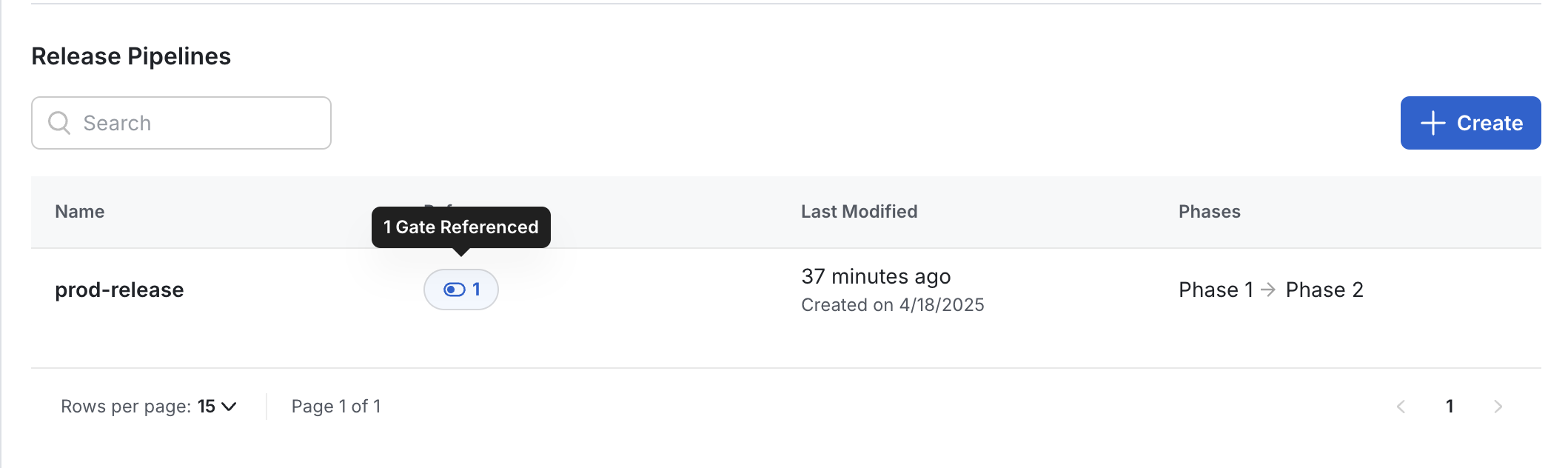
- Click on the References column against each Release Pipeline
- This shows all feature gates and dynamic configs currently attached to a specific pipeline
Feature Gates / Dynamic Configs Page
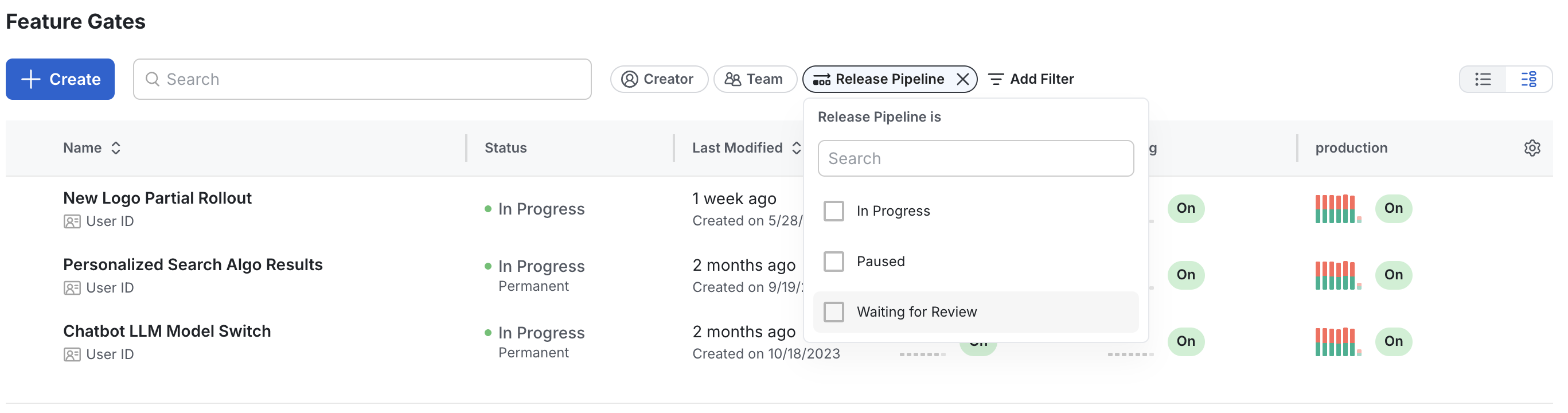
- Navigate to Feature Gates / Dynamic Config list view
- Filter by 'Release Pipeline' current status
- This shows all feature gates and dynamic configs with an ongoing release pipeline
Opting out environments from Release Pipelines
By default, all environments trigger Release Pipelines when you make changes. You can configure specific environments to be exempt from this behavior.
When you opt an environment out from Release Pipelines:
- Changes you make exclusively to that environment don't trigger a Release Pipeline.
- Opting an environment out allows quick environment-specific adjustments without starting the full release process.
How to opt out an environment
To exclude an environment from triggering Release Pipelines:
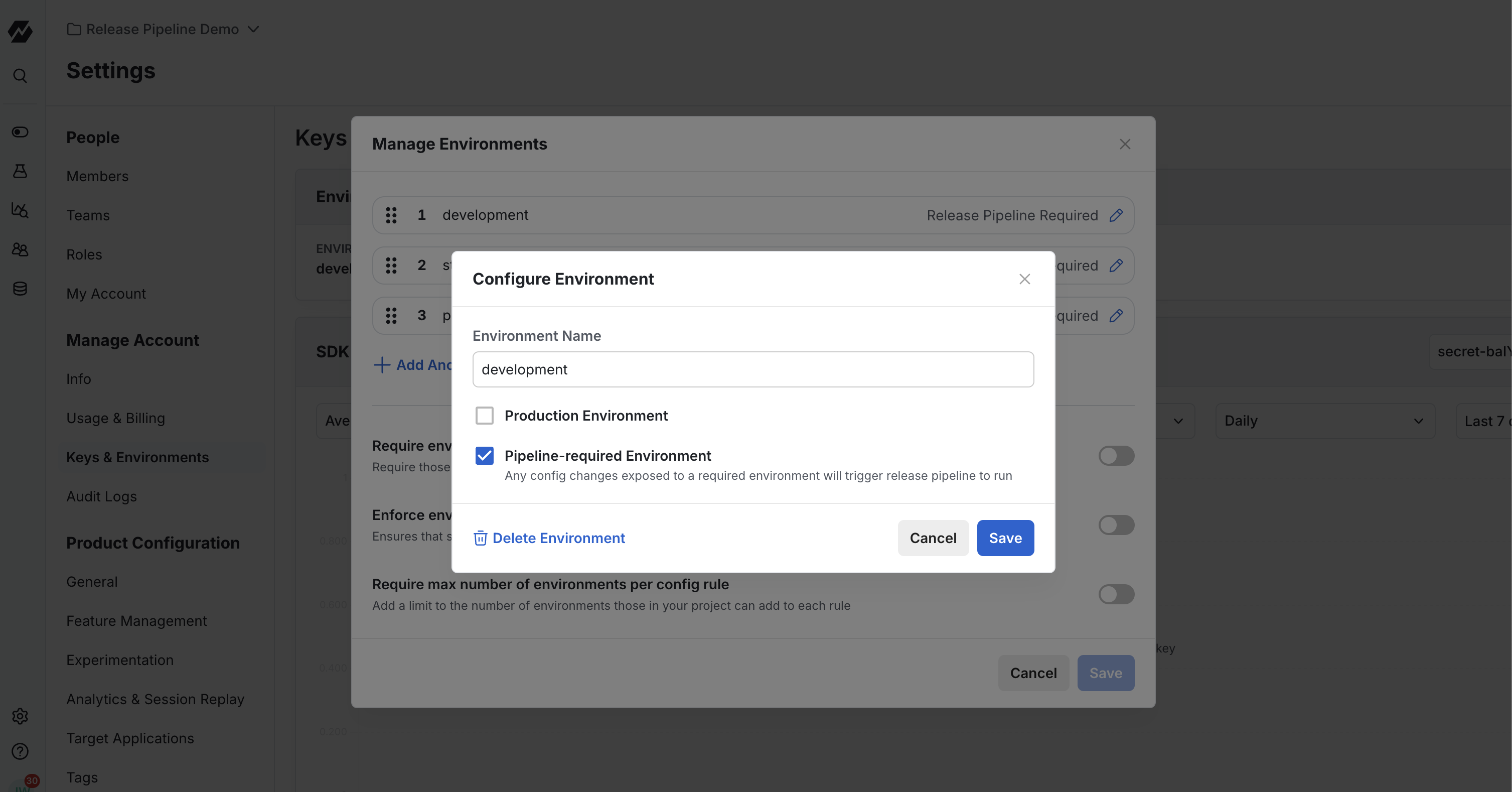
- Navigate to Settings in the Statsig console
- Under Keys & Environments, select Environments
- Click on the environment you want to opt out
- Unselect the Pipeline-required Environment option
- Click Save to apply your changes
Was this helpful?