For AI agents: a documentation index is available at /llms.txt. Append .md to any page URL for markdown, or send Accept: text/markdown.
Disable a Group
Learn how to disable poorly performing experiment groups while keeping other test groups running.
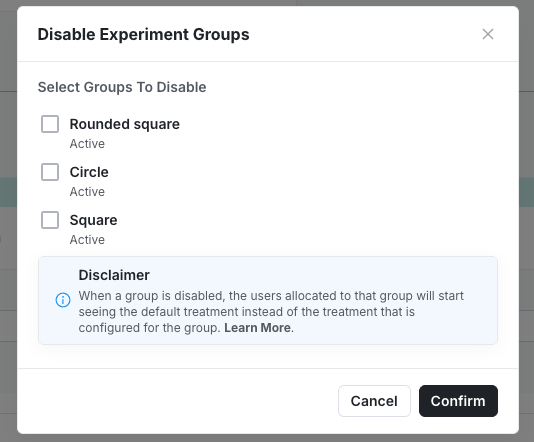
Disabling a group turns off one test group in a multi-group experiment while the other groups keep running. Users assigned to the disabled group receive the default experience instead. Disable a group when one variant performs poorly or creates a bad user experience but the rest of the experiment is still valid. If the whole experiment is failing, make a decision and ship control instead.
What to expect when you disable a group
- Users already assigned to the disabled group receive the default experience.
- Statsig continues to assign new users to the disabled group, and those users also receive the default experience. Because assignment continues, the disabled group doesn't trigger a Sample Ratio Mismatch (SRM).
- Statsig continues to show the group, log its exposures, and calculate its experiment results, so you can verify that user experiences recover after you disable the group.
Disable a group
- Log into the Statsig console and select Experiments in the left-hand navigation panel.
- Select the experiment where you want to disable a group.
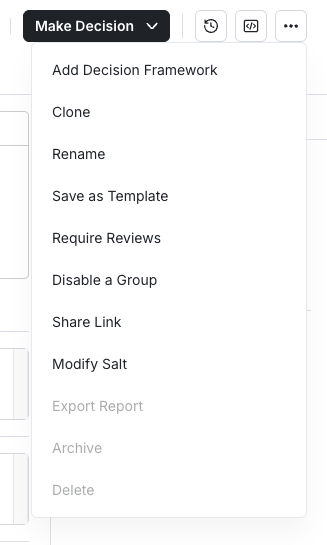
- Click the ... menu in the top right corner.
- Select Disable A Group.
- Select the experiment groups you want to disable, then select Confirm.
Reenable a group
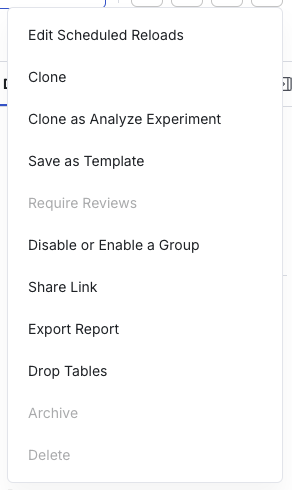
To reenable a previously disabled group, click the ... menu and select Disable or Enable A Group.
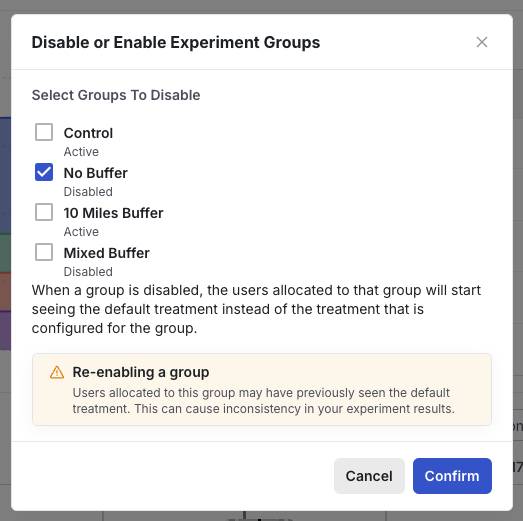
Users in a reenabled group may have received more than one treatment during the experiment, and the group's metric data may reflect those multiple experiences.
Was this helpful?