For AI agents: a documentation index is available at /llms.txt. Append .md to any page URL for markdown, or send Accept: text/markdown.
Make a Decision
Learn how to analyze experiment results and make informed decisions about launching, abandoning, or continuing experiments.
Making a decision for an experiment ships one group, including control, to all your users. After you make the decision, the experience users receive depends on whether the experiment uses a targeting gate. Experiment results remain accessible after you make a decision, but they stop updating. The last day of metrics is the day you make the decision.
Use Make a Decision when you're ready to ship a group. To stop enrolling new users while users already exposed keep their variant, use Stop Assignments instead. To stop enrollment and data collection without shipping a group yet, use Conclude Experiment and Defer Decision instead.
Experiments with no targeting gate
When you ship a group in an experiment with no targeting gate, the shipped group's parameter values become the default values for all your users.
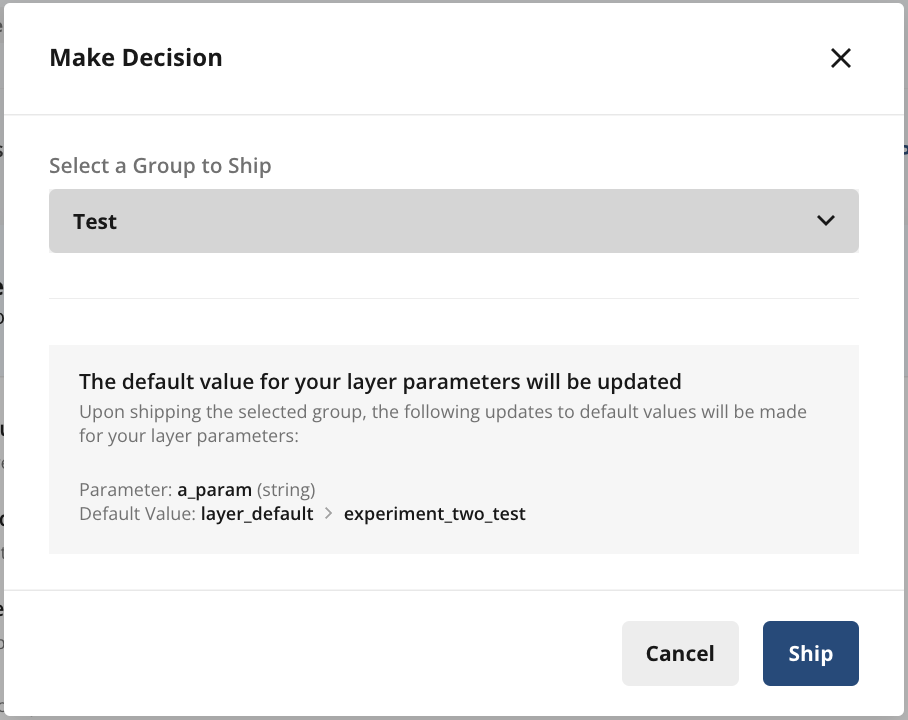
If the experiment uses parameters from a layer, the layer's parameters take the shipped group's values as their defaults. All your users see these values.
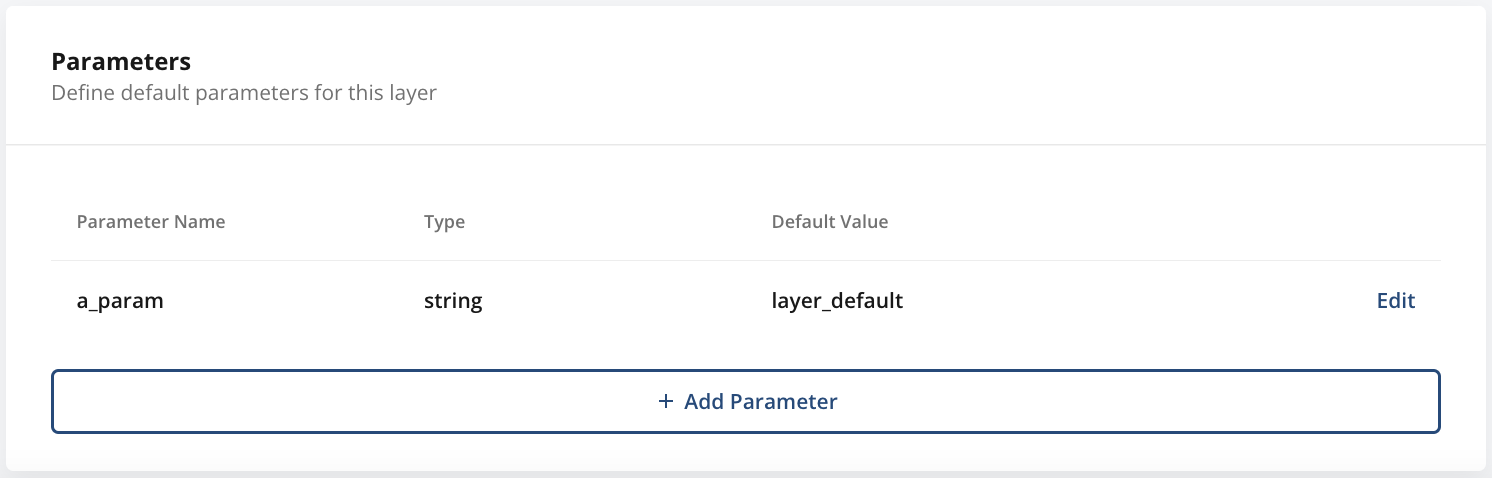
For example, suppose you have a layer named Demo Layer with a parameter, a_param, whose default value is layer_default.
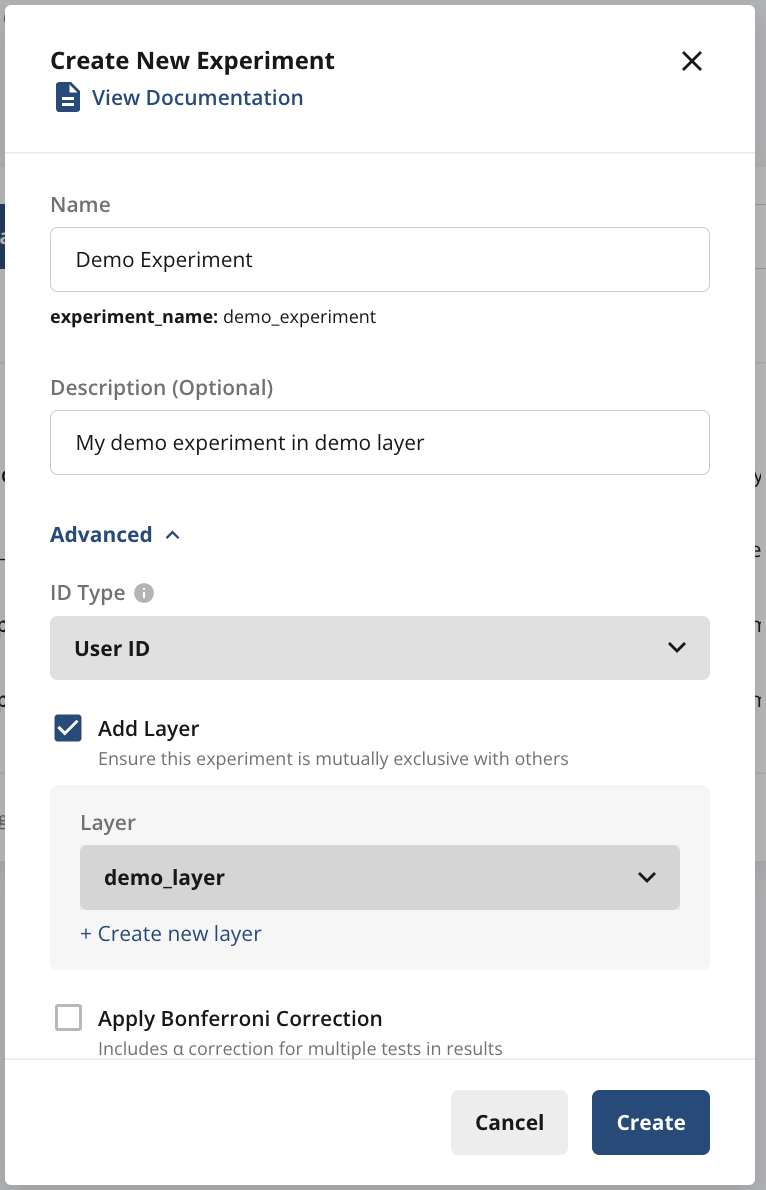
To run an experiment in Demo Layer, create an experiment named Demo Experiment.
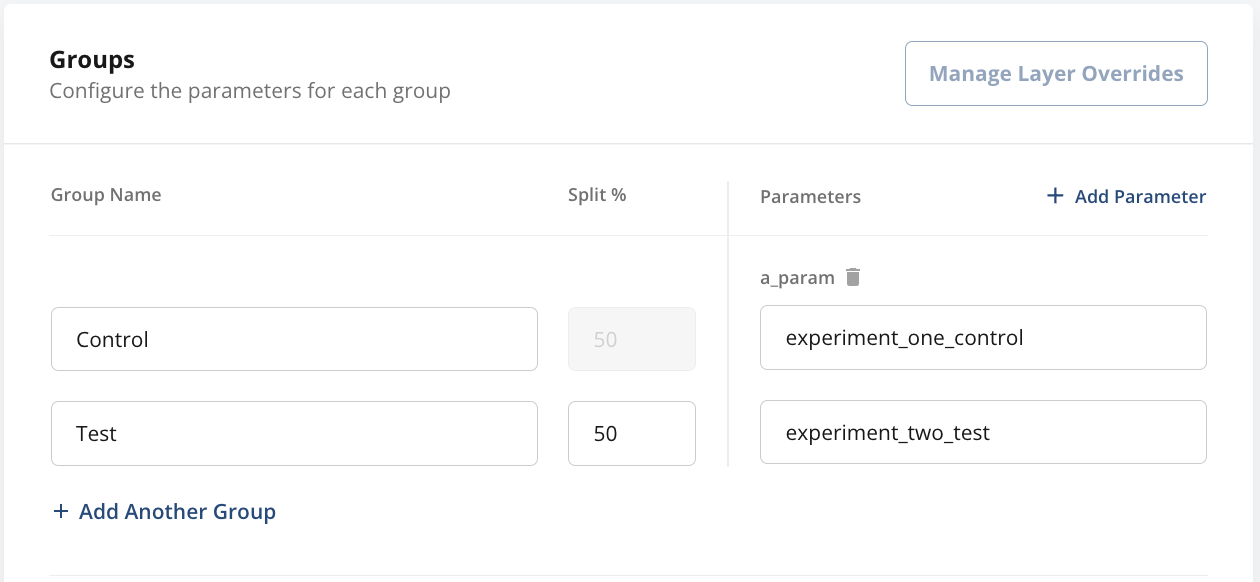
Demo Experiment has two groups, Control and Test, each with a different value for the layer-level parameter a_param.
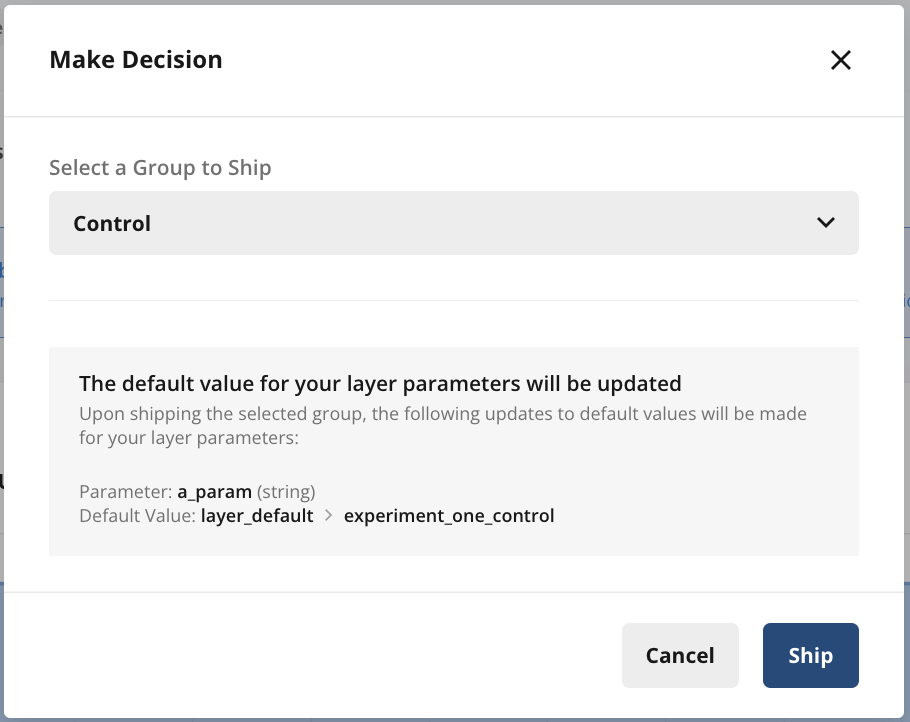
If you ship the Control group, a_param takes the Control group's value, experiment_one_control, as its default.
If you ship the Test group, a_param takes the Test group's value, experiment_two_test, as its default.
Experiments with a targeting gate or targeting rules
When you ship a group in an experiment that has a targeting gate or targeting rules, you choose whether to continue targeting after shipping.
- If you discontinue targeting, the shipped group's parameter values become the default values for all your users. If the experiment uses parameters from a layer, the layer's parameters take the shipped group's values as their defaults.
- If you continue targeting with a targeting gate, Statsig adds an override to the experiment's layer. Users who pass the targeting gate see the shipped group's parameter values. Users who fail the targeting gate see the default value: the layer-level parameter default or the default you set for the parameter in your code.
- If you continue targeting with targeting rules, Statsig ships the experiment only to users who pass the inline targeting rules set in the experiment setup.
If you continue targeting, shipping a group doesn't update the default value of any layer parameters.
When you continue targeting, users who pass the targeting gate aren't eligible for future experiments in the layer. Statsig doesn't recommend shipping experiments with targeting on, especially when the experiment is in a layer.
Roll out an experiment group
Rolling out an experiment group lets you ship the winning variant without a sudden, large shift of traffic into that group. Automated rollouts schedule gradual phases that increase the shipped group's size to the target percentage by reallocating users proportionally from all other groups.
Set up rollouts
To set up rollouts, open the Make Decision form and select the winning group. From this form, you can ship with rollout or use automated rollouts.
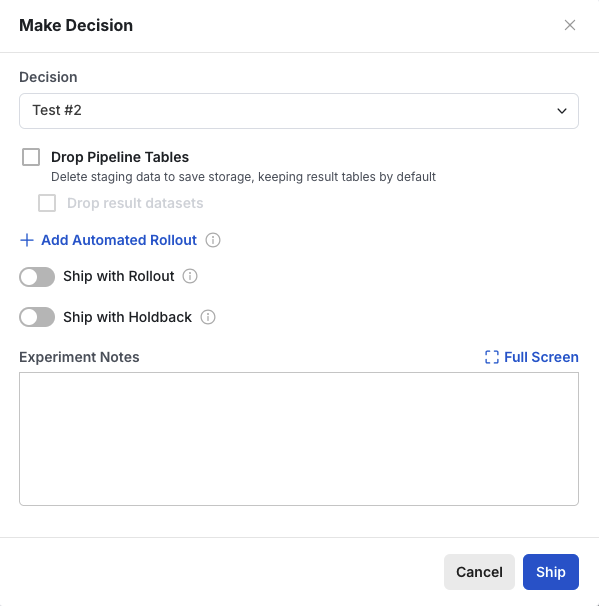
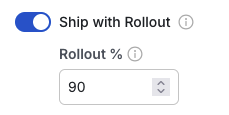
Ship with rollout immediately updates the shipped group's size. Manual rollouts clear any automated rollout phases.
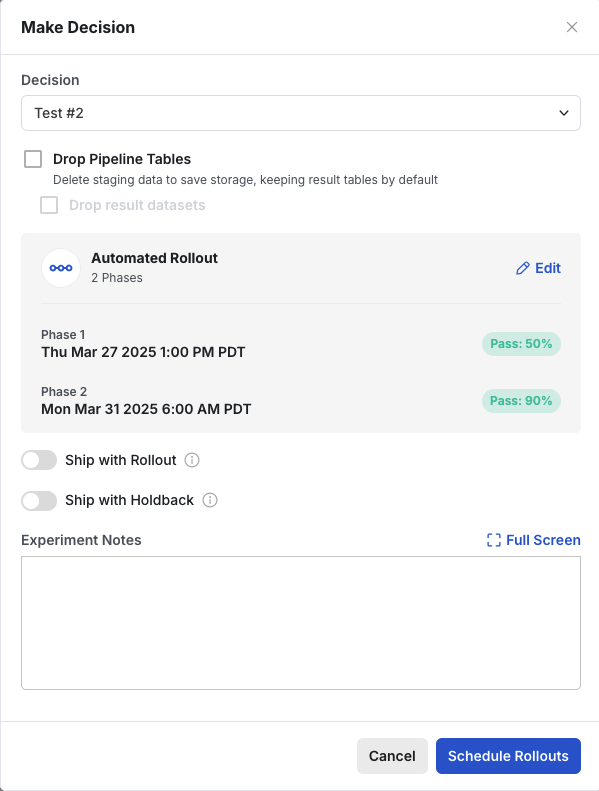
Automated rollouts open a dialog where you define rollout phases.
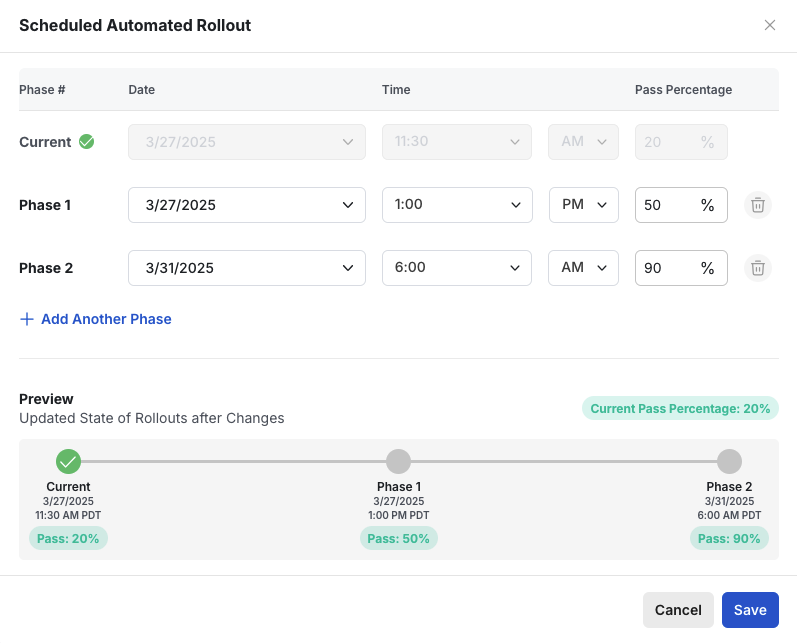
To add phases to your scheduled rollout, select Add Phase and configure each phase. Each scheduled rollout phase includes:
- Rollout date
- Rollout time
- Pass percentage
Rollout times come in 15-minute increments. Each configured phase is a discrete increase to the next rollout percentage, not a gradual rollout spread over the phase.
After you save, you can preview the rollout and commit the schedule.
Resizing logic
During each phase, Statsig resizes the rollout group to the percentage you set and scales all other groups proportionally.
You have n groups with sizes:
G₁, G₂, ..., Gₙ
Their total sum is:
100 = G₁ + G₂ + ... + Gₙ.
Suppose you set one group, the k-th group, to a new size Gₖ′. Let
Delta = Gₖ′ − Gₖ.
Because the grand total must remain 100, Statsig adjusts the remaining groups proportionally. Let
T = 100 - Gₖ
Then, for each group i ≠ k,
Gᵢ′ = Gᵢ − (Delta × Gᵢ / T).
Each group other than k decreases (or increases, if Delta < 0) by its fraction of T.
Rollout limitations
- Experiment results freeze to a snapshot from when you make the rollout decision.
- Rolling out a group to 100% doesn't fully ship the experiment. Configurations such as experiment or layer allocation, targeting, and overrides don't change. To fully ship the experiment, make a decision without specifying any rollouts.
- You can roll groups out and back, but the rollout percentage can't be lower than the group's original size.
Ship with a holdback
Ship with holdback is an Early Access feature.
Shipping with holdback releases an experiment variant (the shipped group) to most of your users while keeping a percentage of users in the control group for ongoing comparison.
To ship with a holdback:
- From the Make Decision dropdown, choose the variant to ship.
- Turn on Ship with holdback and specify the percentage of users to keep in the control (holdback) group.
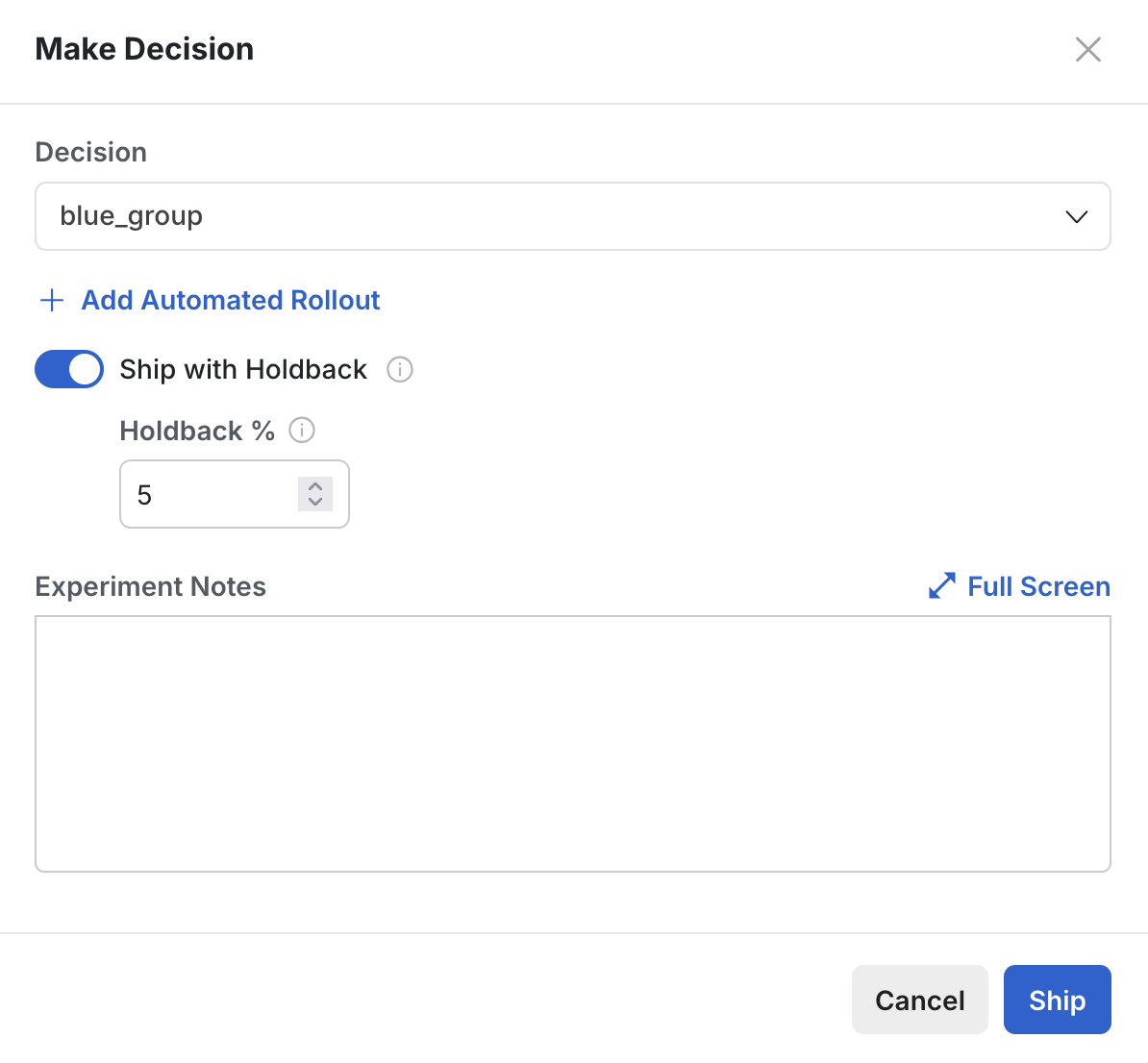
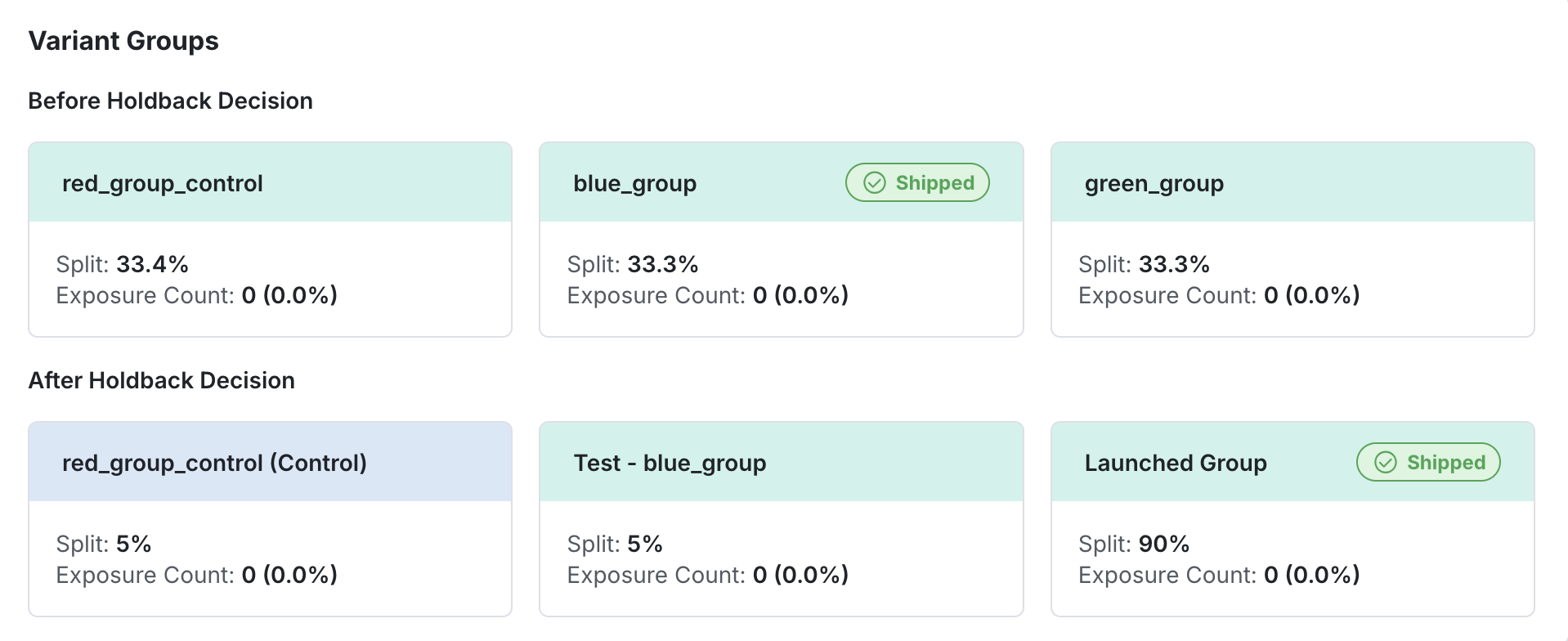
After you ship with holdback, Statsig allocates users as follows:
- Statsig sets the control (holdback) group to the percentage you specified and assigns the remaining users to the shipped experience.
- Statsig divides the shipped group into two segments: Test and Launched. The Test segment has the same percentage allocation as the holdback group, for an equal-sized comparison of 50:50. The Launched segment no longer appears in Pulse results, but users in this segment continue to receive the shipped experience.
- Some users in control move to the shipped group to reach the allocation you set. Statsig doesn't reassign any user who has previously been in a test or shipped group to control. Statsig assigns new users, who have never seen the experiment, based on each group's allocation percentage.
Continue monitoring the Pulse results, which compare the Test segment with the control (holdback) group. When you decide to end the holdback, make a decision to ship the variant to everyone, including users in the holdback.
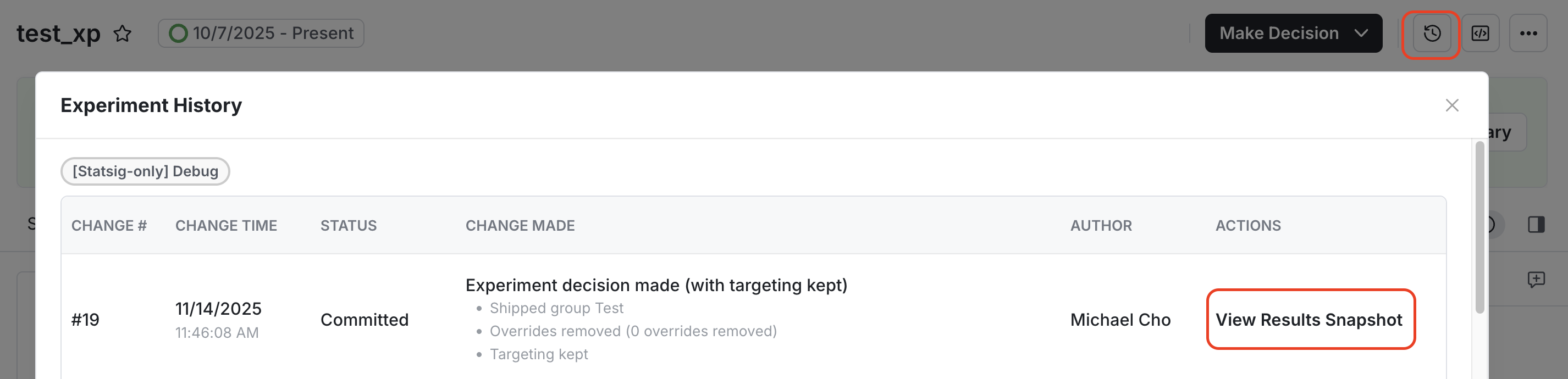
New Pulse results (Test segment compared with holdback) start when you ship with holdback. Statsig retains your original experiment results from the point of the holdback decision, and they remain accessible. The experiment history shows the new decision log entry and a View Results Snapshot button that opens a read-only snapshot of the original results.
Was this helpful?