For AI agents: a documentation index is available at /llms.txt. Append .md to any page URL for markdown, or send Accept: text/markdown.
Stop Assignments
Learn how to stop enrolling new users into your experiment while continuing to analyze existing users.
Stop Assignments stops enrolling new users into a running experiment while Statsig keeps analyzing the users already exposed. It sets the experiment's allocation to 0%, so no new users enter, and users already assigned keep receiving their control or treatment experience. Use Stop Assignments after an experiment has run long enough that you want to analyze only the users exposed so far.
Use Conclude Experiment and Defer Decision instead when you also want to stop data collection and return exposed users to the default experience. To ship one variant to all users, make a decision on the experiment.
Prerequisites
- Configure Persistent Assignment. Without it, users already exposed to a treatment group stop receiving the treatment experience after you stop assignments. You need Persistent Assignment even if you use stable identifiers.
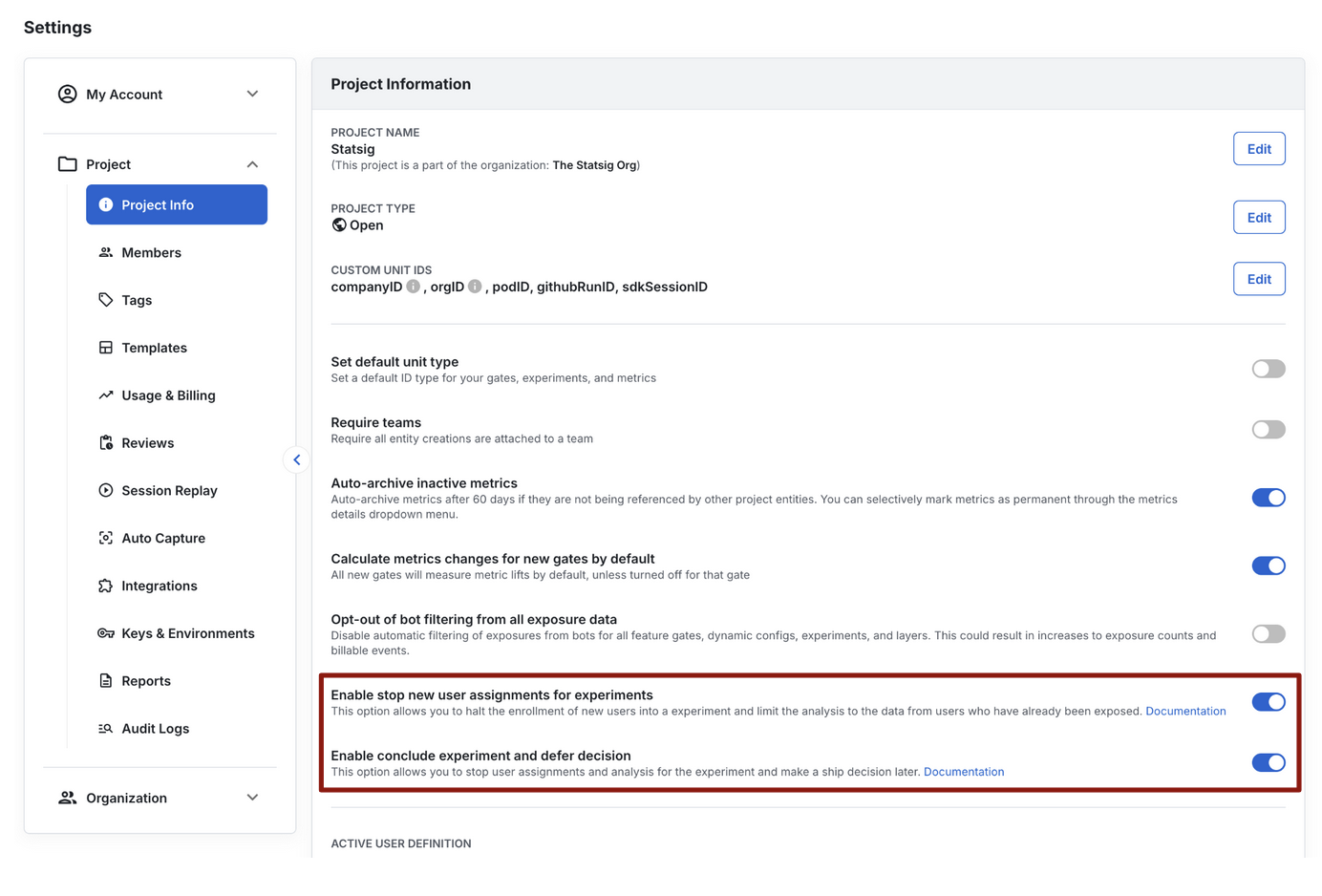
- Enable the Stop Assignments option in Project Settings so that it appears in the Make Decision dropdown. Go to Settings > Project Info and toggle on Enable stop new user assignments for experiments.
Stop assignments for an experiment
Stopping assignments is irreversible. After you stop assignments, you can't resume assigning users to the experiment.
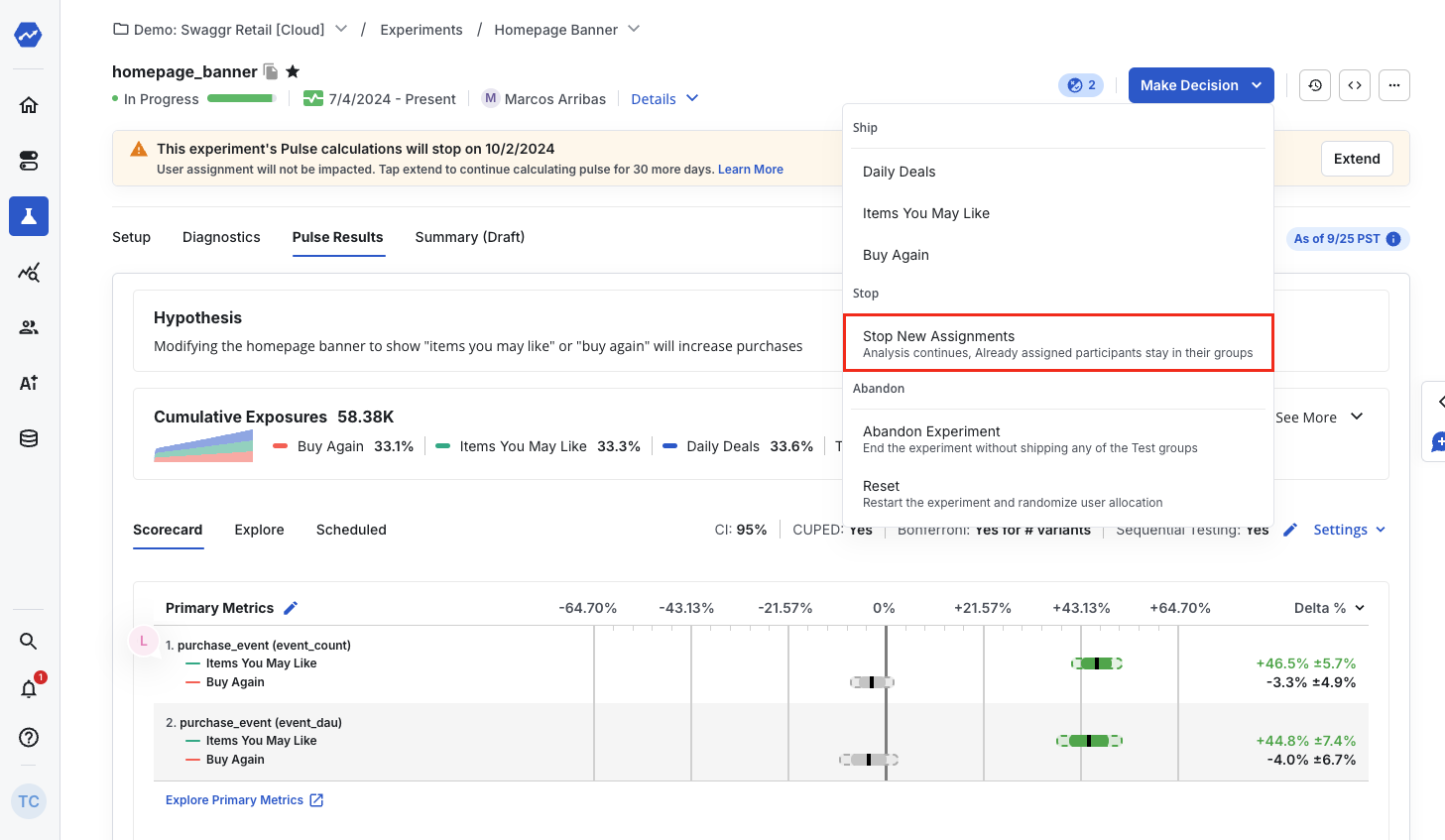
- Open the experiment and select the Make Decision dropdown.
- Under Stop, select Stop New Assignments.
What happens after you stop assignments
- Statsig sets the experiment's allocation to 0% and stops enrolling new users. Statsig doesn't check new users against the experiment; they receive the project's default experience. To ship one variant to new users, make a decision on the experiment or set the variant in code.
- Users already exposed continue to receive their control or treatment experience, if you configured Persistent Assignment.
- Analysis continues as the experiment records new data points for already-exposed users.
Was this helpful?