For AI agents: a documentation index is available at /llms.txt. Append .md to any page URL for markdown, or send Accept: text/markdown.
Watch Session Replays
Watch and explore captured sessions in Statsig Session Replay, including event timelines, network activity, console logs, and gate exposures.
Statsig Session Replay captures user sessions for playback in the console. Watch any recorded session, step through event timelines, and filter replays by event, user, Feature Gate exposure, or Experiment exposure. To find your replays, go to the Users group in the Statsig console navigation panel.
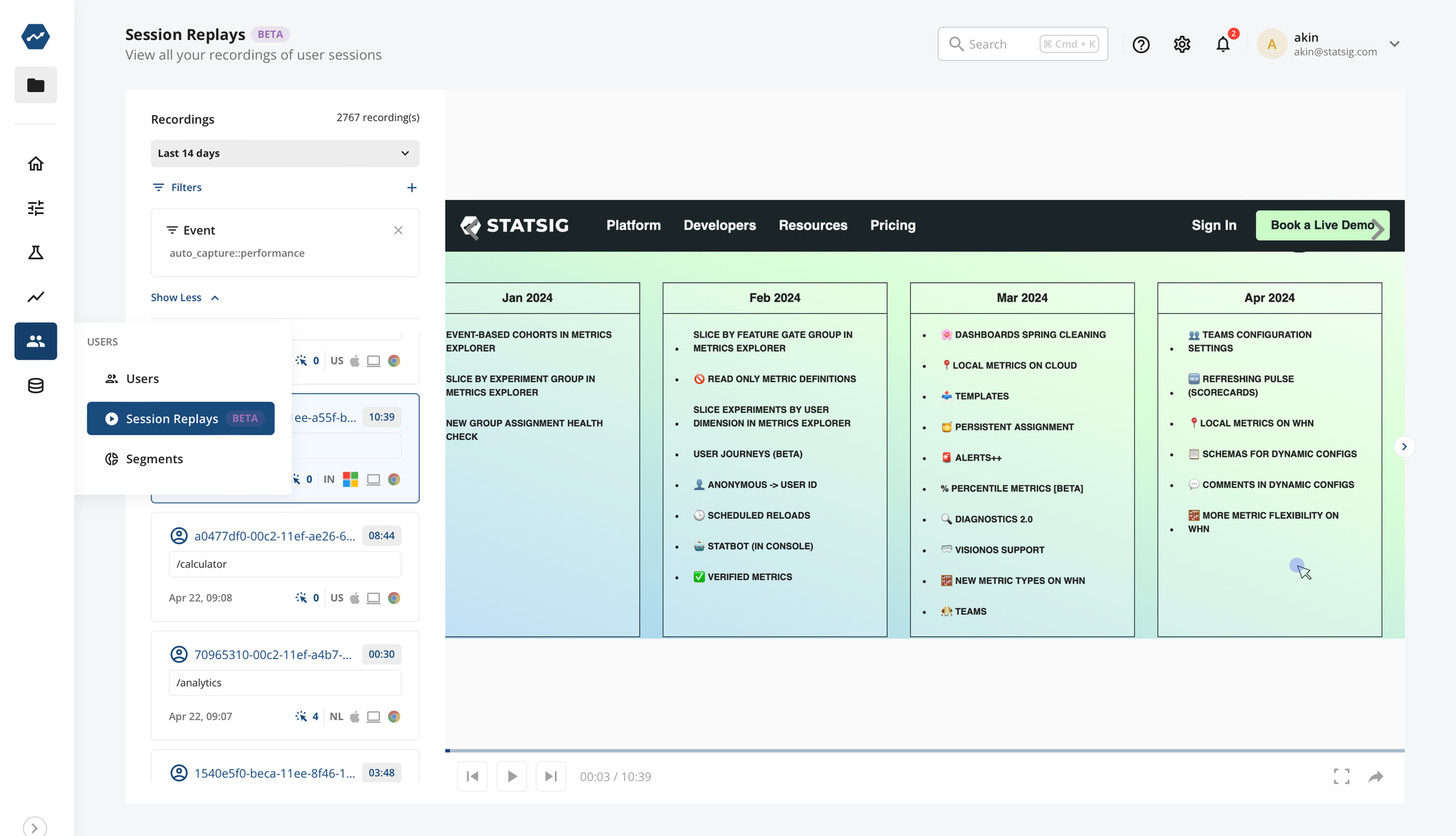
The main interface has three sections. The leftmost column lists available replays and filter controls. The middle playback surface lets you play, pause, and skip to events of interest. Select the next button to jump to the next event, or select an event in the rightmost events panel to skip to that point in the replay timeline.
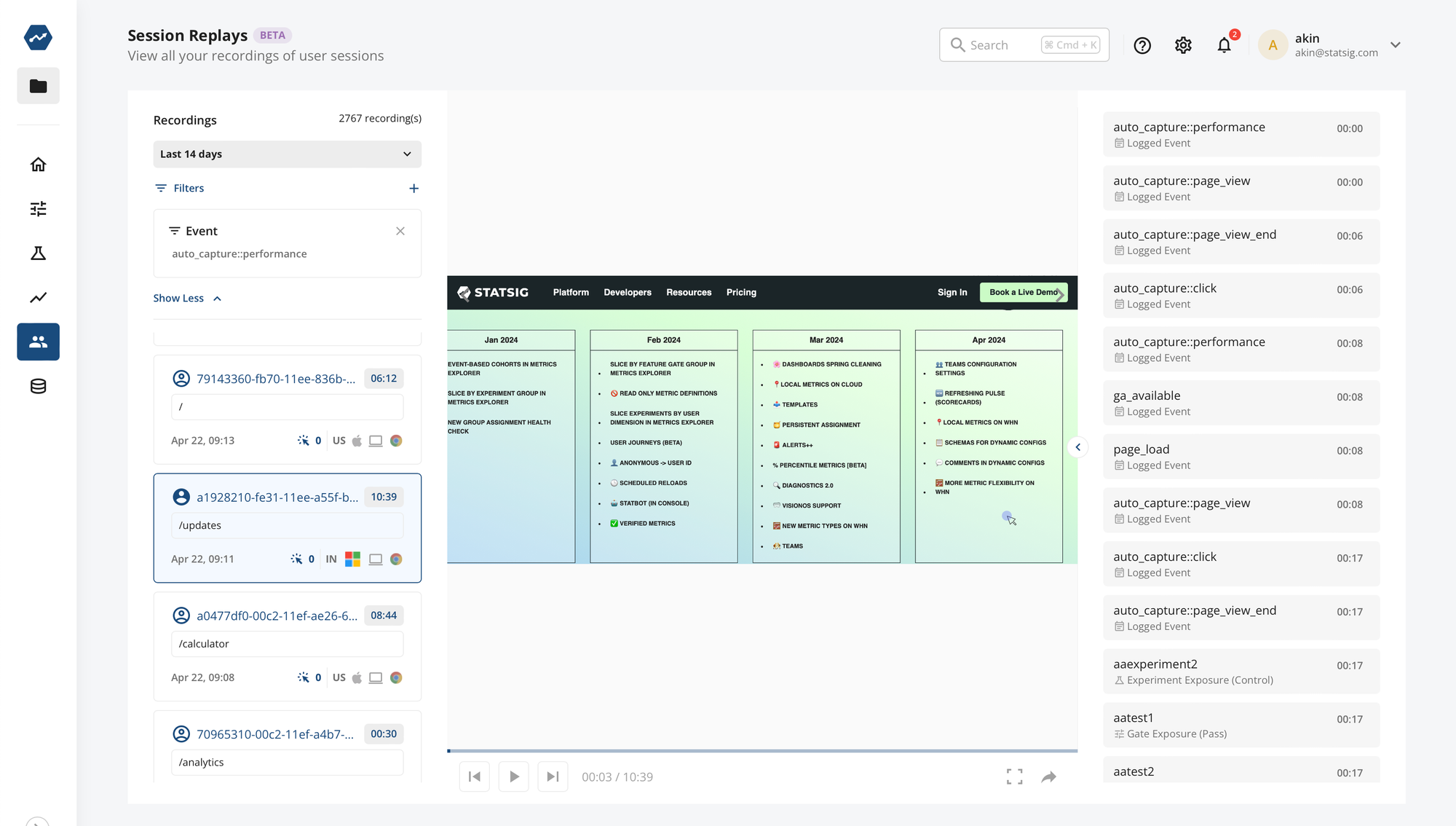
For a more immersive replay experience you can hide the events panel:
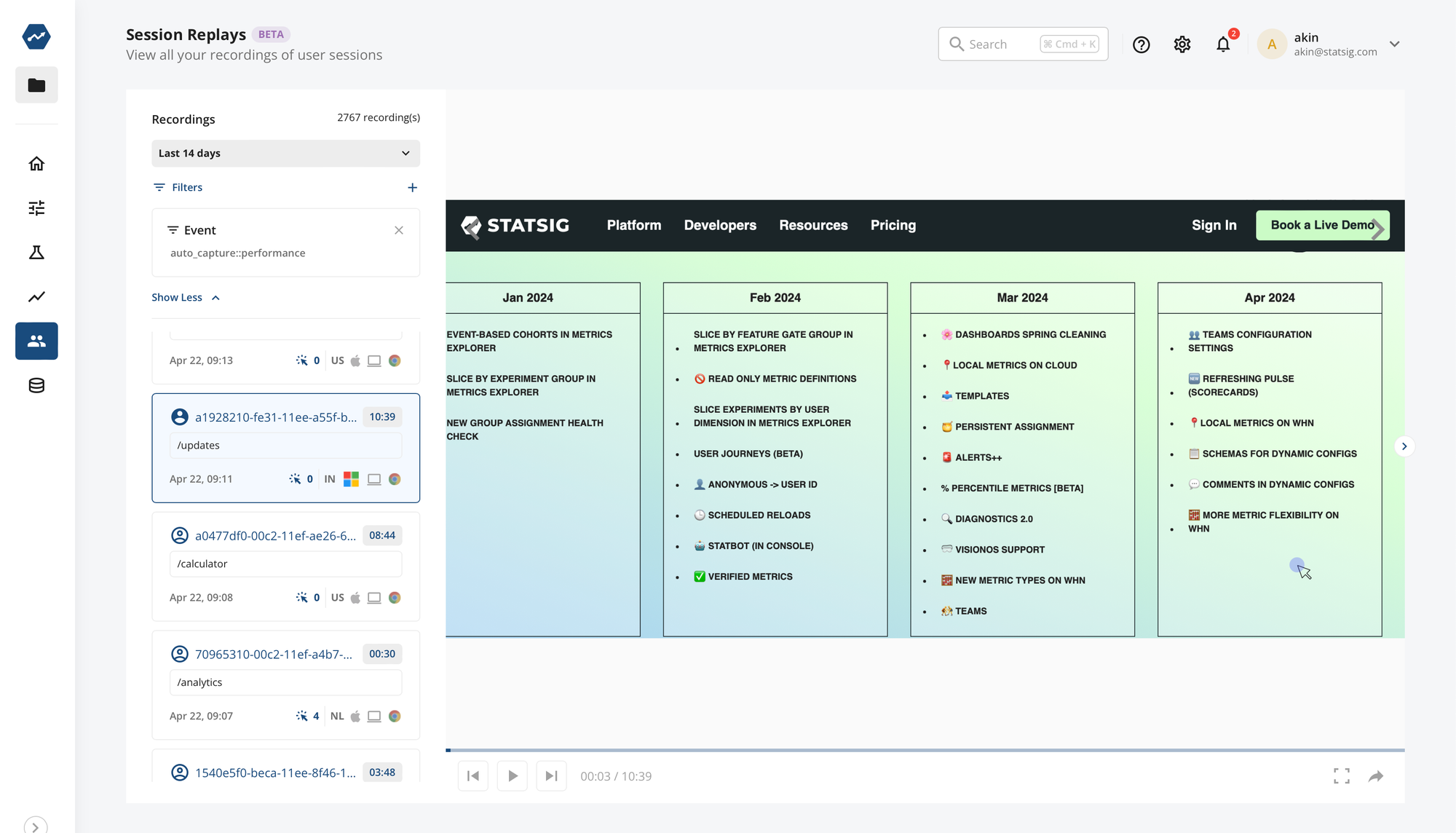
You can also enter full screen mode.
Find a replay
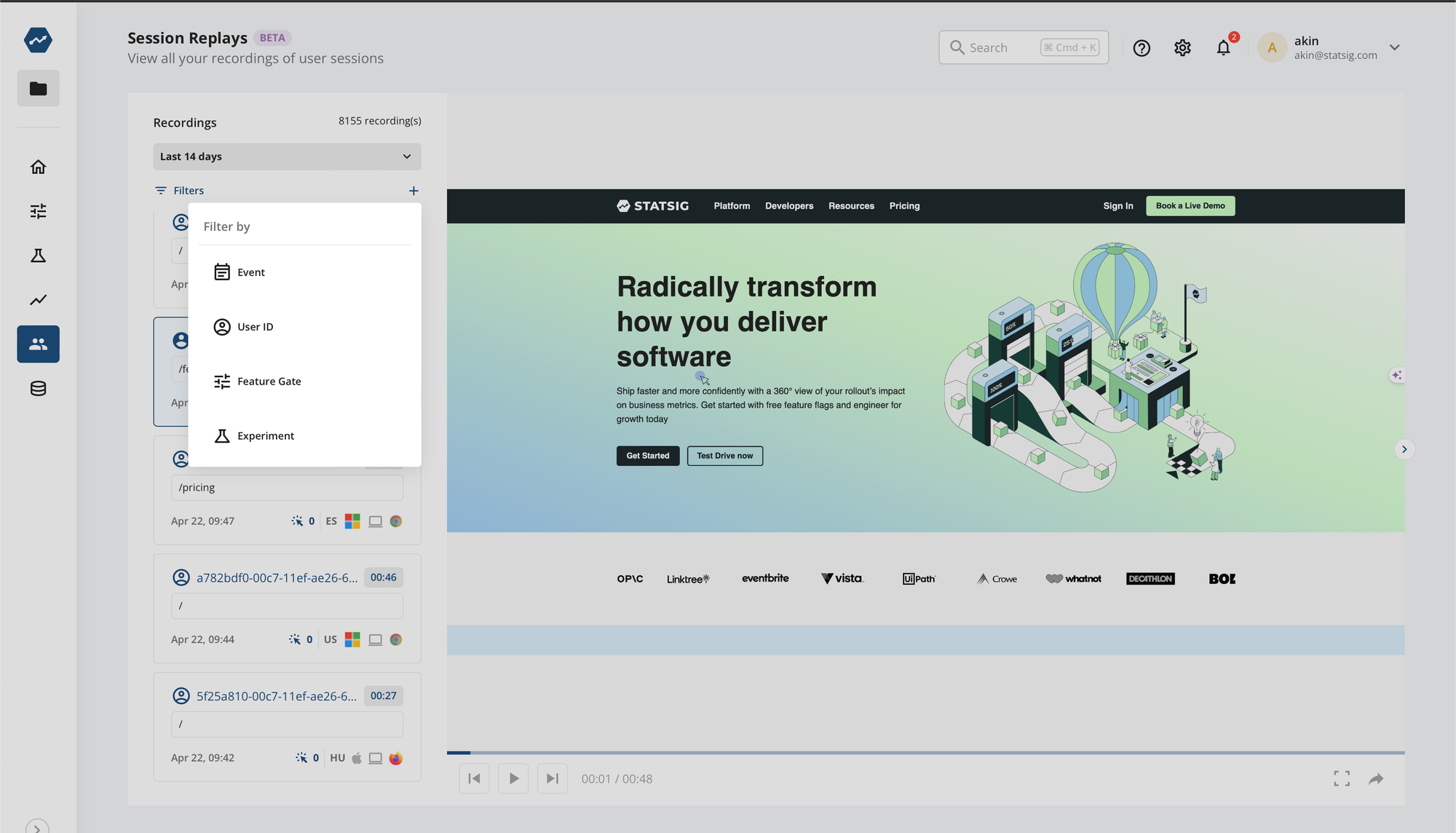
Select a replay from the list on the left to watch it. The replay card shows details such as URL, browser, country, and more, which you can use to scan for or filter to replays of interest.
To narrow the set of replays, add filters. Filters let you scope to replays that contain a specific event, user, Feature Gate exposure (pass or fail), or Experiment group exposure.
Exposure filters match a replay to an exposure on a shared identifier (stableID or userID) within the session's time window:
- Client-side exposures: Exposures logged in the same browser session through a client SDK always correlate reliably because they share the recording's
stableIDdirectly. - Server-side exposures: Exposures logged server-side may not match a recording when they don't share a common identifier. A server-side exposure keyed only on
userIDwon't match a recording keyed only onstableID.
To filter reliably on a server-side experiment, identify the browser session with the same userID the server uses, or log the exposure client-side.
Playlists
Playlists let you organize related session recordings into curated collections focused on specific user behaviors, issues, or research questions.
Key features
- Organized Collections: Create named playlists to group related session recordings. This makes it easier to focus on specific user journeys, bug reports, or research topics without searching through large numbers of individual sessions.
- Collaborative Analysis: Share playlists with team members to collaborate on user experience analysis. Team members can view the same curated set of recordings to discuss findings and insights.
- Persistent Organization: Unlike temporary filters, playlists preserve your organizational structure, making it easy to return to specific sets of recordings for ongoing analysis or follow-up research.
- Integration: Playlists work within the existing session replay interface. When you open a playlist, you can view all recordings using the same replay player and analysis tools.
Was this helpful?