For AI agents: a documentation index is available at /llms.txt. Append .md to any page URL for markdown, or send Accept: text/markdown.
Configure Statsig Session Replay
Configure Statsig Session Replay sampling rates, privacy masking rules, network capture settings, and event triggers across your applications.
Conditional recording
In the Statsig Console, you can configure your Session Replay settings under Project Settings > Analytics & Session Replay. You must be a project admin to modify these settings.
Global targeting gate
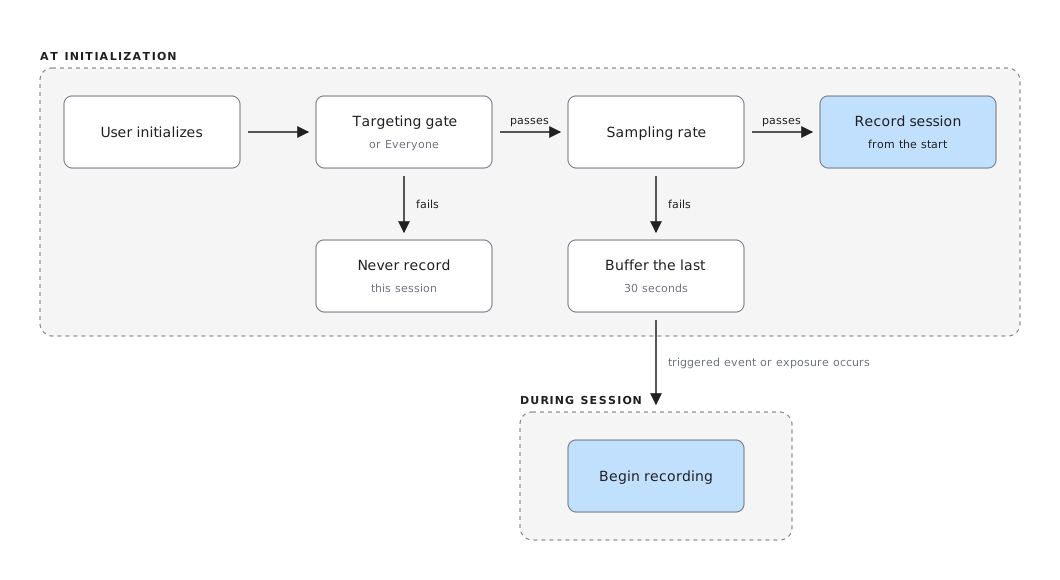
The Global Targeting Gate controls who is eligible for session recording. If a user doesn't pass this gate, Statsig never records their sessions. By default, the gate is set to Everyone, meaning there are no restrictions and Statsig can record anyone. This gate defines the upper bound of session recording eligibility.
Global sampling rate
The Global Sampling Rate determines what percentage of eligible sessions Statsig records from the start. By default, the rate is 100%, meaning Statsig records all eligible sessions. You can lower this value to limit session recordings while still capturing a consistent percentage of sessions. This rate applies only to sessions that begin at session start and doesn't affect conditional triggers.
Conditional triggers: events and exposures
Conditional triggers can start a session recording mid-session, even if recording didn't begin at session start. These triggers respect the Global Targeting Gate but operate independently of the Global Sampling Rate. When a trigger fires, the recording includes the last 30 seconds leading up to the event, if you enable the rolling window.
Types of conditional triggers:
- Individual Gate Exposures: Trigger based on exposure to a specific gate, optionally filtered by group (for example, Pass/Fail).
- All Gate Exposures: Trigger based on exposure to any gate, optionally filtered by group (for example, Pass/Fail). Individual Gate Exposure triggers override All Gate configuration.
- Individual Experiment Exposures: Trigger based on exposure to a specific experiment, optionally filtered by group (for example, Test/Control).
- All Experiment Exposures: Trigger based on exposure to any experiment, filtered by groups Test/Control. Statsig doesn't support other group names. If an experiment includes additional groups, configure individual triggers for each one. Individual Experiment Exposure triggers override All Experiment configuration.
- Events: Trigger based on a specific logged event, optionally filtered by event values (for example, "purchase_event" with value "book").
For each trigger, you can define an individual sampling rate. Statsig evaluates this rate based on session_id, so the result (pass or fail) remains consistent for the same session, even if the trigger occurs multiple times.
All Gates and All Experiments conditional triggers require 3.30.1 or higher.
If a conditional trigger occurs while a session recording is already in progress, the recording continues uninterrupted.
Example walkthrough
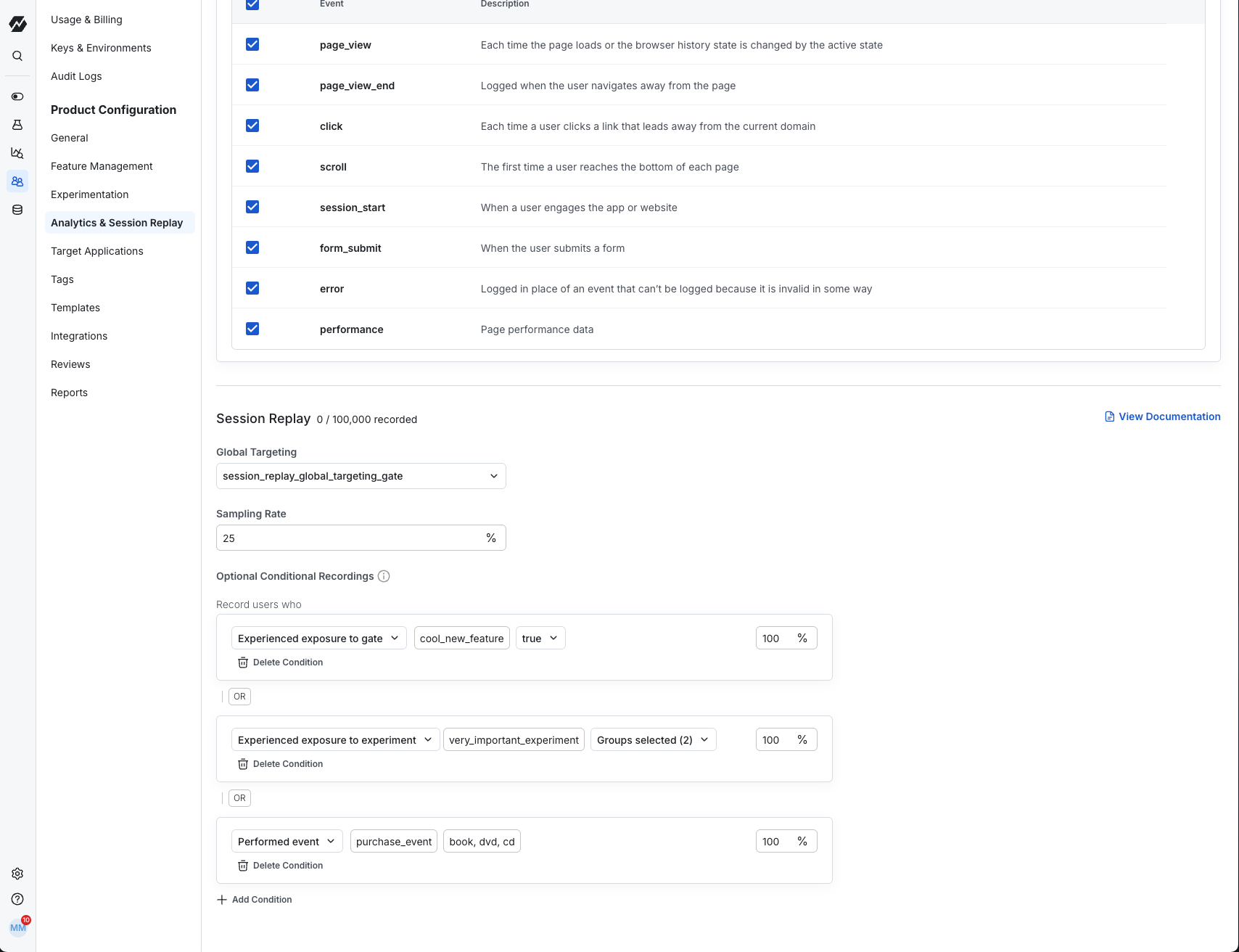
Suppose you have the following setup (refer to the image above):
- The Global Targeting Gate
session_replay_global_targeting_gateallows all US users and excludes everyone else. - The Global Sampling Rate is 25%, so Statsig records only 25% of eligible US user sessions from the start.
- For the remaining 75% of eligible users, session recording can still begin mid-session if a conditional trigger occurs.
Example Scenario:
- A US user starts a session. They don't pass the 25% Global Sampling Rate, so Statsig doesn't record their session from the beginning.
- Later, a
purchase_eventoccurs with valuebook. You've set up this event as a conditional trigger with a 50% sampling rate. If this session fails the sampling rate check, recording doesn't start. - A minute later, the user encounters the
cool_new_featuregate, and the recording begins.
A trigger's sampling rate is consistent for the entire session based on session_id. So if purchase_event fails the sampling rate once, future occurrences of the same event in that session also fail.
Initialization: StatsigTriggeredSessionReplay
import { StatsigClient } from "@statsig/js-client";
import { runStatsigTriggeredSessionReplay } from "@statsig/session-replay";
import { runStatsigAutoCapture } from "@statsig/web-analytics";

const client = new StatsigClient(
  sdkKey,
  { userID: "some_user_id" },
  { environment: { tier: "production" } } // optional, pass options here if needed
);
runStatsigTriggeredSessionReplay(client, {
  autoStartRecording: true,
  keepRollingWindow: true,
});
runStatsigAutoCapture(client);
await client.initializeAsync();
Initialization options
autoStartRecordingtrue: Recording can start automatically after initialization. Statsig respects the global targeting gate and sample rate.false: You must manually start recording using startRecording(). This is helpful if you want to start the recording after a set point and block any auto-recording before then.
keepRollingWindowtrue: Statsig maintains a local rolling window of the last 30 seconds of the session, allowing recordings to include context leading up to a trigger.false: If a conditional trigger occurs, recording begins from that moment onward, with no historical context.
If you use bootstrapping, contact the Statsig team to confirm your server SDK supports conditional recording.
Advanced: forcing a recording on demand
To manually start a recording, use the startRecording API, which begins recording immediately when called.
startRecording: Respects both the Global Targeting Gate and Global Sampling Rate. Use this if you want to start recordings after a certain point (for example, after login) while still applying the Global Sampling Rate.forceStartRecording: Respects the Global Targeting Gate but ignores the Global Sampling Rate. Useful for debugging or when you want to bypass the Global Sampling Rate.stopRecording: Stops the current recording, if one is in progress. Calling this method when no recording is active has no adverse effects. After you call stopRecording, conditional recording triggers don't automatically restart the recording. Only an explicit call tostartRecordingorforceStartRecordingresumes recording.
If you have access to your Session Replay client, you can call these functions directly on the client instance.
const sessionReplayClient = new SessionReplay(client);
…

if (someCondition) {
  sessionReplayClient.startRecording();
}
If you don't have access to the client instance, you can import the function from @Statsig/session-replay and call it using your SDK key.
import { startRecording } from '@Statsig/session-replay';
…


startRecording(CLIENT_SDK_KEY)
Additional options
These options come from the rrweb recorder (the open source recording tool Statsig uses internally)
| key | default | description |
|---|---|---|
| blockClass | 'rr-block' | Use a string or RegExp to configure which elements should be blocked |
| blockSelector | null | Use a string to configure which selector should be blocked |
| ignoreClass | 'rr-ignore' | Use a string or RegExp to configure which elements should be ignored |
| ignoreSelector | null | Use a string to configure which selector should be ignored |
| ignoreCSSAttributes | null | array of CSS attributes that should be ignored |
| maskTextClass | 'rr-mask' | Use a string or RegExp to configure which elements should be masked |
| maskTextSelector | null | Use a string to configure which selector should be masked |
| maskAllInputs | false | mask all input content as * |
| maskInputOptions | { password: true } | mask some kinds of input *. Refer to the list |
| maskInputFn | - | customize mask input content recording logic |
| maskTextFn | - | customize mask text content recording logic |
| slimDOMOptions | {} | remove unnecessary parts of the DOM. Refer to the list |
| dataURLOptions | {} | Canvas image format and quality ,This parameter will be passed to the OffscreenCanvas.convertToBlob(),Using this parameter effectively reduces the size of the recorded data |
| inlineStylesheet | true | whether to inline the stylesheet in the events |
| hooks | {} | hooks for events. Refer to the list |
| packFn | - | refer to the storage optimization recipe |
| sampling | - | refer to the storage optimization recipe |
| recordCanvas | false | Whether to record the canvas element. Available options: false, true |
| recordCrossOriginIframes | false | Whether to record cross origin iframes. rrweb has to be injected in each child iframe for this to work. Available options: false, true |
| recordAfter | 'load' | If the document is not ready, then the recorder will start recording after the specified event is fired. Available options: DOMContentLoaded, load |
| inlineImages | false | whether to record the image content |
| collectFonts | false | whether to collect fonts in the website |
| userTriggeredOnInput | false | whether to add userTriggered on input events that indicates if this event was triggered directly by the user or not. What is userTriggered? |
| plugins | [] | load plugins to provide extended record functions. What is plugins? |
| errorHandler | - | A callback that is called if something inside of rrweb throws an error. The callback receives the error as argument. |
Limits
4 hours per session or 30 min inactive time
Sessions end after four hours total or if the user returns from inactive time greater than 30 minutes later.
Recording limits
| Tier | Monthly Limit | Daily Limit | Hourly Limit |
|---|---|---|---|
| Free | 50,000 | 3,500 | 3,500 |
| Pro | 100,000 | 7,000 | 7,000 |
| Enterprise | 100,000 | 7,000 | 7,000 |
After you reach this limit, the SDK automatically prevents new recordings from starting. You can monitor your session replay usage in your project settings. Contact Statsig for custom contracts.
Replay availability time
Statsig takes about 1 hour to process a recorded session before it appears in your console.
Default 30 day retention
Sessions have a default retention period of 30 days and Statsig automatically deletes them after that time. You can configure a shorter retention period in settings if needed. Reducing your retention period doesn't affect your monthly session replay limit, and you typically do this for privacy and compliance purposes.
Was this helpful?