For AI agents: a documentation index is available at /llms.txt. Append .md to any page URL for markdown, or send Accept: text/markdown.
UI-Based Tool
Build no-code UI changes with Statsig's visual editor to launch lightweight A/B tests and content experiments without redeploying application code.
Statsig's UI-based migration tool imports feature gates from LaunchDarkly into your Statsig project through the console, with no code required. Use it for a guided, screen-by-screen migration instead of the API. The tool imports only the "production" environment.
What you need
Review the full checklist in the LaunchDarkly Migration Guide, then gather:
- Your project key. Projects in LaunchDarkly have a Name (for example, "My Mobile App") and a Key (for example, my_mobile_app).
- A read-only access token for this project. Create one in LaunchDarkly under Account Settings > Authorization and limit the scope to read-only.
- A Statsig project. Try this in a test project first.
How it works
These screens mirror the console walkthrough:
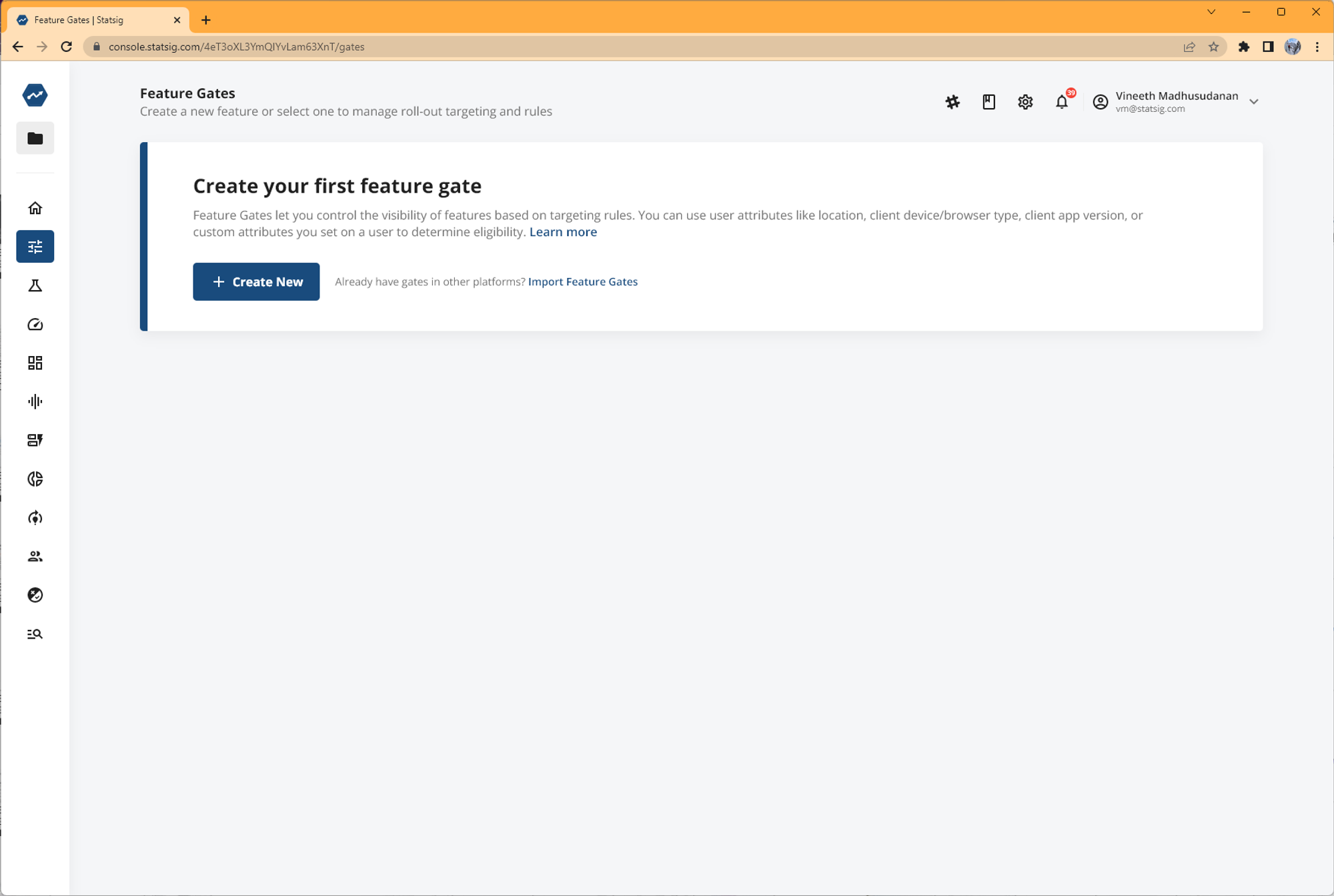
- If you don't have any feature gates in your project, Statsig prompts you to import Feature Gates.
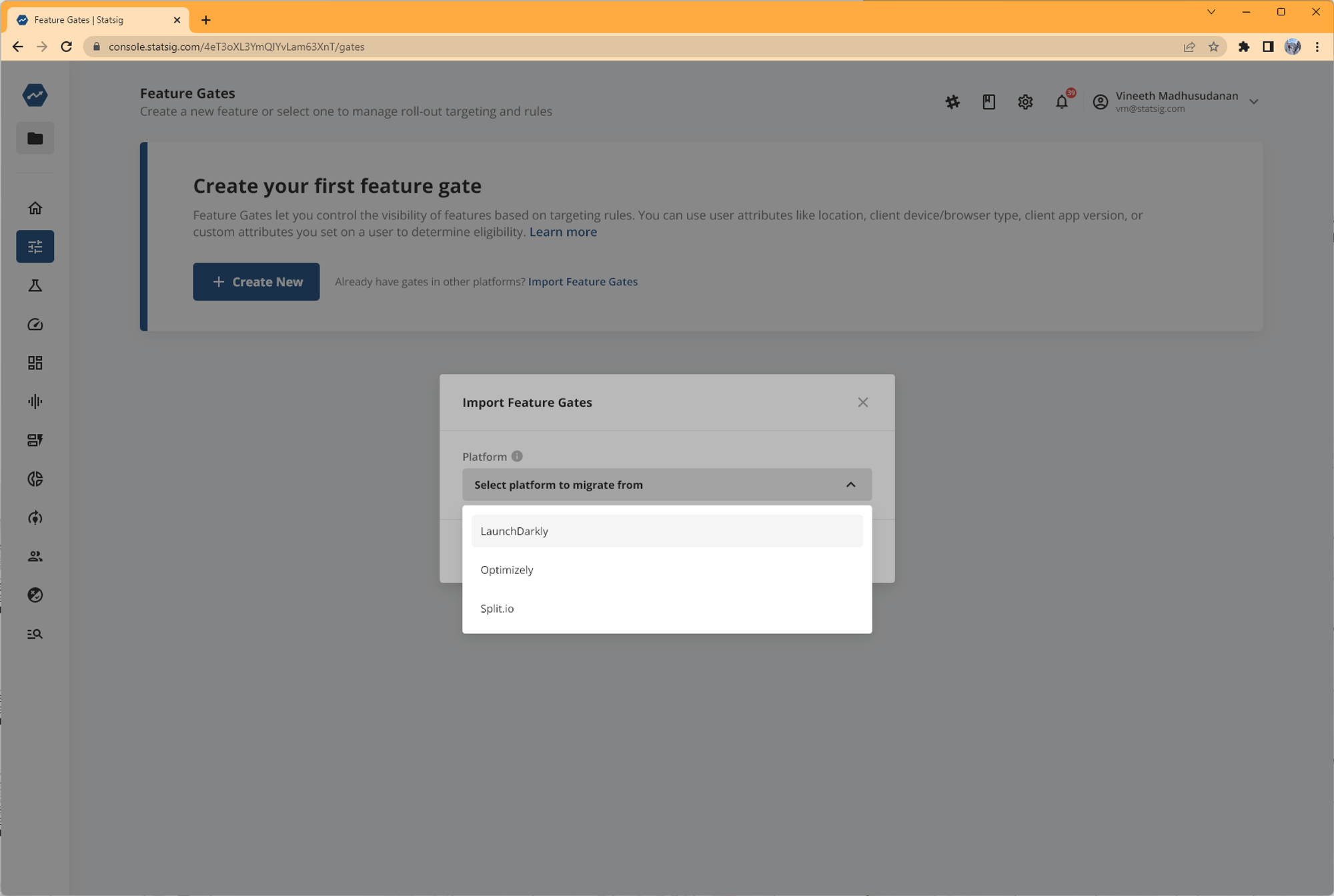
- Select LaunchDarkly as the platform you want to migrate from.
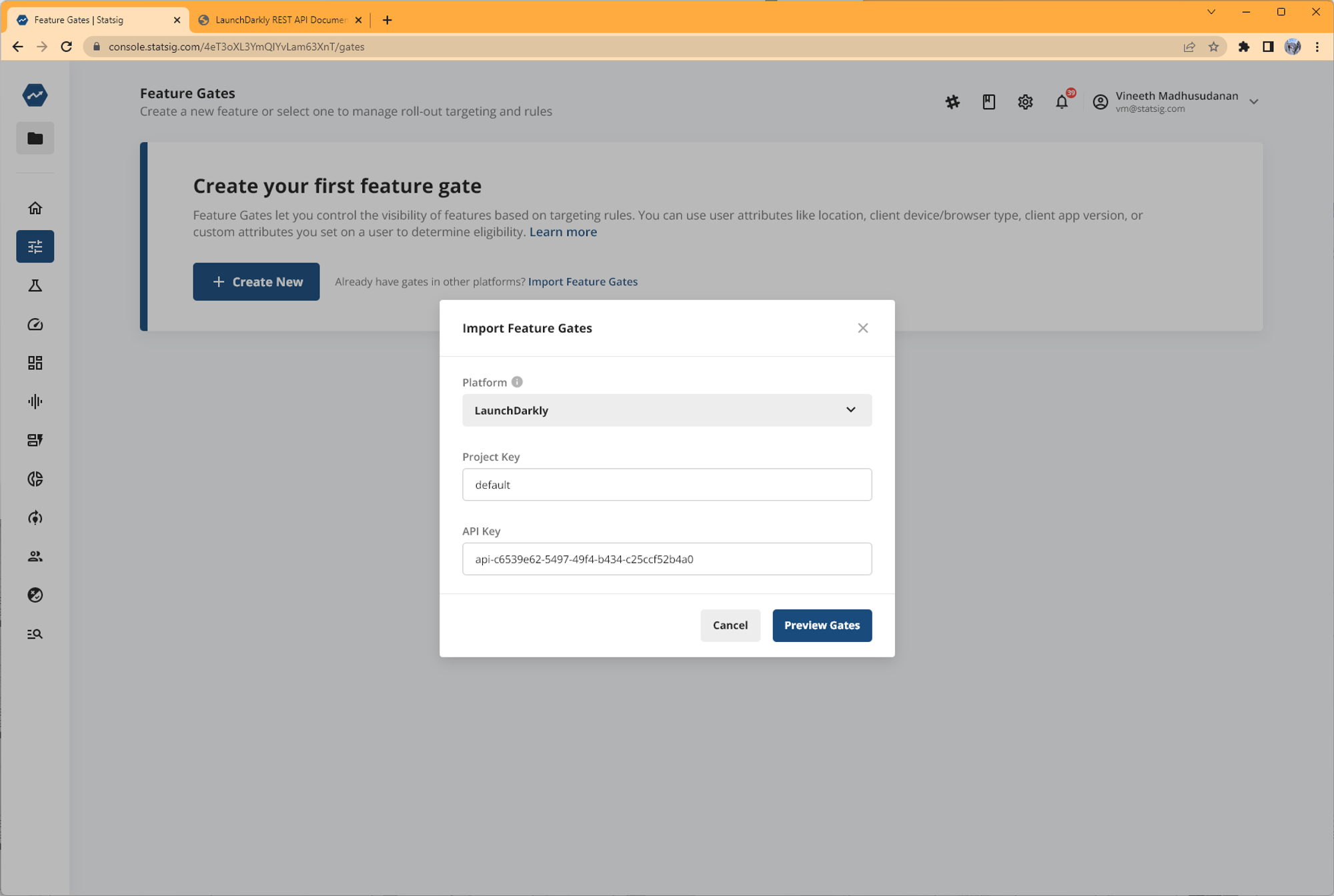
- Enter your LaunchDarkly Project Key and API Key/access token.
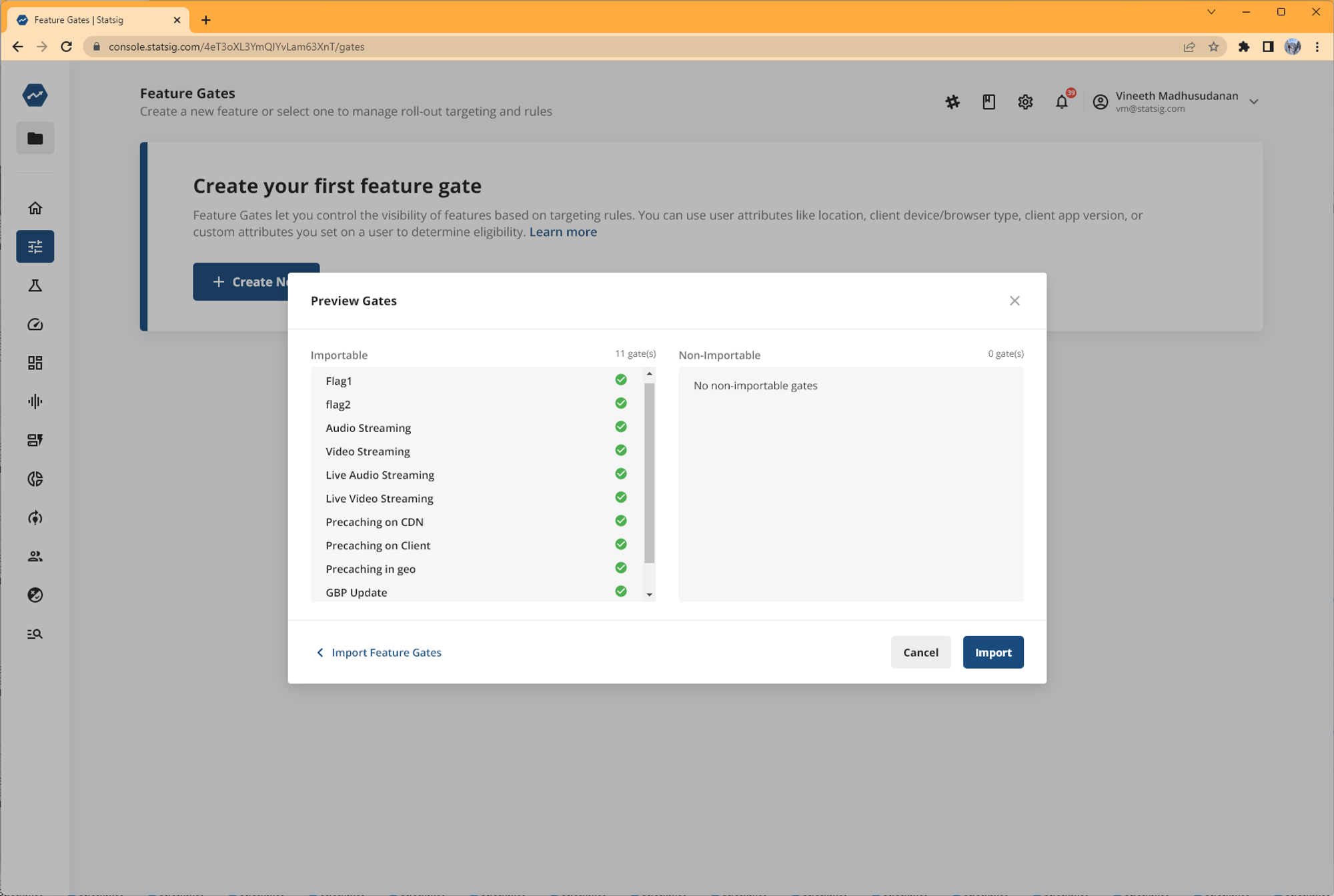
- Preview the migration summary. The tool highlights which gates it can and can't migrate. Gates it doesn't migrate include those with segments (coming soon) and those with non-Boolean flags.
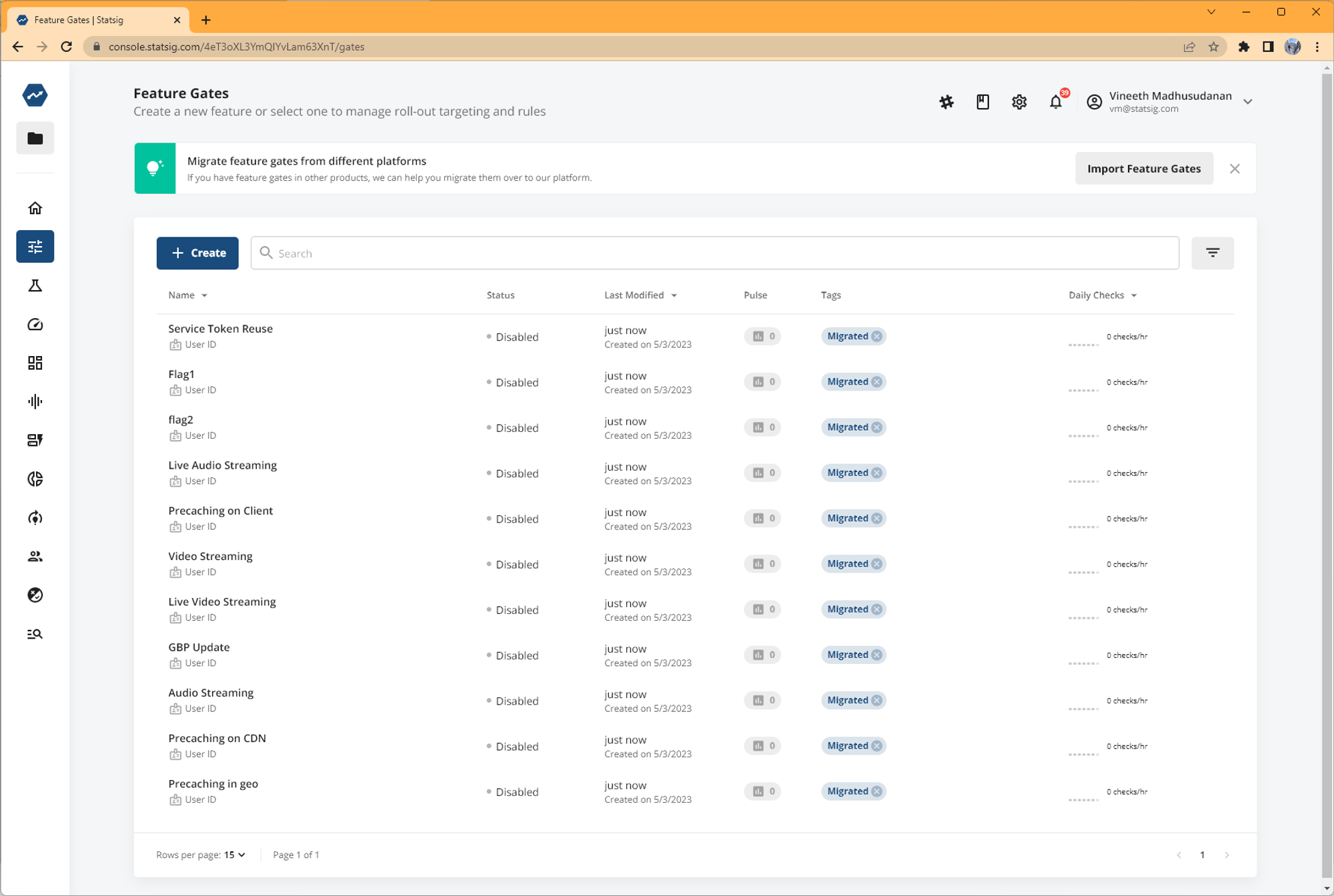
- Finish migration of the gates. Statsig tags all migrated gates "Migrated" so you can identify them.
Was this helpful?