For AI agents: a documentation index is available at /llms.txt. Append .md to any page URL for markdown, or send Accept: text/markdown.
Switchback V2
Run switchback experiments in Statsig to alternate treatment exposure across time windows for marketplace, ranking, and other globally shared systems.
A switchback experiment alternates an entire cluster of users between control and treatment on a fixed schedule, then compares time windows instead of user groups. Use it when treating one user changes what other users experience, such as pricing in a marketplace or a shared ranking model. For example, on a rideshare platform, offering lower prices to a treatment group can increase demand for cars and indirectly affect control riders; a switchback experiment measures the impact over time instead of splitting users. If user experiences are independent, run a standard A/B test instead.
Switchback V2 is available in Statsig Warehouse Native. Statsig Cloud projects run switchback tests.
How switchback experiments work
- Define clusters and their schedule: A cluster is a group of users that switch between experiences on the same cadence. For example, all users in New York and Chicago follow the same hourly schedule.
- Aggregate data by time buckets: A bucket is a single window of time during which the user experience stays constant. The analysis treats each bucket as one data point.
- Run regression analysis: Statistical models account for factors such as time of day, day of week, or cluster attributes when estimating the difference between treatment and control.
- Compare results: The final output resembles a traditional A/B test, including metrics such as estimated lift and confidence intervals.
The following schedule for the New York and Chicago cluster produces four buckets: two for control and two for treatment.
| Bucket | Window | Group |
|---|---|---|
| 1 | 9:00 to 10:00 AM | Control |
| 2 | 10:00 to 11:00 AM | Treatment |
| 3 | 11:00 AM to 12:00 PM | Control |
| 4 | 12:00 to 1:00 PM | Treatment |
Set up a switchback experiment
Defining the hypothesis, metrics, groups, targeting, and parameters follows the same workflow as a traditional A/B test. A switchback experiment adds three configurations: clusters, scheduling, and analysis configuration.
Define clusters
Clusters are groups of users who follow the same experience cadence. In a traditional A/B test, the selected ID type is both the randomization unit and the unit at which Statsig calculates metrics. In a switchback experiment, the ID type defines only the unit for metric calculation, and clusters determine which experience a user receives over time.
Statsig provides three ways to define a cluster.
| Method | Description | Inputs |
|---|---|---|
| Single | One cluster in which all users eligible for the experiment follow the same cadence. | Start With: The experience (control or treatment) that starts the switchback. |
| Auto | Two clusters. Statsig automatically assigns users to each cluster based on the specified inputs. | Cluster ID Type: A custom ID from the exposure user object that Statsig uses to split users into clusters. For example, if server_id is present on the user object, Statsig randomly assigns server_id values to each cluster and groups users by their server_id. |
| Manual | Two clusters. You assign users to each cluster manually. | Cluster Field: A field from the exposure user object that Statsig uses to assign users to clusters. For example, if you select Country as the cluster field, you can assign specific countries to either Cluster 1 or Cluster 2. Statsig then places users into clusters based on the value of that field. |
You can use the Cluster ID Type (Auto) and Cluster Field (Manual) fields as covariates in the regression analysis, and to break down metric data in the results section.
Define the schedule
After you configure the clusters, define the schedule for experiences within each cluster.
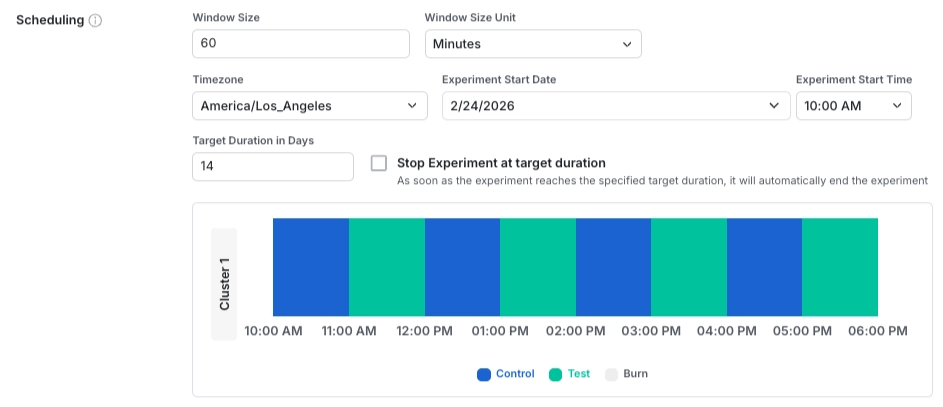
Schedule fields
| Field | Description |
|---|---|
| Window Size / Unit | The length of each window during which a user's experience stays constant. |
| Experiment Start Date / Time / Timezone | The date and time when the switchback experiment begins. All clusters start at the same time. The start date and time must be in the future when you start the experiment. |
| Target Duration | The intended length of the experiment. By default, the experiment doesn't stop when it reaches this duration, and users continue to receive the switched experiences on the configured schedule. If you turn on Stop Experiment at target duration, the experiment stops automatically at the end of the duration, and Statsig serves users the default experiment value configured in code. |
Define analysis configuration
You can configure how Statsig handles exposures and metrics during the transition periods between switchback windows. For example, a rideshare marketplace might switch from control to treatment at 9 AM. The system can still show lingering effects from the control period, such as drivers on active trips or riders still in the queue from earlier periods. In these cases, you can exclude exposures and metric data recorded shortly after the switch.
Configure burn-in and burn-out periods in the Analysis Configuration section to exclude these transition exposures.
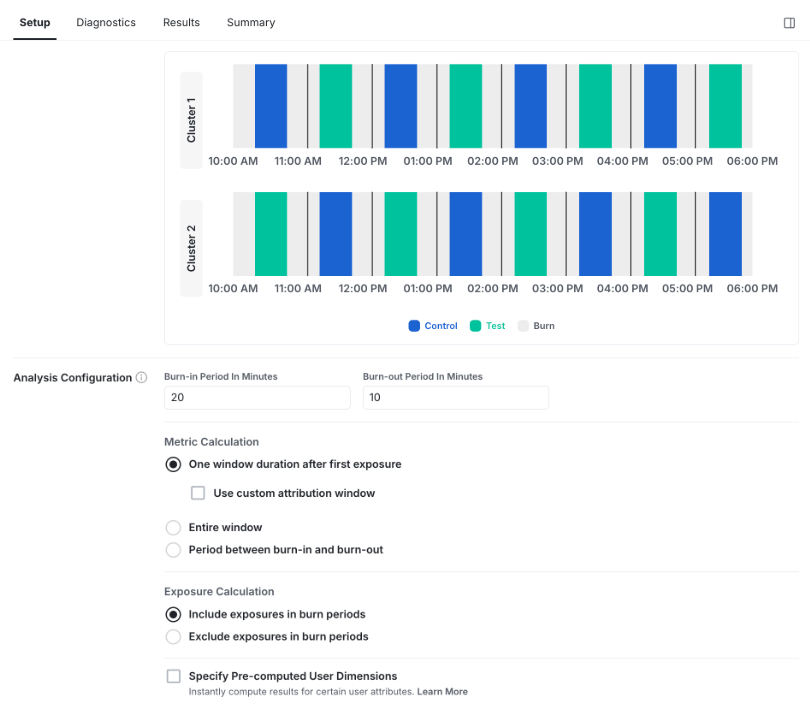
Analysis configuration fields
| Field | Description |
|---|---|
| Burn-in Period | The amount of time at the beginning of each window that Statsig excludes from analysis. |
| Burn-out Period | The amount of time at the end of each window that Statsig excludes from analysis. |
| Metric Calculation | How Statsig attributes metric events to an exposure and aggregates metrics within each switchback window. Choose one of the metric calculation options. |
| Exposure Calculation | How Statsig handles exposures logged during switchback windows in the analysis. Choose one of the exposure calculation options. |
Metric calculation options:
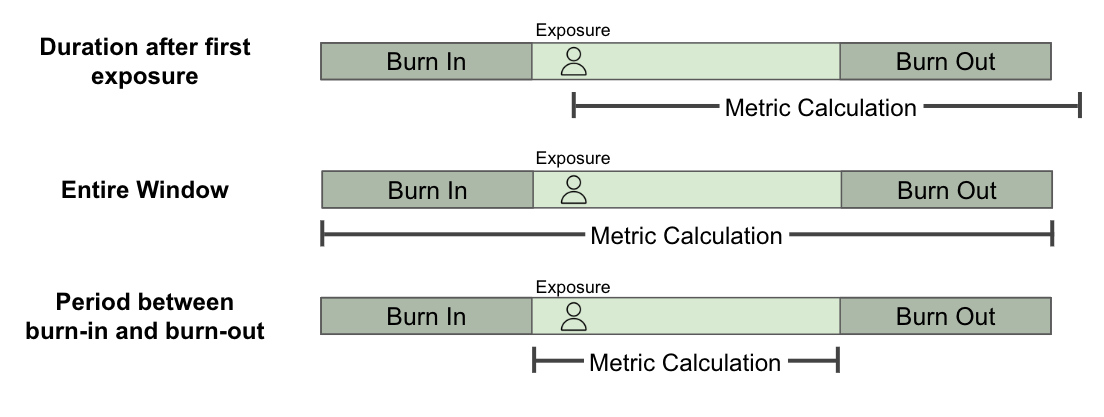
| Option | Description |
|---|---|
| Period from first exposure | Aggregates metric data for a specified period of time after the user's first exposure. |
| Entire window | Aggregates metric data across the full switchback window. |
| Period between burn-in and burn-out | Aggregates metric data only within the portion of the window between the burn-in and burn-out periods. |
Exposure calculation options:
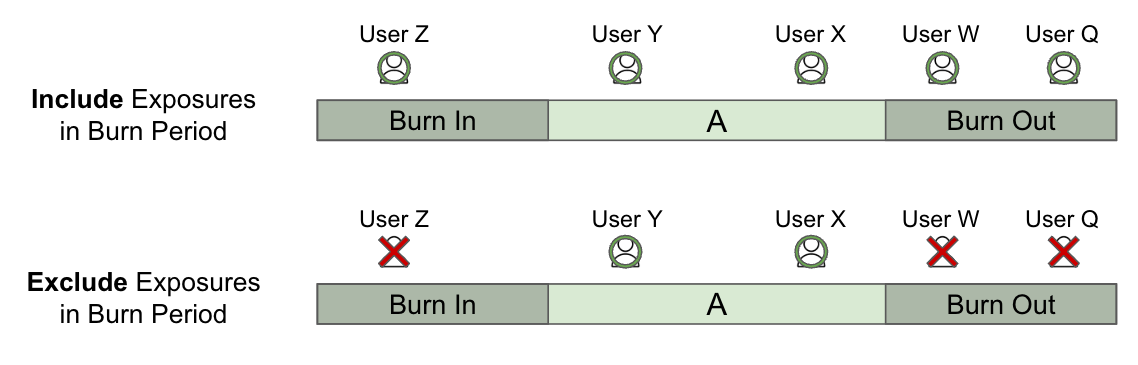
| Option | Description |
|---|---|
| Include exposures in burn periods | Considers all exposures recorded during the switchback window, including those within the burn-in and burn-out periods. |
| Exclude exposures in burn periods | Considers only exposures recorded between the burn-in and burn-out periods. |
Coming soon: pre-computed user dimensions. You can configure user dimensions from the exposure user properties or entity properties to break down experiment results in the results section.
Was this helpful?