For AI agents: a documentation index is available at /llms.txt. Append .md to any page URL for markdown, or send Accept: text/markdown.
Statsig Web Analytics Overview
Overview of Statsig Web Analytics for tracking page views, autocapture events, conversions, and running A/B tests on your website.
Web analytics overview
Statsig Web Analytics tracks key measures for your website, such as visitors, views, and sessions. It's simpler and more direct than product analytics, which makes it a good fit for marketers, site maintainers, or anyone familiar with tools like Google Analytics.
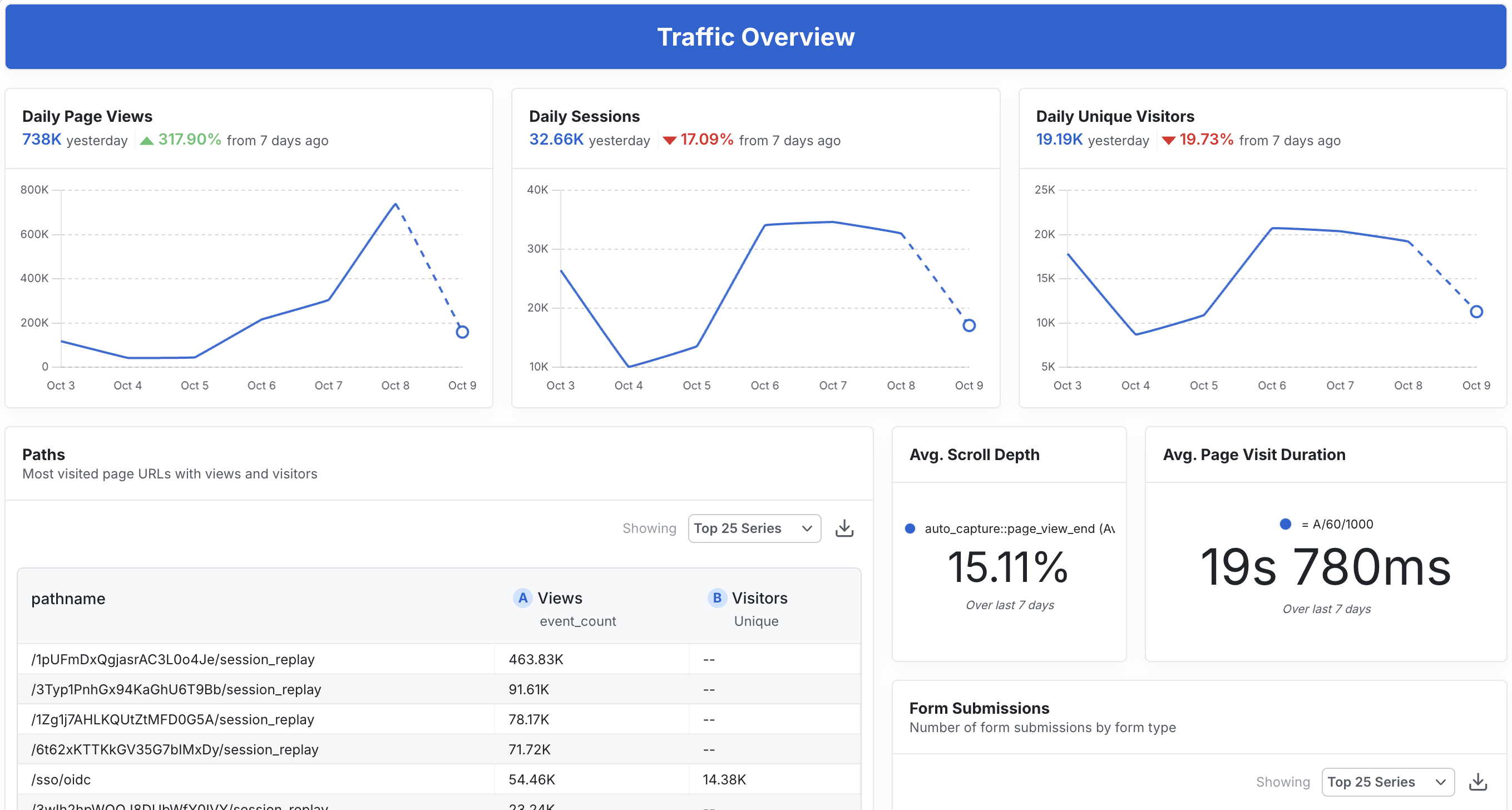
With Web Analytics and Statsig Dashboards you can easily gather insights such as number of visitors, views, sessions, how long sessions last, error rates, usage journey, and more.
After you add web analytics to your application, events appear in your metrics page: https://console.statsig.com/metrics/events
Getting started
Option 1: HTML script installation
Add a single script tag to your website:
<script src="https://cdn.jsdelivr.net/npm/@statsig/js-client@3/build/statsig-js-client+session-replay+web-analytics.min.js?apikey=[YOUR_CLIENT_KEY]"></script>
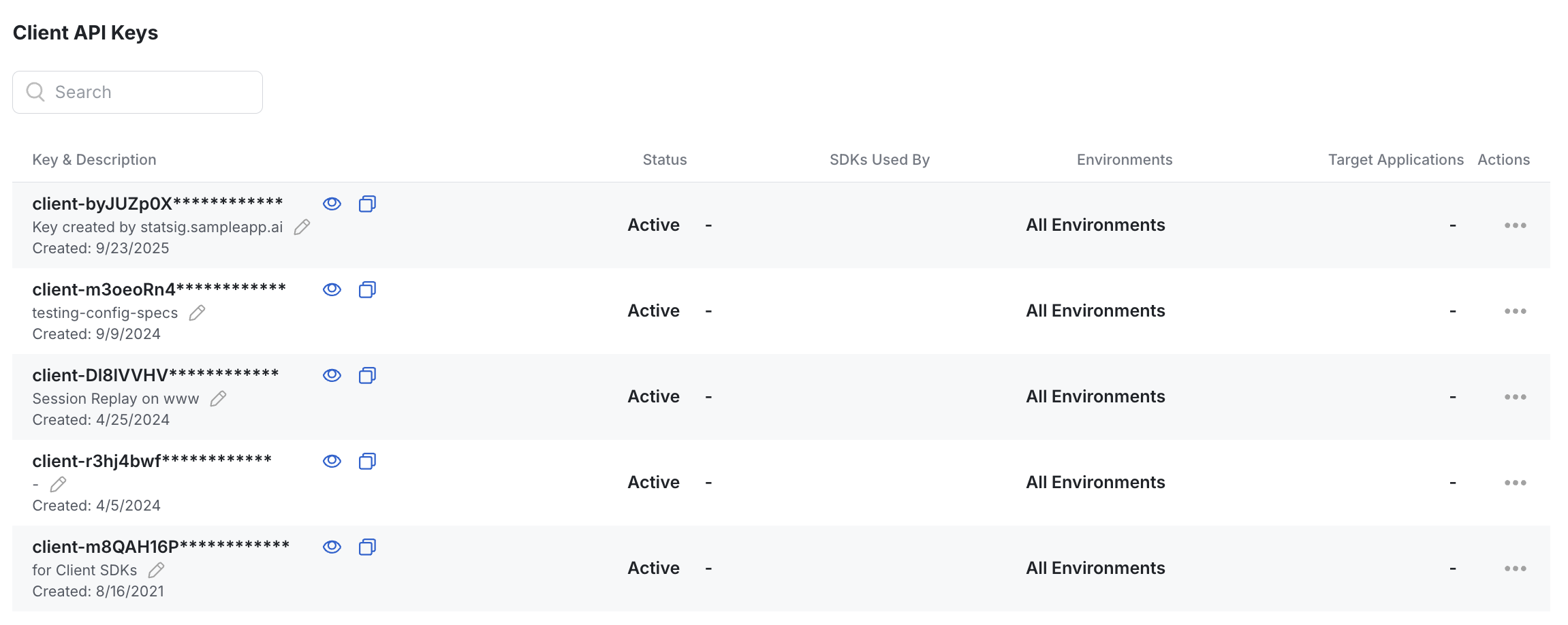
Get YOUR_CLIENT_KEY from Project Settings > Keys & Environments. Reveal the Client API Key, copy, and paste it over the [YOUR_CLIENT_KEY] in the snippet above.
Option 2: HTML script with advanced control
For more control over initialization and configuration, you can manually initialize the Statsig client:
<script src="https://cdn.jsdelivr.net/npm/@statsig/js-client@3/build/statsig-js-client+session-replay+web-analytics.min.js"></script>
<script>
  const { StatsigClient, StatsigAutoCapturePlugin, StatsigSessionReplayPlugin } = window.Statsig;

  const client = new StatsigClient(
    'YOUR_CLIENT_KEY',       // put your client sdk key here - "client-XXXX"
    { userID: 'optional' },  // set a userID here if you have one
    { plugins: [
      new StatsigAutoCapturePlugin(),
      new StatsigSessionReplayPlugin()
    ]}
  );

  client.initializeAsync().catch((err) => console.error(err));
</script>
Option 3: JavaScript client SDK (React bindings)
If using the JavaScript client SDK or another framework, use the corresponding SDK with the autocapture plugin (JS, React, Angular, etc.):
import * as React from 'react';

import { StatsigProvider } from '@statsig/react-bindings';
import { StatsigAutoCapturePlugin } from '@statsig/web-analytics';

  return (
    <StatsigProvider
      sdkKey={YOUR_CLIENT_KEY}
      user={{ userID: 'a-user' }}
      loadingComponent={
        <div>Loading...</div>
      }
      options={{ plugins: [ new StatsigAutoCapturePlugin() ] }}>
      <div>Hello</div>
    </StatsigProvider>
  );
Autocaptured events
Statsig Web Analytics automatically captures the following events without any additional code:
Page navigation events
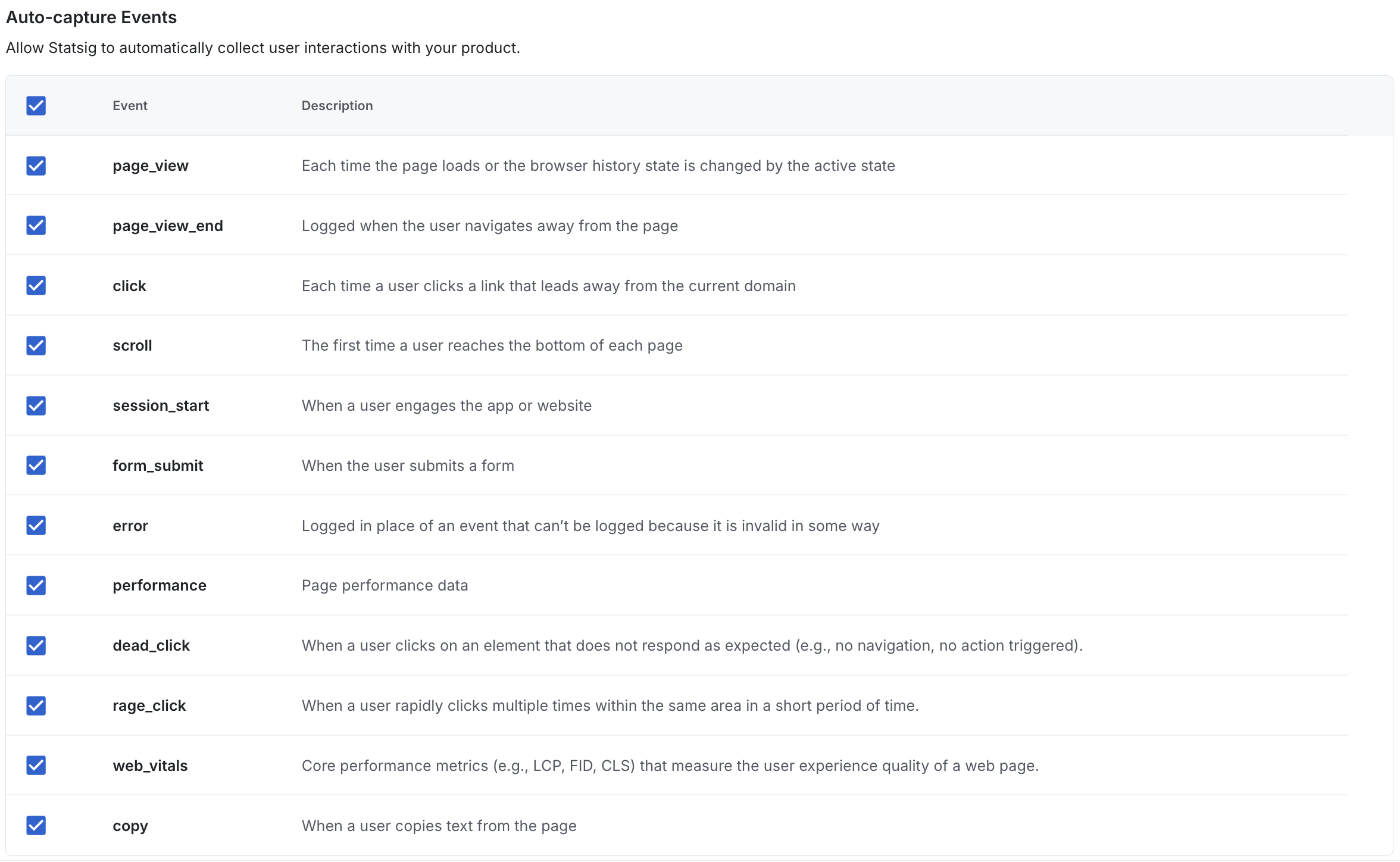
auto_capture::page_view: Statsig captures this event when a user navigates to a new page. It includes page URL, query parameters, referrer information, and metadata.auto_capture::page_view_end: Statsig captures this event when a user leaves a page. It includes engagement metrics like scroll depth, time on page, and whether the exit was due to inactivity.
User interaction events
auto_capture::click: Captures all click events with target element information, coordinates, and page context.auto_capture::rage_click: Detects rapid repeated clicks in the same area, often indicating user frustration.auto_capture::dead_click: Identifies clicks that don't result in any page changes or navigation, potentially indicating broken functionality.auto_capture::form_submit: Captures form submission events with form metadata.auto_capture::copy: Tracks when users copy text from your page, including the selected text content.
Technical performance events
auto_capture::error: Automatically captures JavaScript errors with stack traces, error messages, and context.auto_capture::web_vitals: Captures Core Web Vitals metrics (refer to the Web vitals events section below).auto_capture::performance: Collects page load performance metrics including load times, DOM interactive time, and network transfer data. (deprecated, useauto_capture::web_vitalsinstead)
Session events
auto_capture::session_start: Marks the beginning of a new user session.
Console logging (disabled by default)
statsig::log_line: Captures console log output. Statsig disables console log capture by default, so you must enable it in your configuration.
For details on how to enable console log autocapture, refer to Console Log Capture Configuration.
Event filtering and console configuration
Disabling events through the console
You can disable specific autocapture events from the Statsig console under Project Settings > Analytics & Session Replay:
Programmatic event filtering
For more granular control, you can filter events programmatically using a custom filter function:
const client = new StatsigClient(
  'YOUR_CLIENT_KEY',
  { userID: 'optional' },
  { plugins: [
    new StatsigAutoCapturePlugin({
      eventFilterFunc: (event) => {
        // Filter out events from admin pages
        if (event.metadata.pageUrl &&
            event.metadata.pageUrl.includes('/admin/')) {
          return false;
        }
        return true;
      }
    })
  ]}
);
Console log capture configuration
Statsig disables console log capture by default, but you can enable it with the following configuration:
const client = new StatsigClient(
  'YOUR_CLIENT_KEY',
  { userID: 'optional' },
  { plugins: [
    new StatsigAutoCapturePlugin({
      consoleLogAutoCaptureSettings: {
        enabled: true,
      }
    })
  ]}
);
The following optional settings are also available when capturing console logs:
logLevel: minimum level to capture (debug|info|log|warn|error)sampleRate: fraction between 0 and 1 to sample captured logsmaxKeys: maximum number of keys to serialize from logged objectsmaxDepth: maximum nesting depth when serializing objectsmaxStringLength: maximum number of characters for stringified values
const client = new StatsigClient(
  'YOUR_CLIENT_KEY',
  { userID: 'optional' },
  { plugins: [
    new StatsigAutoCapturePlugin({
      consoleLogAutoCaptureSettings: {
        enabled: true,
        logLevel: 'warn',         // capture warn and error
        sampleRate: 0.5,          // capture 50% of matched logs
        maxKeys: 50,              // limit number of keys per object
        maxDepth: 3,              // limit nested object depth
        maxStringLength: 2000,    // truncate long strings
      }
    })
  ]}
);
Web vitals events
Statsig automatically captures Core Web Vitals metrics that are essential for measuring user experience and SEO performance:
Core Web Vitals metrics
CLS (Cumulative Layout Shift): Measures visual stability by tracking unexpected layout shifts during page load. Lower scores indicate better user experience.
FCP (First Contentful Paint): Measures loading performance by tracking when the browser paints the first text or image on the screen. Faster FCP times indicate better perceived performance.
LCP (Largest Contentful Paint): Measures loading performance by tracking when the largest content element becomes visible. This metric correlates strongly with user-perceived load times.
TTFB (Time to First Byte): Measures server response time by tracking how long it takes to receive the first byte of response from the server. This indicates server and network performance.
INP (Interaction to Next Paint): Measures responsiveness by tracking the longest latency across user interactions. Lower values mean more consistent, responsive experiences.
Statsig automatically collects and sends these metrics as auto_capture::web_vitals events, providing insights into your website's performance and user experience quality.
Single page application (SPA) support
Statsig Web Analytics automatically supports single page applications without any additional configuration. Statsig detects route changes through:
Automatic route change detection
- Browser Navigation: Listens for
popstateevents to detect when users use browser back/forward buttons - Programmatic Navigation: Automatically proxies
history.pushStatecalls to detect when your application programmatically navigates to new routes - Automatic Page Views: Triggers new
auto_capture::page_viewevents whenever Statsig detects route changes
Modern SPA frameworks like React Router, Vue Router, and Angular Router work with Statsig Web Analytics without requiring manual page view tracking.
Exploring events in Metrics explorer
In Metrics Explorer, you can filter and group your events using complex filters and dimensions, then add the analysis to your dashboard.
For more on Metrics Explorer features like Funnels and Retention, refer to the Product Analytics overview.
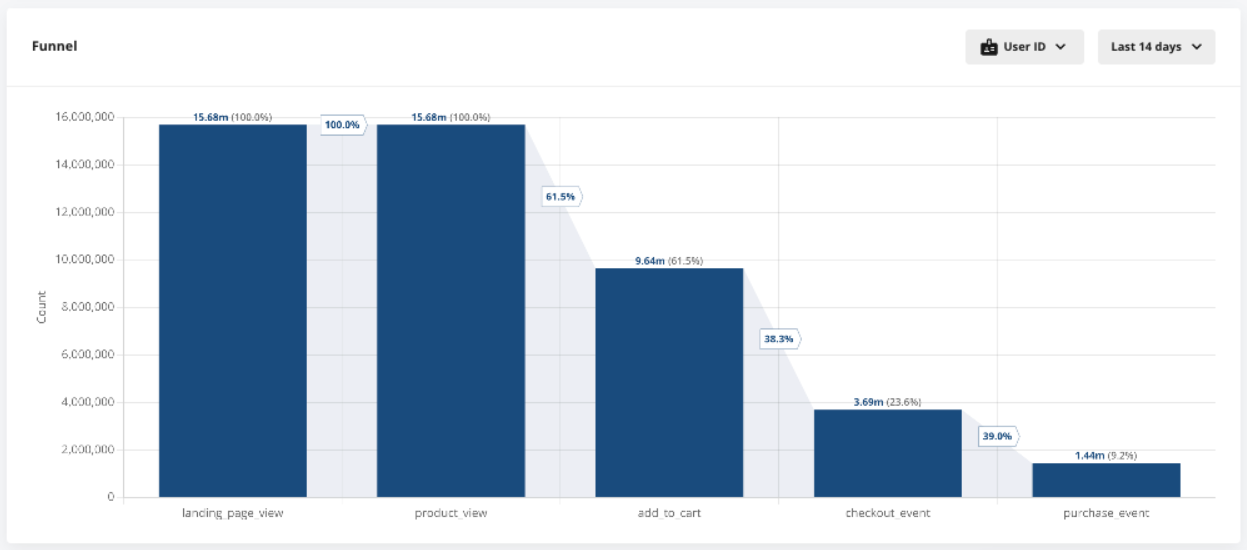
For example autocapture event details, refer to Autocapture Metrics.
Autocapture settings
The autocapture plugin or manual setup can take an optional options parameter to customize the autocapture settings.
| Parameter | Type | Description |
|---|---|---|
eventFilterFunc | Optional[Callable[[AutoCaptureEvent], bool]] | A function to filter events based on their metadata. |
consoleLogAutoCaptureSettings | Optional[ConsoleLogAutoCaptureSettings] | An object to configure console log capture. |
consoleLogAutoCaptureSettings:
| Setting | Type | Description |
|---|---|---|
enabled | Optional[bool] | Enables or disables console log capture. |
logLevel | Optional[str] | Sets the minimum log level for console log capture. |
sampleRate | Optional[float] | Sets the sample rate for console log capture (0-1). |
maxKeys | Optional[number] | Maximum number of keys to serialize from logged objects. |
maxDepth | Optional[number] | Maximum nesting depth when serializing objects. |
maxStringLength | Optional[number] | Maximum number of characters for stringified values. |
eventFilterFunc:
| Field | Type | Description |
|---|---|---|
event | AutoCaptureEvent | The event object Statsig is capturing. |
return | bool | Return true to capture the event, or false to ignore it. |
Was this helpful?