For AI agents: a documentation index is available at /llms.txt. Append .md to any page URL for markdown, or send Accept: text/markdown.
Scheduled Rollout
Schedule changes to Dynamic Config values and let Statsig apply each phase automatically.
Scheduled rollouts automatically change Dynamic Config values at configured dates and times. Use them to increase a rule’s rollout percentage over time or switch between variants during specific date ranges. Configure a schedule on a rule, then publish the rule so Statsig applies each phase automatically.
Scheduled rollouts apply at the rule level and follow the rule's targeting conditions. Rollout percentages apply to users who match the rule.
Rollout types
Dynamic Configs support two rollout types, depending on how you want to change the values users receive:
- Gradual: Increases the percentage of users matching the rule who receive its configured values in discrete scheduled steps. Use it to roll out values to more users over time. Gradual rollouts are unavailable for rules with multiple variants.
- Switch: Serves a selected variant or the config's Default values to 100% of matching users during scheduled date ranges. Use it to schedule which values users receive during specific time periods. The Default split applies outside those ranges, and Switch requires at least one variant.
Gradual rollout
- Open your Dynamic Config.
- Open the contextual menu of the rule you want to schedule. Select Apply rollout.
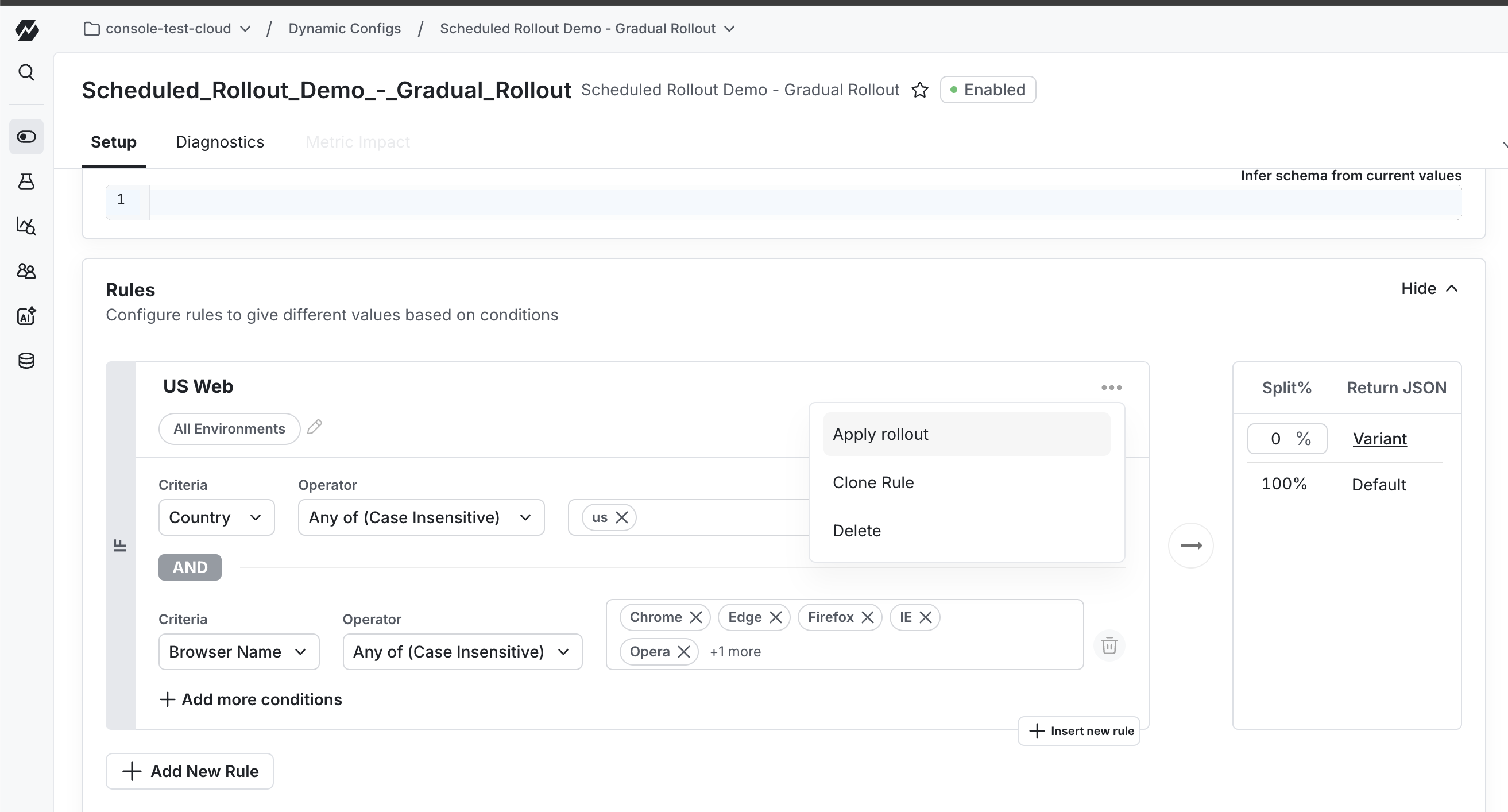
- Select Gradual from the Rollout type dropdown menu in the rollout modal.
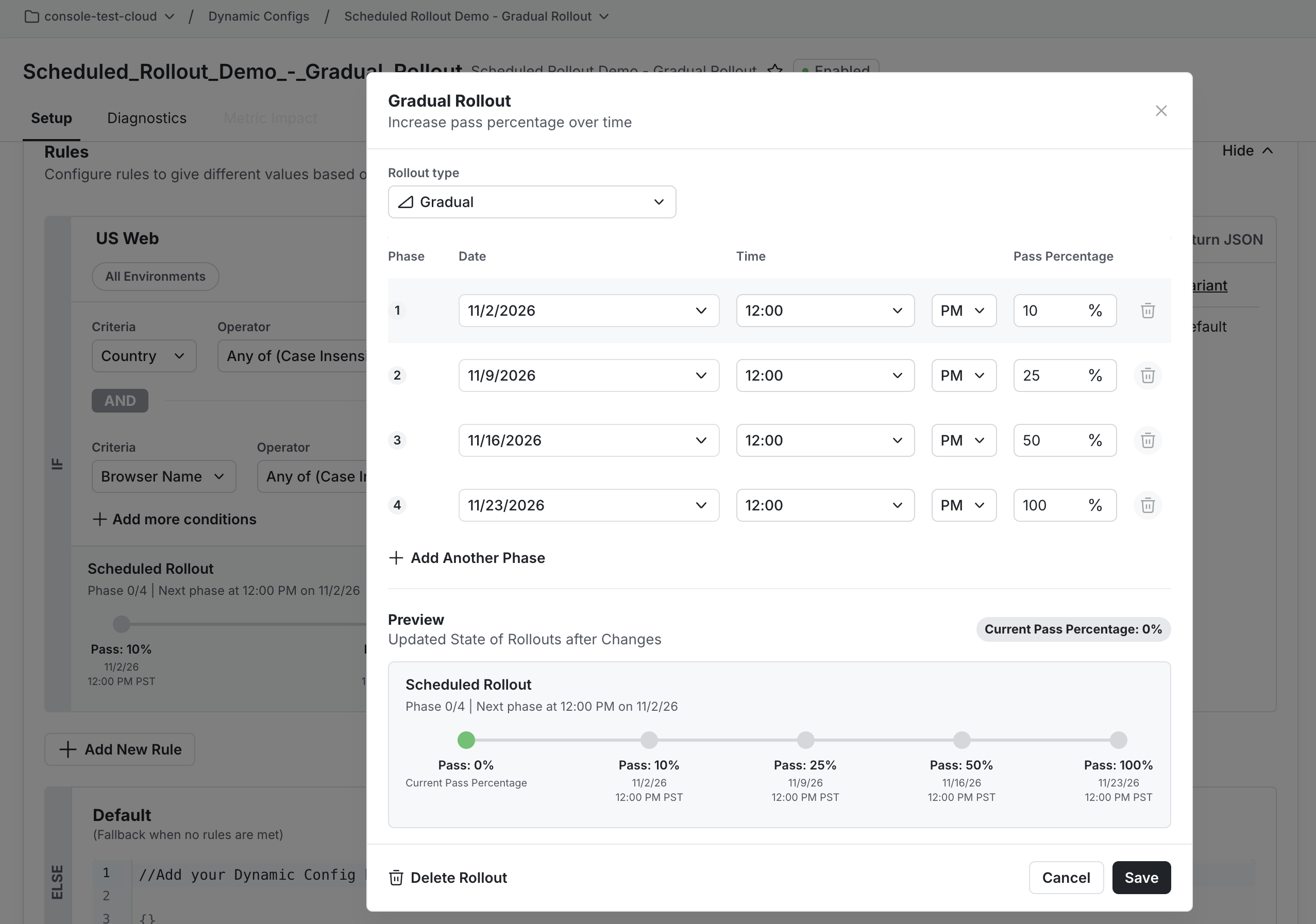
- Configure each scheduled phase with a rollout date, rollout time, and percentage of matching users who receive the rule's configured values.
- Select Add Phase to add another scheduled change.
- Review the schedule preview, then select Save to apply the schedule to your local rule draft.
Each phase changes the percentage in a discrete step. The percentage stays at that level until the next scheduled phase; it doesn't increase continuously between phases.
For example, start a rule at 10% and increase its percentage every seven days:
Switch rollout Early Access
Switch rollout is in Early Access. Functionality may change, and this documentation may not always be up to date. Contact Statsig Support to request access.
Before configuring a Switch rollout, add at least one variant to your rule.
- Open your Dynamic Config and click the menu of the rule you want to schedule.
- Select Apply rollout.
- Select Switch from the Rollout type dropdown menu.
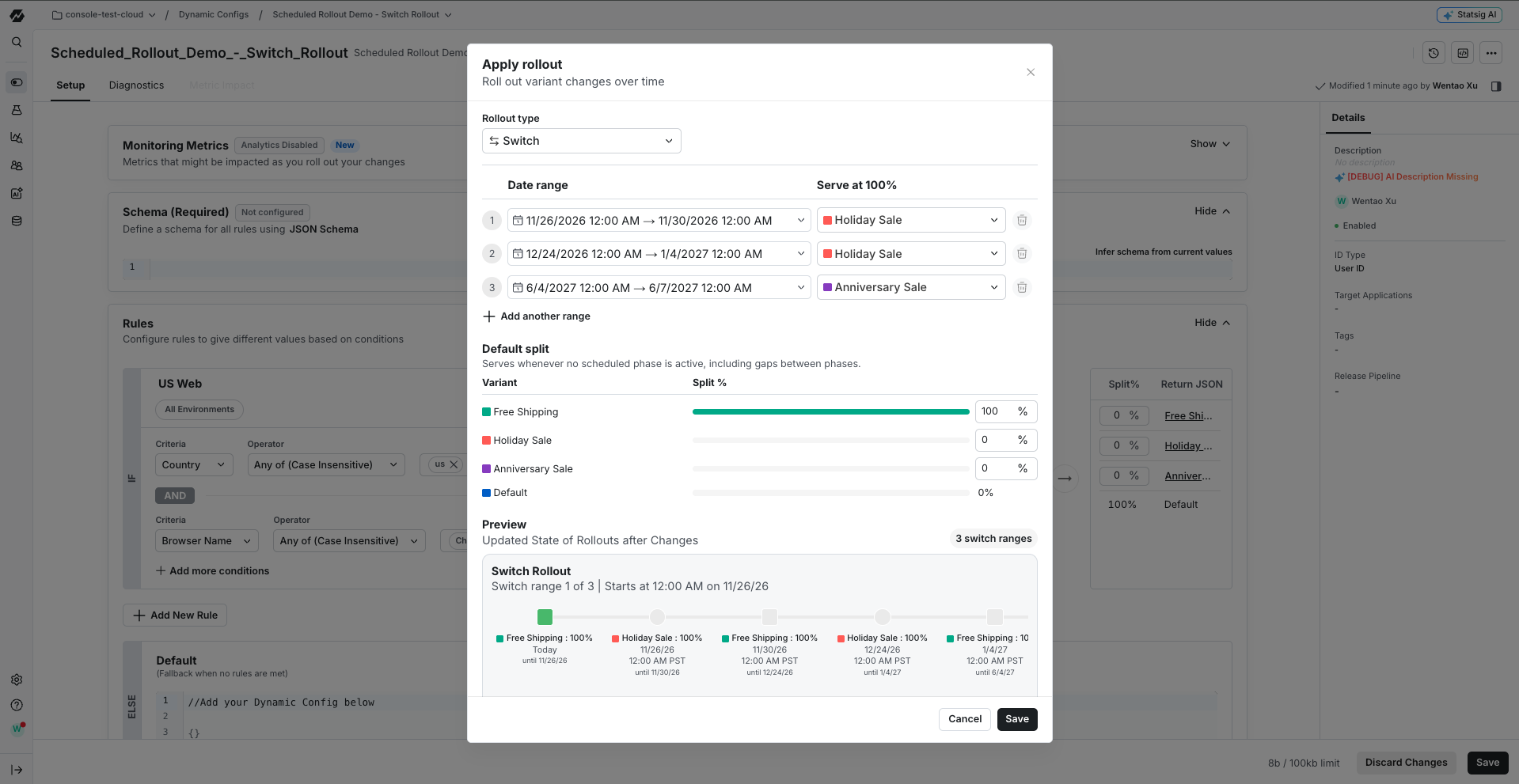
- For each date range, configure a start date and time, an optional end date and time, and the variant or Default values to serve at 100%.
- Select Add another range to schedule additional changes.
- Configure the Default split to define the percentage of users who receive each variant or Default outside scheduled ranges.
- Review the schedule preview, then select Save to apply the schedule to your local rule draft.
Default means the Dynamic Config's default values. The default split defines how Statsig distributes users across variants and Default when no scheduled range is active.
Ranges can't overlap. Only the final range can omit an end time.
Publish your scheduled rollout
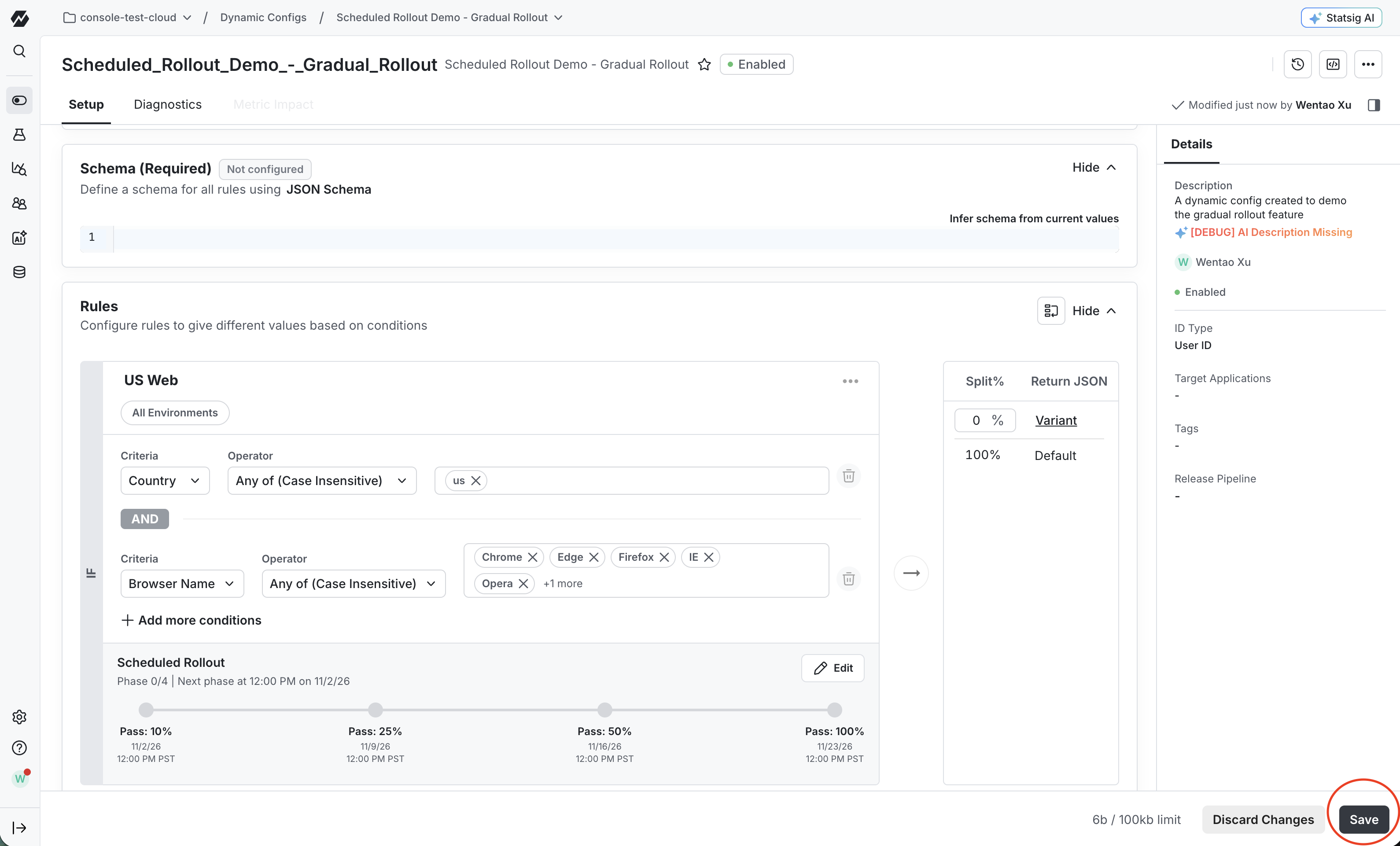
Saving in the rollout editor updates your local rule draft. It doesn't publish the rule or activate the schedule.
- After saving the rollout editor, return to the Dynamic Config page.
- Submit the config changes. If your changes don't require review, select Save to publish the rule and its schedule. If your changes require review, select Submit for Review, then complete the review process and publish the approved changes.
A pending review doesn't activate the schedule. Publish the rule and its schedule before scheduled changes can take effect.
After you publish the rule, each scheduled phase or date range takes effect automatically at its configured time.
Was this helpful?