For AI agents: a documentation index is available at /llms.txt. Append .md to any page URL for markdown, or send Accept: text/markdown.
Getting Started
Get started with the Statsig Azure OpenAI integration to log AI requests, capture metrics, and run experiments on prompts, models, and parameters.
Step 1: Install the SDK in your server app
Install the Statsig Azure AI SDK using the package manager for your language or framework.
npm i @statsig/azure-ai
Step 2: Create a model deployment in Azure AI Studio
Log into your Azure AI Studio console and create a new deployment.
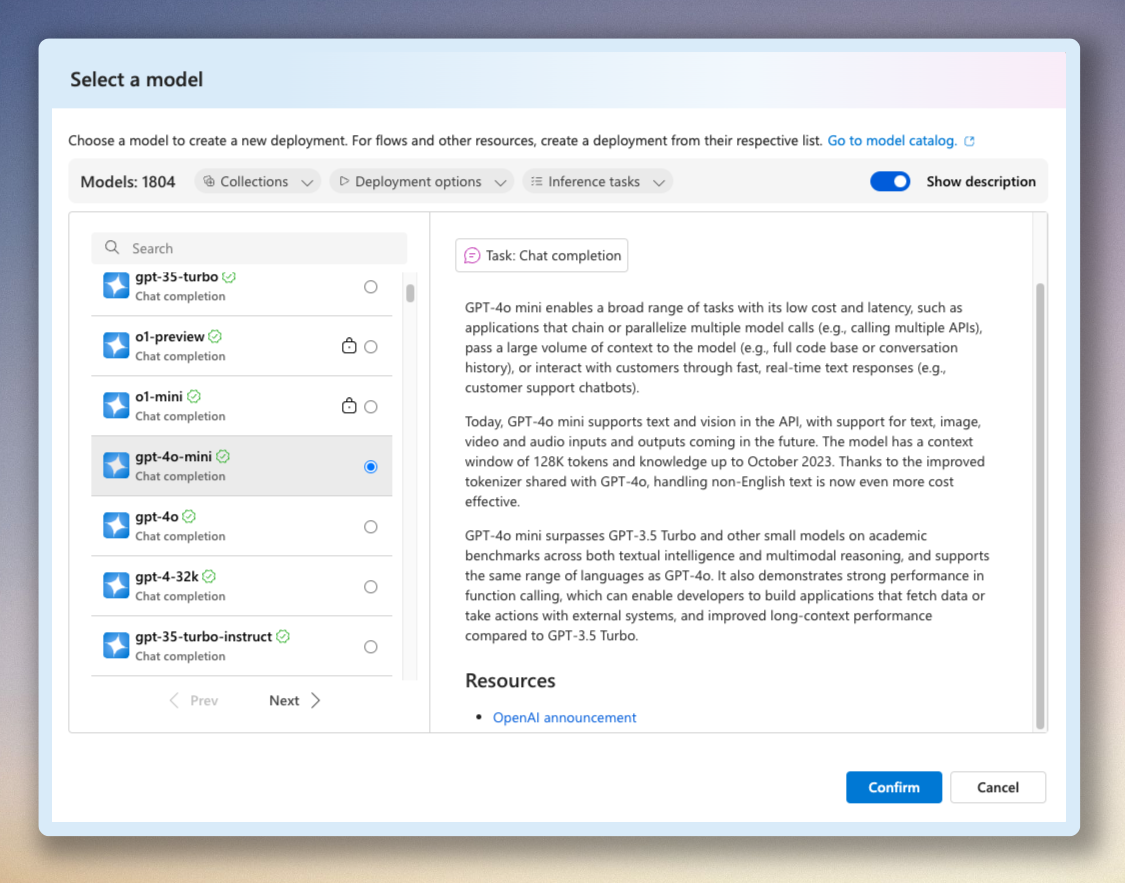
After confirmation, Statsig takes you to the details page of that model.
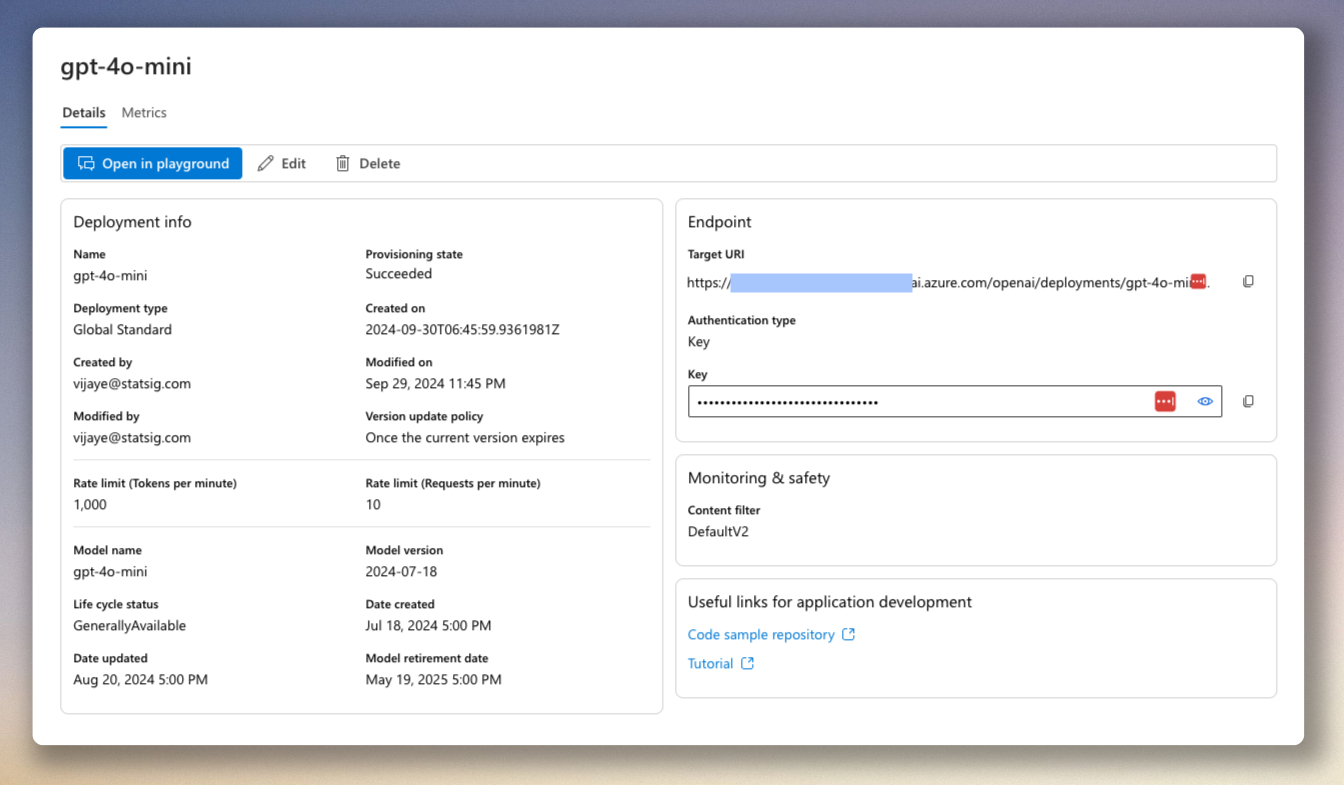
Copy the Target URI (your endpoint in code) and the Key. You need both in the SDK to call the APIs.
Step 3: Get Statsig server SDK key
This guide assumes you have an existing Statsig account. Go to https://statsig.com/signup to create a new free account if you don't already have one.
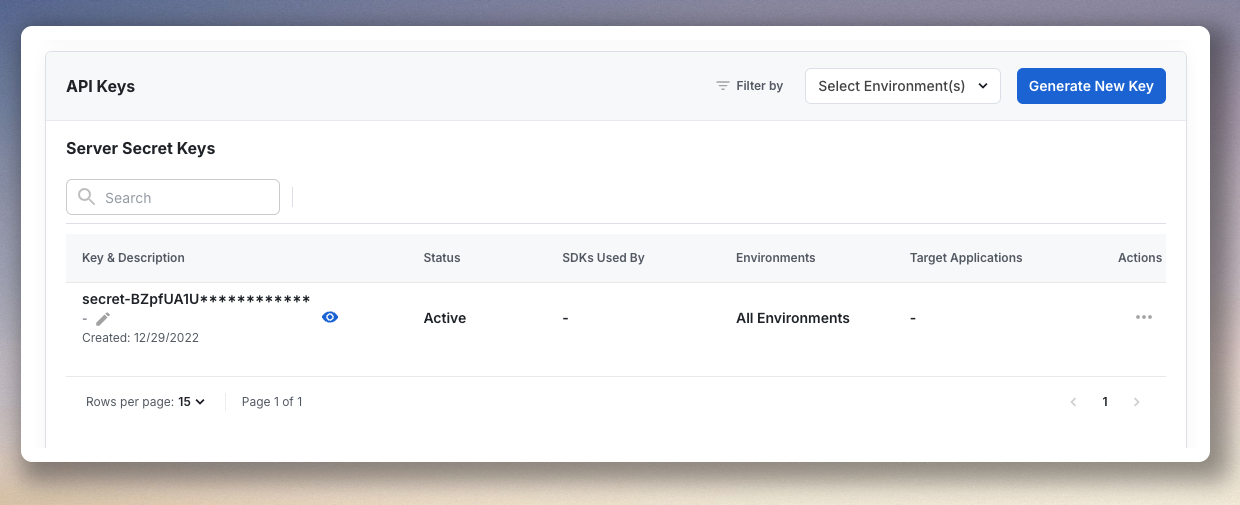
Go to your Project Settings and choose the Keys & Environments tab. Scroll down to the API Keys section and copy the Server Secret Key. If one doesn't exist, create one or ask your project admin to create one.
Step 4: Initialize Azure AI server
import { AzureAI } from "@statsig/azure-ai";

await AzureAI.initialize("<STATSIG_SERVER_KEY>");
Was this helpful?