For AI agents: a documentation index is available at /llms.txt. Append .md to any page URL for markdown, or send Accept: text/markdown.
Guide to Contentful
Integrate Statsig with Contentful to run experiments on CMS-managed content, including connecting accounts, mapping variants, and tracking metrics.
The Statsig Contentful integration runs A/B/n tests on content blocks directly inside Contentful, so you can test variations against each other without leaving the CMS. It measures each variant's impact using business metrics from Statsig Cloud or Warehouse Native. Marketers set up and run these tests without engineering involvement.
- Run experiments on CMS content without engineering involvement
- Configure content to serve with each variation
- No performance penalty or flicker
The Statsig Contentful app adds a Statsig container that connects to an experiment in Statsig. Users can then add Content Blocks to that container to start a test. The Statsig Contentful app lets marketers measure progress towards business objectives by testing content for lift in any core business metrics configured in Statsig.
Integrating with Contentful
The Contentful Marketplace App is publicly available at the Statsig listing. To use this integration, complete a one-time setup for the Contentful marketplace app, your Content types, and your codebase. After setup, you can run A/B/n tests directly inside Contentful.
Setting up the Statsig Marketplace app
Navigate to the Marketplace in Contentful, and find the Statsig app. Click 'Install'.
Statsig prompts you to enter a Console API Key. You can find an existing Console API Key in your Statsig project under Settings > Keys & Environments. The key must be of type 'Console' and have read and write permissions. Generate a new key of type 'Console' if a suitable one doesn't already exist for your project.
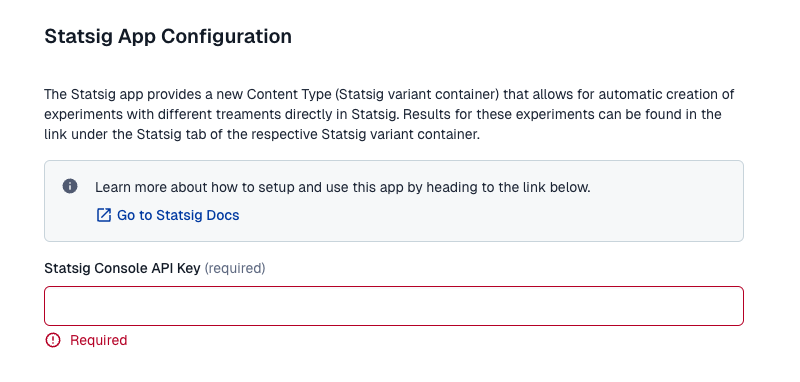
After entering your API Key, select 'Install to selected environments'. The app is now configured. If you return to this page later, only the obfuscated API Key appears.
Setting up Statsig variant container
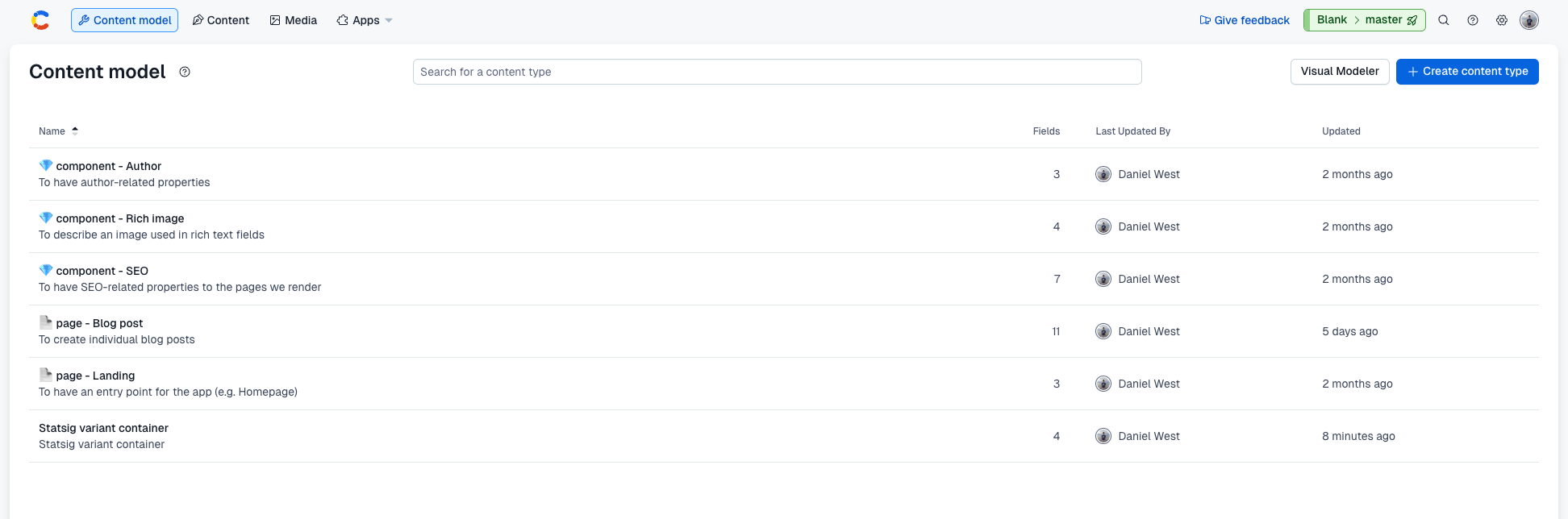
After configuration, Contentful adds a new Content model called 'Statsig variant container' to your space. Verify the setup is correct:
Navigate to the 'Content model' tab in Contentful, and select the 'Statsig variant container'.
You should see a list of 4 fields: Statsig Experiment Id, Entry Name, Default Variation (control), Treatment Variations.
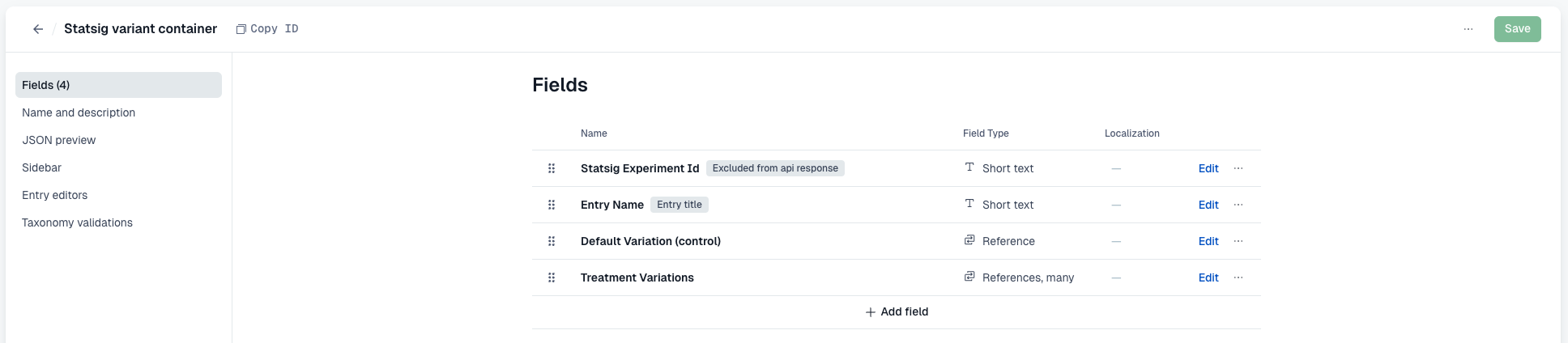
If your 'Statsig Experiment Id' field shows
Excluded from api response, update this field so API calls return it. Click the three dots on the right of the field and select 'Include in API response', then select 'Save'.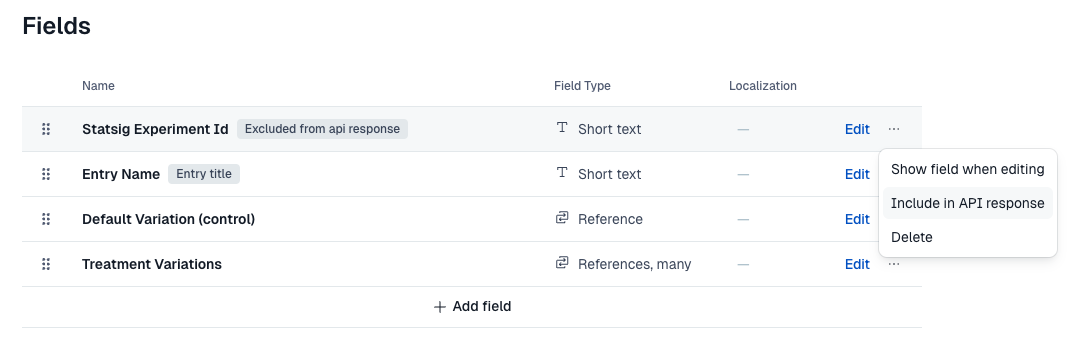
The 'Statsig variant container' is now configured and ready to associate with other Content types.
Setting up experiments in content types
You can configure your existing content types to run Statsig experiments, automatically serving different variants to your users. The steps below show how to add a 'Statsig experiment' field to your target content type.
Navigate to the 'Content model' tab in Contentful, and select your target content type (in this example,
page - Blog post). You should see the list of fields for this content type: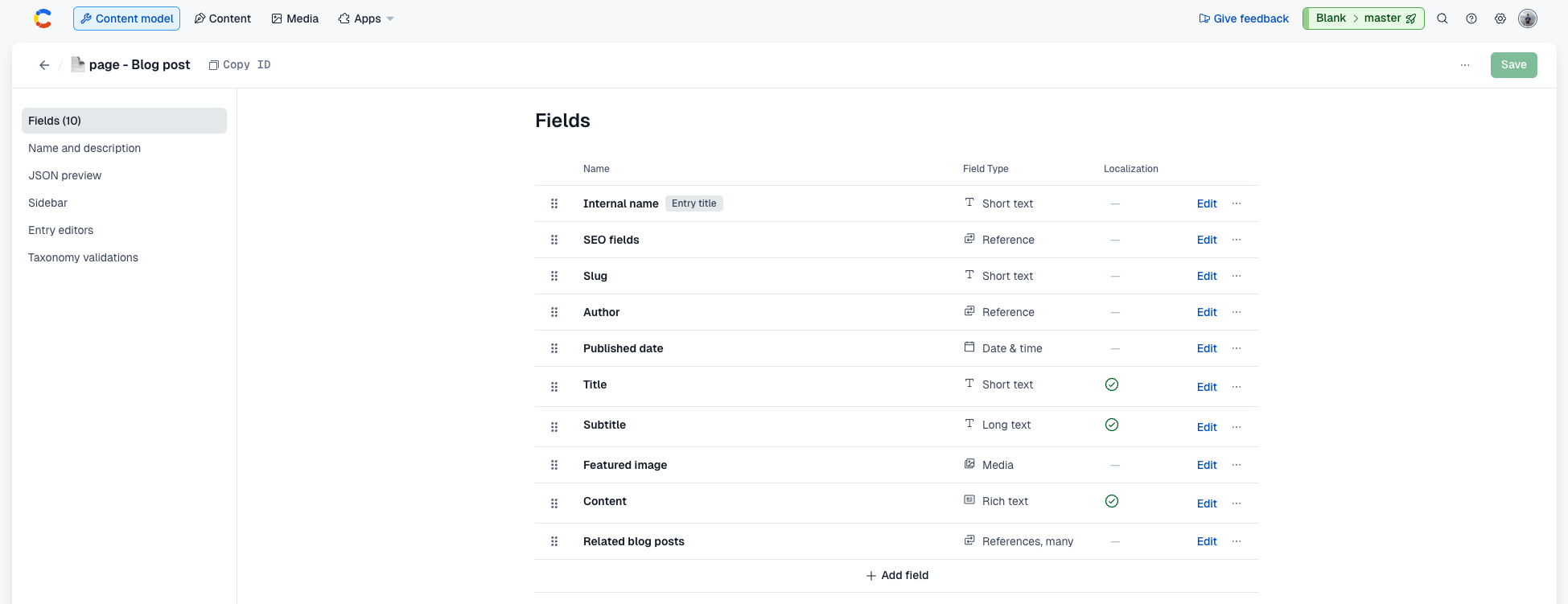
Click 'Add field', and choose 'Reference'. Enter
Statsig experimentfor the Name, then click 'Add and Configure'.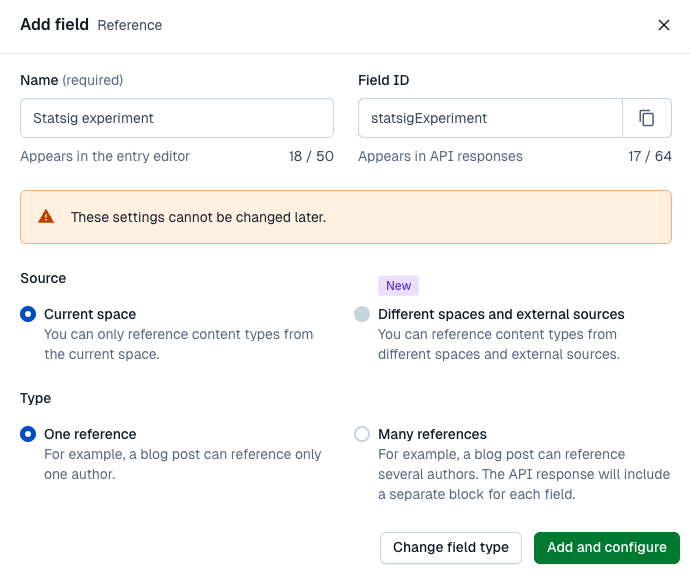
Under 'Validation', select 'Accept only specified entry type', and choose 'Statsig variant container' from the dropdown.
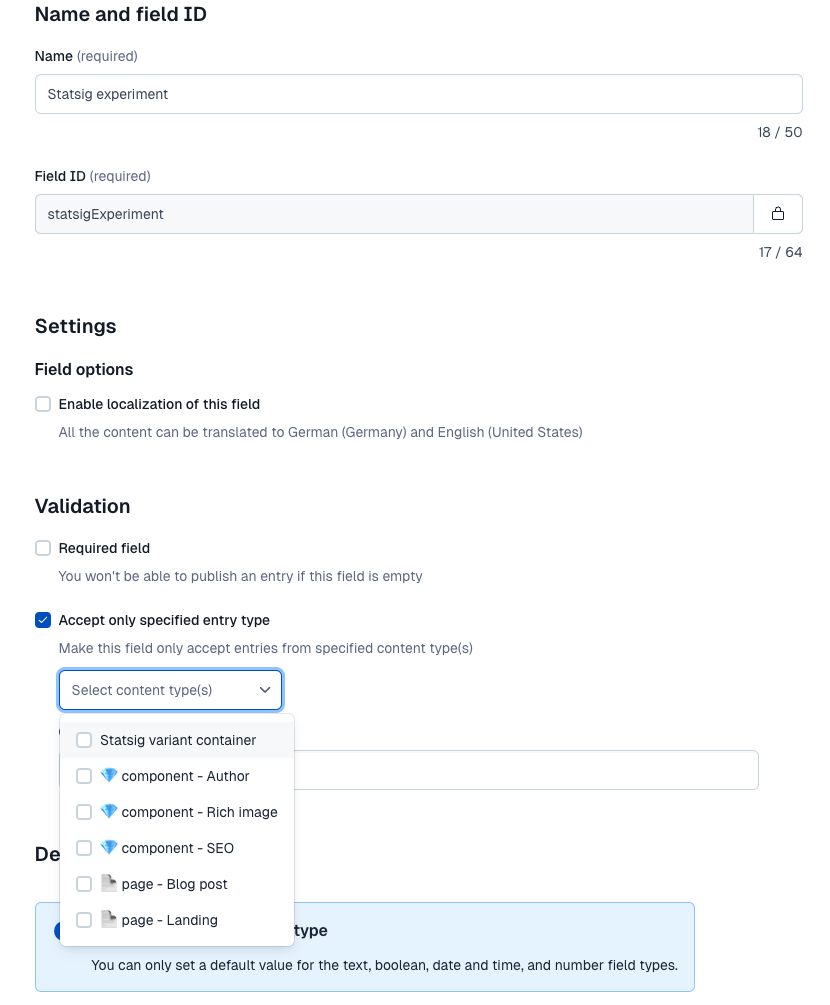
Confirm your new field and save your content type.
Your content type is now configured to use Statsig Experiments. Repeat this process for any other content types you want to run experiments with.
Running an experiment on your content
To run an experiment on your content, you can link a Statsig Experiment to it. Here's how:
Navigate to the 'Content' tab in Contentful, and select your existing entry from the list. At the bottom of the Editor tab, you should now see an editable field for 'Statsig experiment':
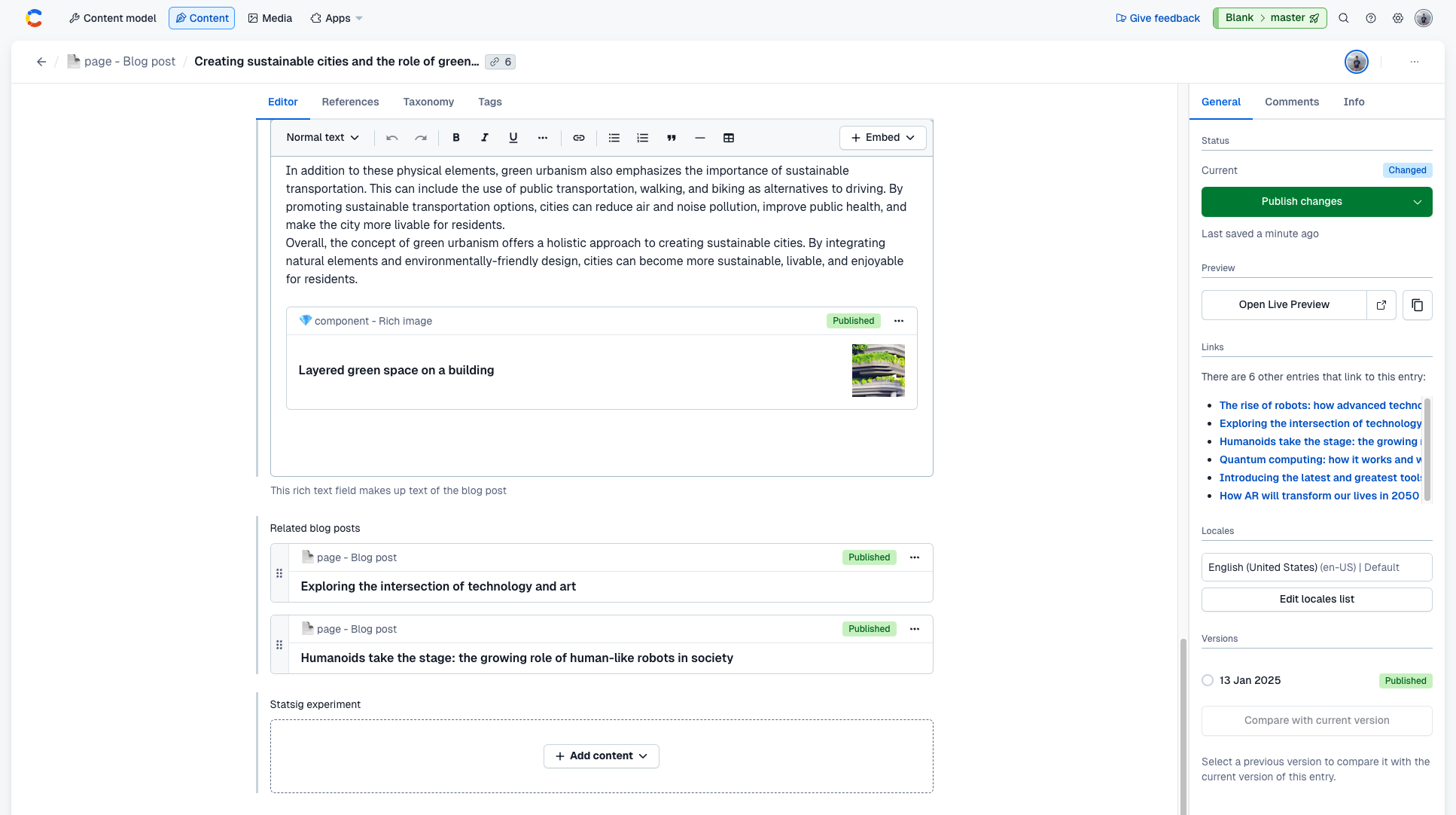
Click on 'Add content', and select 'Statsig variant container' from the New content dropdown. You should see a new Statsig variant container layover:
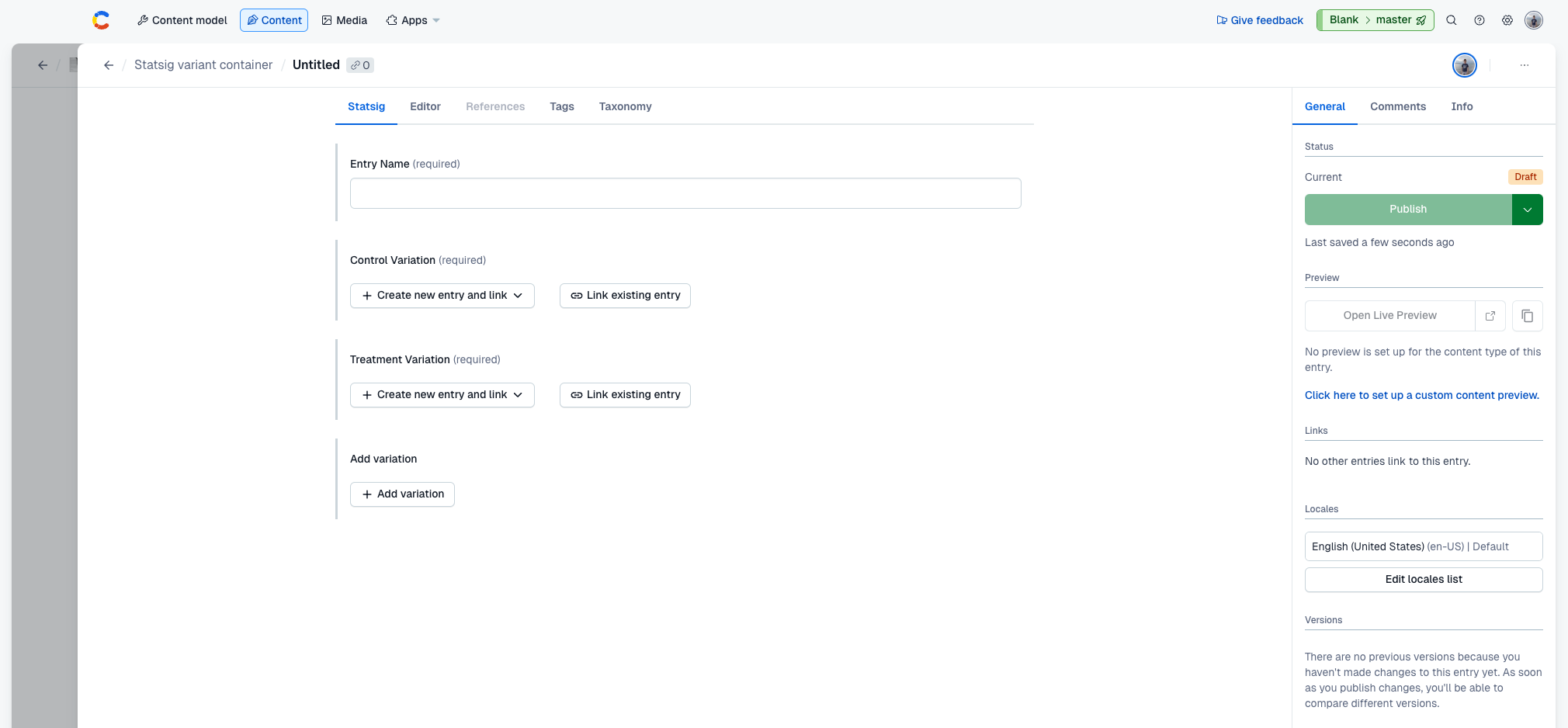
Under the Statsig tab, enter the name of your experiment in the 'Entry Name' field. Add your control and treatment variations. In this example, add
component - Rich imagevariations. Experiment names must not include special characters.When you finalize your experiment setup, hit 'Publish' on the new Statsig variant container entry.
Ensure you finalize your experiment setup before publishing, as publishing creates your experiment in Statsig.
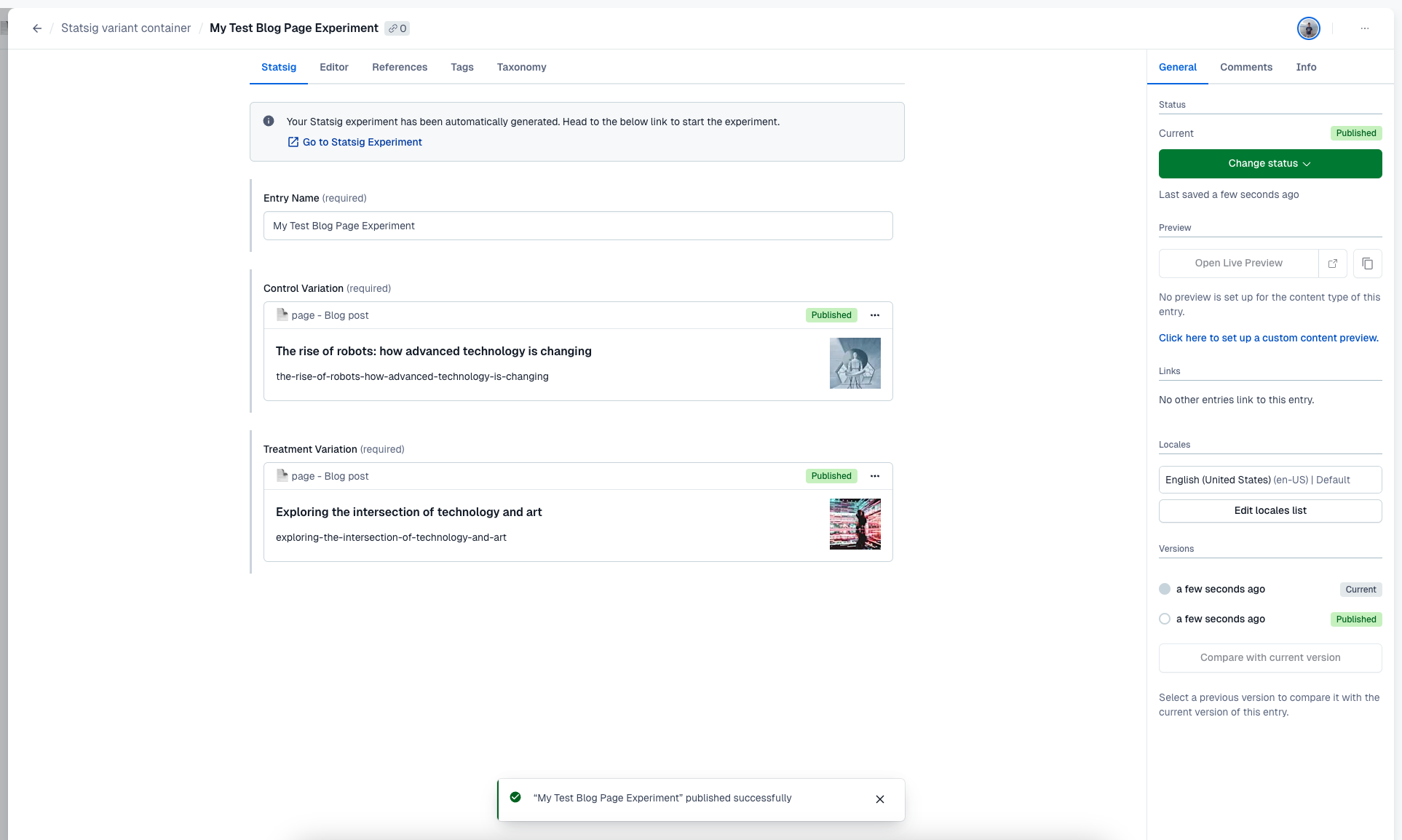
A prompt appears to start your newly created experiment in Statsig. Follow the 'Go to Statsig Experiment' link to finalize setup, add metrics, and start your experiment.
After the experiment starts in Statsig, a green banner appears at the top of your Statsig variant container and the variation fields become read-only.
Return to your original entry and select 'Publish changes'.
Your experiment is now live!
Integrating Statsig experiments in your codebase
An example repository shows how to integrate Statsig experiments created from Contentful into your codebase. The README walks through the setup process, including pulling experiment fields from Contentful, calling a Statsig SDK, and matching assigned users to their respective variant.
Troubleshoot common problems
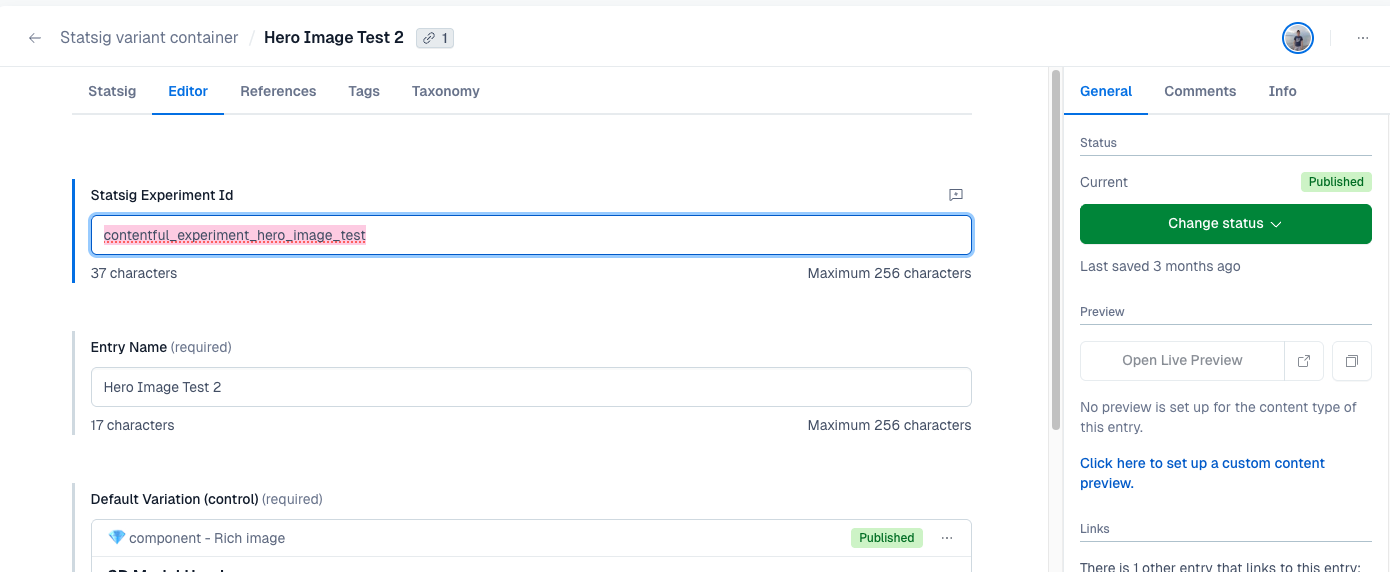
I created an experiment and the 'Go to Experiment' button doesn't show up
Statsig didn't save the Experiment Id correctly. To fix this, navigate into 'Editor' and manually add the Statsig Experiment Id. After saving, the button populates as expected.
Was this helpful?