Read holdout results
Learn how Statsig compares a holdout group against an equal-sized sample of other users, and how to read a holdout's Cumulative Exposures and metric lifts.
A holdout's results show the cumulative impact of the features it covers. Statsig compares users in the holdout against an equal-sized sample of users who aren't in the holdout, not against every user outside it.
How to read holdouts
Holdouts use the same equal variant methodology as feature gate rollouts: Statsig computes metric lifts using equal-sized groups. For the reasoning behind this methodology, go to "A/B Testing Intuition Busters: Common Misunderstandings in Online Controlled Experiments" by Ron Kohavi, Alex Deng, and Lukas Vermeer.
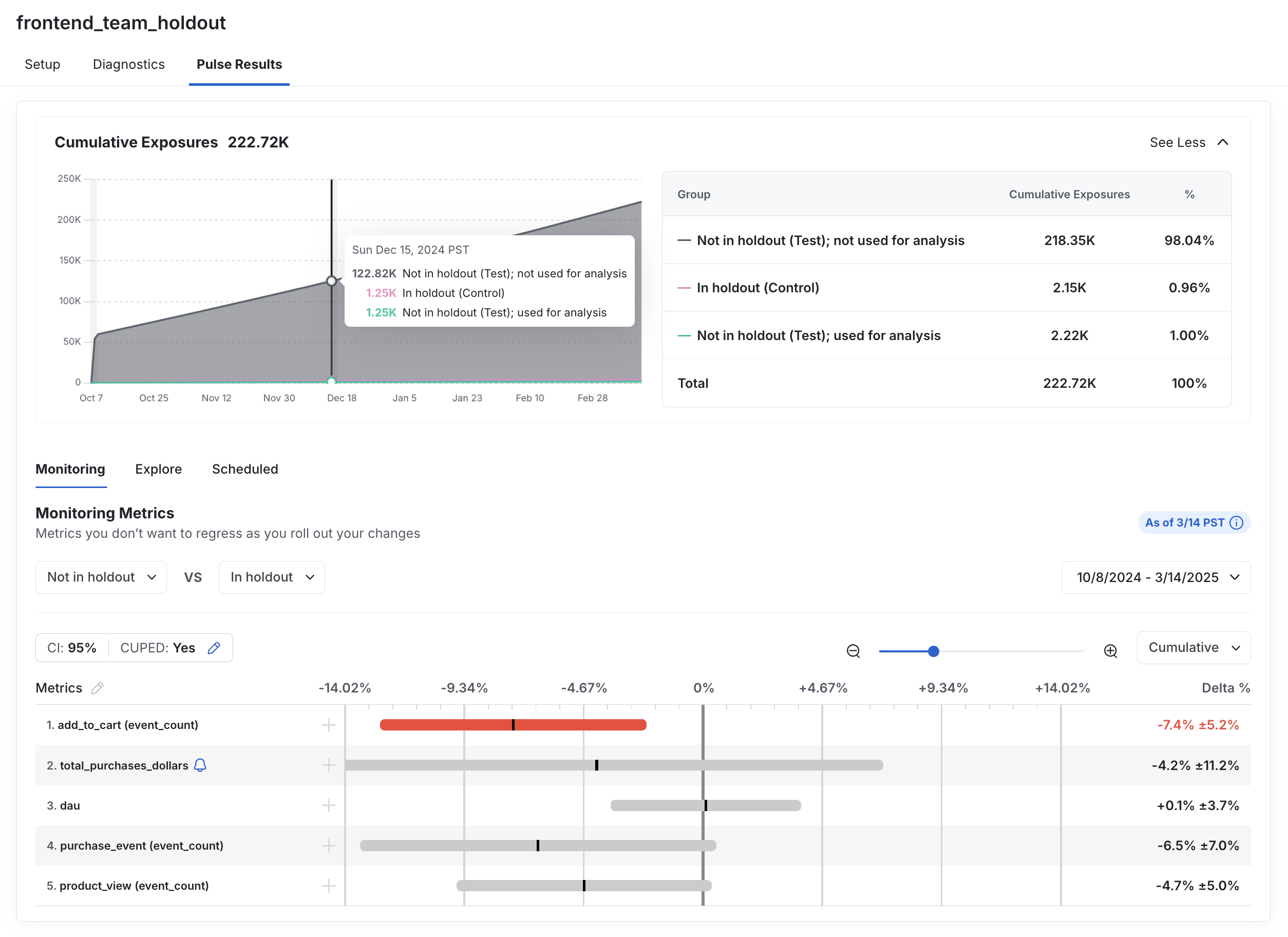
The Cumulative Exposures panel for a holdout shows the holdout's total exposures broken down into three groups:
- In holdout (Control): Units that Statsig included in the holdout and used for analysis.
- Not in holdout (Test); used for analysis: Units that Statsig didn't include in the holdout but selected for comparison against the holdout group.
- Not in holdout (Test); not used for analysis: Units that Statsig didn't include in the holdout and didn't use in the lift calculation.
Statsig selects the two "Not in holdout" groups by random sampling and sizes the analysis group to match the holdout group. Holdout metric lifts represent the cumulative impact of launched and active experiments on the holdout group. The "Not in holdout (Test); used for analysis" group isn't necessarily made up of users who saw every held-out feature; those users follow the normal non-holdout behavior for each included gate or experiment.
In the following example, the 1% holdout compares users in the holdout against 1% of users not in the holdout, not against the full remaining 99%. The launched features have an overall negative effect on the "Add to Cart" metric.
Balance Holdout Analysis
The Balance Holdout Analysis checkbox controls how Statsig selects the "Not in holdout (Test); used for analysis" group. On Cloud, balanced analysis is on by default: Statsig sizes the analysis group to match the holdout group. On Warehouse Native, balanced analysis is opt-in; with it off, Statsig compares the holdout group against the full non-holdout population instead of a balanced sample. For how Statsig samples the balanced group, refer to Balanced gates.
Results after a holdout percentage change
Changing the Holdout % on a running holdout starts a new Results period from the date of the change, and the Results page shows the current period only. Refer to Change the holdout percentage.
Was this helpful?
For AI agents: a documentation index is available at /llms.txt. Append .md to any page URL for markdown, or send Accept: text/markdown.