For AI agents: a documentation index is available at /llms.txt. Append .md to any page URL for markdown, or send Accept: text/markdown.
Teams
Configure Statsig Teams to add an organizational and permissions layer on top of a project, enabling team-scoped settings, reviewers, and ownership.
Teams are an Enterprise-only feature. If you're on the Developer or Pro tiers, this guide doesn't apply to you. To upgrade to Enterprise, contact the Statsig team at statsig.com/contact/demo.
How Teams works
For larger organizations, the Teams feature adds an organizational and permissions layer on top of a project. You configure teams at the project level (not the organization level), and all project admins can edit them by default.
After you configure teams and assign a user to a team, any config (gates, experiments, metrics, etc.) that user creates belongs to their team and inherits that team's settings. Users who are members of multiple teams can choose which team to associate their config with at creation time.
Creating teams
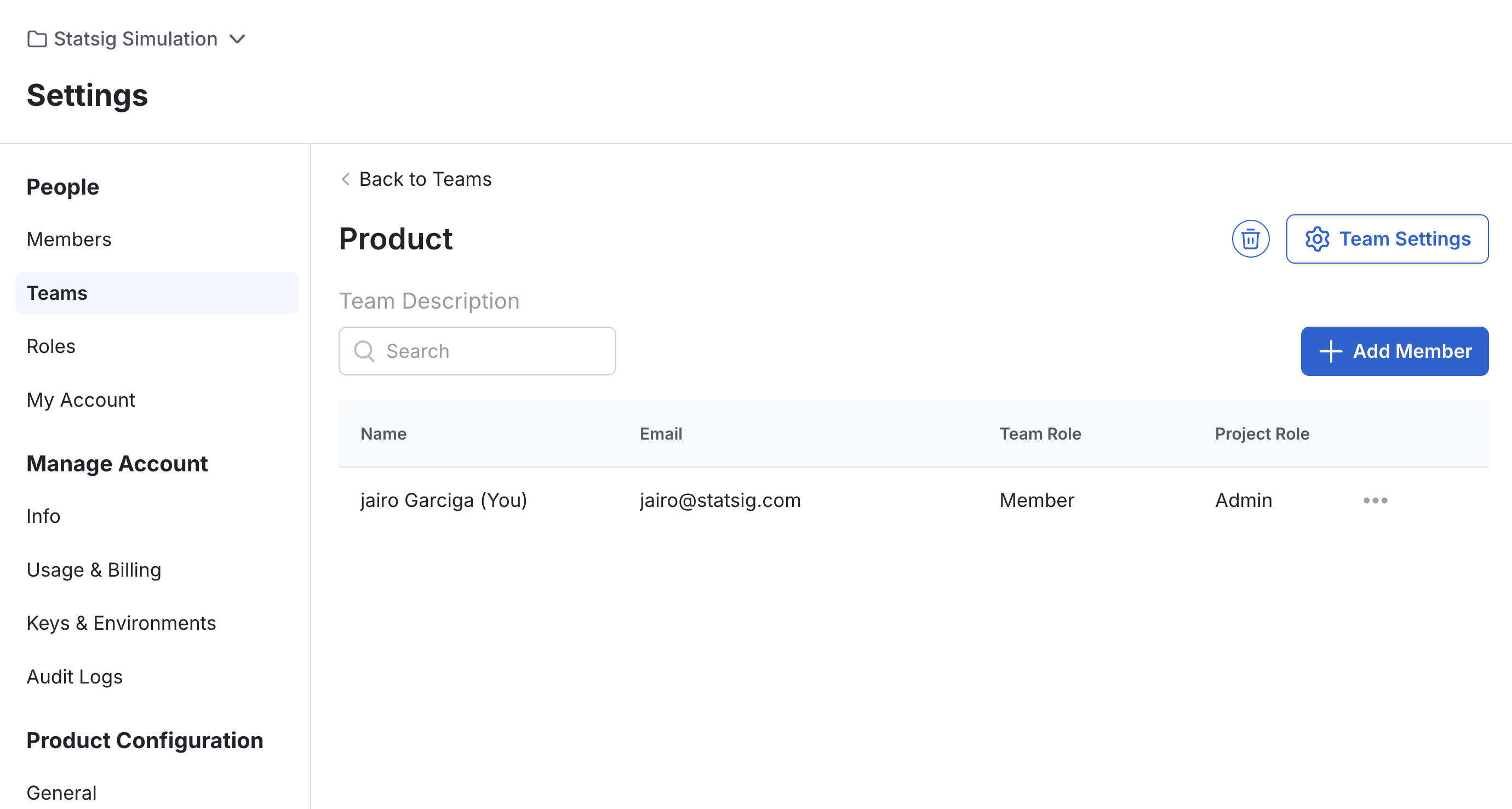
To create a team, navigate to Settings > People > Teams. Select +Create, then name the team and add members. You can add or remove members from a team at any time, not only during initial team creation.
Each team has a Members page and a Settings page. The Members page lists all team members, including each member's project role and team role (member or admin). You can promote or remove team members.
Configuring team settings
At the project level, you can require all config creations to be associated with a team using the "Require teams" setting under Settings > Product Configuration > General. This blocks anyone not yet assigned to a team from creating a config, so enable this setting only after you've added all project members to at least one team.

Each team has the following configurable settings:
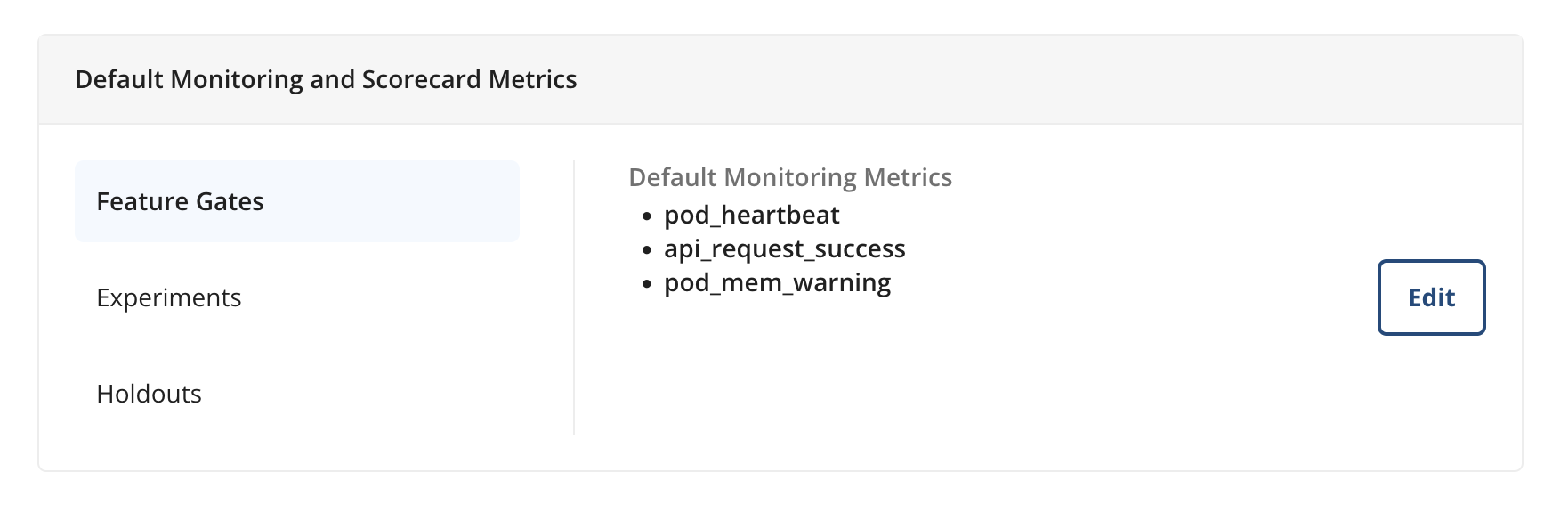
Default Monitoring Metrics/Scorecard Metrics: Pre-configure a set of metrics to add to every new gate, experiment, or holdout at the team level. These might include top-line company metrics every team must monitor (such as revenue or app performance) and team-specific KPIs that all rollouts and experiments should track.
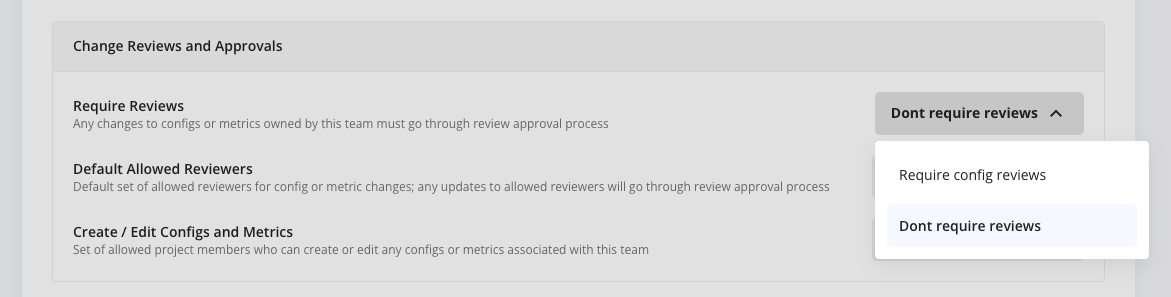
Require Reviews: Require reviews at the individual team level, if reviews aren't already required at the project level. This setting doesn't appear if reviews are already required at the project level (controlled under Settings > Product Configuration > Reviews).
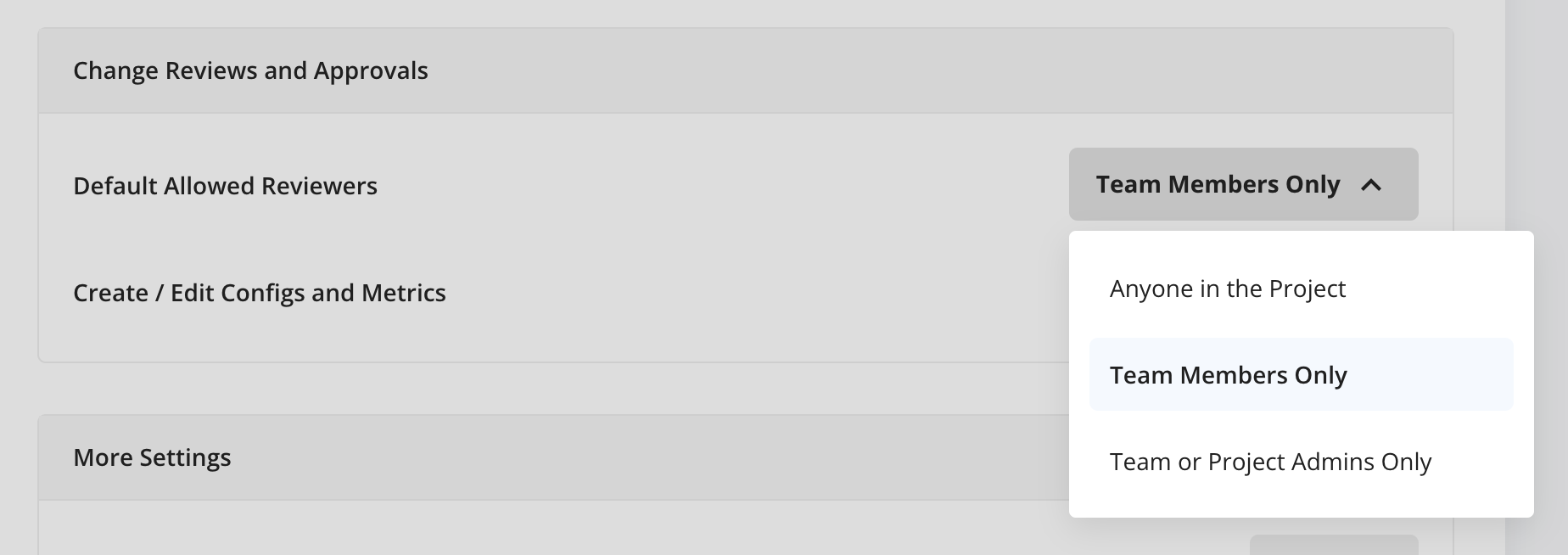
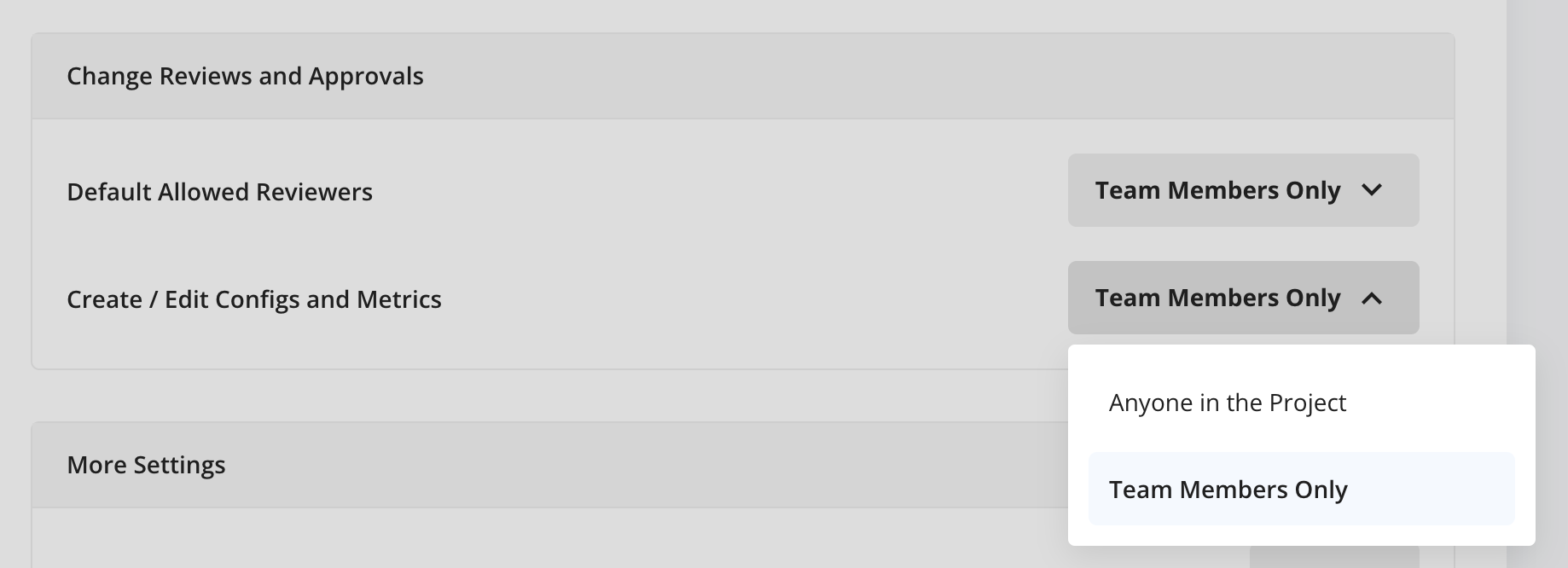
Default Allowed Reviewers: Controls who can review and approve changes to a team’s configs. There are three options: “Anyone in the Project” (least restrictive), “Team Members Only” (keeps reviews within the team), and “Team or Project Admins Only” (most restrictive).
Team-based review configurations layer on top of role-based review settings. For example, suppose your role has permission to approve reviews and your team’s review settings are set to “Team members only”. To approve a review for that team’s config, an approver must both hold a role with review approval permission and be a member of the team.
Create/Edit Configs and Metrics: Controls which members of a team can edit or create configs tagged with the team. There are two options: "Anyone in the Project" (no restrictions; anyone can edit the team's configs) or "Team Members Only."
Default Target Applications: Automatically applies any assigned Target Applications to all configs associated with this team. This setting only affects which Target Applications Statsig adds to the config by default at creation time; you can edit or override the list as needed.
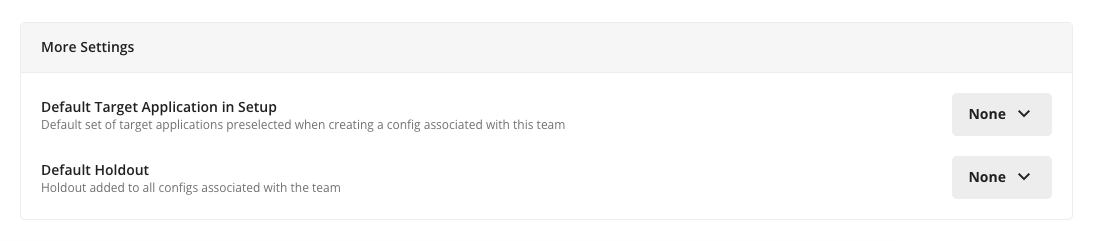
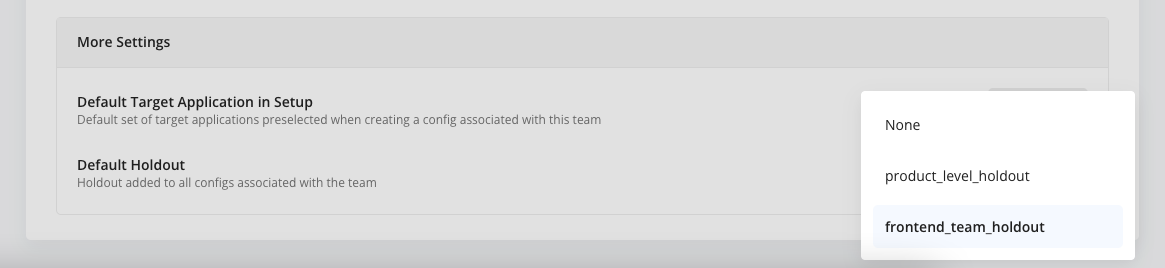
Default Holdout: Teams often need to measure the cumulative impact of new features and experiments over a quarter or half year. Associate a default Holdout with a team to automate this. Statsig then automatically adds all subsequent configs associated with the team to that default Holdout.
How Teams appear throughout the console
After you associate a user with a team, every config that user creates belongs to their team by default. Users on multiple teams can choose which team to associate their config with at creation time. Statsig then applies the selected team’s settings to that config.
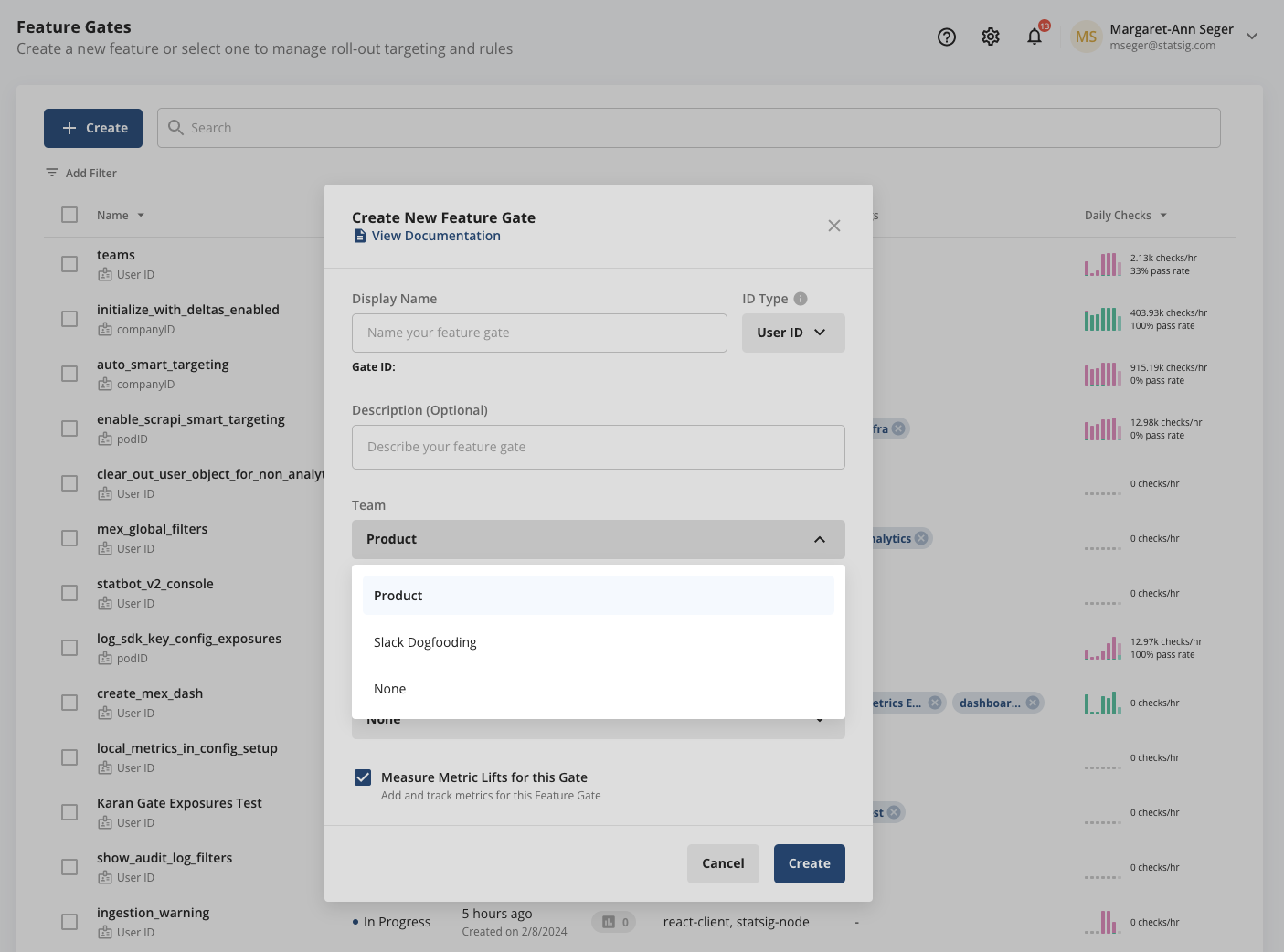
Every config has a “Team” field in the header. This field is separate from “Owner”: “Owner” is a single individual, while “Team” is a group of individuals. The Team field doesn't update automatically if the Owner moves to a different team. You must change teams manually at the config level, subject to review requirements.

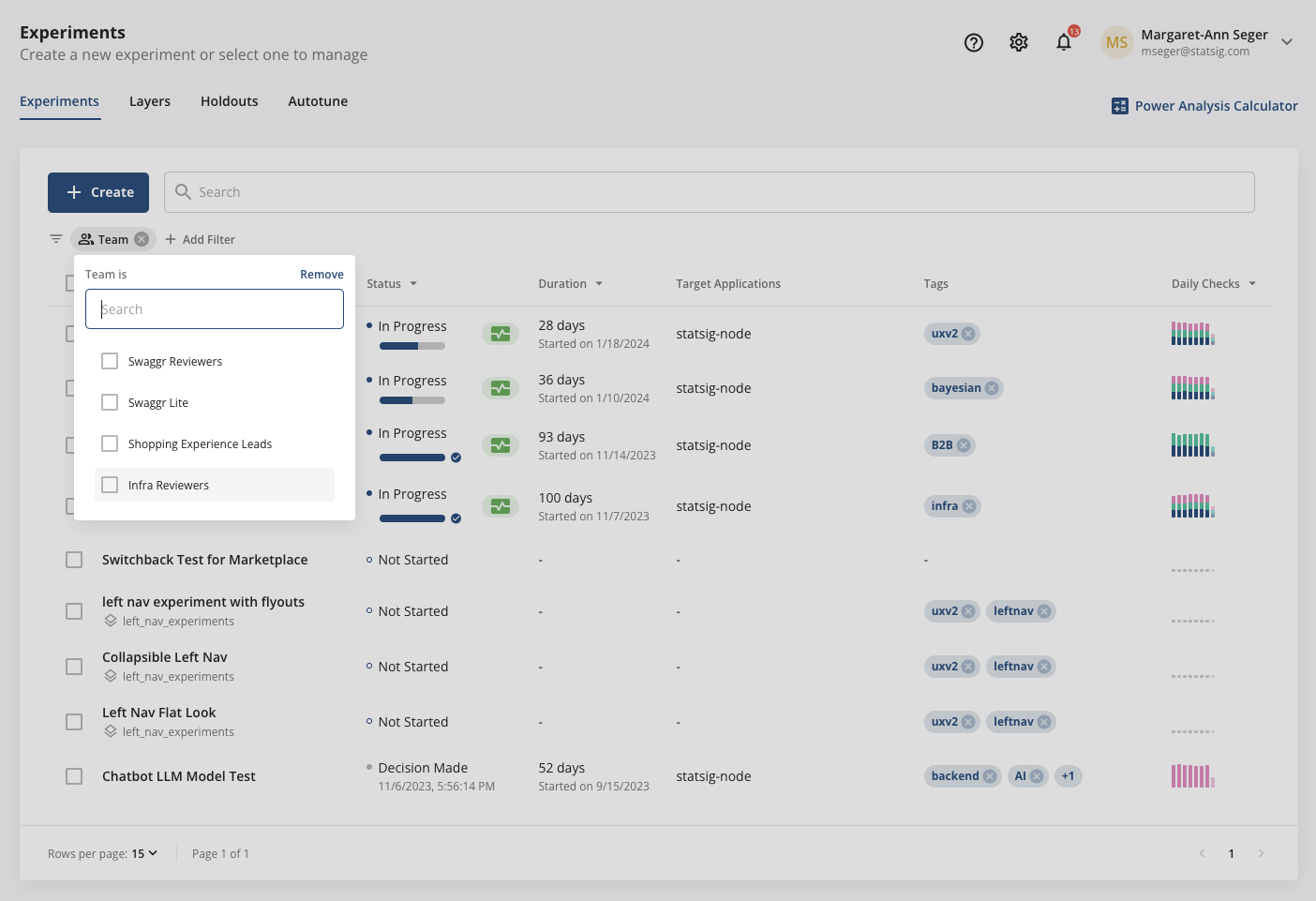
Every user can filter gate, experiment, and metric lists and the Home Feed by team. The Home Feed defaults to a user's team or teams, so the most relevant content appears first.
Was this helpful?