For AI agents: a documentation index is available at /llms.txt. Append .md to any page URL for markdown, or send Accept: text/markdown.
Organization Settings & Administration
Configure Statsig organizations for Enterprise customers, including creating organizations, assigning admins, and managing settings across multiple projects.
Organizations and their related features are for Enterprise contracts only. Reach out to the support team, your sales contact, or the Slack community to enable Enterprise features.
Creating an organization
Statsig creates an organization for companies with an Enterprise contract.
When you move a project to the organization:
- All existing members receive an invitation to join the organization.
- All existing project administrators remain the same.
- Statsig adds the project as Open, meaning any registered Statsig user with the same email domain as the project owner can access the project. You can change this setting in the Project Settings tab.
If you don't move a project to the organization, you may lose access to it because Statsig archives it.
Managing organizations
Creating an organization automatically makes you the organization's Owner and Admin. There can only be one organization Owner but you can have as many Admins as needed.
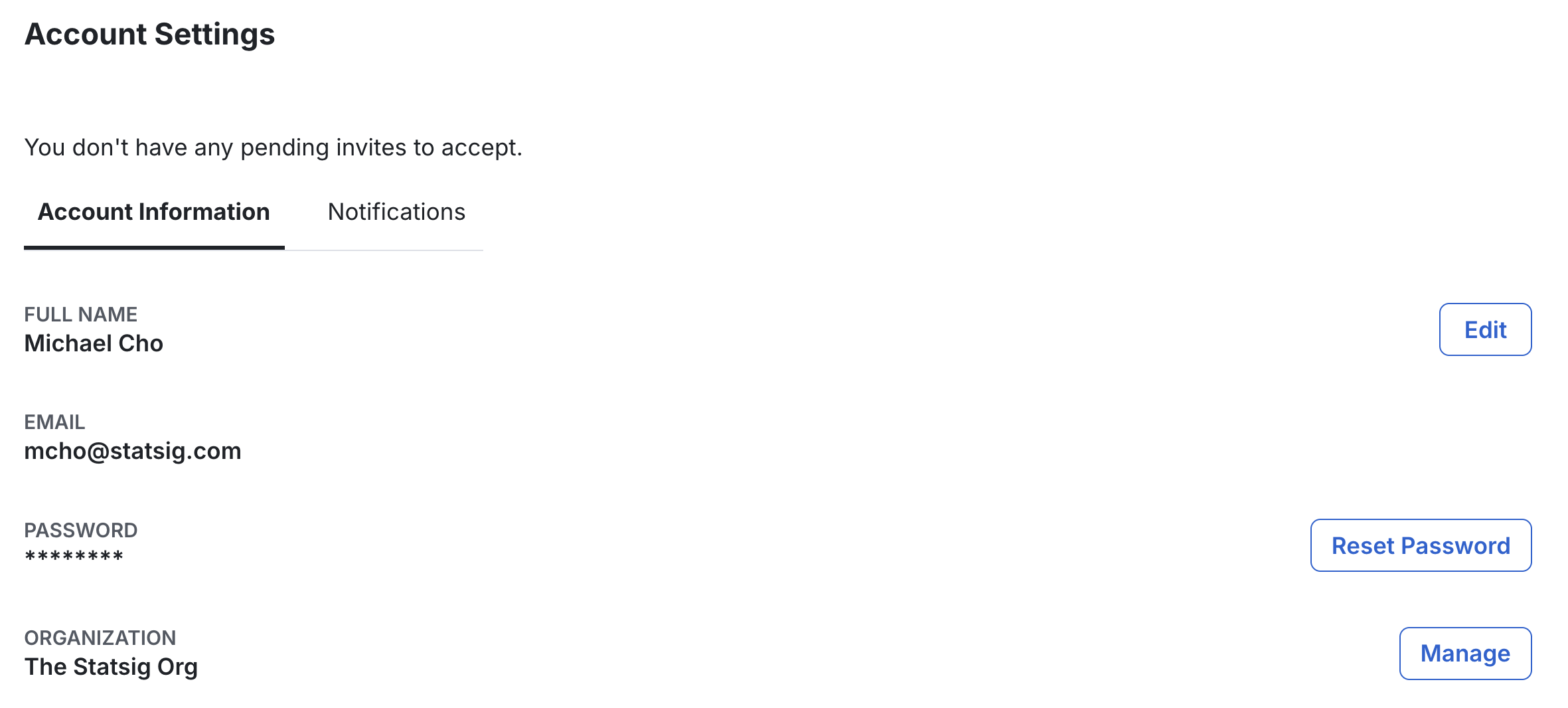
You can view your Organization page by going to Account Settings in the settings tab and selecting Manage next to your organization.
Organization information
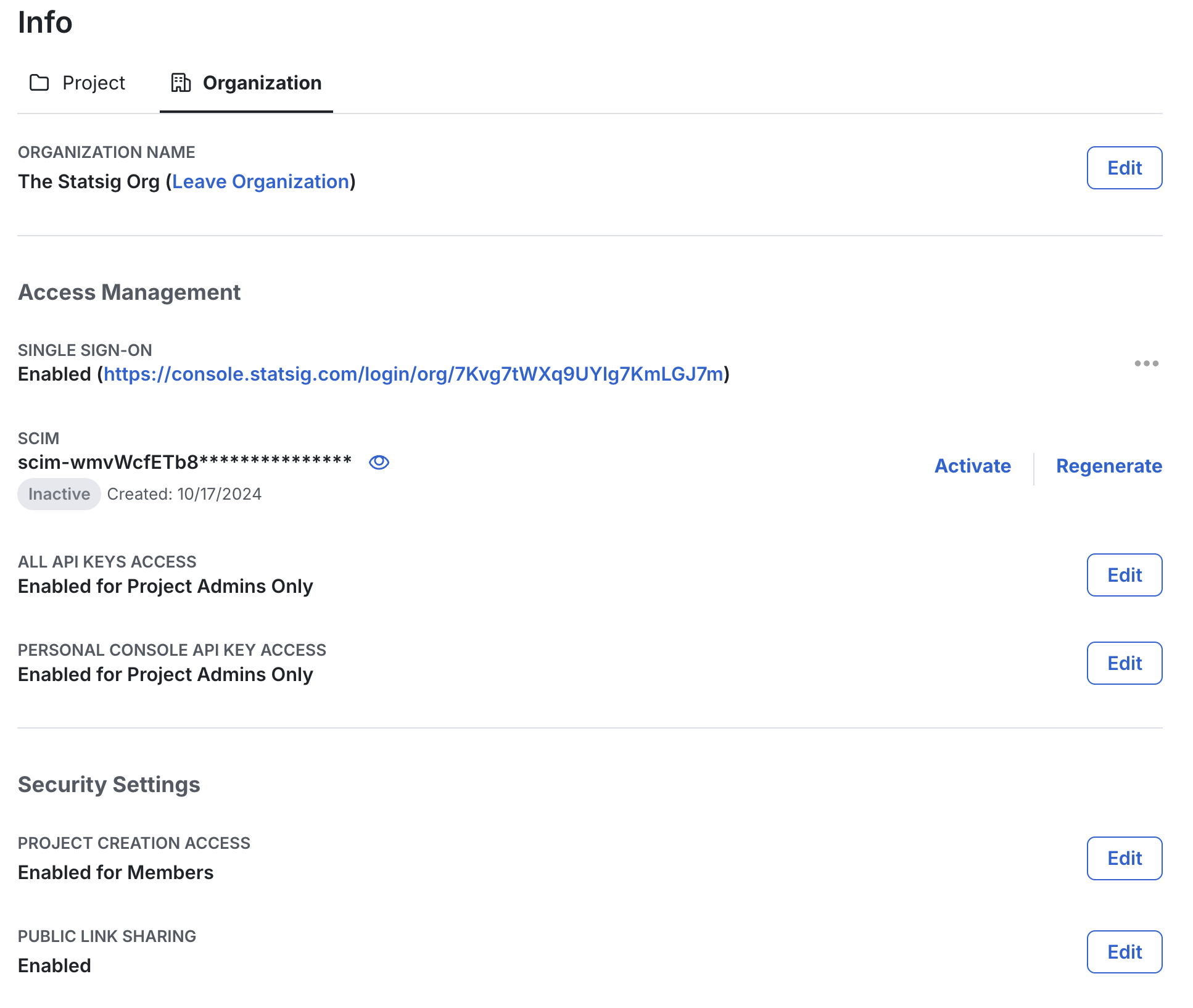
Your Info setting's Organization tab includes the organization's name, SSO configuration, and other settings on access management and security settings.
As the organization's Admin, you can enable or disable SSO for all projects in the organization from this one place.
Organization members
All members in the organization can view all current members in the organization from Members Settings.
As the organization's Owner or Admin, you can also manage its membership by:
- Promoting members to the organization's Admin
- Removing members from the organization
- Managing invitations: sending, viewing, canceling, and tracking all pending invitations
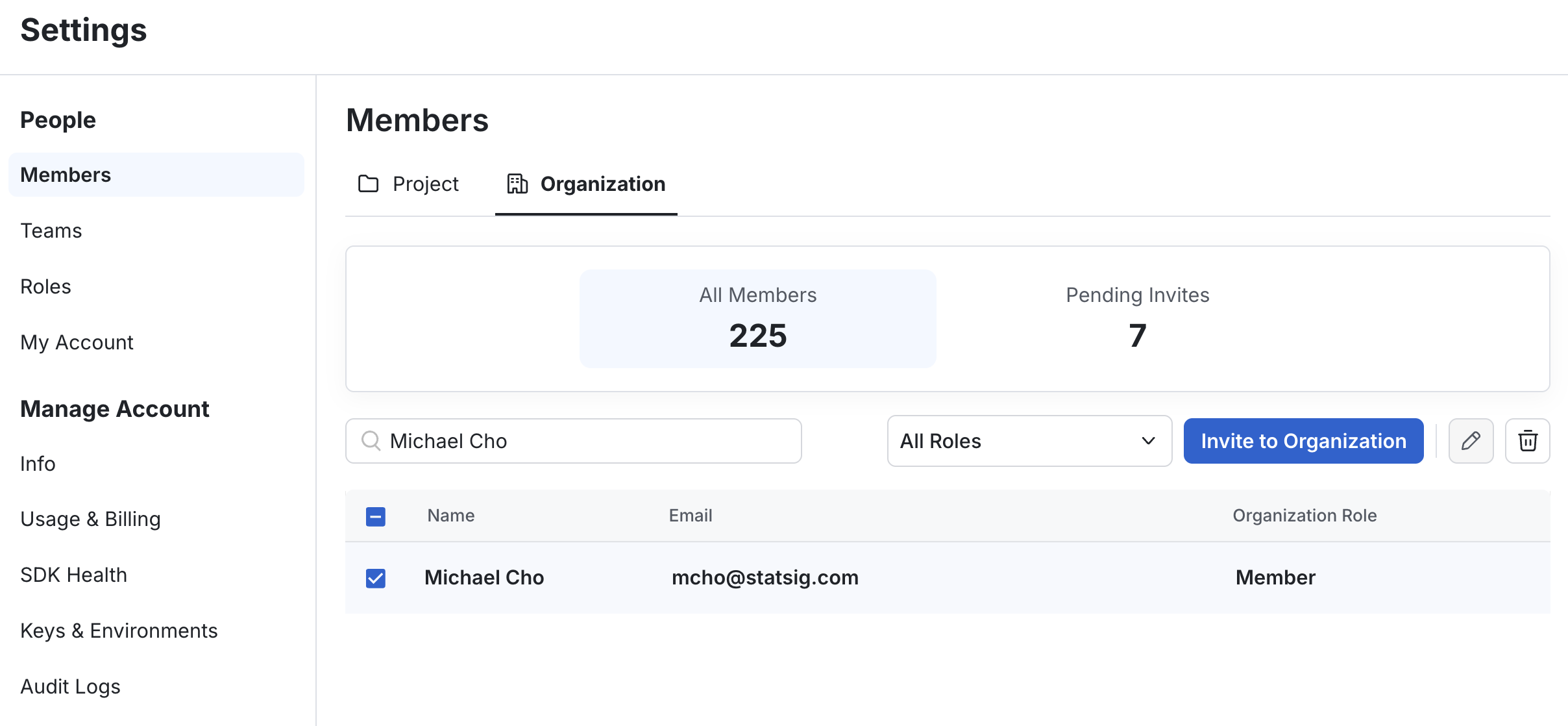
To change a member's roles within the organization or remove a member, select the member's name using the checkbox in the list. Then select one of the icons at the top right of the list.
Managing projects
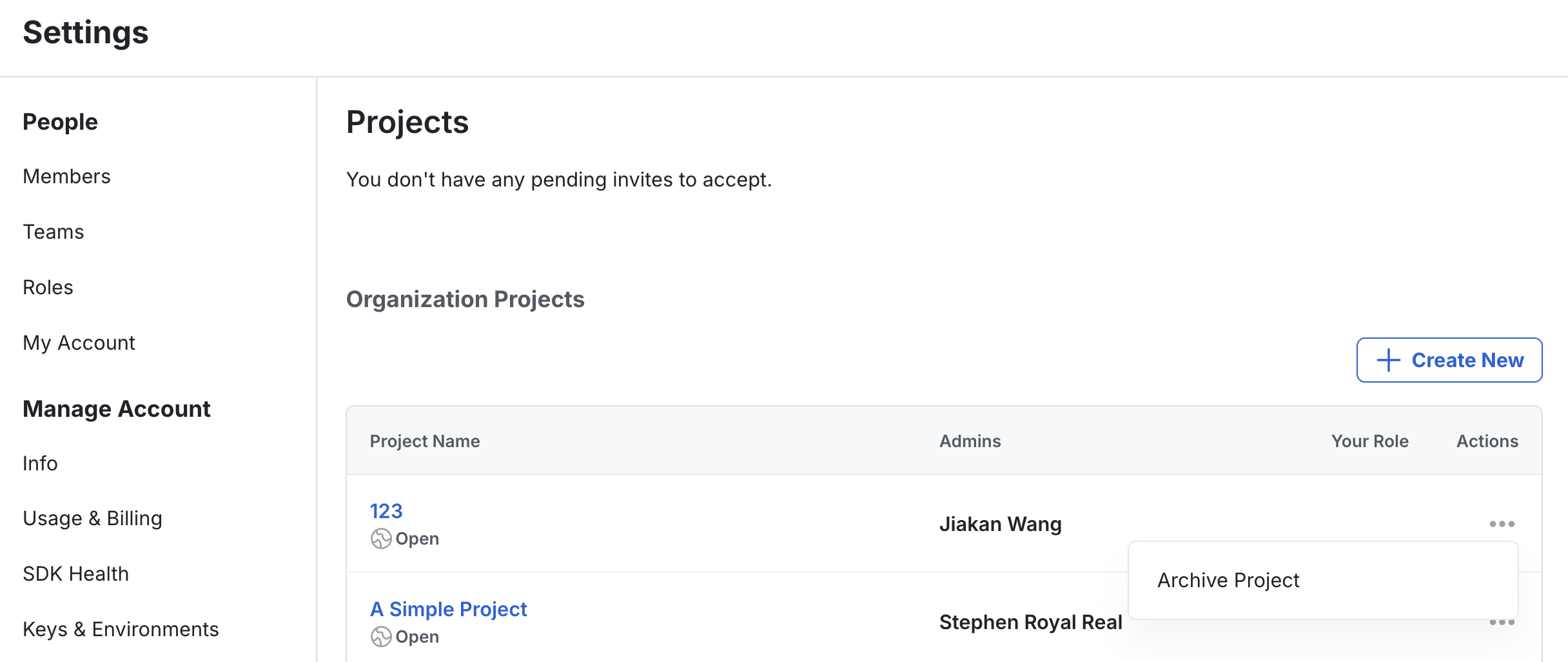
Members of an organization can view all public projects in the organization.
As the organization's Owner or Admin, you can view every project in the organization as well as archive the project if it's no longer necessary.
Was this helpful?