For AI agents: a documentation index is available at /llms.txt. Append .md to any page URL for markdown, or send Accept: text/markdown.
Custom Proxy for Statsig API
Run a custom Statsig API proxy in your own infrastructure to cache SDK requests, reduce latency, and control egress traffic from production servers.
How the custom proxy works
Instead of sending API requests directly to Statsig, you can set up your own environment that proxies requests from your custom domain name to Statsig. This proxy reduces the likelihood that tracking blockers intercept your APIs, and allows you to capture more data.
These instructions cover a few common service providers. Many other proxy configurations are possible.
Important: Default Endpoints Are Blocked
Tracking blockers commonly block the default Statsig endpoints (like /v1/log_event). To ensure your proxy works effectively:
- Use a custom endpoint name specific to your product (e.g.,
/v1/my-product-datainstead of/v1/log_event) - Rewrite the URL in your proxy to map your custom endpoint to the actual Statsig endpoint (
log_event) - Don't use passthrough for the endpoint path - you must rewrite it
Additionally, your proxy shouldn't try to deserialize the payload body. Skipping deserialization improves robustness by reducing risk of integration issues from Server SDK -> Proxy -> Client SDK, as well as efficiency of the proxy. For example, client SDKs may change encoding to compress payloads, which breaks if your proxy doesn't accept the new format (e.g. gzip).
Approaches
AWS CloudFront
Prerequisites
- Write access to your DNS settings.
- Write access on your AWS CloudFront and Lambda console.
- Access to a SSL certificate for your custom domain.
Setup
On your AWS CloudFront console,
Click on Create distribution.
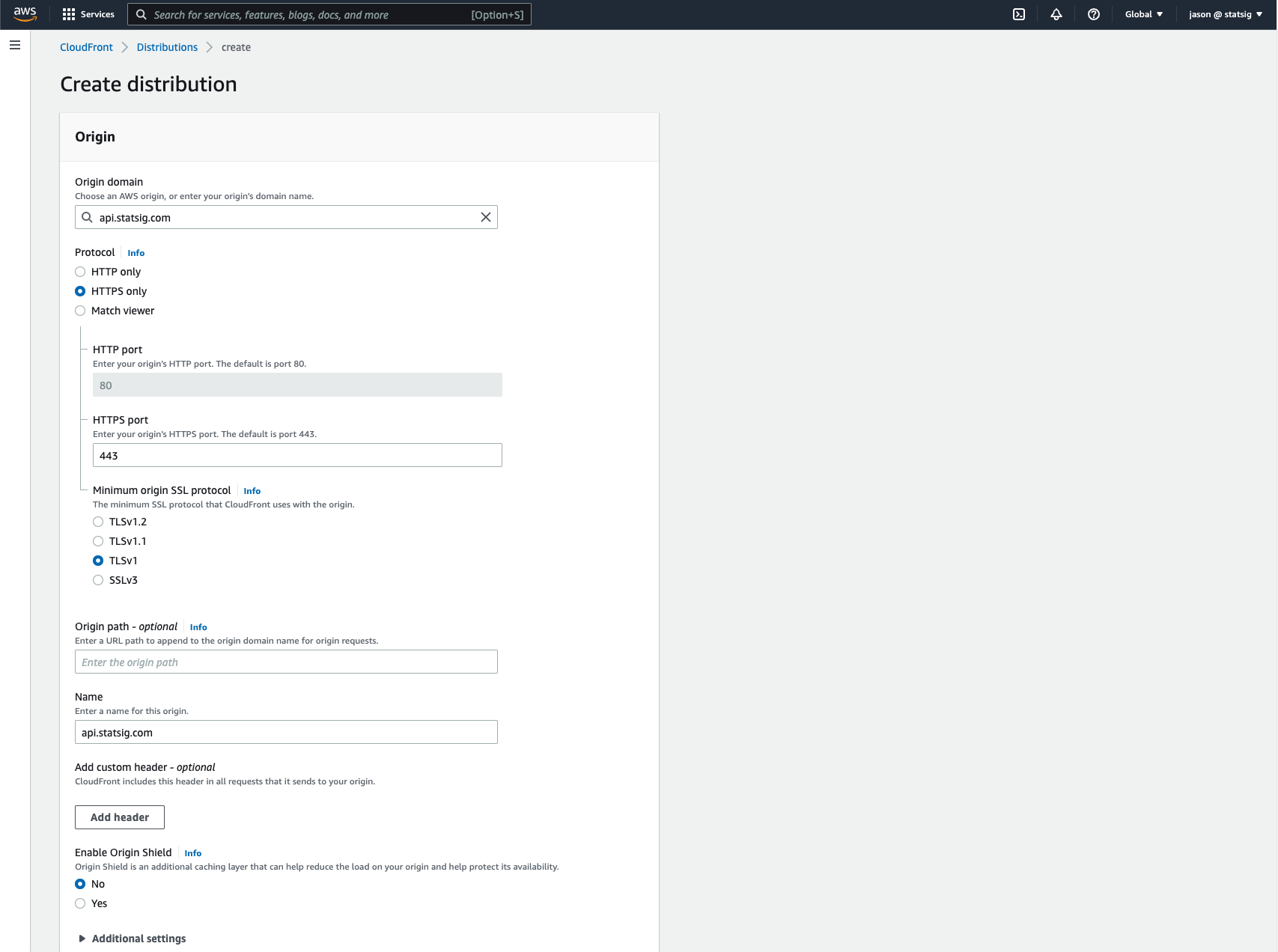
In the Origin section,
- Set the Origin Domain to
api.statsig.com. - Set the Protocol to
HTTPS only.
- Set the Origin Domain to
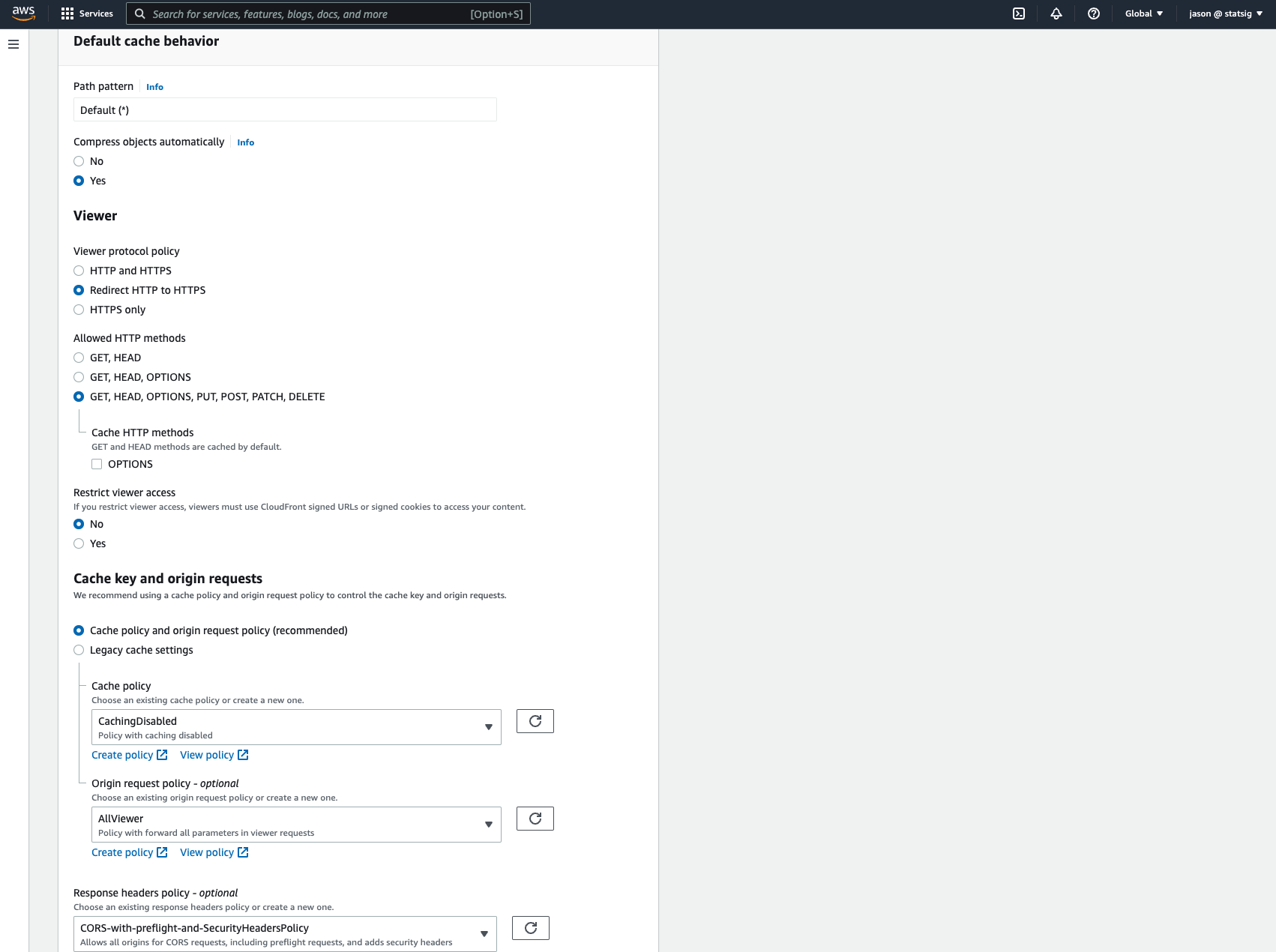
In the Default cache behavior section,
- Set Viewer protocol policy to
Redirect HTTP to HTTPS. - Set Allowed HTTP methods to
GET, HEAD, OPTIONS, PUT, POST, PATCH, DELETE. - In the Cache Key and origin requests subsection, forward all headers and parameters to the Origin, and allow CORS requests for the Origin.
- Set Viewer protocol policy to
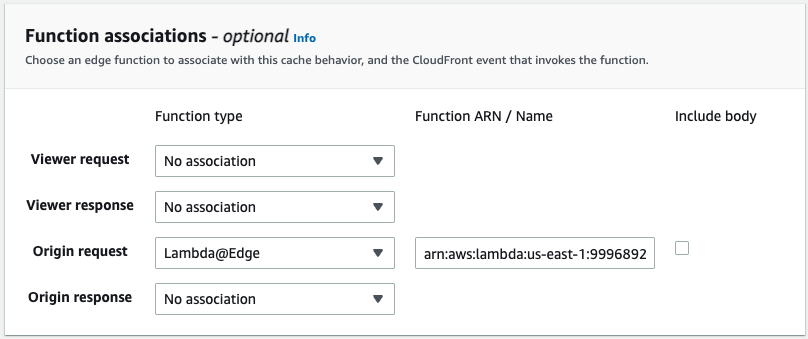
In Function associations section,
- Add a Lambda@Edge function to Origin request to rewrite the
Hostheader toapi.statsig.comand rewrite custom endpoint paths to Statsig endpoints. Refer to the AWS tutorial on creating a Lambda@Edge function.
- Add a Lambda@Edge function to Origin request to rewrite the
You can use the following javascript code snippet in your Lambda@Edge function. This example rewrites a custom endpoint /v1/my-product-data to the Statsig endpoint /v1/log_event:
export const handler = async (event, context, callback) => {
  const request = event.Records[0].cf.request;
  request.headers.host[0].value = "api.statsig.com";

  // Rewrite custom endpoint to Statsig endpoint
  // Replace 'my-product-data' with your custom endpoint name
  if (request.uri.includes('/v1/my-product-data')) {
    request.uri = request.uri.replace('/v1/my-product-data', '/v1/log_event');
  }

  return callback(null, request);
};
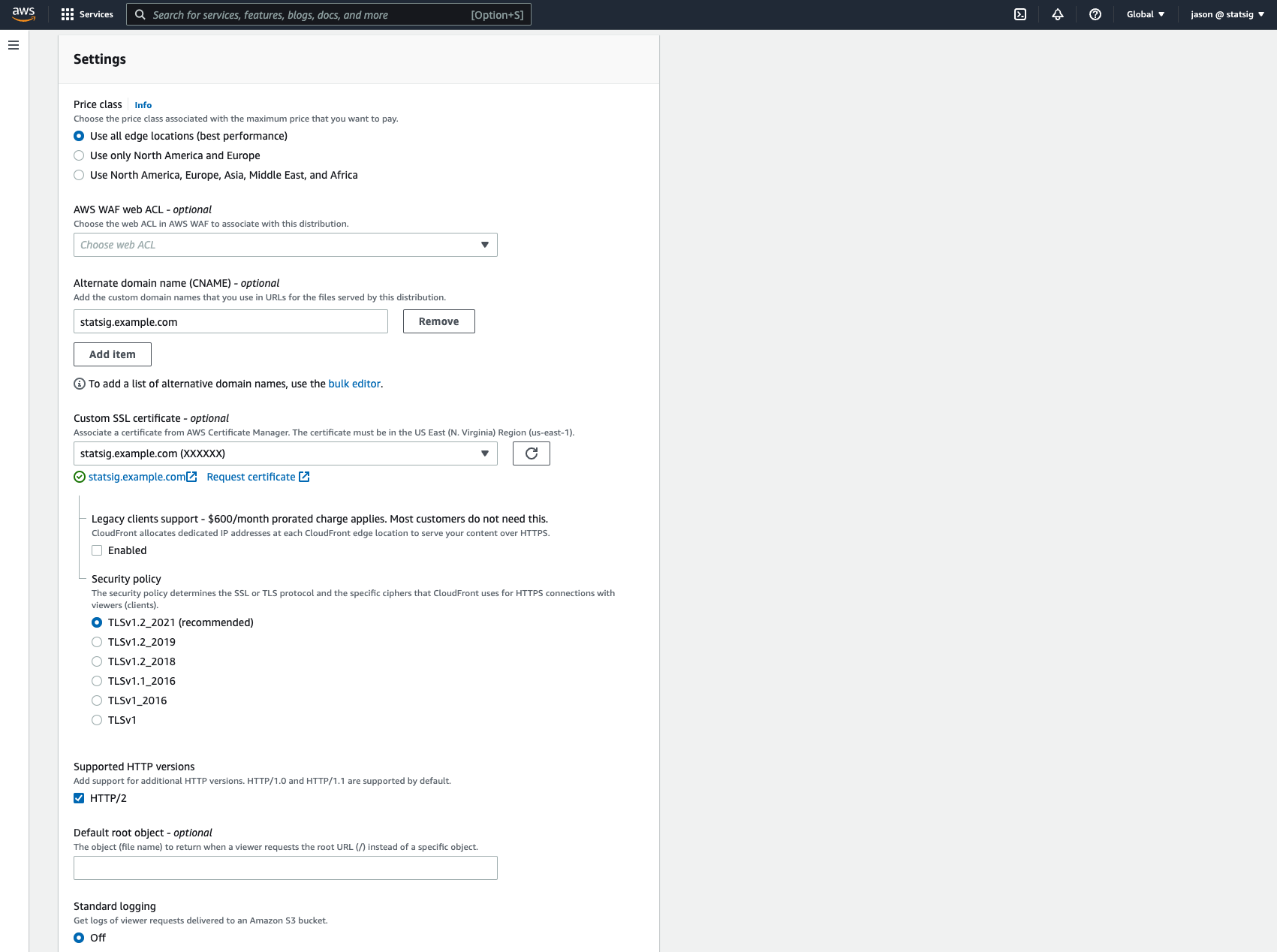
In Settings,
- Add an Alternate domain name (CNAME) to be your preferred domain name to use for the custom proxy, e.g.
statsig.example.com. - Add a Custom SSL certificate. Follow the AWS guide for Alternate domain name to add a SSL certificate.
- Click on Create distribution.
- Add an Alternate domain name (CNAME) to be your preferred domain name to use for the custom proxy, e.g.
- You get a Distribution domain name (e.g.
d111111abcdef8.cloudfront.net) once AWS provisions it.
In your DNS settings (depending on your DNS provider),
Add a CNAME record in your custom DNS record:
- Host name:
statsig.example.com - Type:
CNAME - Data:
d111111abcdef8.cloudfront.net(The Distribution domain name from AWS)
- Host name:
Your proxy is now set up. Go to Using Your Proxy for instructions on how to configure your Statsig SDK.
Cloudflare Worker
Prerequisites
You need a Cloudflare account. Visit https://www.cloudflare.com to set one up.
Setup
After you log into Cloudflare, follow these steps:
Navigate to "Workers & Pages > Overview" in the left rail to create a new worker.
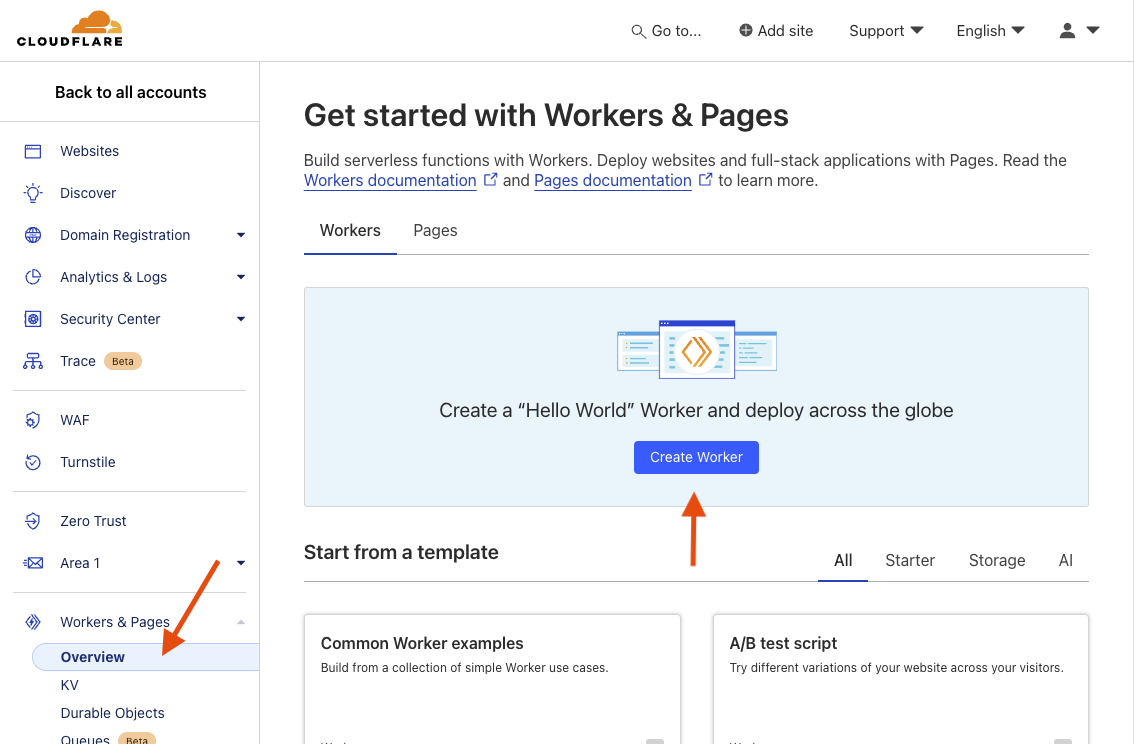
You may see a different experience if you already have workers on your account.
Name your new worker and click "Deploy".
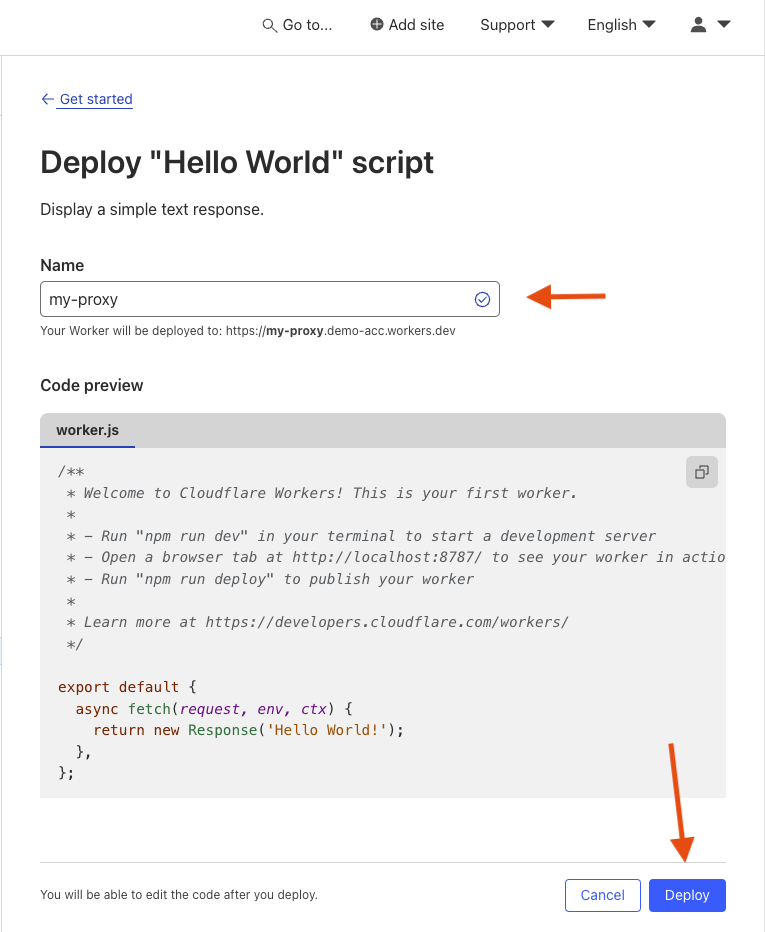
After deploying, click "Edit Code".
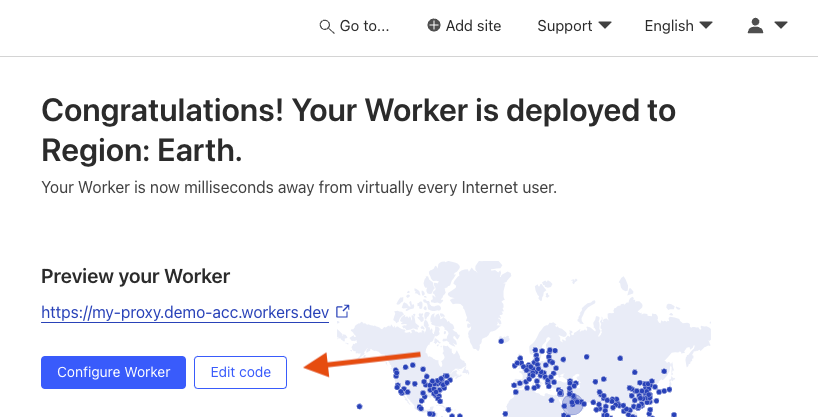
Copy and paste the following snippet into the
worker.jsfile, then hit "Deploy". This example rewrites a custom endpoint/v1/my-product-datato the Statsig endpoint/v1/log_event:javascriptexport default { async fetch(request, _env, _ctx) { const url = new URL(request.url); // Rewrite custom endpoint to Statsig endpoint // Replace 'my-product-data' with your custom endpoint name let pathname = url.pathname; if (pathname.includes('/v1/my-product-data')) { pathname = pathname.replace('/v1/my-product-data', '/v1/log_event'); } const original = new Request(request); original.headers.delete("cookie"); return fetch( `https://statsigapi.net$\{pathname\}${url.search}`, original ); }, };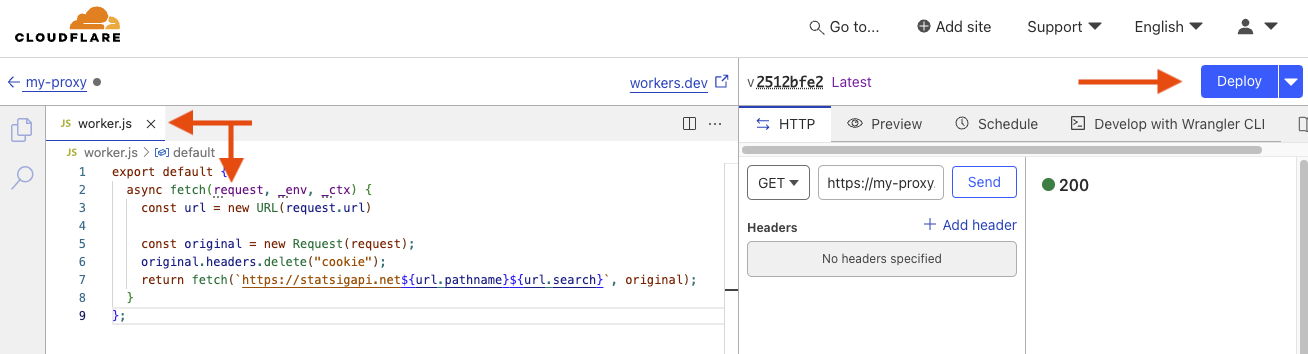
Your worker is now deployed. Go to Using Your Proxy for instructions on how to configure your Statsig SDK.
Using your proxy
After you set up a proxy, apply its URL to the SDK. For JavaScript client SDKs, use StatsigOptions.networkConfig.api. Go to Statsig Options for JavaScript-specific options. Other SDKs may expose the proxy base URL differently, but the purpose is the same: point the SDK at your proxy instead of Statsig's default domains.
The following example shows initializing with a proxy in JavaScript:
Statsig.initialize(mySdkKey, myUser, {
  networkConfig: {
    api: "https://my-statsig-proxy.com/v1",
  },
});
In JavaScript, networkConfig.api is a base URL. The SDK appends endpoint paths like /initialize and /rgstr automatically. Use initializeUrl only when you want to override initialization independently of the other endpoints. There is no generic api fallback option; you configure failover per endpoint with initializeFallbackUrls and logEventFallbackUrls.
Depending on the SDK type, version, and proxy approach you're using, you may not need to append '/v1' to the end of your api string, for example "https://my-statsig-proxy.com/".
JavaScript failover example
If you want JavaScript clients to use your proxy as the primary endpoint and a second endpoint as failover, configure fallback URLs per endpoint:
Statsig.initialize(mySdkKey, myUser, {
  networkConfig: {
    api: "https://my-statsig-proxy.com/v1",
    initializeFallbackUrls: [
      "https://my-proxy-cache.com/v1/initialize",
    ],
    logEventFallbackUrls: [
      "https://my-proxy-cache.com/v1/rgstr",
    ],
  },
});
Configuring custom endpoints
If you configured your proxy to use custom endpoint names (recommended to avoid tracking blockers), configure the SDK to use those custom endpoints. The SDK appends the endpoint path to your base URL.
For example, if your proxy rewrites /v1/my-product-data to /v1/log_event, configure:
Statsig.initialize(mySdkKey, myUser, {
  networkConfig: {
    api: "https://my-statsig-proxy.com/v1",
    logEventUrl: "https://my-statsig-proxy.com/v1/my-product-data",
  },
});
Go to your SDK's documentation for the configuration options available for customizing endpoint URLs.
Was this helpful?