For AI agents: a documentation index is available at /llms.txt. Append .md to any page URL for markdown, or send Accept: text/markdown.
Target Apps
Use target apps in Statsig SDKs to scope feature gates, experiments, and dynamic configs to specific applications inside a single project.
Target Apps are an Enterprise-only feature. Reach out to the support team, your sales contact, or through the Slack community if you want to enable it.
Overview
SDK Keys support two attributes that restrict their access to certain configs: Environments and Target Apps. A Target App is a user-defined abstraction tied to entities in your Statsig project, and you can link it to one or more SDK Keys. Target Apps represent things like your “Android” or “iOS” apps, or more specific services like “Search” and “Feed” that may span both client and server usage.
Defining and using Target Apps is a best practice at large scale. The two main benefits are:
- Performance: removing unused entities from the SDK payload speeds up initialization time and reduces the data stored in local caches or data stores.
- Security: you may not want to expose certain gates, experiments, or configs to client-side code or to a client key that's easily discoverable in your app. Specifying a target app for your client key and linking only client-specific configs to it keeps those configs from being visible.
Before using Target Apps, consider whether separate Statsig projects might be a better fit:
- If you need to share gates, experiments, or metrics across apps or services, use a Target App. Statsig restricts entities to a single project.
- If your services or apps always have distinct gates, experiments, and metrics, a separate Statsig project may be a better solution.
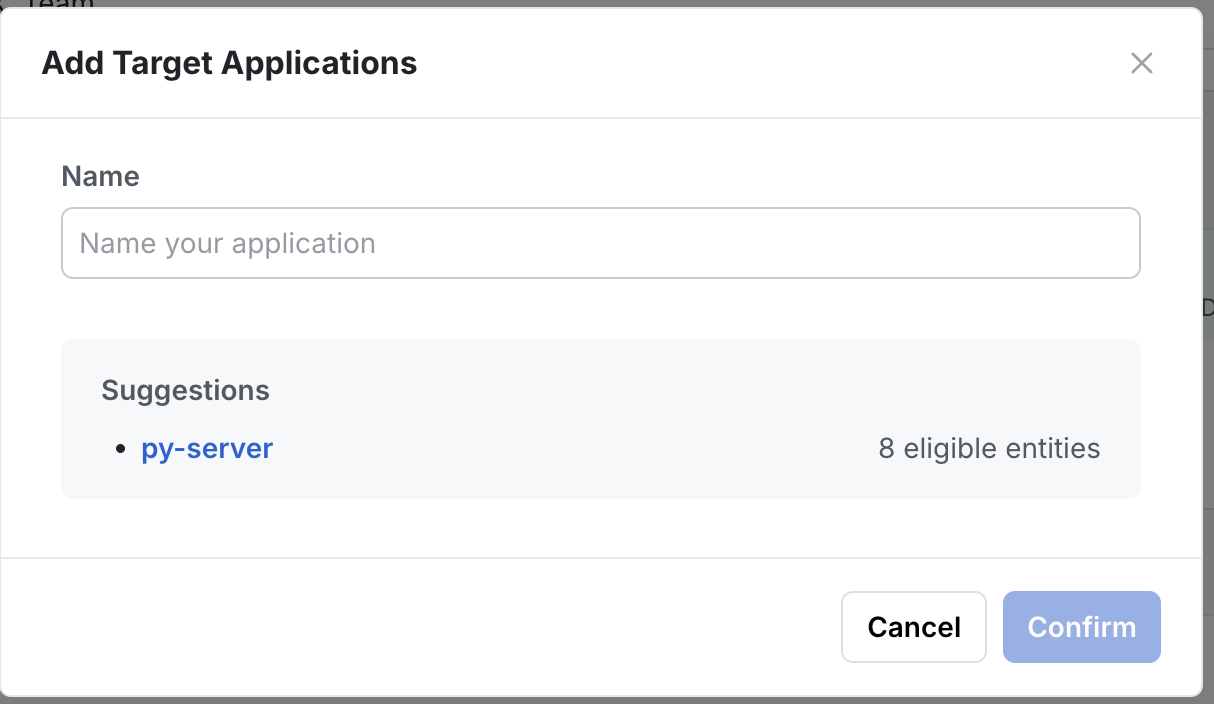
For existing Statsig projects with multiple SDK integrations, Statsig suggests entities to tag based on historical checks from each SDK, to help you set up Target Apps.
Configuring target apps
Project setup
Start by going to Settings → Target Applications.
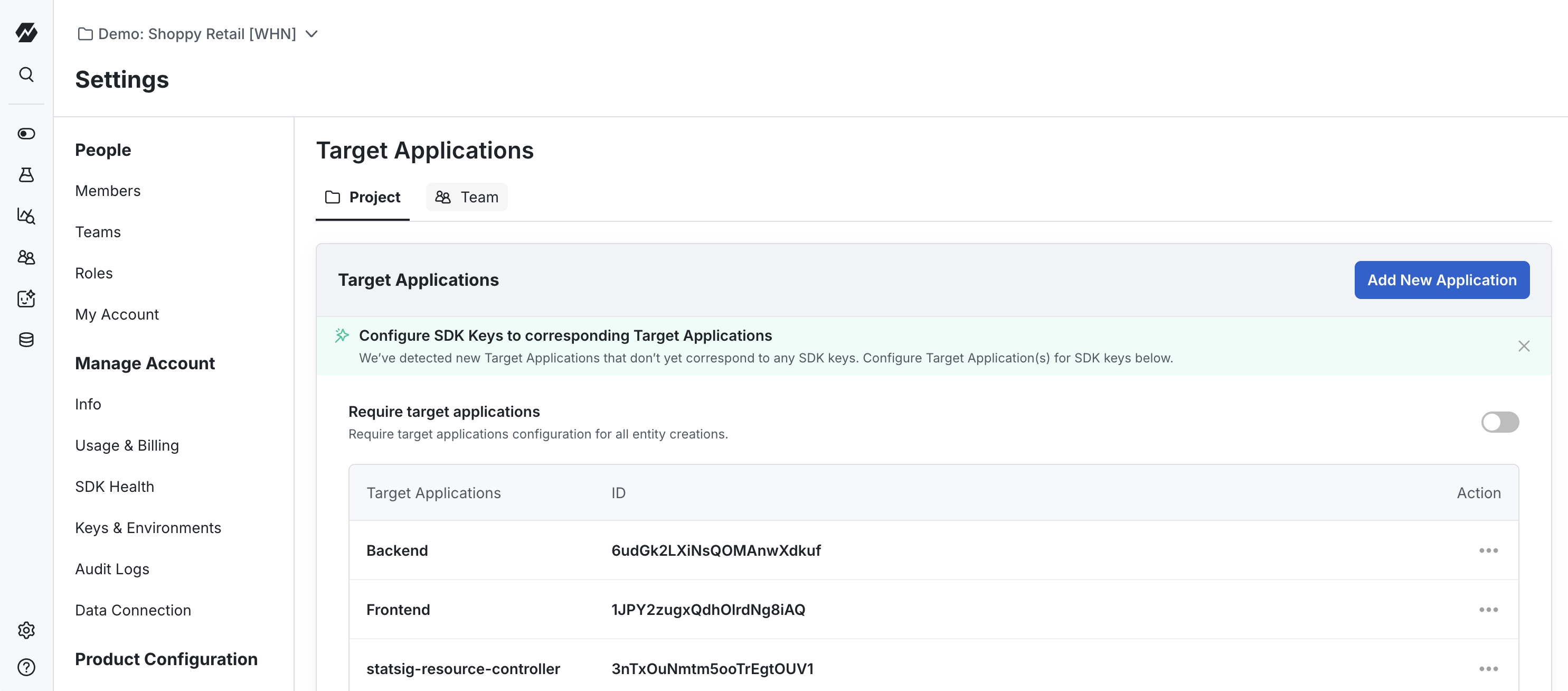
Create a target app, or use one that Statsig suggests based on your current SDK exposure logs.
Associating a feature gate with a target app
To verify suggestions from initial setup or add more entities to a target app, navigate to the entity directly.
Navigate to the Feature Gates tab and select a specific gate. In the right rail for that gate, view and edit the target apps on it.
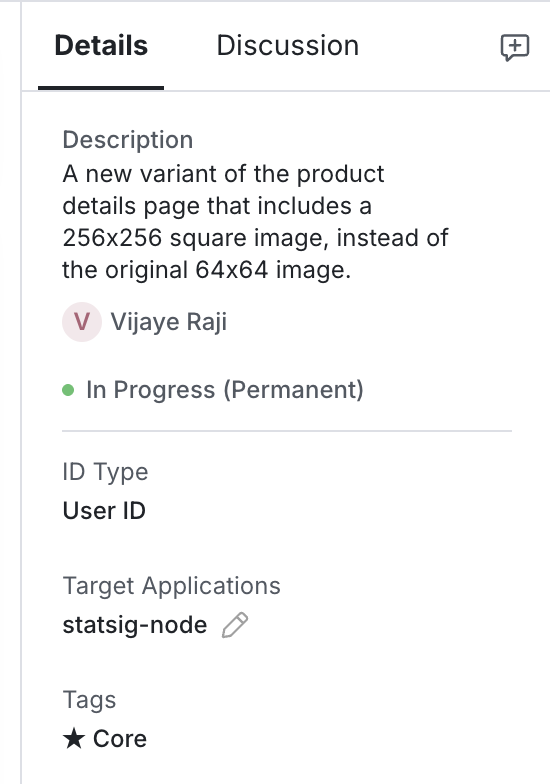
Repeat this flow for Dynamic Configs, Experiments, and Layers that this Target App uses.
Target App scope doesn't propagate to gate dependencies. If a gate has a passes_gate or fails_gate condition that references another gate, tag that dependency gate with the same Target App independently. Without its own tag, the SDK excludes the dependency gate from its payload, so the condition evaluates silently to false. Tag every gate in the dependency chain, not just the entry point. Verify coverage from each gate's right rail.
Implicit layers: When you create an experiment without placing it in an explicit layer, Statsig auto-creates an implicit layer. SDKs never receive implicit layers, so the console doesn't expose a Target App field on them. Tag the experiment entity directly to scope it. If you query your project through the Console REST API, implicit layers appear with isImplicitLayer: true and an empty targetApps array. This is expected. Tagging the experiment is what scopes it.
Associating an SDK key with a target app
Navigate to Settings → Keys & Environments.
Select the SDK Key you want to restrict to a Target App.
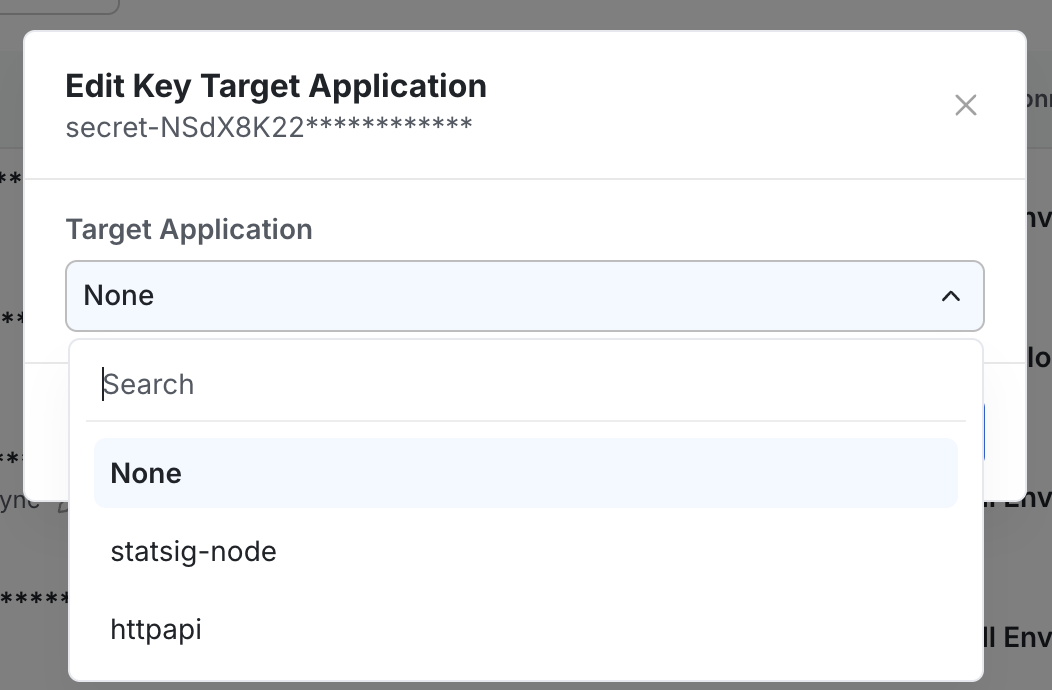
Under Actions, open the dropdown menu.
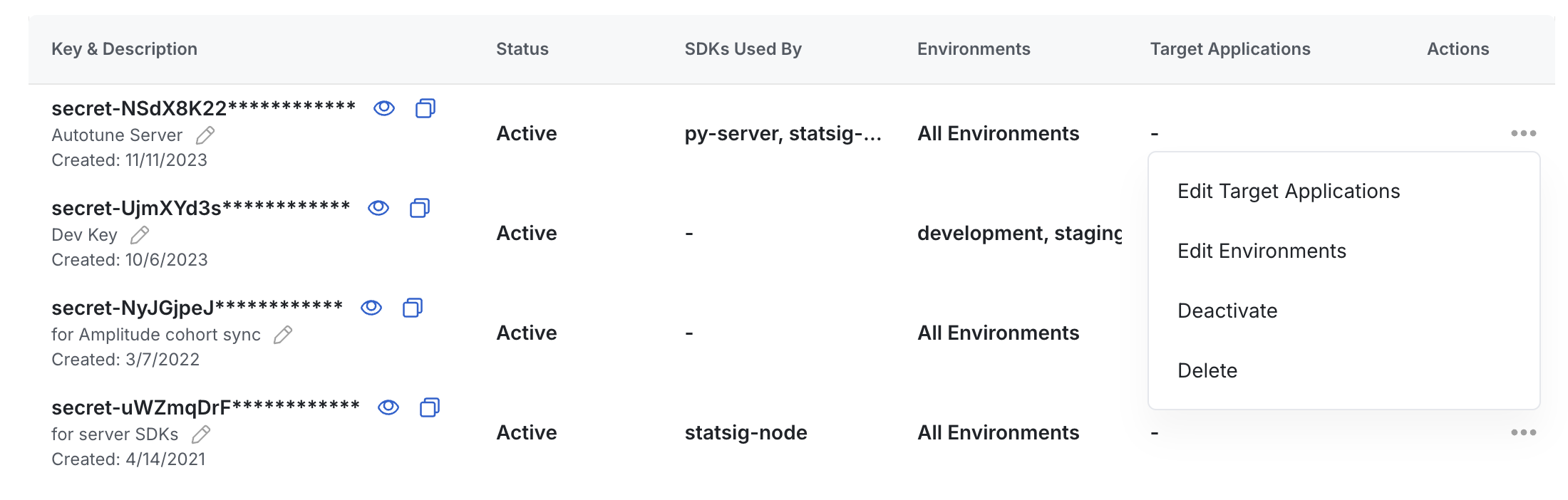
Then select the target app(s) to apply to that key.
When bootstrapping a client SDK from a server SDK, the server SDK must have access to all gates, experiments, and configs that both the server and the client need. If you have separate target apps for client and server SDKs, apply both target apps to the server key you're using.
To filter the bootstrapping response to a specific target app, pass a client key with that target app applied to the getClientInitializeResponse call.
Debugging
To debug SDK evaluations that your Target App configuration might affect, use the Diagnostics tab for any entity.
In the Exposure Stream at the bottom, each check shows the Target App associated with the SDK key used. If any exposure doesn't have a matching Target App, Statsig flags it with a warning.
Was this helpful?