For AI agents: a documentation index is available at /llms.txt. Append .md to any page URL for markdown, or send Accept: text/markdown.
SDK Debugging
Troubleshoot Statsig SDK evaluations using diagnostics, evaluation reasons, and targeted logging.
Debugging tools
When a user sees an unexpected value, start with the tooling built into the Statsig console and SDKs.
Diagnostics & log stream
Every gate, config, experiment, and layer has both a Setup and Diagnostics tab. The diagnostics view highlights pass/fail rates and bucketing counts so you can spot anomalies over time.
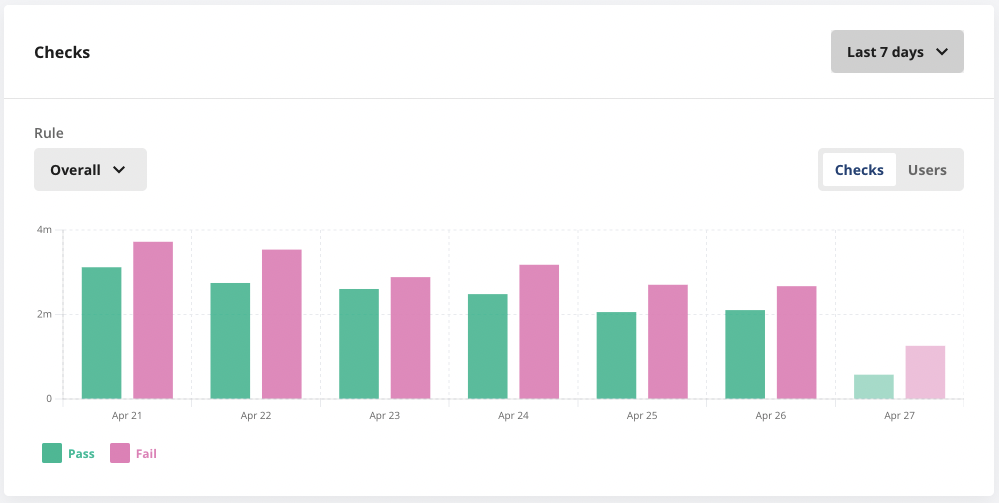
Scroll to the log stream to inspect individual evaluations. Entries arrive within seconds for both production and non-production environments.
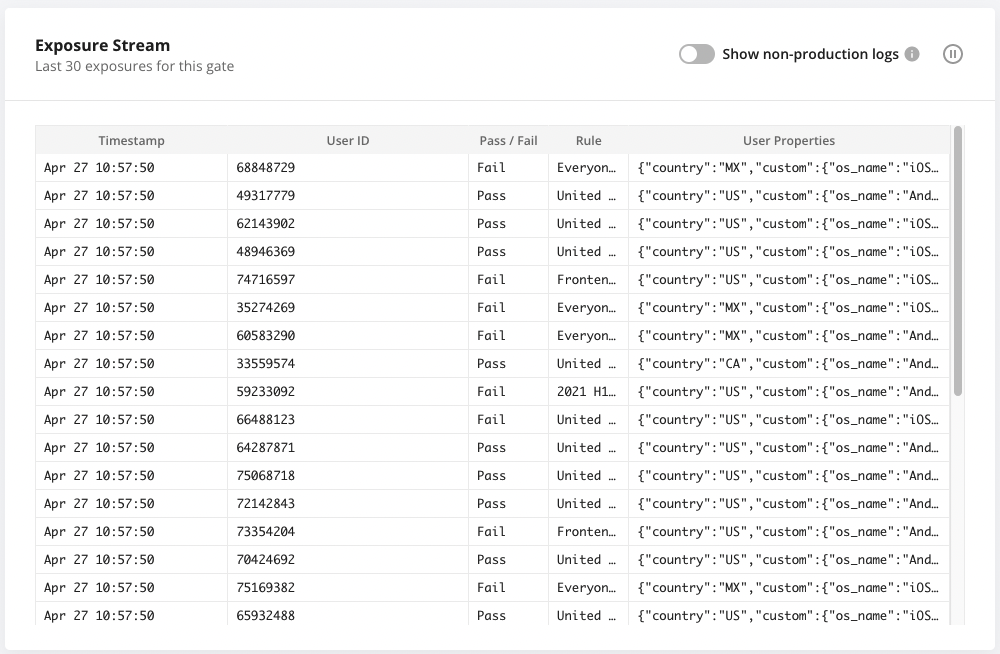
Enable Show non-production logs in the diagnostics view to surface checks coming from test keys and development builds.
Logging levels and expected information
Statsig SDKs emit runtime logs across four verbosity levels:
Debug: deep tracing meant for onboarding or issue triage.- Missing gate/config warnings when a definition is unavailable.
- Step-by-step messages that follow SDK initialization and evaluations.
Info: healthy lifecycle events for day-to-day operation.- Initialization summaries with source and SDK version details.
- Notifications when the configuration store is populated.
Warning: recoverable issues that might affect functionality.- Non-critical errors that the SDK handles automatically.
- gRPC reconnection attempts or similar transient network events.
Error: critical failures that block expected behavior.- Initialization timeouts or outright failures.
- Fallback notices that indicate gRPC is unavailable or misconfigured.
Evaluation details
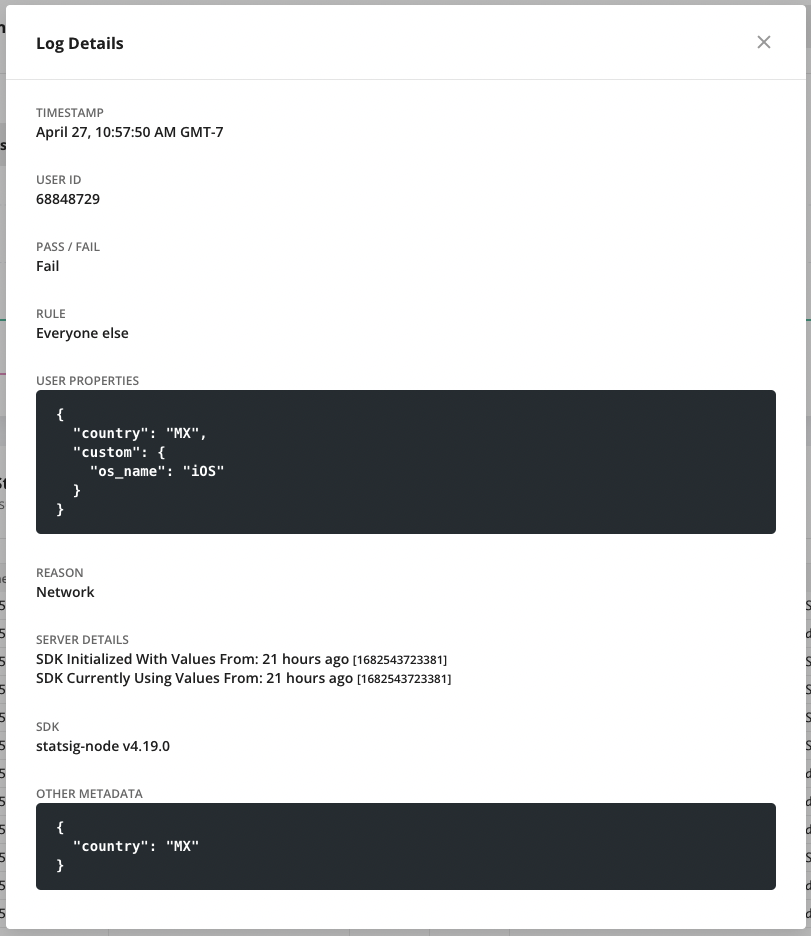
Click any exposure in the log stream to examine the precise rule, user attributes, evaluation reason, SDK metadata, and server timestamps. That detail is often enough to pinpoint why a user received a specific value.
Evaluation reasons
Evaluation reasons answer two questions: where the SDK sourced its definitions and why the SDK returned a particular value. Use them to distinguish between healthy results, overrides, and error states.
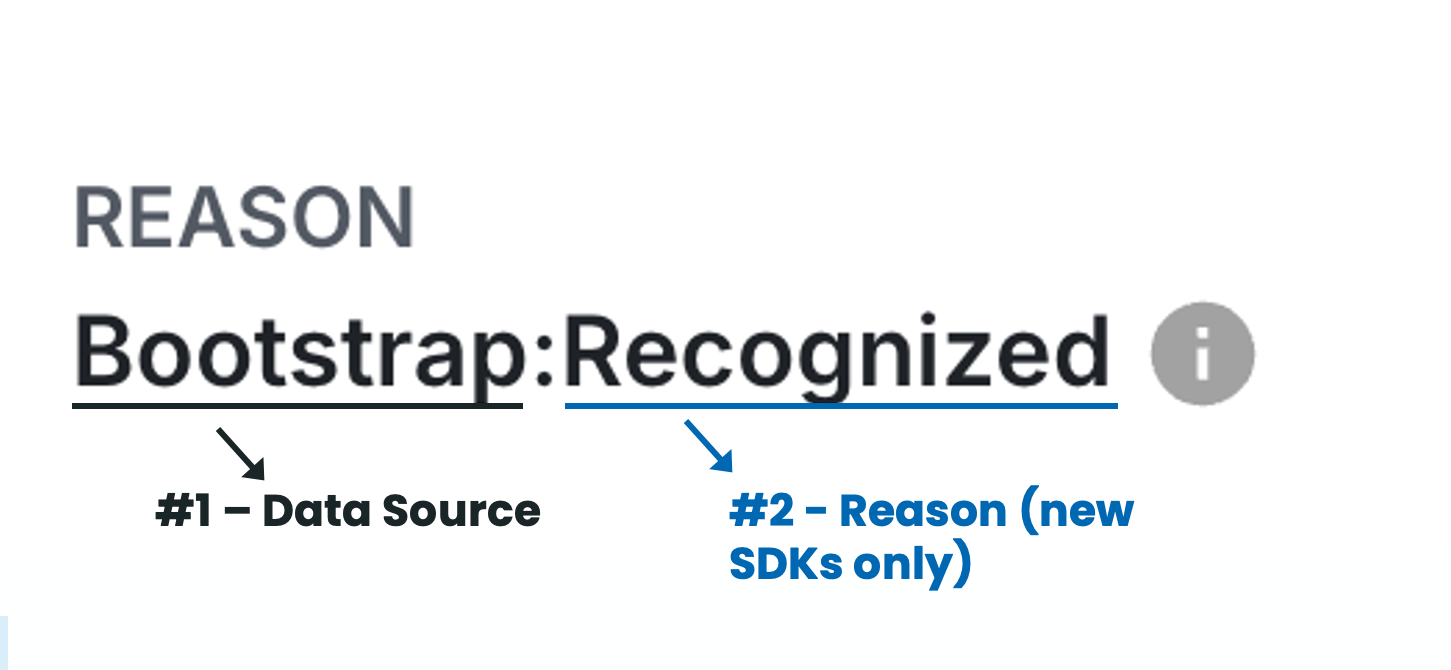
Data source
| Source | Description | Type | Debugging Suggestions |
|---|---|---|---|
Network | Values fetched during initialization from Statsig servers. | Normal | None |
Bootstrap | Supplied during bootstrap (often from a server SDK). | Normal | None |
Prefetch | Loaded through the prefetchUsers API (JS only). | Normal | None |
NetworkNotModified | Network request succeeded but cached values were already current. | Normal | None |
Sticky (legacy) | Persisted from a sticky evaluation. | Normal | None |
LocalOverride (legacy) | Set locally through override APIs. | Normal | None |
Cache | Served from local cache because network values were unavailable. | Warning | Ensure initialize() has completed before checks run. |
InvalidBootstrap / BootstrapPartialUserMatch | Bootstrap values were generated for a different user profile. | Error | Refer to Fixing InvalidBootstrap. |
BootstrapStableIDMismatch | StableID differed between bootstrap and runtime user. | Error | Refer to BootstrapStableIDMismatch. |
Error | A generic evaluation failure that was logged to Statsig. | Error | Ask for help in Slack. |
Error:NoClient (JS) | No Statsig client was found in context. | Error | Wrap checks in <StatsigProvider> or equivalent. |
Unrecognized (legacy) | The definition was missing from the initialize payload. | Error | Confirm the config exists and you use the correct API key. |
NoValues | Initialization ran but failed to retrieve values. | Error | Verify client key and network connectivity. |
Loading | Initialization is still in progress. | Error | Await initializeAsync() or guard checks until ready. |
Uninitialized | Initialization never started. | Error | Call initializeAsync()/initializeSync() explicitly. |
UAParserNotLoaded | UA parsing was disabled while targeting relies on it. | Error | Remove UA-based targeting or re-enable parsing. |
CountryLookupNotLoaded | Country lookups were disabled while targeting relies on them. | Error | Avoid IP-based targeting or re-enable lookups. |
Reason (new SDKs only)
| Reason | Description | Type | Debugging Suggestions |
|---|---|---|---|
Recognized | The definition was present and matched the current values. | Normal | None |
Sticky | Result persisted because keepDeviceValue was set. | Normal | None |
LocalOverride | Value came from a developer override. | Normal | None |
Unrecognized | Definition missing from the payload. | Warning | Often expected. Refer to Why an entity is excluded from the initialize payload. |
Filtered | Definition dropped from /initialize because the gate resolved to a false default. | Normal | Refer to Why an entity is excluded from the initialize payload. |
Why an entity is excluded from the initialize payload
When a client SDK initializes, Statsig evaluates every gate, experiment, and dynamic config on the server and returns the results as a flat lookup map called the initialize payload. To keep that payload small and to avoid exposing configs to client code, Statsig leaves some entities out. When you check an entity that isn't in the map, the SDK returns the default value and reports the Unrecognized reason. This is often expected, not an error.
Statsig excludes an entity from the initialize payload when any of these conditions apply:
- Segments and holdouts: Statsig never sends these to clients.
- SDK key entity allowlist: when the initialize options limit the payload to a specific set of gates, experiments, or configs, Statsig omits everything outside that set.
- Target app scoping: when the SDK key belongs to a target app, Statsig includes only the entities linked to that app. An entity with no target app doesn't reach a target-app-scoped key.
- Feature gate with a
falsedefault: On the standard hosted initialize path, Statsig applies a payload-size optimization that drops a gate when it resolves to its default value, that value isfalse, and it produces no secondary exposures. An enabled gate with no rules falls through to afalsedefault, so the optimization omits it. Statsig can turn this optimization on or off, and it's the most common cause of an unexpectedUnrecognizedexposure. - Experiment allocated to a layer: On the standard hosted initialize path, Statsig applies an optimization that serves the layer and omits the underlying experiment.
- The entity doesn't exist: a deleted or renamed entity, or an entity in a different project, has no definition to return.
Unrecognized and Filtered describe the same event from two angles: Statsig leaves an entity out of the payload, and the client then finds the definition missing when you check it. The server-side evaluation path reports only Unrecognized. Filtered is a reason that some client SDKs emit when they recognize the default-value optimization directly. Because most payloads come from the hosted path, a default-false gate that Statsig omits shows up as Unrecognized for most customers, which is expected.
Tell an expected omission from a misconfiguration
Read the reason together with the entity's setup to decide whether omission is intentional.
| What you see | Likely cause | What to do |
|---|---|---|
Unrecognized on a gate with no rules | The gate defaults to false, so Statsig filters it from the payload. | Expected. Take no action, or add a rule so the gate returns a non-default value. |
Unrecognized on an entity meant for this app | The entity has no target app matching the SDK key. | Associate the entity with the target app. Refer to Target Apps. |
Unrecognized on every entity | The SDK key belongs to a different project or environment. | Verify the client key. |
Unrecognized after an entity changes | Someone deleted or renamed the entity. | Confirm the entity exists under the name you check. |
Evaluation times
Evaluation timestamps reveal whether an SDK is serving fresh definitions. An up-to-date LCUT (Last Config Updated Time) indicates the SDK has the latest changes. If LCUT lags behind, users may be seeing stale values. LCUT can lag because a browser tab remained open or because a server integration can't sync.
| Time Field | Description | SDKs |
|---|---|---|
LCUT | Time of the most recent config change reflected in the SDK. | JavaScript (incl. React & RN), iOS, Dart |
receivedAt | Timestamp when the client obtained the current values. | JavaScript (incl. React & RN), iOS, Dart |
Mocking Statsig / local mode
Use the following tools to validate code paths without making network requests:
- Local mode: Set
localModetotrueso the SDK skips network calls and returns default values. Local mode is useful for tests and offline environments. - Override APIs: Call
overrideGateandoverrideConfigto force specific values for an individual user or globally.
Use both techniques together to exercise each branch of your application before shipping.
Client SDK debugger
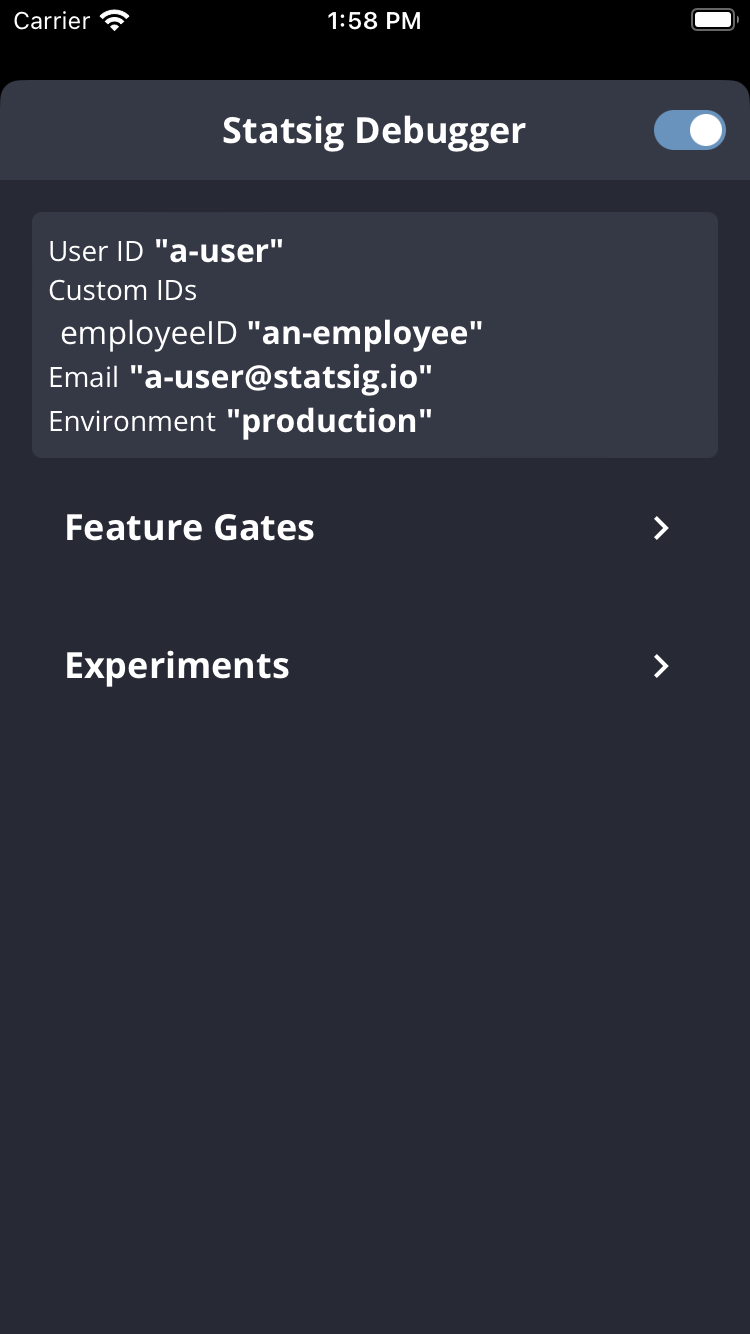
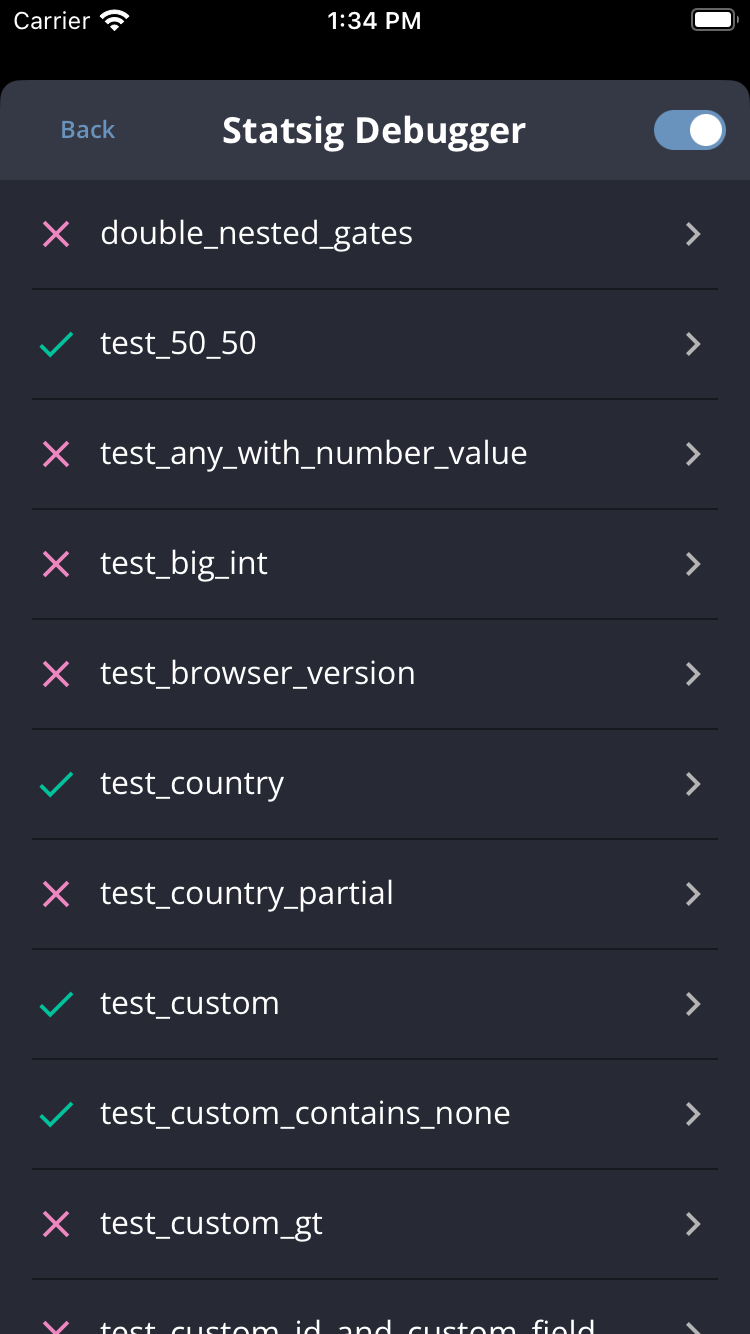
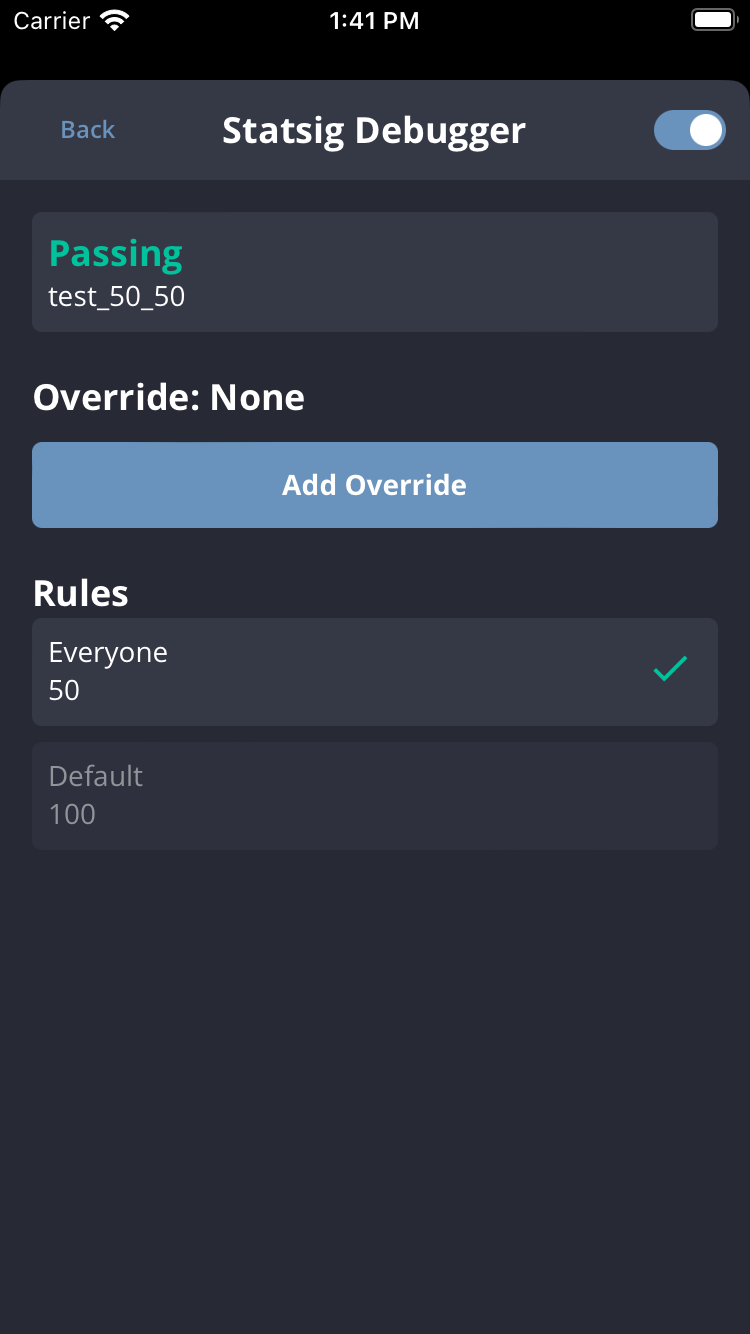
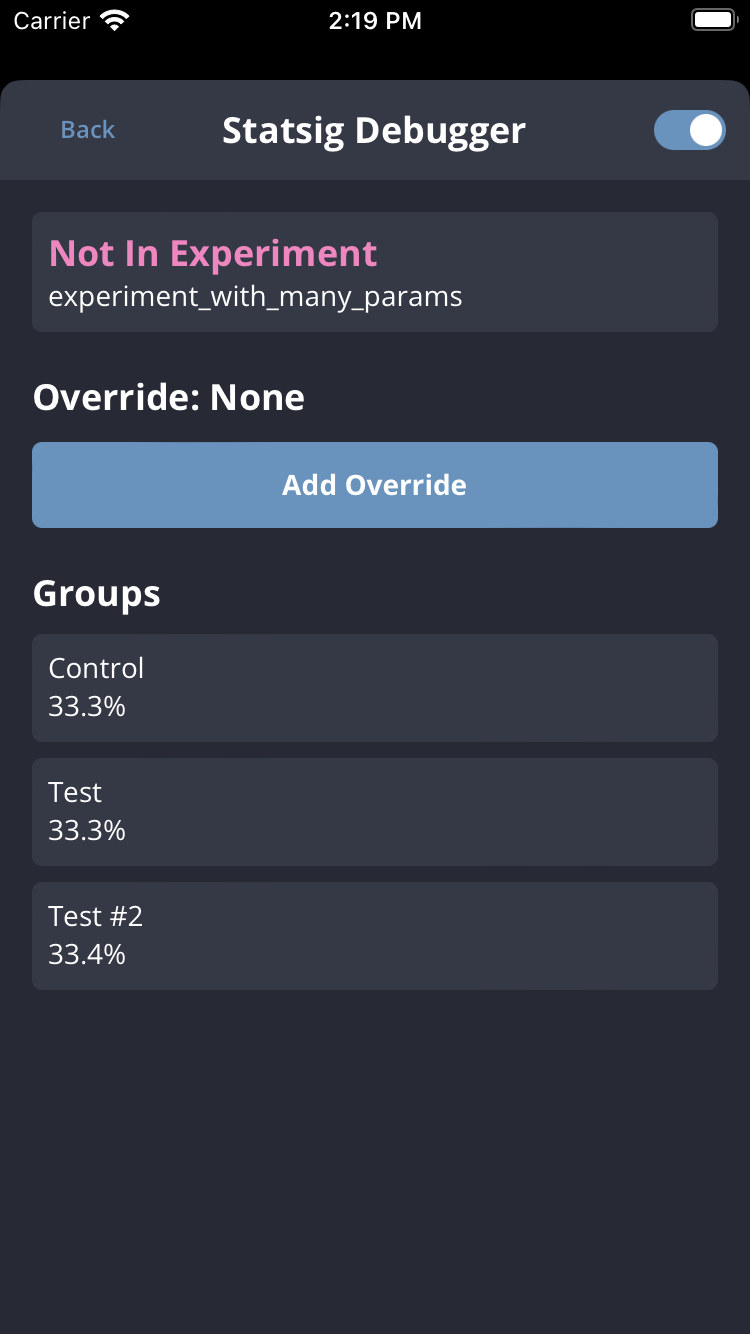
Inspect the exact values a client SDK is using by opening the Client SDK Debugger. The debugger exposes the active user object and every gate/config tied to that client.
- JavaScript / React: Use the Chrome extension.
- iOS: Call
Statsig.openDebugView()in v1.26.0 or later. - Android: Call
Statsig.openDebugView()in v4.29.0 or later.
The Chrome extension doesn't support accounts that sign in to the Statsig console through Google SSO.
| Landing | Gates List | Gate Details | Experiment Details |
|---|---|---|---|
 |  |  |  |
FAQ
For SDK-specific edge cases, check each SDK’s FAQ or contact the Statsig team in the Statsig Slack community.
Invalid bootstrap
InvalidBootstrap occurs when you bootstrap a client SDK with values generated for a different user profile. The bootstrap user must exactly match the runtime user object.
// Server side
const userA = { userID: 'user-a' };
const bootstrapValues = Statsig.getClientInitializeResponse(userA);

// Client side
const bootstrapValues = await fetchStatsigValuesFromMyServers();
const userB = { userID: 'user-b' }; // <-- Different from userA
await Statsig.initialize('client-key', userB, { initializeValues: bootstrapValues });
Even subtle differences count as a mismatch. Adding customIDs or other attributes results in a distinct user object.
const userA = { userID: 'user-a' };
const userAExt = { userID: 'user-a', customIDs: { employeeID: 'employee-a' } };
BootstrapStableIDMismatch
BootstrapStableIDMismatch is similar to InvalidBootstrap but focuses on stableID. Client SDKs generate a stable ID automatically when you don't provide one, so mixing empty user objects between server and client code can cause drift.
// Server side
const userA = {};
const bootstrapValues = Statsig.getClientInitializeResponse(userA);

// Client side
const bootstrapValues = await fetchStatsigValuesFromMyServers();
const userB = { stableID: '12345' }; // <-- Server user lacked a stableID
await Statsig.initialize('client-key', userB, { initializeValues: bootstrapValues });
Even if both sides start with {}, the client-generated stable ID may not match the server’s stable ID, which triggers the same mismatch warning.
const userC = {}; // Client SDK auto-generates a stableID
await Statsig.initialize('client-key', userC, { initializeValues: bootstrapValues });
Environments
SDKs inherit their environment from initialization options. If you don't provide an environment, the SDK defaults to production. To verify which environment a user evaluated under, open the diagnostics log stream and inspect the statsigEnvironment property on the exposure entry.
Maximizing event throughput
Python SDK v0.45.0+ introduces tunables that help handle high event volume without drops.
The SDK batches events and retries failures in the background. When throughput spikes, adjust these options to reduce dropped events:
eventQueueSize: Number of events flushed per batch. Larger batches increase throughput but use more memory. Keep the value under approximately 3000 to avoid oversized payloads.retryQueueSize: Number of batches kept for retrying. The default is 10. Raise this value to retain more data at the cost of higher memory usage.
Tune both settings to match your traffic profile.
Was this helpful?