For AI agents: a documentation index is available at /llms.txt. Append .md to any page URL for markdown, or send Accept: text/markdown.
Single Sign-On With OIDC
Overview of Single Sign-On with OIDC in Statsig, supported identity providers, and how to enable SSO for Enterprise customers and large organizations.
SSO is an Enterprise feature. Contact the support team, your sales contact, or the Slack community if you need to enable Enterprise features as you try out Statsig.
This documentation assumes that you already have an OIDC Provider running.
You can configure Single Sign-On (SSO) with OIDC for your Statsig Organization. SSO lets you continue using your company's identity store with Statsig and reduces the steps for inviting your team to your Projects. Statsig automatically provisions new users after they authenticate with your Identity Provider. Organizations are an Enterprise Tier feature. If your SSO requires multi-factor authentication (MFA), Statsig automatically requires MFA when your users sign into Statsig with SSO enabled.
Supported providers
Statsig supports any Identity Provider (IdP) that implements the OIDC protocol for SSO. Statsig provides custom documentation for the following OIDC providers:
- Okta
- Microsoft Entra ID (AzureAD)
- Ping Identity
- Be sure to include
openidandemailin the scopes
- Be sure to include
- OneLogin
Configure SSO with OIDC
In your Identity Provider
Specify the following for your Statsig App:
- Sign-in redirect URI: https://console.statsig.com/sso/oidc (and https://latest.console.statsig.com/sso/oidc if possible)
- Sign-out redirect URI: https://console.statsig.com
- Sign-in URI: https://console.statsig.com/sso
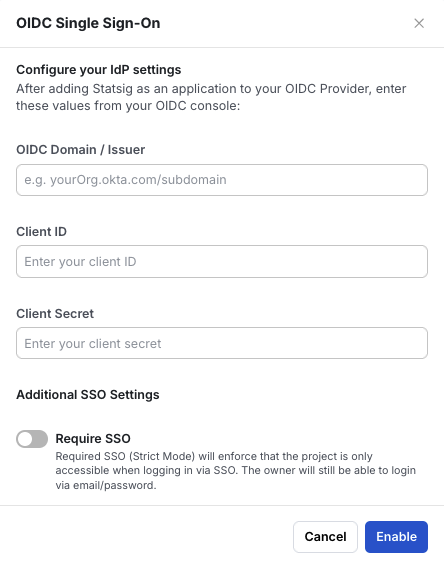
To enable SSO in Statsig, collect the following from your OIDC Provider:
- OIDC Domain
- Client ID
- Client Secret
In Statsig Console
After you have obtained all of the information from your OIDC Provider:
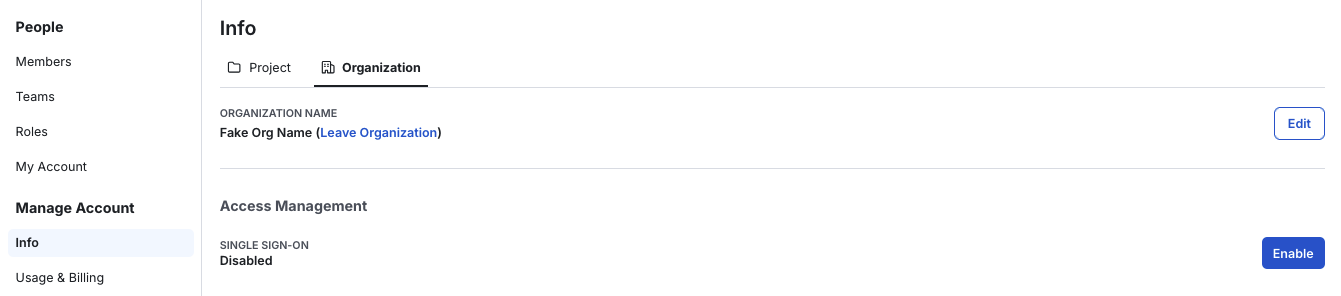
- Navigate to your Organization's
Info Settingspage and click theEnablebutton for Single Sign-on.
You need an Owner/Admin role in your Statsig organization to configure SSO on Statsig
- Provide the information acquired from your OIDC Provider into the fields in the dialog and click
Enable.
- After clicking Enable, Statsig displays an SSO link that you can send to your team to allow them to log in to Statsig through your OIDC Provider.

By default, Statsig assigns users provisioned through SSO the "Member" role in the organization. If the organization has only one open project, users who sign in through an SSO link automatically join any Projects that have SSO enabled with the same OIDC Provider. If there are multiple projects, Statsig adds users to the organization, but they need to request to join open projects or receive an invitation to closed projects.
Enabling Strict SSO requires that all members of a Project besides the Owner log in to the Statsig Console through SSO with the configured provider to access the Project.
Break glass scenarios
If you have configured SSO as required and your SSO configuration becomes corrupted, Statsig blocks users from logging in. In that case, the user with the Owner role can use the break glass URL to sign in with a password, bypassing SSO. The break glass URL is https://console.statsig.com/login?method=password-only
Was this helpful?