Slack Notifications
The Statsig Slack integration lets you receive updates where your team already works. You can connect Slack to get **project-level**, **team-level**, or **personal notifications**.
Depending on your organization’s Slack settings, you may need help from a Slack Admin to complete setup.
The Statsig Slack integration connects your experimentation platform with your team's Slack workspace. After you enable this integration, you receive real-time updates and alerts about changes to your feature gates, experiments, and dynamic configs without checking the Statsig console or the operational health status page.
Set up the Slack integration
Step 1: In your Statsig Console, go to Statsig Settings -> Integrations.
Step 2: Select Slack and click + Add Connection.
Step 3: Allow the Statsig app to connect to your Slack workspace and the Slack channel where you want to receive Statsig notifications.
Product notifications
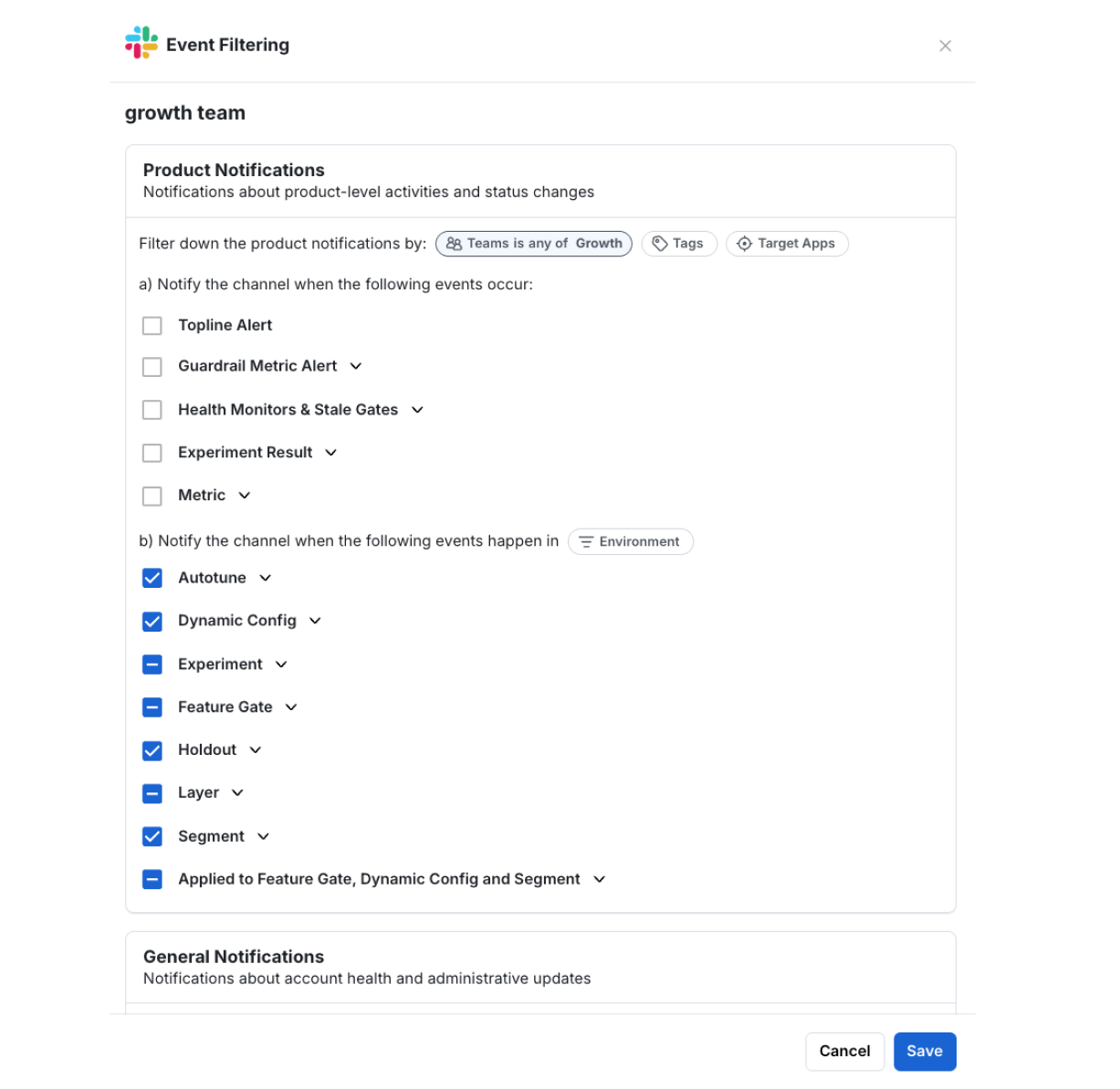
Step 4: Filter to the relevant Team, Tags, or Target Apps.
Step 5: Choose the notifications about product-level activities and status changes you want to subscribe to.
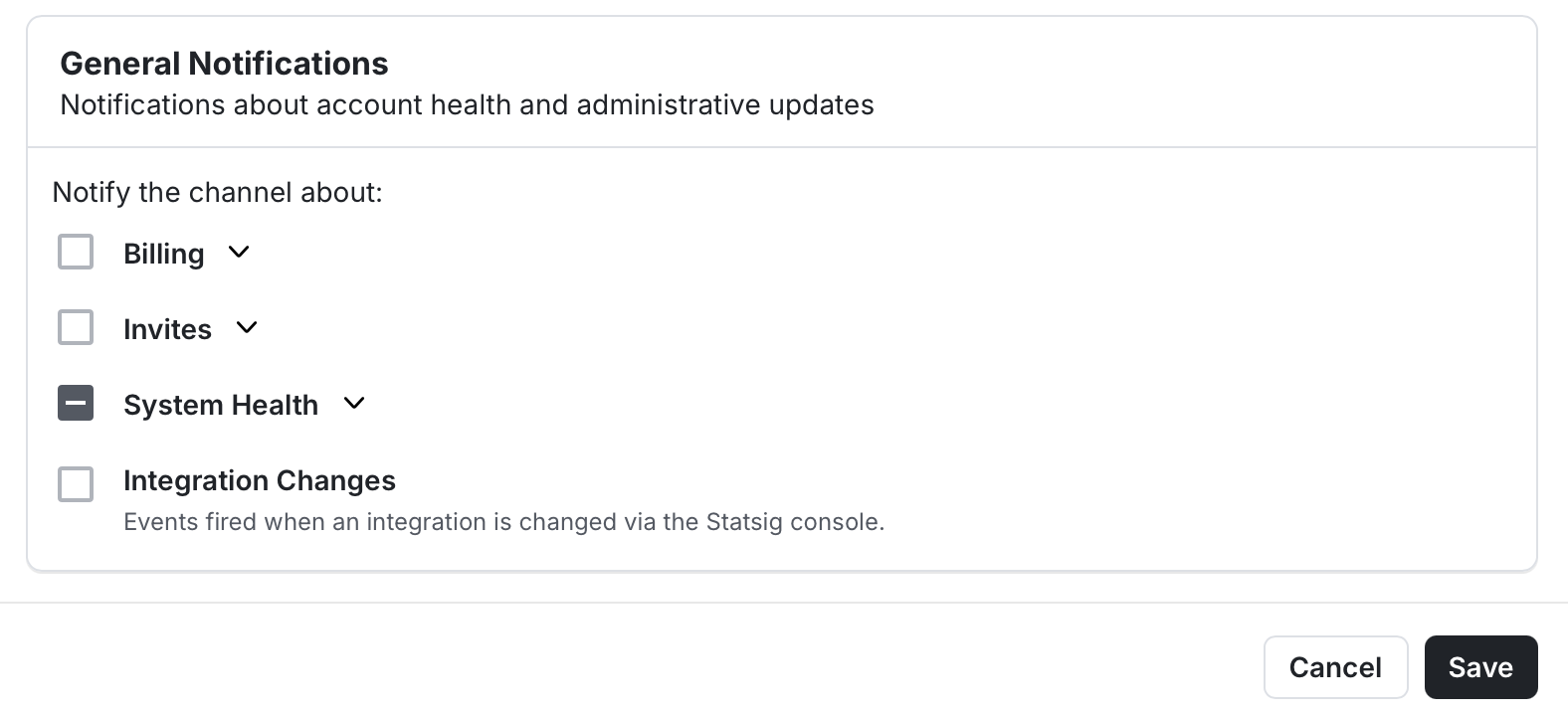
General notifications
Step 6: Choose the notifications about Statsig system status or administrative updates you want to subscribe to.
Personal notifications
Step 7: Go to Settings -> My Account and navigate to the Notifications section. You can also manage your email notification preferences here.
After you enable personal notifications, Statsig sends you updates when you're tagged in discussions, invited to review a change, or when a feature gate, experiment, or dynamic config you follow changes. To follow a dynamic config, open it in the console and select Follow. For more detail, refer to Follow a dynamic config.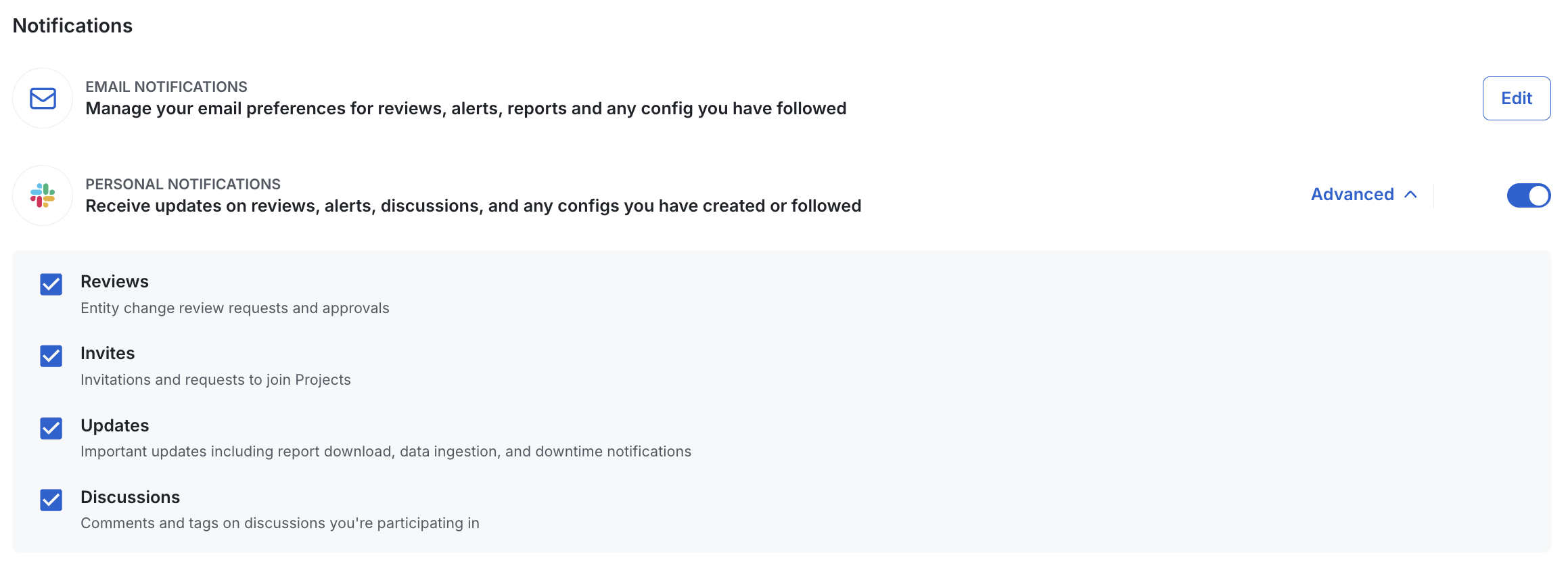
Was this helpful?