For AI agents: a documentation index is available at /llms.txt. Append .md to any page URL for markdown, or send Accept: text/markdown.
Server SDKs
Introduction to Statsig server SDKs for backend services, including supported languages, evaluation behavior, and the Server Core framework.
Statsig server SDKs allow you to run experiments for server-side functionality such as APIs, algorithms, configurations, and infrastructure improvements. The server SDKs evaluate feature gates, dynamic configurations, and experiments locally on your application server.
Implementing an experiment using a Statsig server SDK consists of three phases:
- Initialization
- Checking an Experiment
- Logging Custom Events
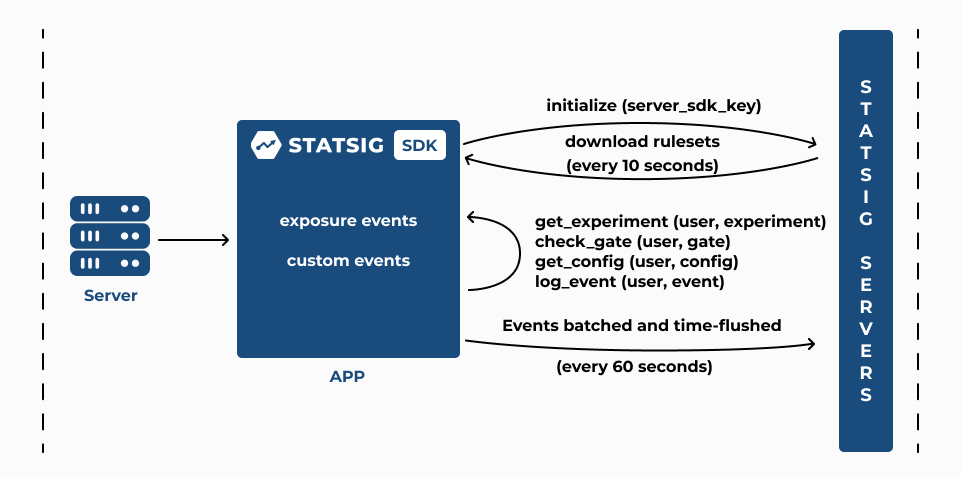
1. Initialization
The server SDK's
initializecall takes the server SDK key and makes a network request to Statsig servers. The request fetches all the rule sets (experiments, feature gates, and configurations) to your application server.The SDK loads all required configurations to enable local evaluation of experiments, gates, and configs without additional network requests.
2. Checking an Experiment
After the
initializecall completes, thegetExperimentcall with a StatsigUser object synchronously returns the variant assigned to the user. You define these parameters when you set up an experiment on the Statsig console. Use the returnedconfigobject togetthe value of the parameters required to implement the experiment variant.If your experiment is part of a Layer, the
getLayercall with a StatsigUser returns the variant assigned to the user. Use the returnedlayerobject togetthe value of the parameters required to implement the experiment variant.The
checkGatecall with a StatsigUser returns true if the user passes the feature gate rules configured on the Statsig console, and false otherwise.The
getConfigcall returns the dynamic configuration based on the rules configured to target your users. Use the returnedconfigobject togetthe value of the parameters required to serve a dynamically configured app experience.All of the above (
checkGate,getExperiment,getLayer, andgetConfig) log an exposure at the time of the check, before returning a value to the caller.The server SDK automatically flushes all accumulated exposure checks and events to Statsig servers every 60 seconds.
Call
shutdownto force a flush of accumulated exposure checks to Statsig servers. Callshutdownwhen the application is about to exit. Callingshutdownat exit is especially important for short-lived processes like serverless functions.Verify that the Statsig console records exposure events by checking the live Exposure Stream under the Diagnostics tab of your experiment.
Statsig updates the Users and Checks charts in the Diagnostics tab hourly. Statsig updates the Metrics Lift panel in experiment Results daily around 9am PST.
Updating experiment configuration
- The SDK automatically polls Statsig servers every 10 seconds (configurable) to fetch updated rule sets.
Why is StatsigUser with a userID required for server SDKs?
Refer to UserID Requirements to understand why having a unique userID in the StatsigUser object is required for server SDK usage.
Setting Default Parameter Values
Include a default value when you make the get call to fetch a parameter value from the returned config object. Including a default value ensures your application falls back to that value for a parameter you haven't yet configured in an experiment, layer, or dynamic config in the Statsig console. By default, Statsig returns false when you check a gate you haven't yet configured.
3. Logging Custom Events
The server SDK's
logEventcall takes a custom event to record and analyze the impact of the experiment on your users.The server SDK automatically flushes all accumulated logged custom events to Statsig servers every 60 seconds.
Statsig uses these custom events to compute metrics as part of your experiment Results. Statsig updates the Metrics Lift panel in the experiment Results tab daily around 9am PST.
To test your experiment in development or staging environments, set the environment tier in the initialize call. Verify that exposure checks are working by switching the toggle to Show non-production logs in the Exposure Stream under the Diagnostics tab for your experiment in the Statsig console. By default, the Exposure Stream shows exposure checks logged in production environments.
When testing in development or staging environments, target specific team members to see a specific variant by adding them to the override list of a rule or variant group using the Manage Overrides option.
To start integrating, go to the technical docs by language:
For questions, join the Statsig engineering and product team on the Statsig Slack channel.
Was this helpful?